Sign in to the customer portal
For people who bought from a store that uses Vipter. Sign in to the customer area with your e-mail and a 6-digit code, no password.
The customer area is where you see your orders, your subscriptions, your saved cards and the files you bought from a store. Each store has its own, and it only exists if the store turned it on. There is no password: you sign in with the e-mail used for the purchase.
Where to find the customer area
- On the purchase confirmation page, in the "Open my account" link, when the store has the customer area turned on.
- In the store's e-mails, on the "Open my account" button.
- At the address the store shares. It is usually
portal.vipter.com/followed by the store's name, or the store's own domain followed by/portal.
Step 1: enter your e-mail
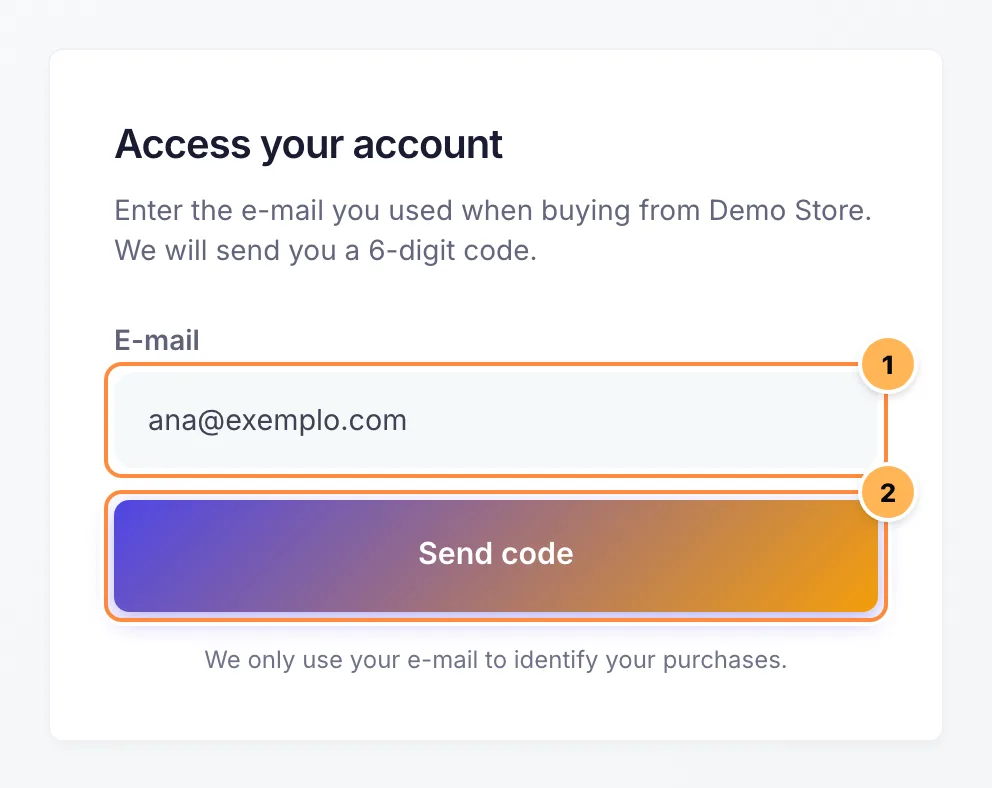
- Type the e-mail you used for the purchase.
- Click "Send code".
Step 2: open the e-mail
You get the e-mail "Your sign-in code for" followed by the store's name. It contains:
- a 6-digit code;
- an "Open my account" button, which signs you in directly, without typing the code.
The code and the button are valid for 15 minutes and can only be used once. If you asked for more than one code, only the last one works.
Step 3: sign in
Type the code on the screen and click "Sign in", or click the button in the e-mail. If you use the button, open it on the same device where you want to use the customer area.
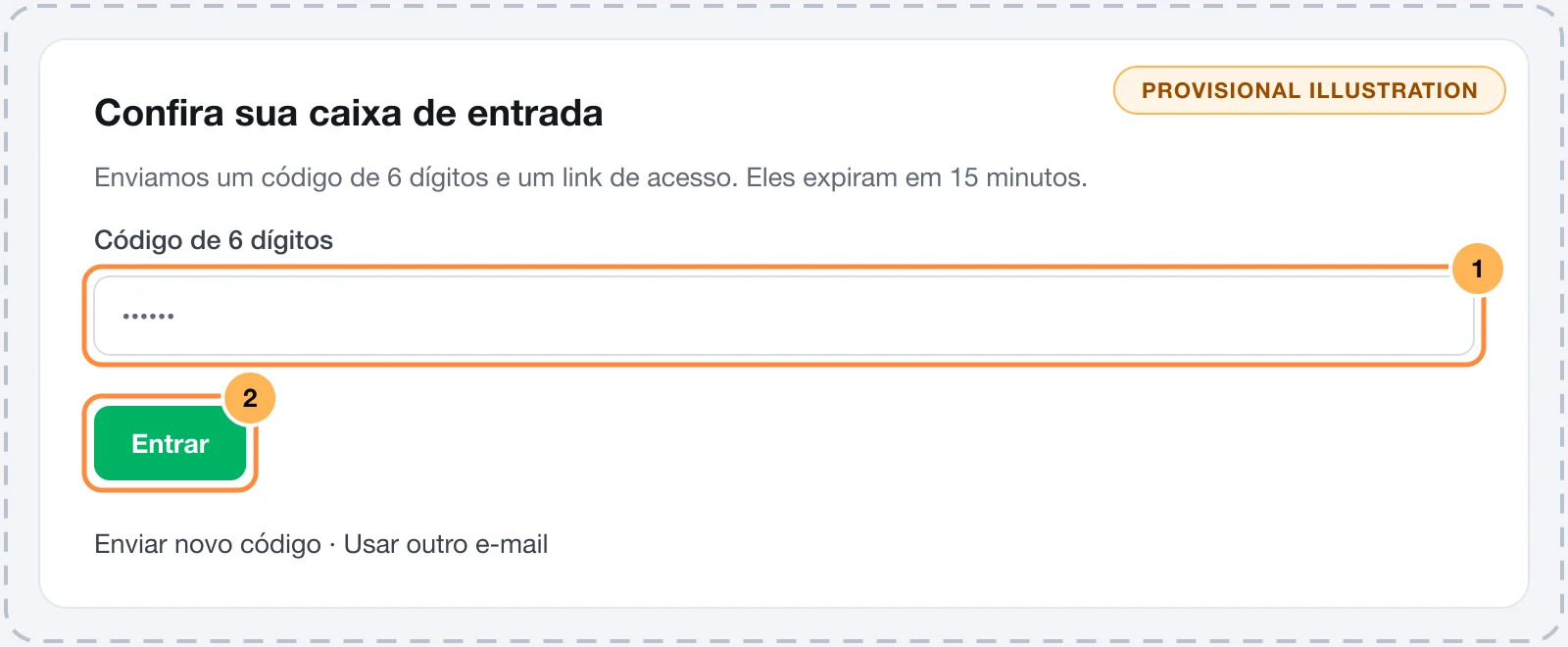
After signing in, you stay signed in on that browser for 7 days. To leave sooner, use "Sign out" in the menu. Always do this on a shared computer.
If the code doesn't arrive
- Check the spam folder and the promotions tab. The e-mail subject has the store's name.
- Check the e-mail you typed. For security, the screen is the same for any address, but the code is only sent if that e-mail has bought from the store. If you bought with another e-mail, click "Use another e-mail".
- Ask for a new code with "Send a new code". The previous code stops working.
Messages you may see
| What the screen says | What to do |
|---|---|
| Incorrect code. Check the digits and try again. | Type the code again, paying attention to the 6 digits. |
| This code has expired or was already used. Request a new one. | The 15 minutes have passed, the code was already used or there were too many wrong attempts. Ask for a new code. |
| This sign-in link is invalid or has expired. Request a new code. | The e-mail button was already used or 15 minutes have passed. Ask for a new code. |
| Too many attempts. Wait a few minutes and try again. | You asked for many codes in a short time. Wait a few minutes. |
| Your session has expired. Sign in again. | The 7 days have passed. Sign in again with a code. |
| This store has not enabled the customer area. | The store doesn't offer the customer area. Contact the seller to change the card or cancel. |
Change the account e-mail
The e-mail can't be changed in the customer area. On the profile page, you update your name and phone. To change the e-mail, contact the seller.
What to do next
Payment under review or declined
For buyers. What to do when the payment stays under review, when the card is declined, and what each message on the payment page means.
Change card or plan, or cancel your subscription
For people subscribed to a product from a store that uses Vipter. Change the card, switch plans, cancel or reactivate the subscription in the customer area.