Order bump
Offer another product in a checkout box that the buyer ticks with one click and pays in the same charge.
The order bump is a box on the checkout with an extra offer, such as "Yes, add the e-book for R$ 27 more". If the buyer ticks the box, the product joins the same order and is charged together, in the same payment. Each offer can have up to 3 order bumps.
The order bump happens before payment. To offer something after the buyer has already paid, in a separate charge, use the one-click upsell.
Before you start
- The main offer must be one-time. Subscriptions don't have order bumps.
- Another one-time offer to be the bump, from any of your products. See Create an offer.
- The Admin or Owner role in the Vipter project.
Step 1: open the order bumps card
Open CatalogProducts, click the product and then the main offer. On the offer page, the Order bumps card is below the Packs card. Click Add order bump.
Step 2: build the box
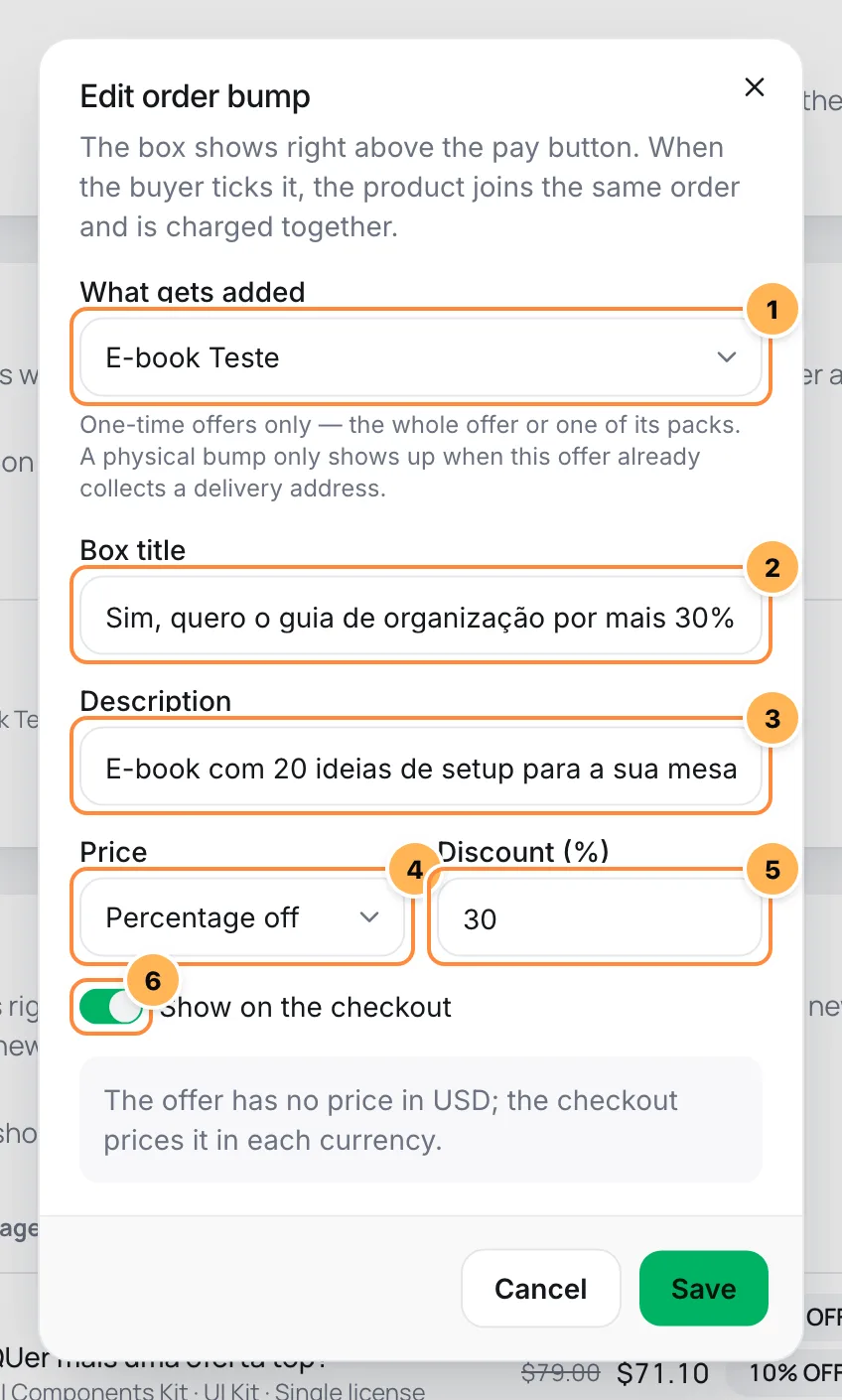
- What gets added: the offer the box adds. The list groups one-time offers by product and shows, for each offer, the offer itself and each of its packs. That way the box can sell 1 unit or a pack.
- Box title: the box's main text, up to 120 characters. Write it as the buyer's answer: "Yes, add the e-book for R$ 27 more".
- Description: optional, up to 300 characters.
- Price:
- Offer price: the price of the added offer, in the checkout currency. With a pack, the pack price.
- Percentage off: a discount on that price, greater than 0 and less than 100.
- Fixed price (BRL): a fixed price in the store currency, converted at the day's rate in other currencies.
- The discount or fixed price value. The preview below shows the full price, the bump price and the discount.
- Show on the checkout: when off, the box disappears from the checkout without being deleted.
Click Save.
Physical product as a bump
A bump for a product with delivery only shows when the main offer already asks for a delivery address. On a course, for example, a box with a printed book doesn't show.
To offer more units of the main product itself, pick a pack of the main offer, such as "get 2 more". The main offer on its own can't be a bump of itself.
Step 3: order and track
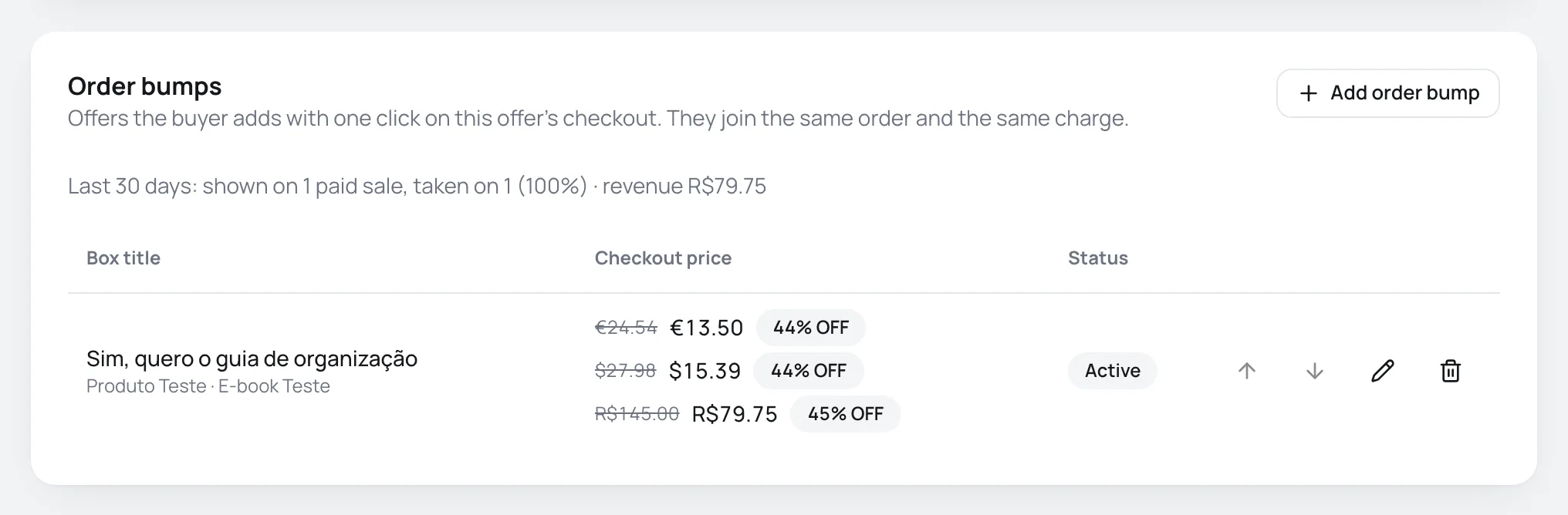
The card lists the order bumps in the order they show on the checkout. Use the arrows to change the order. Each row shows:
- the box title and what it adds;
- the Checkout price in each currency of the main offer, with the discount;
- the Status: Active, Paused or Unavailable, when the added offer was archived or no longer exists.
Above the list, the last 30 days summary shows in how many paid sales the bumps showed up, how many times they were accepted, the acceptance rate and the bump revenue.
How it looks on the checkout
The boxes sit right above the continue button on the details step, and above the pay button on the payment step. None comes ticked. When the buyer ticks a box on the payment step, the checkout recalculates the total and locks the pay button for a moment. If the chosen number of installments no longer exists for the new total, the choice resets to 1x.
It worked if
When you open the main offer's link, the box shows with its title, price and discount, and ticking the box adds the bump to the total.
Price and charging
- A single charge: the main offer and the ticked bumps go in the same payment, by card or PIX.
- Coupon: applies only to the main offer. The coupon discount never reduces the price of the bumps.
- Shipping: a bump with delivery adds its units to shipping and uses its own product's shipping class. The bumps' amount counts toward the free shipping minimum.
- Installments: interest is calculated on the total, including the bumps.
- Price safeguard: the bump never costs more than the full price of the added offer, and it's never free.
The order with an order bump
The order has one line for the main offer and another for each bump. The order list shows how many order bumps the order had, and on the order page the bump's line carries the Order bump badge.
- Invoice: a single invoice, with one line per item and the fiscal data of each product. The main product decides whether the invoice is an NF-e or an NFS-e (Brazil's electronic invoices for goods and for services).
- Member areas and downloads: the buyer gets access for each product in the order, including the bumps.
- Refund: to refund only the bump, make a partial refund of the line's amount. See Refunds.
Edit or delete
On the Order bumps card, the pencil opens the bump and the trash can deletes it. Deleting asks for confirmation: Delete the order bump "…"? It stops showing on the checkout; paid orders do not change.
Common problems
-
Create another one-time offer to use as an order bump.
The add button stays disabled until the store has another one-time offer.
-
To repeat this offer, pick one of its packs.
The main offer can only be a bump through one of its packs. Create a pack in Packs and pick it.
-
This combination is already an order bump of this checkout.
That offer or pack is already a bump of this offer. Edit the existing bump.
-
An offer can have up to 3 order bumps.
Delete or replace one of the bumps.
-
Subscriptions cannot be order bumps: pick a one-time offer.
Subscriptions can't be bumps. Pick a one-time offer.
-
The box doesn't show on the checkout
Check that the bump has Show on the checkout on, that the added offer isn't archived, and whether it's a product with delivery on a main offer without delivery.
What to do next
- Offer one more product after payment with the one-click upsell.
- Sell the bump as a pack by creating packs on the added offer.