Create an account and sign in
Create your Vipter account with e-mail or Google, confirm your e-mail, reset your password and accept an invitation to a store's team.
The account is yours and personal: with it you create stores or join the stores you were invited to. You can use e-mail and password or your Google account.
Create the account with e-mail and password
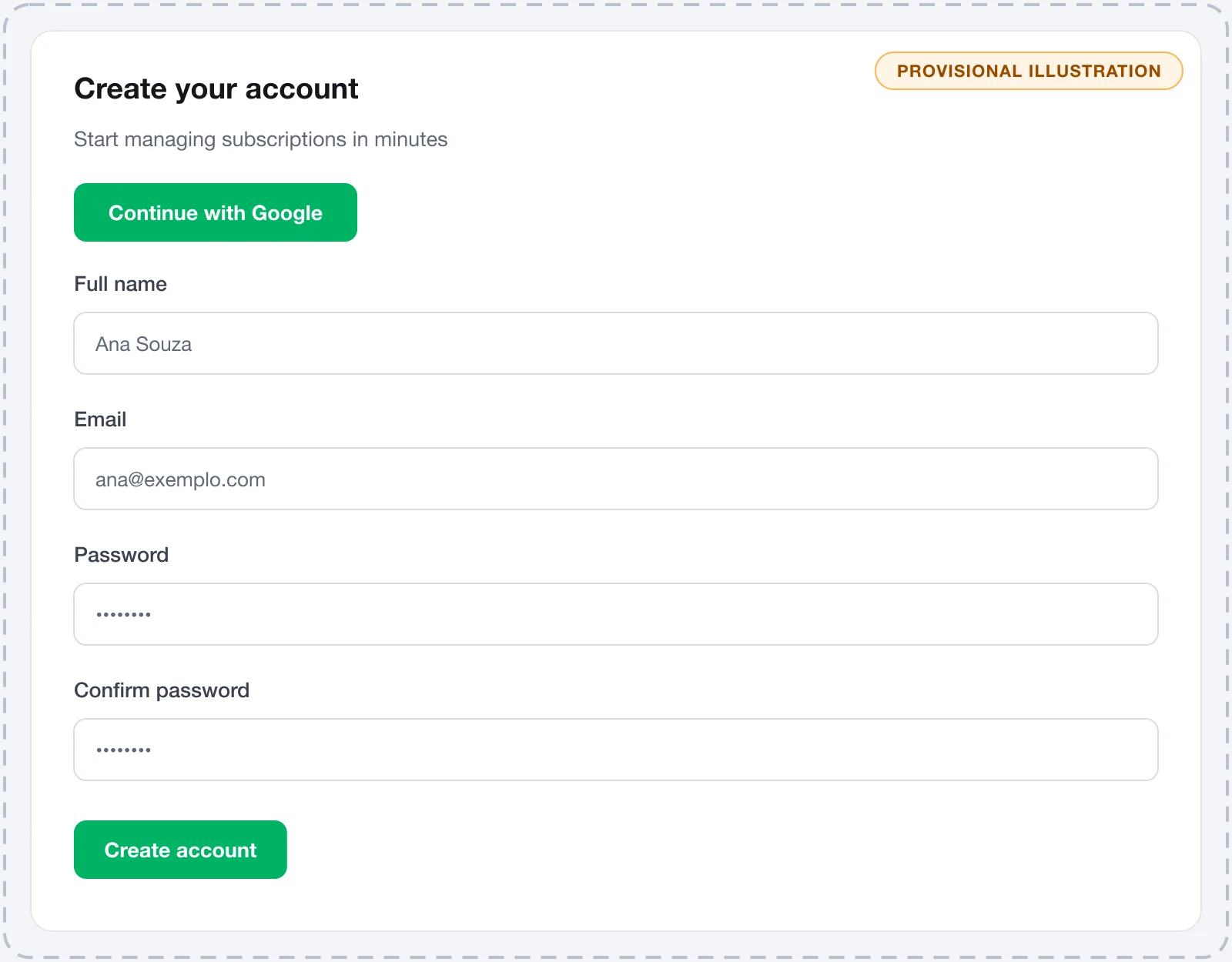
- Open the Vipter sign-up page and fill in Full name, Email, Password and Confirm password. The password must have at least 8 characters.
- Click Create account.
- The screen changes to Check your inbox. Open the confirmation e-mail Vipter sent and click the link.
Once you confirm, you are in the dashboard. If you don't have a store yet, you go straight to creating your first project.
If the e-mail doesn't arrive within a few minutes, check your spam folder and use the Resend email button on the same screen.
Sign in with Google
On the sign-up and sign-in pages, click Continue with Google and pick your Google account. There is no need to confirm your e-mail: Google already confirms it is yours. If there is no Vipter account with that e-mail yet, it is created at that moment.
Sign in
On the sign-in page, enter Email and Password and click Sign in, or use Google. Vipter opens the last store you worked on.
Reset your password
- On the sign-in page, click Forgot your password?.
- Enter the account's e-mail and click Send reset link. For security, the response is the same whether or not an account exists with that e-mail.
- Open the link in the e-mail. On the Choose a new password screen, fill in New password and Confirm new password and click Update password.
To change your password while inside the dashboard, use My profile in the menu under your photo, at the top of the screen.
Accept a team invitation
When someone adds you to a store's team, you get an e-mail with the Accept invitation button. The link is valid for 7 days. Opening the link means accepting: there is no other button to confirm.
- Click Create account and join.
- The e-mail is already filled in and cannot be changed, because the invitation is for it. Fill in your name and password and click the button to create the account.
- You go straight into the store that invited you, with no confirmation e-mail and without creating a store of your own.
You can also use Continue with Google, as long as it is the Google account of the invited e-mail.
It worked if
The store that invited you opens in the dashboard. With the Sales role, the menu shows the home page, sales and the catalog. With Admin, payments, integrations and settings show up too.
Common problems
-
Please confirm your email before signing in.
You created the account with a password and haven't opened the confirmation link yet. Look for the confirmation e-mail, including in your spam folder, and open the link.
-
Invalid email or password.
Check the e-mail and password. If you created the account with Google, sign in with the Google button.
-
An account with this email already exists.
This e-mail already has an account. Sign in with it or reset the password.
-
This password is too easy to guess. Use a longer one that mixes words, numbers or symbols.
Choose a longer, less predictable password.
-
This link is invalid or has expired. Request a new one.
The reset link was already used or expired. Request a new one in Forgot your password?.
-
This invitation has expired or was revoked. Ask for a new one.
The invitation is more than 7 days old or was revoked. Ask the person who invited you to send the invitation again.
What to do next
- Create your first project, if you are going to build your own store.