Connect Google Analytics 4
Send visits, checkout steps and purchases to GA4, from the browser and through the Measurement Protocol, including renewals and refunds.
With Google Analytics 4 connected, the GA4 tag loads on the checkout and the thank-you page and records the purchase funnel using Google's e-commerce standard. With the Measurement Protocol API secret, Vipter also sends from the server the purchases confirmed after the buyer closed the page, subscription renewals and refunds.
Before you start, it helps to read how conversion tracking works.
Before you start
- A GA4 property with a Web data stream and editor or administrator access to it.
- The Admin or Owner role in the Vipter project.
- At least one product created in Vipter.
Step 1: copy the Measurement ID and create the API secret in GA4
- In GA4, click Admin, in the bottom-left corner, open Data streams and choose the Web stream.
- Copy the ID that starts with
G-(the Measurement ID). - On the same page, open Measurement Protocol API secrets and click Create. Give it a nickname, such as "Vipter", and copy the secret value.
Keep the secret safe
With this secret, anyone can send events to your property. Paste it only into Vipter. Once saved, it is not shown again.
Step 2: connect the account in Vipter
- In the Vipter dashboard, open GeneralConversionsAccounts and click Connect account. Choose Google Analytics 4.
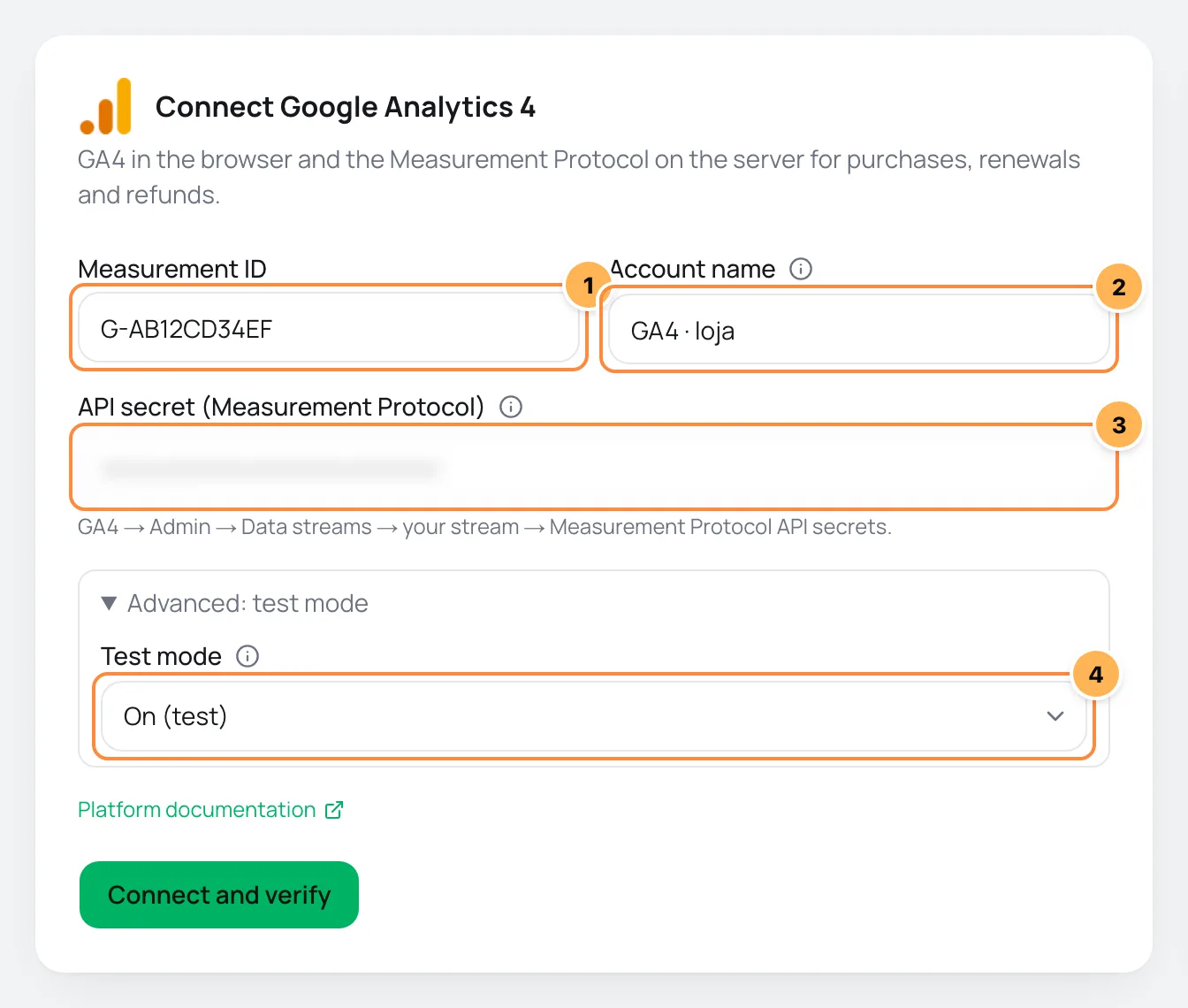
- Fill in the numbered fields. Test mode is under Advanced: test mode.
| # | Field | What to paste |
|---|---|---|
| 1 | Measurement ID | The ID starting with G- from step 1, such as G-AB12CD34EF. |
| 2 | Account name | A name to recognize the account, such as "Store GA4". If left blank, it is "Google Analytics 4". |
| 3 | API secret (Measurement Protocol) | The Measurement Protocol API secret from step 1. Without it, events only go out from the browser. |
| 4 | Test mode | When on, server events go to Google's validation server and don't show in reports. Leave it off to sell. |
- Click Connect and verify and then Continue.
- Check the products where GA4 should record sales and click Finish. Turn on Use automatically on new products to include products created later.
Google doesn't confirm the secret right away
GA4 cannot validate an API secret; it is confirmed on the first delivery. The verification shows Token not verified until the first sale.
Step 3: test
- Open the account in Accounts, on the Connection tab.
- Click Send test event. Vipter sends a test purchase to Google's validation server, which checks the event's format and records nothing in the reports.
- To see the browser events, open the checkout of a product linked to the account and watch the GA4 realtime report.
It worked if
The test shows Test event accepted by the platform (HTTP 200)., the GA4 realtime report shows the checkout visit and, after the first sale, the verification shows when the first sale was sent from the server.
If you turned on test mode, turn it off in Connection and click Save.
What Vipter sends to GA4
| Event in Vipter | Name in GA4 |
|---|---|
| Page view | page_view |
| Checkout started | begin_checkout |
| Lead (contact filled) | generate_lead |
| Shipping chosen | add_shipping_info |
| Payment started | add_payment_info |
| PIX generated | pix_generated (custom event) |
| Purchase | purchase |
| Subscription started | subscribe (custom event) |
| Renewal | purchase, with the subscription_renewal parameter (server only) |
| Refund / chargeback | refund (server only) |
- Events carry the value, the currency and the order's items. The purchase carries the order ID as
transaction_id, and GA4 uses this ID to avoid counting the same purchase twice when it arrives from both the browser and the server. - Renewal and Refund / chargeback start off. Turn them on in What to send if you want to see renewals and refunds in GA4.
- In What to send, also choose the Conversion value and the Value currency.
Common problems
-
Invalid format on the ID field
The ID doesn't follow the format
G-followed by letters and numbers. Copy the Web stream's ID, which starts withG-, not the property number. -
Sales confirmed by the server don't show in GA4
Test mode is on, and server events are going to the validation server. Turn off test mode in Connection.
-
No sale arrives from the server
The secret was deleted in GA4 or pasted wrong. Create another secret in the data stream and paste it in Connection. Google's response shows in GeneralConversionsActivity.
What to do next
- Also connect Meta Ads.
- Paste the UTM script on your sales page to keep the visit's source all the way to the checkout.