Order detail
Read each card on an order's page, from what was bought to payment attempts, invoices, downloads and the sale's source, and see what each role can do there.
To open an order, go to SalesTransactions and click the row or the order number. The page gathers everything about that sale: what was bought, how it was paid, what the provider answered, what was sent to the buyer and who on the team touched it.
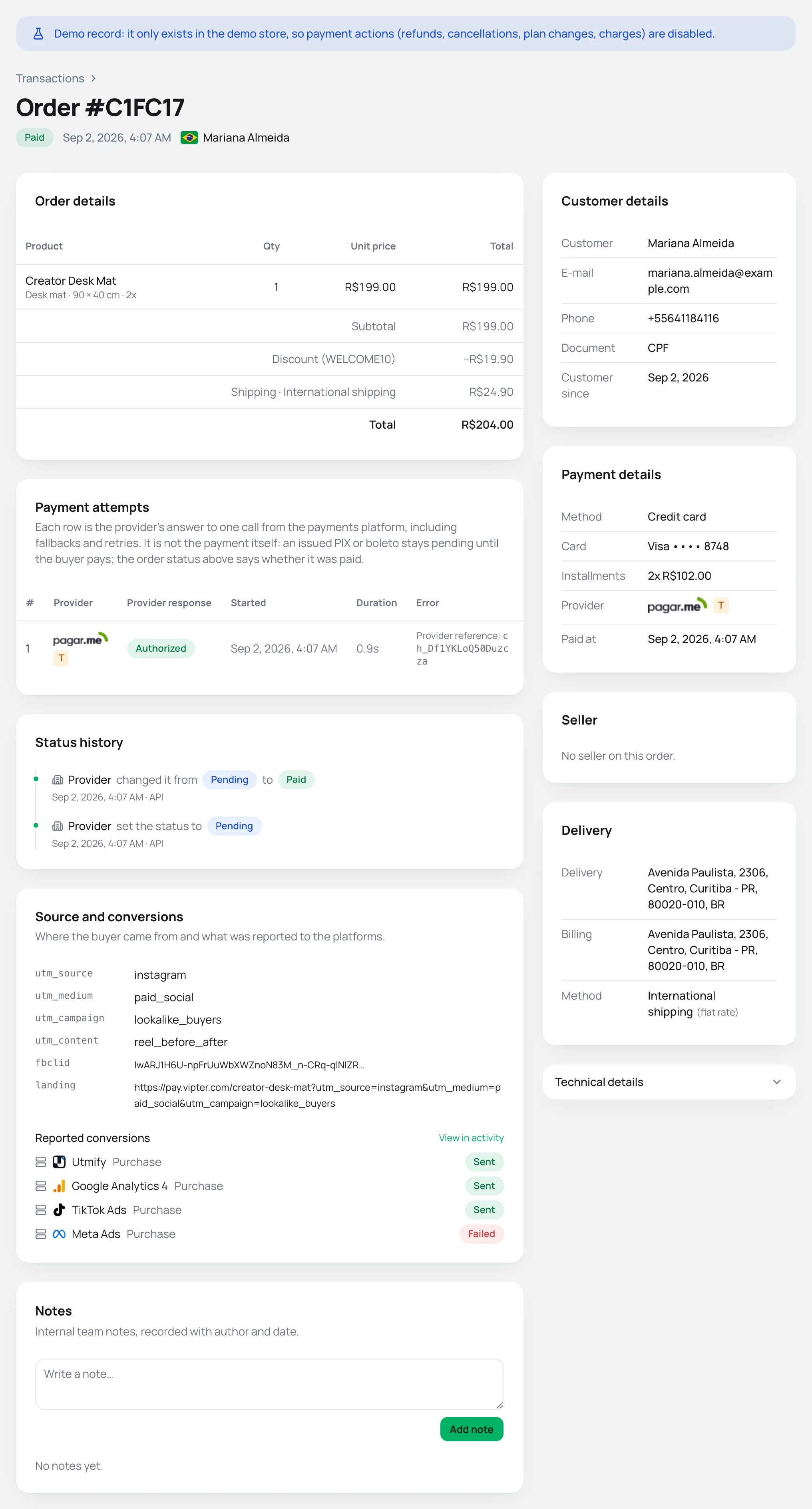
The top of the page
The title is the short order number, such as #C1FC17. On a subscription extra charge, the title is the charge's description. Next to it you see:
- the order status;
- the Manual badge, when someone on the team set the status by hand. See Change the status manually;
- the Retried badge, when the payment needed more than one attempt or moved to a fallback account;
- the order's date and time and the buyer's name, which leads to the customer's page.
The action buttons sit on the right. Which ones show depends on the status and on your role:
| Button | When it shows | Who sees it |
|---|---|---|
| Change status | One-time orders that are pending, declined or canceled, and orders the team already marked as paid or canceled. | Sales, Admin and Owner |
| Refund | Paid or partially refunded orders, while there is still an amount left to return. | Admin and Owner |
| Capture and Void | Pre-authorized orders. | Admin and Owner |
| Resync | Every order with a recorded payment. It fetches the order's status, attempts and refunds from the payment platform again. | Admin and Owner |
The first three are explained in Refund, capture and void and Change the status manually.
When the project is suspended, the page is read-only for every role.
Demo orders
In the demo store, the sample orders show the Demo record: it only exists in the demo store, so payment actions (refunds, cancellations, plan changes, charges) are disabled. notice and have no action buttons.
If the team marked the order as paid and the provider also recorded the payment, a yellow Possible duplicate payment alert shows below the title. See what to do in Change the status manually.
Order details
The Order details card lists what was bought:
- each product, with the offer, the pack (Pack: 3 units) and the installments, when there are any. An order bump shows with the Order bump badge;
- Qty, Unit price and Total for each line;
- when present, Subtotal, Discount with the coupon codes, Shipping with the shipping method (or Free) and Installment interest with the number of installments;
- the total charged and, if there was a refund, the amount Refunded.
Payment attempts
The Payment attempts card shows each call made to the provider to charge this order, in order.
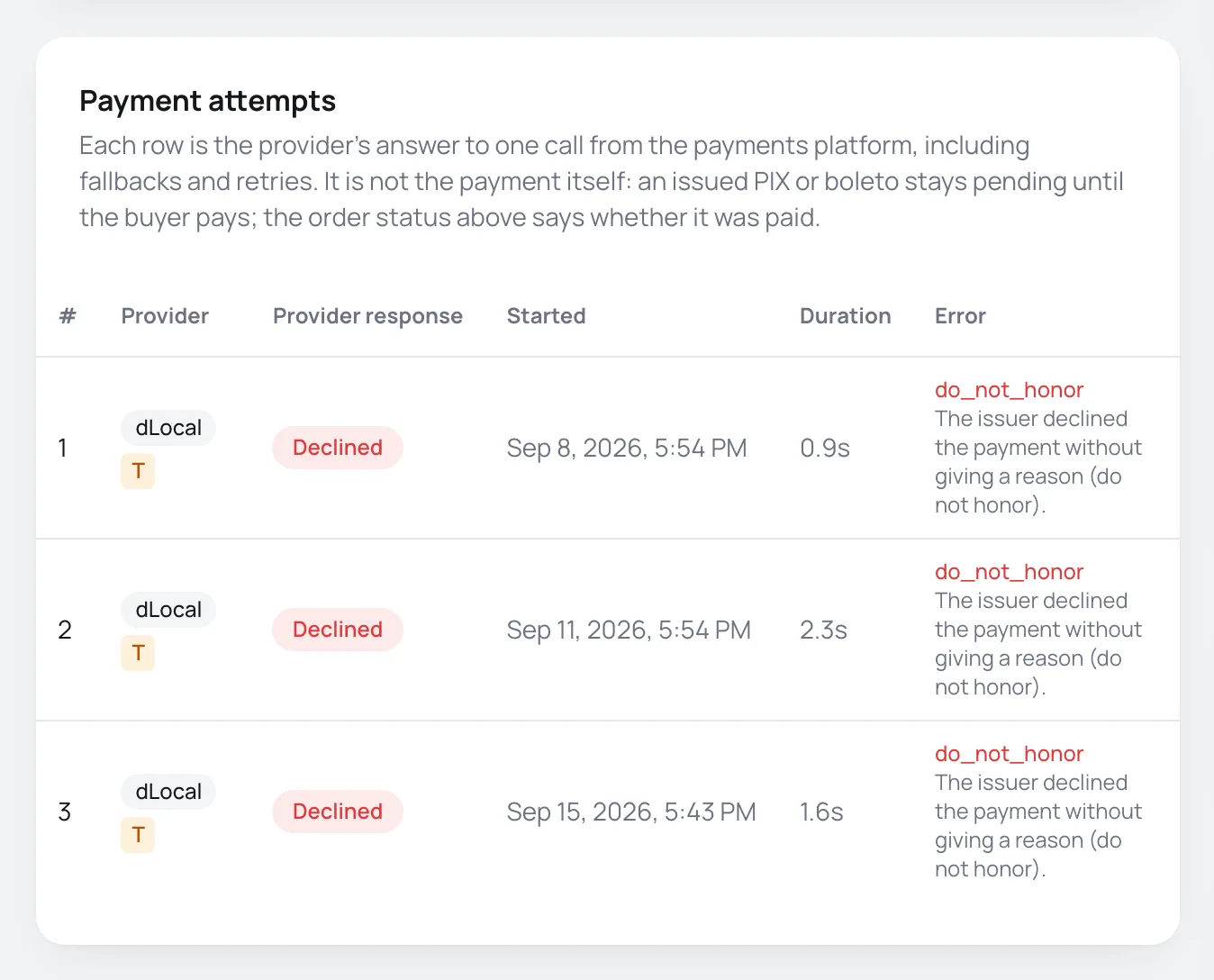
| Column | What it shows |
|---|---|
| # | The attempt number. The Fallback badge marks the attempt made on a fallback account after the first one failed. See Payment flows. |
| Provider | The account that got the call. The T badge means a connection in test mode. |
| Provider response | Authorized, Declined, Error, PIX issued or Boleto issued. When the bank authenticated the buyer, the 3DS result shows. |
| Started and Duration | When the call started and how long the provider took to answer. |
| Error | On a decline, the provider's code and message. On a success, the Provider reference, the payment's code in the provider's dashboard. |
The provider's answer is not the payment itself. An issued PIX (Brazilian instant payment) shows as PIX issued and the order stays Pending until the buyer pays. The status at the top of the page is what tells you whether the order was paid.
Refunds
The Refunds card only shows after the first refund. Each row has the date, the refund code, the status and the amount returned. A refund recorded by hand, outside the platform, also shows here.
Status history
The Status history card brings together, newest first, the changes made by the provider and those made by the team:
- the provider's changes show as Provider, with the source: API, System or Provider;
- the team's changes show with the e-mail of who changed it and the written reason;
- a provider change that arrived after a manual status and changed nothing shows with the notice Ignored: the manual status still holds. Nothing was triggered.
Downloads
The Downloads card shows when the product has files to download. It lists the released files, the access state (Active, Expired or Ended), the deadline and how many times each file was downloaded. The copy button gives you the file's link.
Admin and Owner also see End access, Restore access, Remove expiry and, when the store sends e-mails, Send by e-mail, which sends the links to the buyer again. A full refund and a chargeback end the access on their own. See Digital downloads.
Invoices
The Invoices card shows when the store has an invoice issuer connected. It shows each invoice of the order, with the type, the issuer, the status, the number and links to the PDF and the XML. Refresh fetches the current status from the issuer.
Admin and Owner can also Cancel invoice and issue an invoice by hand by choosing the issuer and the type and clicking Issue invoice. Manual issuing only works on paid orders. See Invoices.
E-mails
The E-mails card shows when the store sends e-mails through its own e-mail provider. It lists what was sent to the buyer about this order, such as the purchase confirmation and the refund notice, with the status of each send. Admin and Owner can Resend an e-mail. See Store e-mails.
Source and conversions
The Source and conversions card only shows for Admin and Owner. It shows where the buyer came from: the link's seller code (v), the UTM parameters, the ad click IDs, the referring page and the first visit. Below, under Reported conversions, it lists the events sent to the ad and analytics platforms for this order, with the status of each send. View in activity opens the full activity. See Conversion tracking.
Notes
The Notes card keeps the team's internal notes, with author and date. The buyer never sees them. Any role can Add note, up to 4,000 characters. Each person deletes their own notes, and Admin and Owner delete anyone's.
The cards on the right
- Customer details: name, e-mail, phone, document type and the date they were added. The name leads to the customer's page.
- Payment details: method, card, Installments with the amount of each installment, installment interest with the Product price, provider and Paid at. On an order with a manual status, it also shows the Provider status.
- Seller: who sold, the Source (Link, Dashboard sale, Manual, Upsell or Renewal) and the Commission. Admin and Owner change the seller with Assign or Change. See Seller commissions.
- Subscription details: only on subscription orders. It shows the offer, which leads to the subscription, its status, the charge type (First charge, Renewal, Unscheduled or Extra charge), the Next billing and the retries of a declined charge.
- Delivery: for physical products, the delivery and billing addresses and the shipping method.
- Technical details: closed by default. It has the full Order ID, the Transaction code, the order's Type and the External ID, each with a copy button. It is what support asks for to find the order.
What each role can do on the page
| Action | Sales | Admin | Owner |
|---|---|---|---|
| See every card except Source and conversions | ✅ | ✅ | ✅ |
| See Source and conversions | ❌ | ✅ | ✅ |
| Change status | ✅ | ✅ | ✅ |
| Add notes and delete your own | ✅ | ✅ | ✅ |
| Delete other people's notes | ❌ | ✅ | ✅ |
| Refund, Capture, Void and Resync | ❌ | ✅ | ✅ |
| Issue and cancel invoices | ❌ | ✅ | ✅ |
| Resend e-mails and download links, end and restore downloads | ❌ | ✅ | ✅ |
| Assign or change the seller | ❌ | ✅ | ✅ |
What to do next
- Give a sale's money back in Refund, capture and void.
- Record a payment made outside the checkout in Change the status manually.
Transactions: search and filter
Find an order by its number or the buyer's e-mail, filter by status, seller and period, and read each column of the list.
Refund, capture and void
Return a sale's amount, in full or in part, capture or void a pre-authorized payment, and learn what changes afterwards for the buyer, the integrations and the commissions.