Packs (?pack=)
Sell several units of an offer at a discount, each pack with its own payment link.
A pack sells several units of the same offer at a special price: "3 boxes for R$ 477", "6 months of treatment at 30% OFF". Each pack has its own link, which ends in ?pack= and the number of units. On your sales page, you add a button for each pack.
The checkout has no quantity selector. Whoever arrives through a pack's link pays for that pack. To switch, the buyer goes back to the sales page and clicks another button.
Before you start
- A one-time offer. Subscriptions don't have packs, because they are always charged at the plan price. See Create an offer.
- The Admin or Owner role in the Vipter project.
Step 1: open the packs card
Open CatalogProducts, click the product and then the offer. On the offer page, the Packs card is below the prices. Click Add pack.
Step 2: build the pack
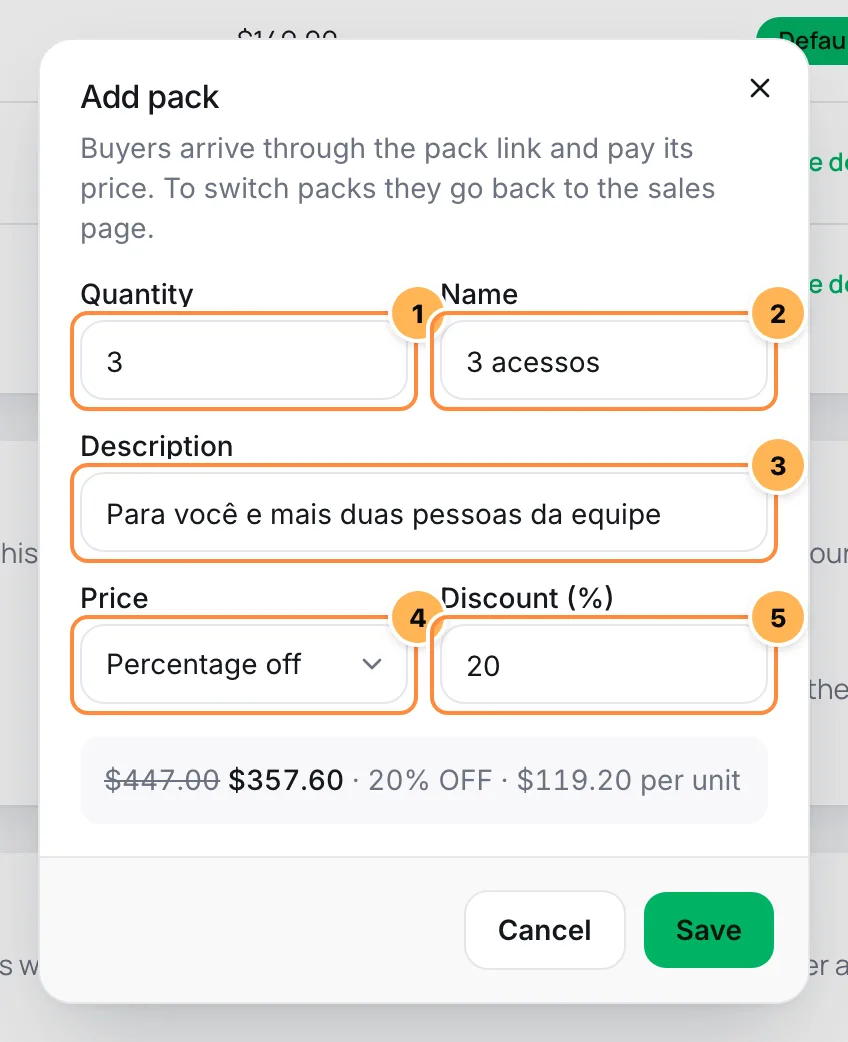
- Quantity: how many units the pack sells, from 1 to 999. It's also the number in the link: the 3-unit pack opens with
?pack=3. Each quantity can exist only once in the offer. - Name: what the checkout shows, such as "3 boxes". Up to 80 characters.
- Description: optional, up to 200 characters, such as "3 months of treatment".
- Price: how the price is calculated.
- Percentage off: a discount on the units at the offer price. With 20% on a pack of 3, the buyer pays 3 × the offer price, minus 20%. Use 0 to 99.99.
- Fixed price (BRL): the pack's total, in the store currency. In other currencies, the checkout converts it at the day's rate.
- The value: the percentage or the pack price.
The preview below the fields shows the full price struck through, the pack price, the discount and the price per unit, in the store currency. Click Save.
Each offer accepts up to 20 packs.
The pack price has a safeguard
A pack never costs more than its units at full price, and it's never free. If you lower the offer price later and the pack's fixed price ends up above the full price, the checkout charges the full price. The discount badge rounds down: 50.7% shows as 50% OFF.
Step 3: copy each pack's link
The Packs card lists the offer's packs with their price and the Pack link, already with ?pack=.
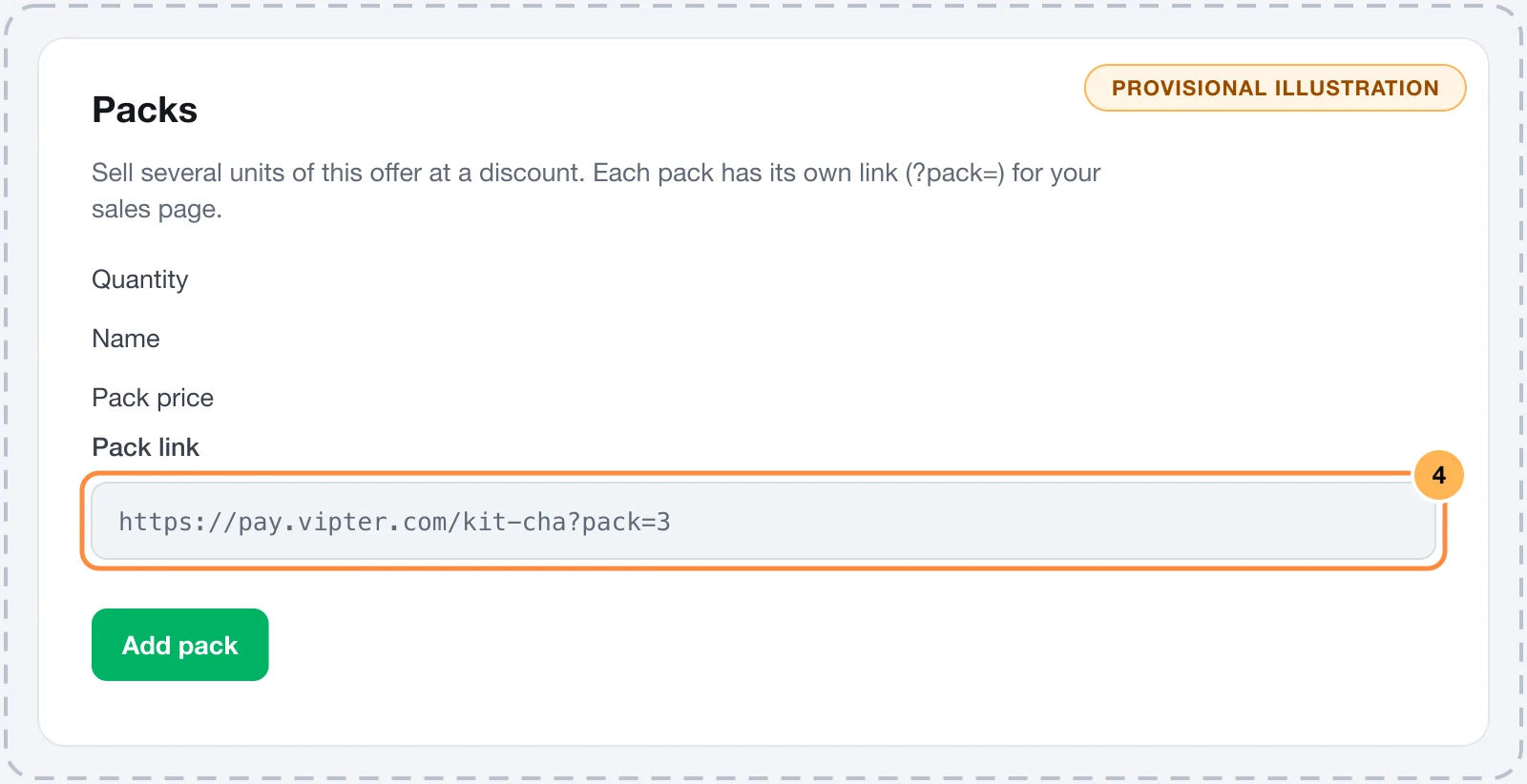
- The pack's quantity.
- The name and description.
- The pack price with the discount badge and the price per unit.
- The pack link, with the copy button.
The link has this format:
https://pay.vipter.com/kit-cha?pack=3With an active custom domain, the card shows the link on your domain. You can add other parameters, such as a coupon and UTMs: ?pack=3&code=BLACK10. See Payment link and URL parameters.
It worked if
When you open the pack link, the order summary shows the pack's name, its price and the price per unit.
How the pack works in a sale
- Link without
?pack=: sells 1 unit at the offer price, as usual. - Pack that doesn't exist: a
?pack=with a number that isn't one of the offer's packs shows the link-unavailable page. The link never falls back to 1 unit without warning. - Coupons: only work on a pack link if the coupon has Apply to packs on. Then the coupon discount adds to the pack discount. A Fixed product discount coupon takes the amount off once per unit. See Coupons.
- Shipping: shipping counts the pack's units. In a formula with
[qty], the pack of 3 counts as 3. See Shipping. - Order: the order item shows the quantity and Pack: 3 boxes, below the offer.
- Invoice: issued with the quantity and the unit price. When the pack price doesn't divide evenly, the unit price rounds up to the cent and the difference goes in as a discount.
- Abandoned checkout: the recovery link reopens the same pack.
A pack can also be sold as an order bump or in an upsell step, for example "get 2 more units".
Edit or delete a pack
On the Packs card, the pencil opens the pack for editing, and the trash can deletes it. Deleting asks for confirmation, because the pack's link stops working. Links you already shared start showing the link-unavailable page.
Common problems
-
This offer already has a pack with that quantity.
There's already a pack with that quantity. Edit the existing pack or use another quantity.
-
An offer can have up to 20 packs.
Delete a pack you no longer use.
-
Packs are only available on one-time offers.
The offer is a subscription. Create a one-time product to sell packs.
-
The order bump “…” sells this pack. Change or remove the bump before deleting it.
An order bump sells this pack. Change what the bump sells or delete the bump first.
-
The pack is sold by the upsell step "…". Delete or change that step first.
An upsell step sells this pack. Change the step's offer or delete the step first.
-
The coupon doesn't work on the pack link
Turn on Apply to packs in the coupon, in CatalogCoupons.
What to do next
- Offer an extra product in the same purchase with an order bump.
- Create coupons for your campaigns.