How automations work
Learn which sale events Vipter sends to Voxuy, Voxuy Enterprise and Hotzapp, how to read the recent deliveries and how to test without a test button.
Automations tell your WhatsApp and sales recovery tools what happens in the store: a PIX generated, a purchase approved, a card declined, a subscription past due, a checkout abandoned. The tool receives the event and fires the funnel you built there.
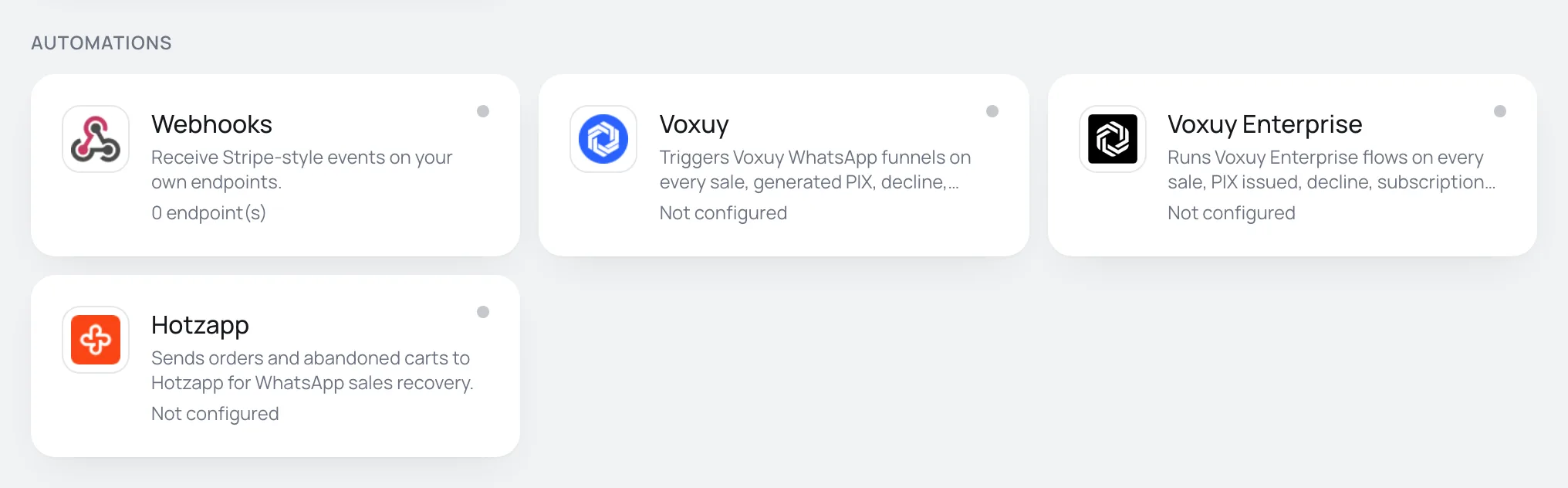
Vipter connects three tools: Voxuy, Voxuy Enterprise and Hotzapp. They all live under GeneralIntegrationsAutomations, next to webhooks, which are for your own system.
Before you start
- The Admin or Owner role in the Vipter project.
- An account in the automation tool, with the funnel or flow already created there.
- The checkout asking for the buyer's phone. Voxuy and Hotzapp do not receive events without a phone.
The events sent
Each integration has the Events sent list. All of them start checked.
| Event | When it is sent |
|---|---|
| PIX generated | The buyer generated the PIX (Brazil's instant payment) QR code at checkout. The event carries the copy-and-paste code. |
| Order paid | A payment was approved, including a subscription renewal and a sale the team marked as paid. |
| Payment declined | A charge was declined. The event carries the decline reason when there is one. |
| Order refunded | An order was refunded. |
| Chargeback | The buyer disputed the card purchase. |
| Subscription created | A new subscription was created. |
| Subscription renewed | A subscription was charged again and renewed. |
| Subscription past due | A subscription charge failed and it became past due. |
| Subscription cancelled/expired | A subscription was cancelled or expired. |
| Abandoned checkout | The buyer filled in their details and left without paying. The event carries the link to resume the purchase. |
- A renewal sends two events: Order paid and Subscription renewed. If your funnel sends a message on both, uncheck one of them.
- An unchecked event is not sent and does not show under Recent deliveries.
- Order bumps go in the same event as the purchase, with each one's name and amount. The main offer is the one that decides the rules.
What each event carries
Every sale event is pushed to the platform webhook with the buyer data only Vipter has (phone, document, address, UTM). In practice, each event carries:
- The buyer's name, e-mail, phone with country code, CPF or CNPJ (Brazilian individual or company taxpayer ID) and address, when the checkout asked for them.
- The product, offer, quantity and pack sold.
- The amount, currency, payment method and number of installments.
- The UTMs of the visit that led to the sale.
- Depending on the event: the PIX code, the decline reason or the recovery link of the abandoned checkout.
Each tool receives this data in its own format. The Voxuy, Voxuy Enterprise and Hotzapp pages show the status each event becomes there.
Rules per offer
Voxuy and Voxuy Enterprise need to know where to send each sale: Voxuy by the plan code, Voxuy Enterprise by the flow ID. You set a default on the connection and, if you want, one rule per offer under Plans per offer or Flows per offer.
- The rule of the offer sold wins over the default.
- A rule also applies to the other offers of the same product. If two offers of a product need to go to different destinations, create a rule for both and check the first deliveries.
- Rules only show up after the connection is saved. Until then, the card shows Save the credentials first, then link offers.
- Hotzapp does not use rules: every sale goes to the same store there.
The recent deliveries
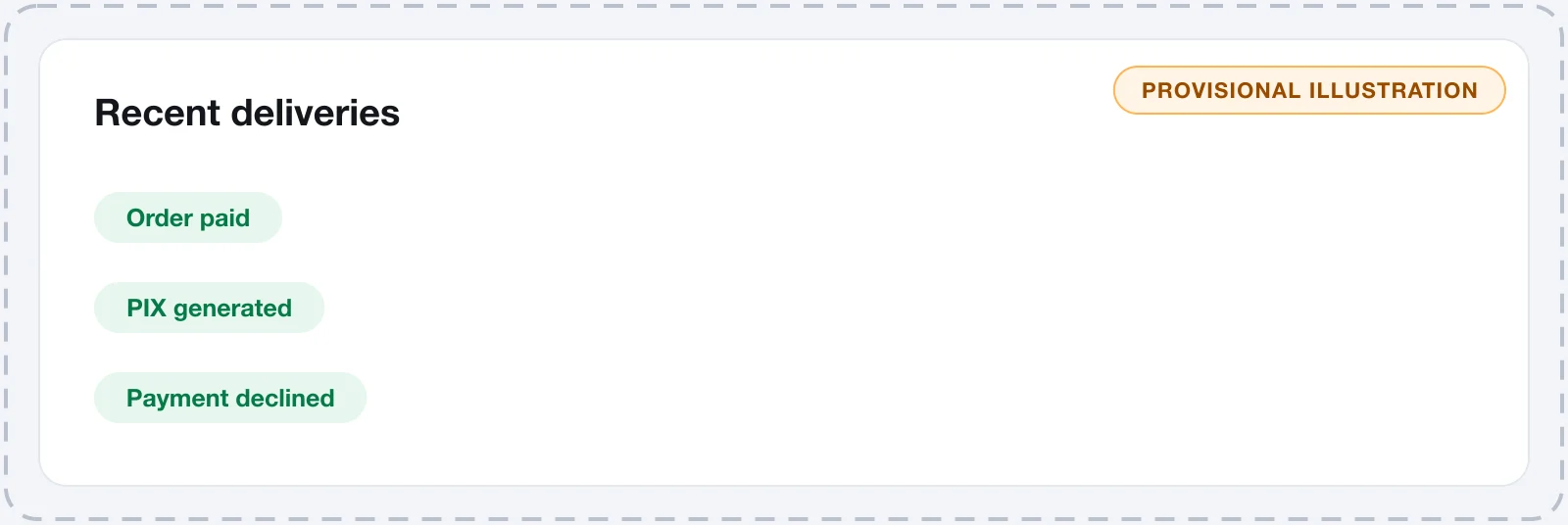
At the bottom of each integration's page, Recent deliveries lists the latest events, with the event, the buyer's e-mail, the date and the status:
- sent: the tool answered with success (HTTP code 2xx).
- failed: the tool rejected the event or did not answer within 12 seconds. The HTTP code and the start of the response show in red.
- skipped: Vipter did not send it because something was missing. The reason shows in red, in English: buyer without a phone (
no phone), offer without a Voxuy plan (no Voxuy plan), event without a Voxuy Enterprise flow (no Voxuy Enterprise flow) or event that Hotzapp does not receive (Hotzapp has no status). - pending: the delivery is in progress.
There is no retry
Each event is sent once to each integration. If it fails, Vipter does not try again and there is no button to resend it. Fix the cause (URL, token, plan) for the next events and, if needed, handle the failed sale directly in the tool.
Test an automation
Automations have no test button. You test through the checkout, as a buyer. See also how to test your store.
- Save the integration with Active — send events to this platform on.
- Open the checkout of an offer, fill it in with your e-mail and your phone and generate a PIX. You don't need to pay: the PIX generated event goes out right away.
- Reload the integration's page in Vipter and check Recent deliveries.
- To test an approved purchase, pay the PIX or use a card. Afterwards, if you want, refund the order.
It worked if
The event shows as sent under Recent deliveries and the contact or transaction shows up in the tool, with the funnel fired.
Pause or remove
- Turn off Active — send events to this platform and click Save to stop the deliveries without losing the setup.
- Remove integration deletes the integration, the rules and the delivery history.
What to do next
- Connect Voxuy
- Connect Voxuy Enterprise
- Connect Hotzapp
- To receive the same events in your own system, use webhooks.