Refund, capture and void
Return a sale's amount, in full or in part, capture or void a pre-authorized payment, and learn what changes afterwards for the buyer, the integrations and the commissions.
A refund returns the money of a paid order to the buyer, through the same provider that charged it. You refund the full amount or just part of it, right on the order's page. After the refund, Vipter ends access to what was bought, cancels the invoice and notifies the buyer and the integrations, depending on what the store has turned on.
Before you start
- The Admin or Owner role in the project. Sales does not see the refund buttons.
- An order with status Paid or Partially refunded charged through the checkout or the dashboard. Sample orders in the demo store cannot be refunded.
Step 1: open the order
- Open SalesTransactions.
- Find the order by its number or the buyer's e-mail and click it. See Transactions: search and filter.

Step 2: refund
- At the top of the page, click Refund.
- Fill in the window:
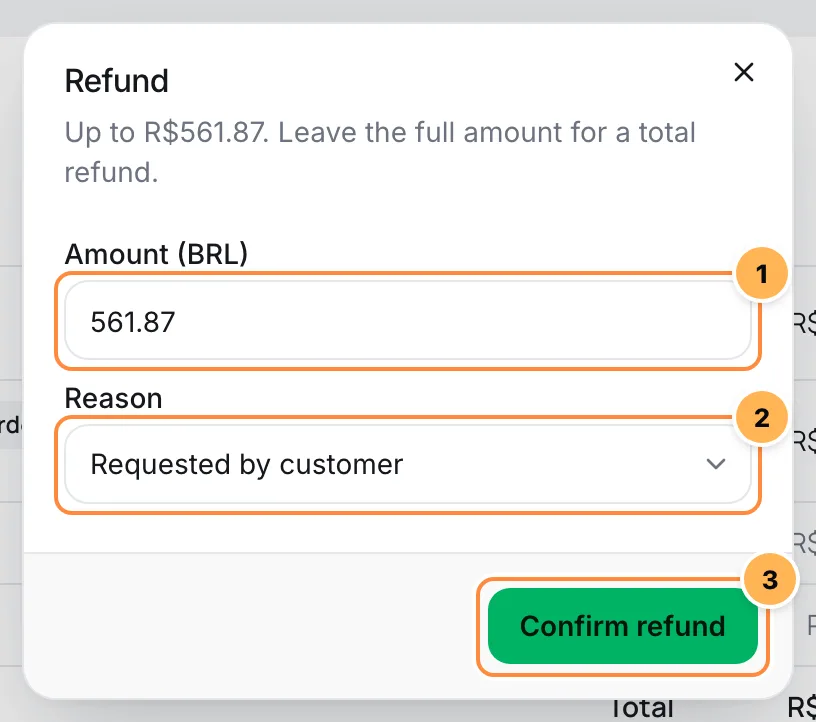
| Field | What to do |
|---|---|
| 1. Amount | It comes filled in with everything that can still be returned. Keep the amount for a full refund or type a smaller amount for a partial refund. A comma or a period works as the decimal separator. With the field empty, the refund is for the full amount. |
| 2. Reason | Optional: Requested by customer, Duplicate or Fraudulent. The reason goes to the provider along with the refund request. |
| 3. Confirm refund | Sends the refund to the provider. |
- Wait for the Done. message. The page refreshes with the new status.
A refund cannot be undone
Once confirmed, the amount leaves your provider account and you cannot undo it from Vipter. Check the amount before clicking.
You can make several partial refunds on the same order, until the full amount is returned. The window always shows how much can still be returned.
It worked if
The order changes to Refunded or Partially refunded, the Refunds card shows up with the refund's row and the order total shows the amount Refunded. If the provider is still processing, the status stays Refund pending until it confirms.
What happens after the refund
What Vipter does depends on whether the refund is full or partial:
| Where | Full refund | Partial refund |
|---|---|---|
| Member area | Access to the product is removed. On subscription renewals, access follows the subscription, not the order. | Nothing changes. |
| Downloads | Access to the files ends. You can restore it on the order's downloads card. | Nothing changes. |
| Invoice | The invoice is canceled at the issuer, if Cancel on refund is on in the integration. | Nothing changes. |
| E-mail to the buyer | The Refund e-mail, if the store sends e-mails to buyers. | Same. |
| E-mail to the team | The Refund or chargeback e-mail, if it is on. | Same. |
| Automations (Voxuy, Hotzapp) | They get the Order refunded event. | Nothing is sent. |
| Conversions | The Refund / chargeback event goes to Google Analytics 4 and Utmify. The other platforms don't receive refunds. | Nothing is sent. |
| Webhooks | The order.refunded event. | The order.partially_refunded event. |
| Seller commission | It goes to zero, and the seller card shows the refunded amount. | It drops in the same proportion as the amount returned. |
| Dashboard | The amount goes into Refunds on the refund day and comes out of Revenue. | Same. |
A chargeback, when the buyer disputes the purchase with their bank, has the same effect as a full refund on access, downloads and the invoice. Automations get the Chargeback event.
For the integrations, see Member areas, Invoices, Automations and Webhooks.
What the buyer sees
The buyer gets the money back through the method they paid with, within their provider's and bank's timeframe. If the store sends e-mails to buyers, they get the Refund e-mail. With a full refund, they lose access to the member area and to that order's downloads.
Subscription orders
A refund only touches that order's payment. The subscription stays active and charges again on the next date. To stop the charges, cancel the subscription. See Pause, cancel, reactivate and change plans.
Orders the team marked as paid
If the order was marked as paid by hand and the provider also received the payment, refunding the provider's charge returns the duplicate payment and does not undo the sale: the order stays paid, and nothing is revoked or notified. See Change the status manually.
Capture or void a pre-authorization
A Pre-authorized order has the amount reserved on the buyer's card but not charged yet. On it, the top of the page shows two buttons:
- Capture: charges the reserved amount. Vipter asks you to confirm with the message Capture this payment? The amount is charged to the customer now.
- Void: releases the reservation without charging anything. Vipter asks you to confirm with the message Void this pre-authorization?
Both actions go straight to the provider, and the page refreshes with the new status.
Resync an order
If the status on the page looks different from what the provider shows, click Resync. Vipter fetches the order, the payment attempts and the refunds from the payment platform again and updates the page.
Common problems
-
The Refund button does not show.
Check four things: your role is Admin or Owner; the order's status at the provider is Paid or Partially refunded; there is still an amount left to return; and the order is not a demo store sample. On an order with a manual status, the button follows the provider status, shown in Payment details.
-
Invalid amount
The amount is zero or not a number. Type the amount with a comma or a period, without the currency symbol.
-
An error message from the provider shows up.
The provider rejected the refund, for example because the amount is more than what can still be returned. Vipter shows the provider's message, and the order does not change. Fix the amount and try again. If the message is unclear, look up the payment in the provider's dashboard with the reference shown on the Payment attempts card.
What to do next
- Record a refund made outside the platform in Change the status manually.
- See what the buyer gets by e-mail in Transactional e-mail.
Order detail
Read each card on an order's page, from what was bought to payment attempts, invoices, downloads and the sale's source, and see what each role can do there.
Change the status manually
Mark an order settled outside the checkout as paid, canceled or refunded, with the reason on record, and learn what each status triggers and which status wins when the provider changes it later.