Verify the sending domain (SPF, DKIM and DMARC)
Learn about the DNS records that prove your store's e-mails are yours, where to get each one and how to read Vipter's domain check.
Gmail, Outlook and other inbox providers check whether whoever sends an e-mail is allowed to use that domain. That proof lives in records in your domain's DNS. The sender domain must be verified at the provider (SPF and DKIM; DMARC recommended). Without it, Gmail and Outlook tend to refuse the e-mail or send it to spam.
Before you start
- An e-mail provider connected in Vipter. See how transactional e-mail works.
- Access to your domain's DNS panel, which is usually at the domain registrar (such as Registro.br, the registry for .br domains) or at a service like Cloudflare.
The three records
| Record | What it proves | Where it comes from |
|---|---|---|
| SPF | Which servers can send e-mails for the domain. It is a TXT record that starts with v=spf1. | The e-mail provider tells you what to include. Some publish SPF on their own subdomain, and you only create the record they show. |
| DKIM | That the e-mail was signed by your domain and was not changed on the way. It is a TXT or CNAME with a key, at a name like selector._domainkey.yourdomain.com. | Generated by the e-mail provider when you add the domain there. |
| DMARC | What the inbox should do with an e-mail that fails SPF and DKIM, and where to send reports. It is a TXT at _dmarc.yourdomain.com that starts with v=DMARC1. | You create it. A good start is v=DMARC1; p=none;, which only monitors and blocks nothing. |
The exact SPF and DKIM values always come from your e-mail provider, on the screen where you add the domain. Copy them from there instead of building them by hand. The paths for each provider are on the SendGrid, Postmark, Mailgun, Resend and SMTP pages.
Step 1: add the domain at the provider
- In your e-mail provider, add the domain of the Sender e-mail.
- Note down the records it shows: the name, type and value of each one.
Step 2: create the records in the DNS
- In the domain's DNS panel, create each record from step 1 exactly as the provider showed it.
- Also create the DMARC record, if the domain does not have one yet.
- Go back to the e-mail provider and ask it to verify. Propagation usually takes minutes, but it can take up to 48 hours.
Step 3: check in Vipter
- Open the provider's page under GeneralIntegrationsE-mail.
- On the domain card, click Check domain. The check also runs on its own every time you save the provider.
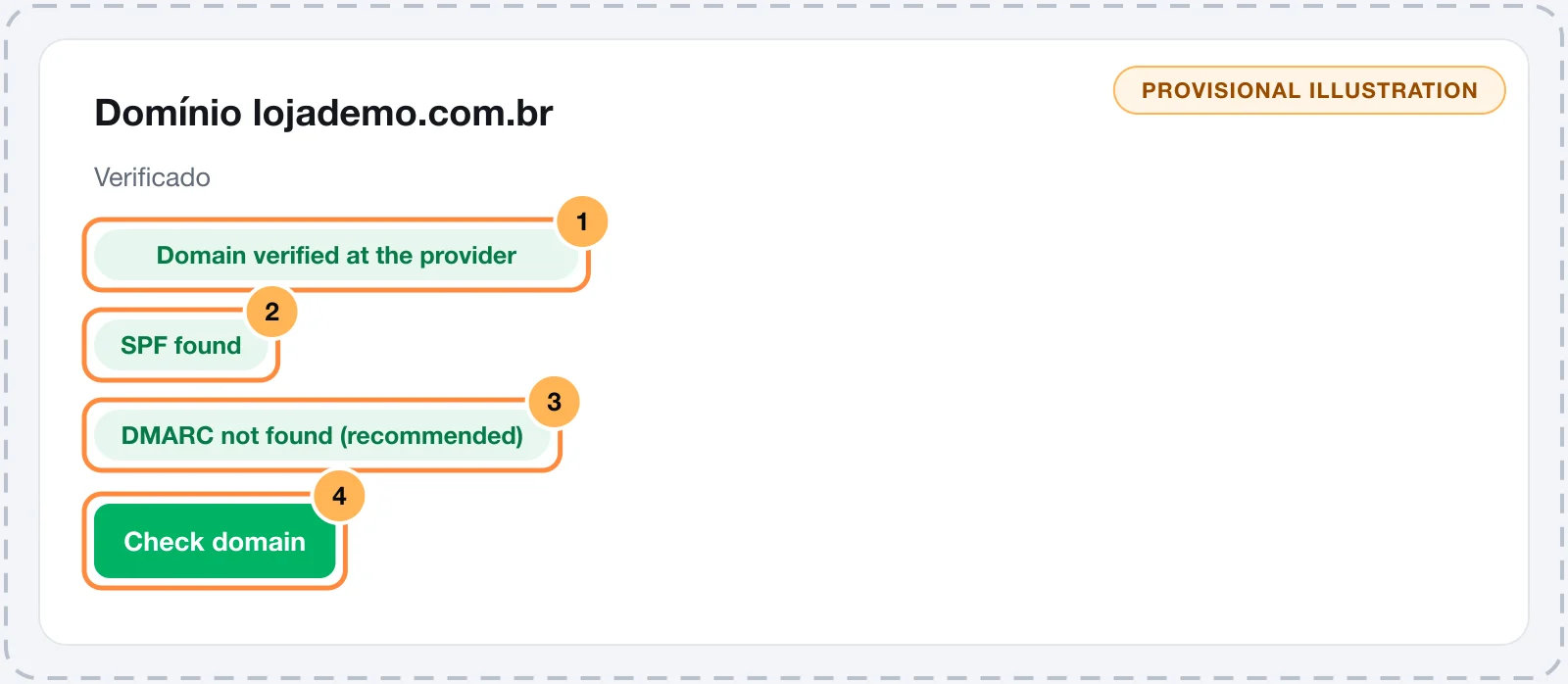
The card shows three lines and the result in the corner:
- The provider. Vipter asks the provider whether the domain is verified:
- SendGrid: looks up domain authentication, if the API key has read access to Sender Authentication.
- Mailgun: looks up the configured sending domain and checks that the sender is on that domain.
- Resend: looks up the domain list, if the API key has Full access.
- Postmark and SMTP: do not report it this way, and the line shows The provider does not report verification for this key.
- SPF. Looks for a TXT with
v=spf1on the sender's domain. If the sender is on a subdomain, such asmail.yourdomain.com, Vipter also looks at the domains above it. - DMARC. Looks for a TXT with
v=DMARC1at_dmarc.on the sender's domain, going up the same way.
Vipter does not check DKIM, because the record name depends on a selector only the provider knows. The provider's verification is what confirms DKIM.
The result in the corner of the card:
| Result | When it shows |
|---|---|
| Verified | The provider reports the domain as verified. |
| Not verified | The provider reports that the domain is not verified or not added. |
| Partial | The provider does not report, but Vipter found SPF or DMARC in the DNS. This is the usual result with Postmark and SMTP. |
| Unknown | The provider does not report and Vipter found neither SPF nor DMARC. |
Common problems
-
SPF not found
Some providers, such as SendGrid, Postmark and Resend, publish SPF on a return subdomain, not on the sender's domain. In that case the line looks like this even when everything is right: what counts is the provider showing the domain as verified. If the provider asks for SPF on the domain itself, create the record.
-
Two SPF records on the same domain
A domain can only have one TXT with
v=spf1. With two, both stop working. Merge theinclude:entries into a single record. -
DMARC not found (recommended)
Create the TXT at
_dmarc.yourdomain.comwithv=DMARC1; p=none;and click Check domain again. -
Could not look up SPF
The DNS lookup failed at that moment. Try Check domain again in a few minutes.
-
domain not added
The sender's domain is not added at the provider. Add it in step 1, or change the Sender e-mail to an address on a domain that is already verified.
-
the sender is not on the configured sending domain
In Mailgun, use a sender on the sending domain itself. See connect Mailgun.
-
The card shows verified, but e-mails land in spam
Check that DMARC exists and that the text of your e-mails does not look like advertising. Sending to addresses that do not exist also hurts the domain: register the delivery status webhook so Vipter blocks those addresses.
What to do next
- Send a test e-mail from the provider's page and check that it arrives outside spam.
- Review which e-mails go out and the text of each one in GeneralSettingsE-mails.
Connect via SMTP
Send your store's e-mails through any SMTP server, such as Amazon SES, Brevo, Zoho Mail or Google Workspace, using your domain.
Receive events in your system (webhooks)
Get a signed notice on your server for every sale, refund, subscription or new customer, with automatic retries and a delivery history.