Event activity and resending
See every event reported to the platforms, with each one's response, understand the automatic retries and resend what failed.
The Activity tab is the tracking history: every event Vipter reported, which way it went out and what the platform answered. It is the first place to look when a platform says it didn't receive a sale.
Before you start
- The Admin or Owner role in the Vipter project.
- At least one tracking account connected. See how conversion tracking works.
Where to see it
- All accounts: GeneralConversionsActivity.
- One account: open the account in Accounts and the Activity tab. If the platform returned an error recently, the top shows the last error.
- One order: on the order page, the Source and conversions card shows the purchase's source and the events reported, with the View in activity link.
- One overview cell: in Overview, the cell's menu has View activity.
Filter

Search by Order or session ID or filter by account, product, event, channel and status, and click Filter. The filters stay in the page address: you can save the link or send it to someone on the team.
Read each row
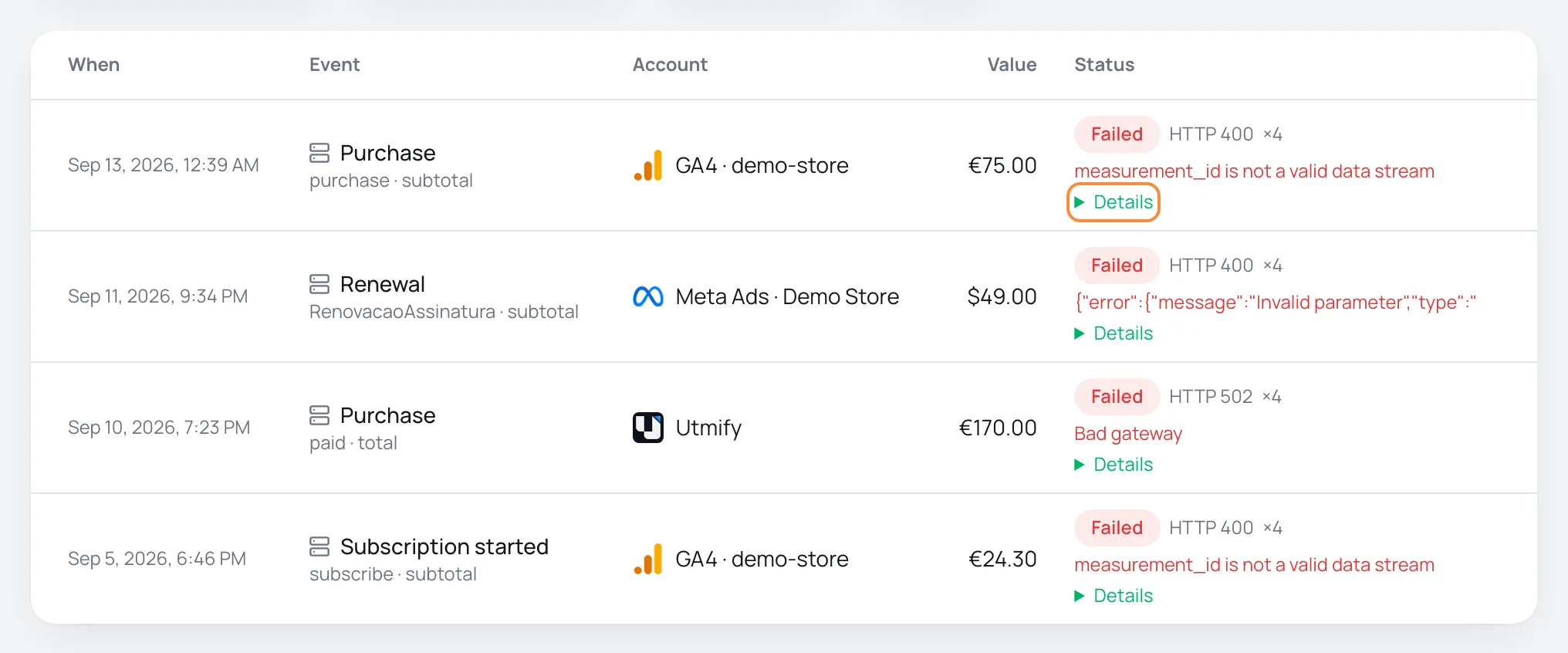
- Event: the icon shows the channel, Server or Browser. Below it come the name the platform received and the value base (
subtotalortotal). Test events have the test tag. - Reference: the order, with a link to it, or the checkout session when there is no order yet.
- Value: the value sent, already in the currency chosen in what to send.
- Status: the status, the response's HTTP code and, after the
×, the number of attempts. The platform's error shows in red. - Details: on server events, opens what was sent, with personal data hashed, and the platform's full response.
The statuses
| Status | From the server | From the browser |
|---|---|---|
| Sent | The platform accepted the event. | The checkout fired the pixel. The platform's response doesn't go through Vipter. |
| Failed | The platform rejected it or didn't answer. | Doesn't happen. |
| Pending | Sending is in progress. | Doesn't happen. |
| Skipped | Vipter didn't send it because something was missing, such as the token (no_token) or, on Pinterest, the ad account ID (no_ad_account). | Doesn't happen. |
From the browser, the history only records the events that count once per order: lead, PIX generated, purchase and subscription. This record is what keeps the purchase from firing again when the buyer reloads the thank-you page. Page views and checkout starts don't go into the history.
Automatic retries
History is kept for 30 days. Server failures are retried automatically for up to 7 days.- A server event that failed is retried on its own, with intervals that grow from a few minutes to about an hour. There are up to 5 attempts in total, only while the event is less than 7 days old: platforms reject older events.
- There is no retry when the platform answers that the request is wrong (HTTP 400, 401, 403 or 404). An invalid token or a wrong ID doesn't fix itself: correct the account and resend.
- A paused account gets no retries.
- After 30 days, the event leaves the history. Deleting an account erases its history immediately.
Resend an event
- Find the event with the Failed status. Filter by status to find it faster.
- Click Details and then Resend.
Vipter sends the same event again, with the same identifier, using the token and ID the account has now. So fix the account before resending. Platforms that deduplicate by identifier, such as Meta, don't count the sale twice.
It worked if
You see Event resent. and the row changes to Sent.
- Only server events can be resent. The button doesn't show for events already sent or skipped.
- A resend that fails doesn't enter the automatic retries. Try again after fixing the cause.
Common problems
-
Resend failed
The platform rejected it again. The message after the colon is its response. Check the token and the ID in Connection.
-
The status is Skipped with no_token
The account has no token and only sends from the browser. Paste the token in Connection. Skipped events are not resent: server delivery applies to the next sales.
-
A paid sale doesn't show in the history
Check that the account is linked to the product sold and that it isn't paused. Sales the team marked as paid by hand are not reported.
-
No events match these filters.
No event matches the filters. Clear the search or choose All statuses.
What to do next
Cookie consent and domain verification
Decide whether the checkout pixels wait for the buyer's consent, and verify your domain with Meta, Pinterest and Google through a meta tag.
Connect Meta Ads (Pixel and Conversions API)
Send checkout visits, leads and purchases to your Meta Pixel, from the browser and through the Conversions API, including PIX paid after the page was closed.