How buyers see the checkout
The buyer's path from the link to the thank-you page, the languages and currencies, and what changes with your store's settings.
When someone opens an offer's payment link, they see your store's checkout on pay.vipter.com or on your custom domain. It is a single page: the order summary is on the left and the purchase steps are on the right. On a phone, the summary comes first and the steps right below it.
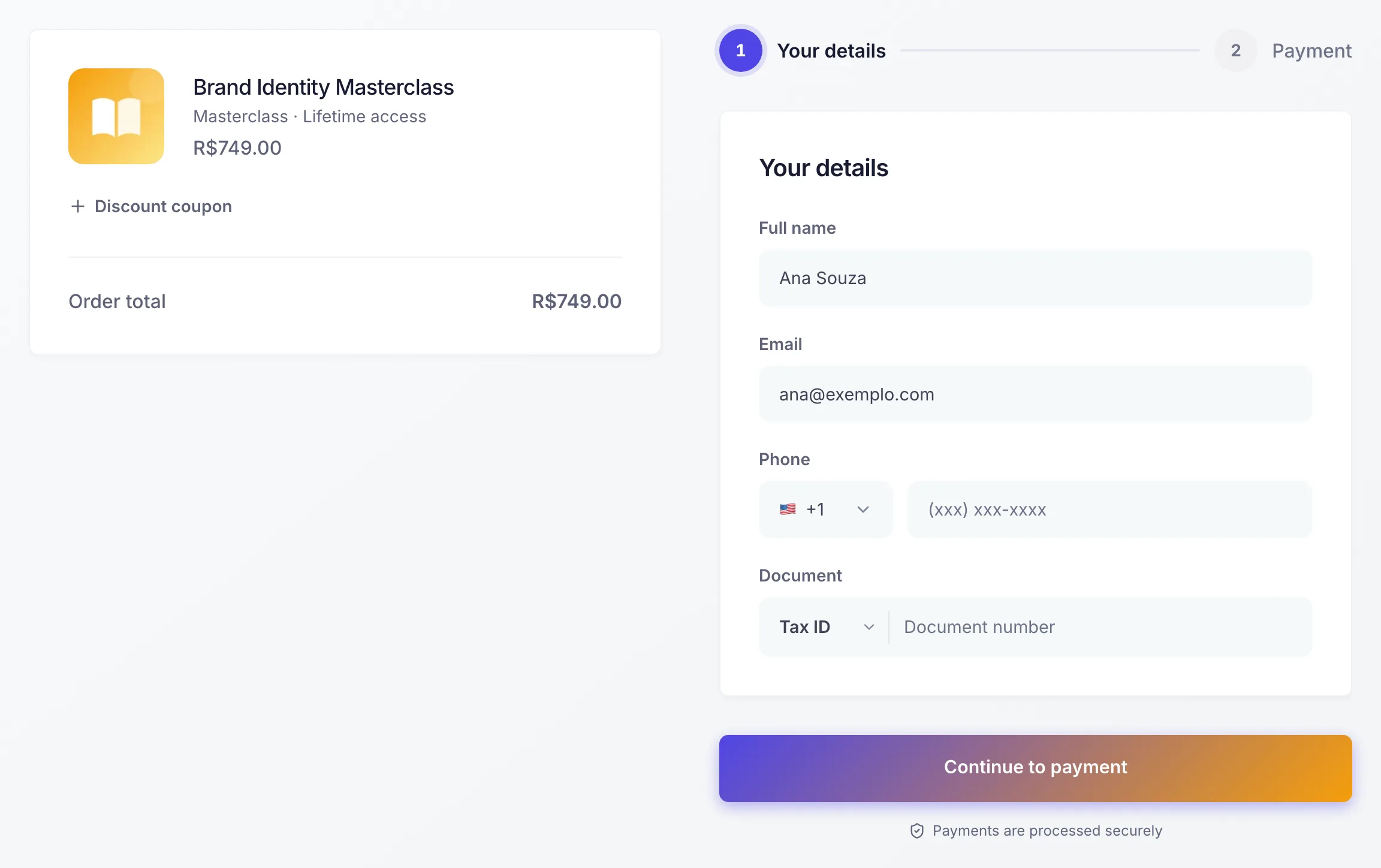
The purchase has two steps, numbered at the top: first the buyer's details, then the payment.
The order summary
The card on the left shows:
- The product image, the product name, the offer name and the price. On a pack link (
?pack=), it shows the pack, its price and the price per unit. - For subscriptions, notices about the trial period, a different first charge and the cycle limit, when the offer has them.
- The currency, with the option to switch, when the offer has a price in more than one currency the store accepts.
- The coupon field, collapsed until the buyer clicks it. Subscriptions don't accept coupons, so the field doesn't show on them.
- Subtotal, discount, shipping and order total.
Step 1: buyer's details
The buyer enters their full name, e-mail, phone and tax ID. The country sets the phone prefix and the type of document: CPF (Brazilian individual taxpayer ID) or CNPJ (Brazilian company taxpayer ID) for Brazil, with the check digits validated on the spot, and a tax ID or passport for other countries.
The initial country comes from the buyer's location or from the store's country, depending on the Default customer location option in GeneralSettingsGeneral.
The address is only requested when the product needs it:
- Products with delivery: the buyer enters the shipping address and chooses the shipping method. Shipping options show up once the address is complete. Whether the shipping address comes before or after the billing address depends on Address at checkout, in the store settings.
- Products without delivery: the billing address only shows if the product has Ask for billing address at checkout turned on.
In Brazil, when the buyer types the CEP (Brazilian postal code), the checkout fills in the street, neighborhood, city and state, and the buyer adds the number. If the CEP is not found, they fill in the address by hand. The accepted countries follow the store's Selling and shipping locations.
The continue button leads to the payment step. The details stay editable there: the buyer can fix the e-mail or the address without going back.
Step 2: payment
The buyer chooses between card and PIX, when both are available:
- Card: name on card and the secure fields for number, expiry date and CVV. With installments turned on in the store, a choice of installments shows up, in reais only. See Installments.
- PIX: only on one-time purchases. The buyer sees which tax ID the PIX will be issued to and generates the code. See Accept PIX.
For subscriptions, only the card shows, and the checkout says the card is saved for future charges. The pay button's text changes with the case: pay, subscribe or generate the PIX code.
The available methods depend on the store's active payment flows. With none, the checkout says no payment method is available.
Order bumps
If the offer has order bumps, the boxes show right above the pay button. The buyer ticks the box and the item goes into the same order and the same charge. Order bumps only exist on one-time offers.
When the payment doesn't go through
- Card declined or incomplete details: a dialog explains the problem in plain language, such as an expired card or a missing CVV, and the buyer tries again.
- Card under review: some payments stay under review at the bank or the provider. The checkout shows that the payment is under review and updates by itself when the answer arrives.
- Checkout left open for too long: after 24 hours, the checkout expires. A dialog offers to start over, with the details already filled in.
After the payment
- Post-purchase offers: if the offer has One-click Upsell steps, the buyer sees each one right after paying. Accepting charges right away, on the purchase's card or with a new PIX. Declining leads to the next step or to the thank-you page.
- Thank-you page: confirms the payment and shows the order number, the total and the store's support e-mail. When the product has files, the download links show here. The page only promises a confirmation e-mail when the store sends e-mails to buyers.
- Redirect: if the offer or the store has a success URL, the thank-you page takes the buyer there after 30 seconds. With files to download, it only shows the button to move on. See Create an offer.
With PIX, the buyer goes through the post-purchase offers and the thank-you page after the payment is confirmed.
Languages
The checkout, the thank-you page and the customer portal speak 10 languages: Portuguese, English, Spanish, French, German, Italian, Japanese, Korean, Russian and Chinese.
The language is picked in this order:
- The link's
?lang=parameter, if there is one. - The language the buyer picked before, in the selector.
- The browser's languages.
- The language of the buyer's country.
- English.
The language selector is at the top of the page. If the store sells to a single country in Sell to, the checkout uses that country's language and hides the selector. Even so, a link with ?lang= opens in the requested language.
The secure card fields (number, expiry date and CVV) show in Portuguese when the checkout is in Portuguese and in English in all other languages.
Currencies
The checkout opens in the link's currency (?currency=), if the offer has a price in it. Otherwise, it opens in the store's currency and, if the offer has no price in it, in the currency of the default price. The buyer switches currency in the order summary. If they switch on the payment step, they go back to step 1 to continue in the new currency.
Only currencies that some active connection in the store can accept show up.
What depends on the store's settings
| What the buyer sees | Where to set it up |
|---|---|
| Logo, button colors, favicon and page titles | GeneralSettingsGeneral, card Brand & checkout |
| Accepted countries, initial country and address order | GeneralSettingsGeneral, card Selling and shipping locations |
| Shipping methods and rates | CatalogShipping |
| Card, PIX and which account charges | PaymentsPayment flows |
| Installments | PaymentsInstallments |
| Coupons | CatalogCoupons |
| Confirmation and PIX e-mails | GeneralSettingsE-mails |
| Checkout address | GeneralSettingsCustom domain |
| Product image, address and downloads | The product page. See Create and edit a product. |
| Prices, cycle, success URL, packs, order bumps and upsell | The offer page. See Create an offer. |
What to do next
- Build links with a coupon, pack and UTMs in Payment link and URL parameters.
- Test your store by making a purchase from start to finish.
Product fiscal data
Fill in NCM, CFOP, the LC 116 item, the ISS rate and other codes on the product so its invoice uses its own values instead of the integration's defaults.
Payment link and URL parameters
Understand the payment link format and build links with a pack, coupon, seller, language, currency, buyer details and UTMs.