Digital delivery (downloads)
Add the file links of a digital product or course, set a limit and an expiry, and see how the buyer gets the downloads.
Digital products and courses can deliver files after payment: an e-book, a spreadsheet, a course's support materials. You host the files wherever you like, such as Google Drive, Dropbox or your own server, and add the links to the product. Vipter only stores each file's name and address.
The buyer doesn't get your direct link. They get a Vipter link that, on every click, checks that the order is still paid, that the access hasn't expired and that the download limit hasn't run out. Only then does it take them to your file.
Before you start
- A product of the Digital product or Course type. The other types don't have downloads. See Product types.
- The files hosted at an
https://address that opens for anyone with the link. - The Admin or Owner role in the Vipter project.
Step 1: open the Downloads tab
Open CatalogProducts, click the product and then the Downloads tab.
Step 2: add the links
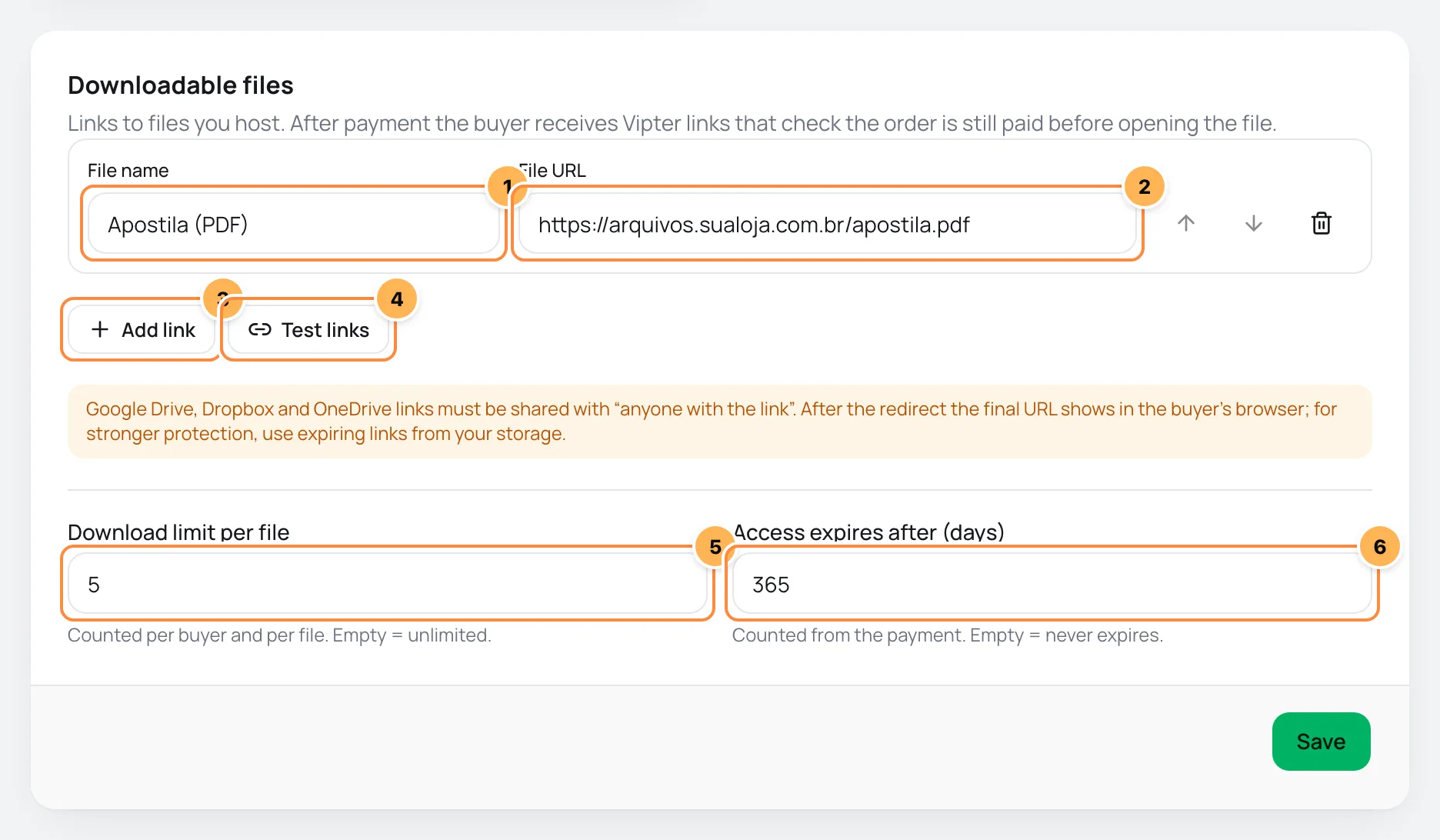
- File name: the name the buyer sees, such as "Workbook (PDF)". Up to 120 characters.
- File URL: the file's address, starting with
https://. - Add link: opens another row. Each product accepts up to 10 links. The arrows change the order in which the files show to the buyer, and the trash can removes the row.
- Test links: checks that each link responds. See step 3.
- Download limit per file: how many times each buyer can download each file, from 1 to 1000. Empty means unlimited.
- Access expires after (days): for how many days the buyer has access, counted from payment, from 1 to 3650. Empty never expires.
Click Save.
Share the file publicly
Step 3: test the links
Click Test links. Vipter opens each address and shows the result below it:
| Result | What to do |
|---|---|
| Link responded (HTTP 200). | Nothing: the link is ready. |
| The link asks for a login: share it with anyone who has the link. | In Drive, Dropbox or OneDrive, change sharing to anyone with the link. |
| The link did not respond as expected (HTTP 404). | The file was moved or deleted. Copy the link again. |
| Use a public https URL. | The address doesn't start with https:// or points to an internal network. |
The test doesn't save anything. Save the links after you fix them.
It worked if
When you test, every link shows that it responded and the dashboard tells you: All links responded.
How the buyer gets the files
After payment, the links show up in three places:
- Thank-you page: right after paying, with a button to download each file and the date until which they're available. With files to download, the page doesn't redirect to the success URL on its own: the buyer sees a button to continue. The links only show in the browser where the purchase was made. Anyone who opens the thank-you page on another device sees a notice to sign in to the customer area.
- Confirmation e-mail: the Order confirmed e-mail carries the links, when the store sends e-mails to buyers. See E-mails to buyers.
- Customer portal: the Downloads item shows in the portal menu when the store has any product with links. It lists the files from the customer's purchases that are still available. See Download the files you bought.
The order paid webhook also carries the list of files, so you can deliver through another system. See Webhooks.
The links use pay.vipter.com or your custom domain, when it's active.
When access starts and ends
Access starts when the order is paid. This also applies to files of products sold as an order bump or upsell: each product with links gets its own access.
Access ends when:
- the expiry is reached;
- the order is fully refunded or charged back. A partial refund keeps the access;
- you end the access on the order page.
A buyer who clicks an ended, expired or used-up link sees a page explaining why.
Changes on the tab apply like this:
- Links: buyers see the current list of files, including those who already bought. A new file shows for everyone, and a removed file disappears.
- Limit: the new number applies right away, for every buyer.
- Expiry: applies to future purchases. Buyers who already bought keep the deadline calculated at payment.
Subscriptions don't deliver downloads.
An order's downloads
On a paid order's page, in SalesTransactions, the Downloads card shows the buyer's access:
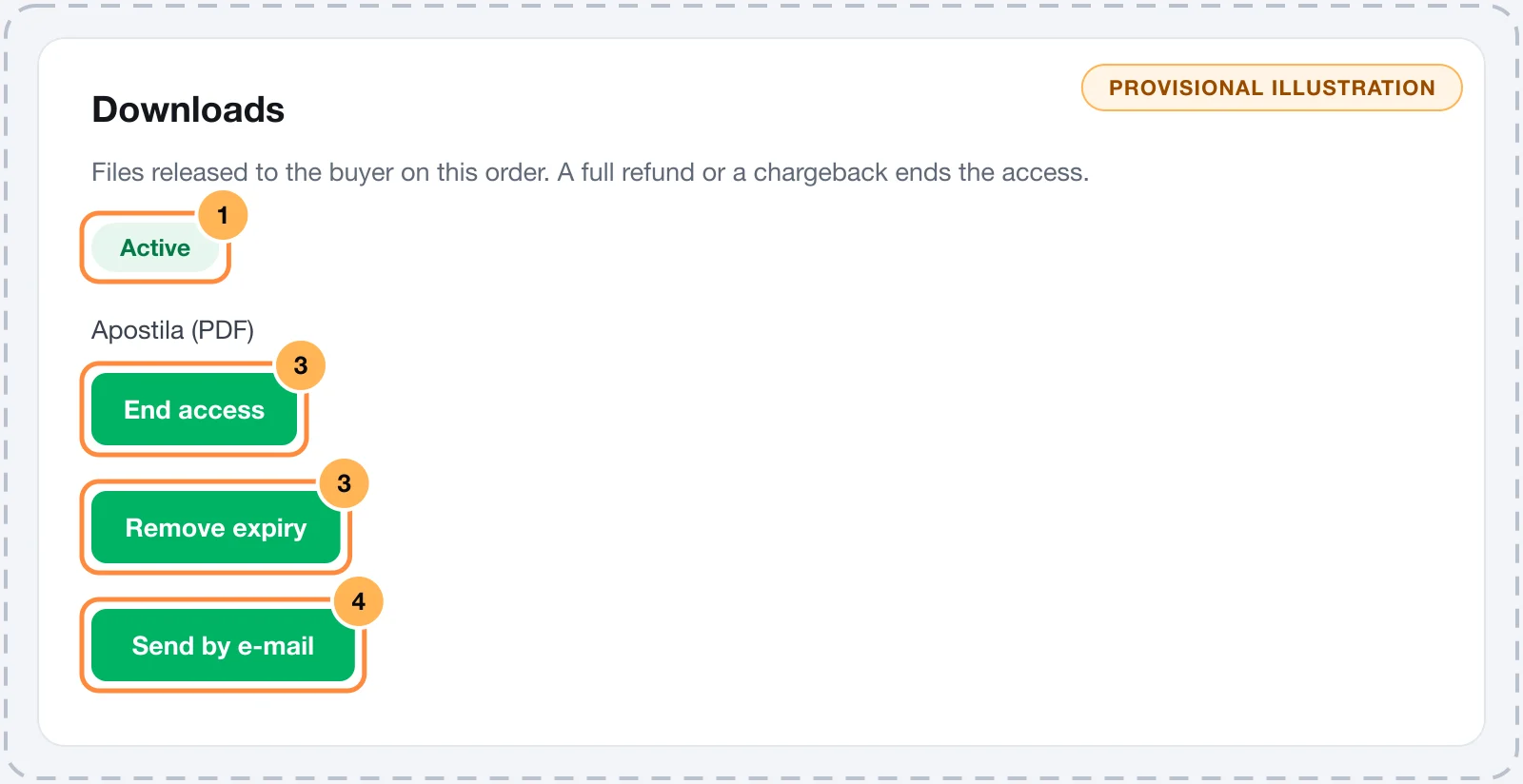
- The access status: Active, Expired or Ended, with the expiry or end date.
- Each file with how many times it was downloaded and a button to copy the buyer's link.
- End access cuts off access, and Restore access gives it back. Remove expiry removes the deadline for that buyer.
- Send by e-mail sends the links again in the Your downloads e-mail.
Common problems
-
Enter a URL starting with https://.
The address must start with
https://. Copy the file's sharing link, not the folder address from the browser. -
Each product accepts up to 10 links.
Put files together in a ZIP or a shared folder and add one link to it.
-
The link asks for a login: share it with anyone who has the link.
The file is private. Share it with anyone who has the link and test again.
-
The buyer says they reached the download limit
Raise the Download limit per file or leave the field empty. The new limit applies right away.
-
The buyer doesn't see the links on the thank-you page
They opened the page in another browser or device. Tell them to sign in to the customer portal with the purchase e-mail, or use Send by e-mail on the order page.
What to do next
- See what the thank-you page looks like.
- Turn on the customer portal so the buyer can find the files later.