Transactional e-mail: how it works
Learn how Vipter sends your store's e-mails through your own e-mail account, what each sender field does and how to check that everything is arriving.
The e-mails buyers get from your store, such as the order confirmation, the PIX awaiting payment notice (PIX is Brazil's instant payment method) and the refund notice, go out through the store's own e-mail account. You connect a provider (SendGrid, Postmark, Mailgun, Resend or any SMTP server) and Vipter sends through it, with your name and your domain.
Without a provider, buyers get no e-mails from the store
Vipter does not e-mail buyers from its own sender. Pick the service your store uses: The only exception is the customer portal sign-in code: with no provider connected, or if sending through the provider fails, it goes out from Vipter's sender so the buyer can still sign in.
One provider per project
Each project uses one provider at a time. The providers are under GeneralIntegrationsE-mail, and each one has its own connection page:
- SendGrid
- Postmark
- Mailgun
- Resend
- SMTP, for Amazon SES, Brevo, Zoho Mail, Google Workspace and other servers
If you save another provider while one is already connected, Vipter asks you to confirm and replaces the connection: e-mails start going out through the new account and the old account's credentials are deleted.
Credentials are stored encrypted. Once saved, the key or password is not shown again: the field only shows its last characters, and leaving the field blank keeps the saved one.
The sender
The first three fields of the form apply to every provider:
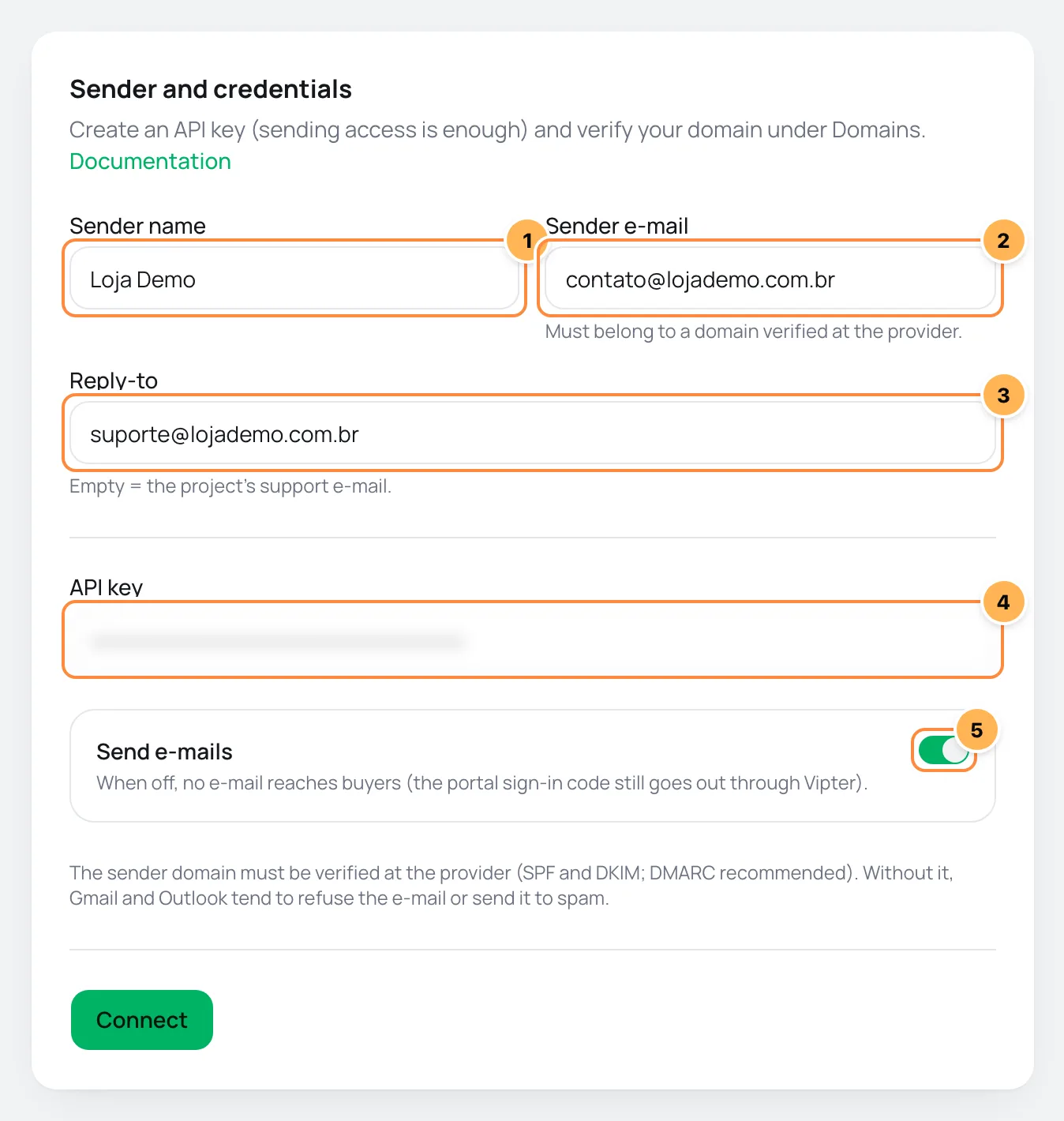
- Sender name: the name shown in the inbox, such as the store's name. If blank, Vipter uses the project name.
- Sender e-mail: the address that sends. Must belong to a domain verified at the provider. If the domain is not verified, the provider refuses to send or the e-mails land in spam. See how to verify the sending domain.
- Reply-to: where the buyer's replies go. Empty = the project's support e-mail.
Below the credentials, the Send e-mails switch pauses all e-mails to buyers without disconnecting the provider. When off, no e-mail reaches buyers (the portal sign-in code still goes out through Vipter).
What happens when you save
- Vipter checks the credentials with the provider right away. If something is wrong, the connection is saved anyway, the warning Connection saved, but the check failed: shows with the reason and the status becomes Failing.
- It checks the sender's domain (see below).
- On the first connection, or when you change the sender e-mail, the status stays Not verified until you send a test e-mail.
Send a test e-mail
After saving, the right-hand column shows the connection status, the test, the domain and, for providers with an API, the webhook.
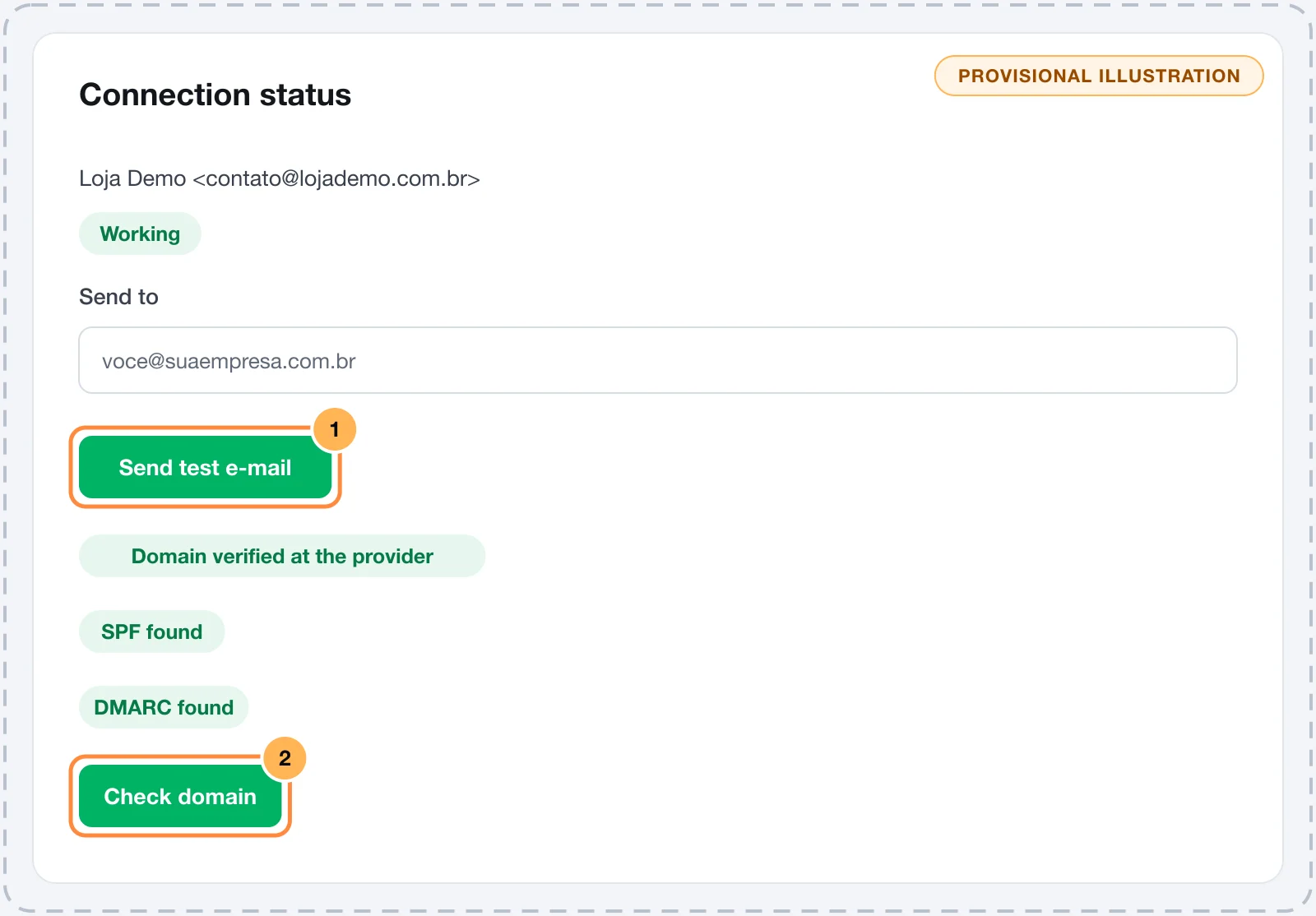
- Under Send test e-mail, fill in Send to. It comes filled in with your e-mail, but it can be any address.
- Click Send test e-mail. A sample order-confirmation e-mail, so you can see how it lands in an inbox.
If sending works, the status changes to Working and the card shows the test date. If the provider refuses, you see The provider refused the e-mail: with its response, and the status changes to Failing.
Verify the domain
The domain card shows whether the sender's domain has SPF and DMARC in its DNS and, when the provider's API allows it, whether it is verified at the provider. The check runs on its own when you save; to run it again after changing your DNS, click Check domain. The details are in verify the sending domain.
The delivery status webhook
SendGrid, Postmark, Mailgun and Resend tell Vipter what happened to each e-mail after it was sent. Each project has its own URL, in the format /api/webhooks/email/{project}/{code}, shown in the Delivery status (delivered, bounced, spam) card after the provider is saved. You register this URL at the provider, as each provider's page explains.
With the webhook registered:
- The e-mail history shows Delivered, Bounced or Marked as spam instead of just Sent.
- An address that does not exist (hard bounce) or that marked an e-mail as spam goes on the blocked addresses list, and the store stops sending to it. Continuing to send to those addresses hurts your domain's reputation.
The code at the end of the URL identifies your project, so there is no secret to copy. Even so, register the URL only at your provider. SMTP servers do not send these notices, which is why the SMTP page does not show the card.
Which e-mails go out
The list of e-mails, the text of each one and the blocked addresses list are in the e-mail templates in Settings, under GeneralSettingsE-mails. These start on:
| When it goes out | |
|---|---|
| Order confirmed | Purchase approved or first subscription charge. Includes items, totals, payment and downloads. |
| PIX awaiting payment | PIX generated at checkout, with the copy and paste code and expiry. |
| Renewal charged | Receipt of every approved recurring charge. |
| Subscription payment problem | The renewal charge failed; button to update the payment method in the portal. |
| Subscription cancelled | Cancellation or end of the subscription. |
| Refund | Full or partial refund of the order. |
| Your downloads | Sent from the button on the order, with the download links. |
| Portal sign-in code | Code and sign-in link for the customer area. |
The others start off: Upcoming renewal, PIX expired, Plan changed, Payment method changed, Invoice issued and the team notifications.
Buyer e-mails go out in the buyer's language. An event older than 24 hours never triggers an e-mail, so connecting the provider later does not send e-mails for old sales.
When the provider refuses a send because of a temporary problem, Vipter tries again after 1, 5, 30 and 120 minutes. If the refusal is permanent, such as an invalid key, the e-mail stays as Failed and the connection changes to Failing, with the error on the status card.
Common problems
-
Connect an e-mail provider in Integrations first.
No provider is connected or it is paused. Connect a provider or turn on Send e-mails.
-
The buyer says they got nothing
Check the order history. Blocked means the address is on the blocked list; Not sent comes with the reason, such as The e-mail was turned off. If it shows Sent or Delivered, ask the buyer to check their spam folder and check the sending domain.
-
Test mode: every e-mail goes to you@yourcompany.com.
The test address in the e-mail settings is filled in, and every e-mail goes to it instead of the buyer. Clear the address when you finish testing.