Product fiscal data
Fill in NCM, CFOP, the LC 116 item, the ISS rate and other codes on the product so its invoice uses its own values instead of the integration's defaults.
Invoice integrations have default codes that apply to every product. When a product needs different codes, such as another NCM (Brazilian product classification code) for a mug or another LC 116 item (the service item from Brazil's national list of services) for consulting, you fill them in on the product itself. Whatever is filled in on the product applies instead of the integration's default, and whatever is left blank uses the default.
Before you start
- A connected invoice integration, with its defaults filled in. See Invoices.
- The product's tax codes, checked with your accountant.
- The Admin or Owner role in the Vipter project.
Step 1: open the fiscal data
- Open CatalogProducts, click the product and then the Edit details tab. On a new product, the fields are in the creation form.
- Click Fiscal data to open the section. It starts closed when the product doesn't have any code yet.
The fields depend on the product type: types with delivery show the NF-e fields (Brazil's electronic invoice for goods), and the others show the NFS-e fields (Brazil's electronic invoice for services). See Product types.
Step 2: fill in the codes
Products with delivery (NF-e)
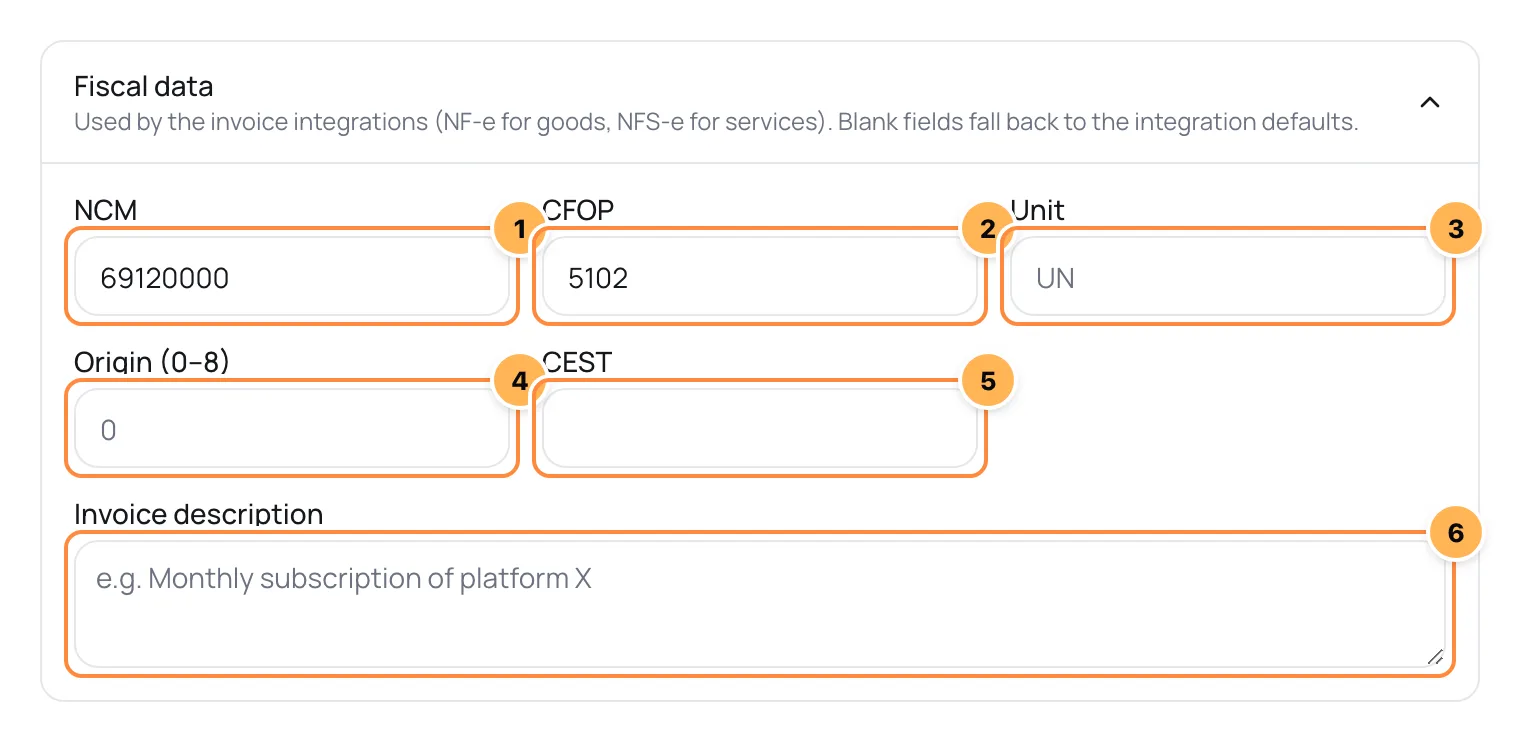
| # | Field | What to fill in | When blank |
|---|---|---|---|
| 1 | NCM | The product's code in the NCM table, 8 digits. | The integration's default NCM. |
| 2 | CFOP | The operation code (Brazilian tax operation code), such as 5102. | The integration's default CFOP and, without it, 5102. |
| 3 | Unit | The commercial unit, such as UN or CX. | The integration's default unit and, without it, UN. |
| 4 | Origin (0–8) | The origin of the goods, from 0 to 8. | The integration's default origin and, without it, 0. |
| 5 | CEST | The CEST code (Brazilian tax substitution code), when the product is under tax substitution. | Left off the invoice: the integration has no default CEST. |
| 6 | Invoice description | The invoice text. | See below. |
Other products (NFS-e)
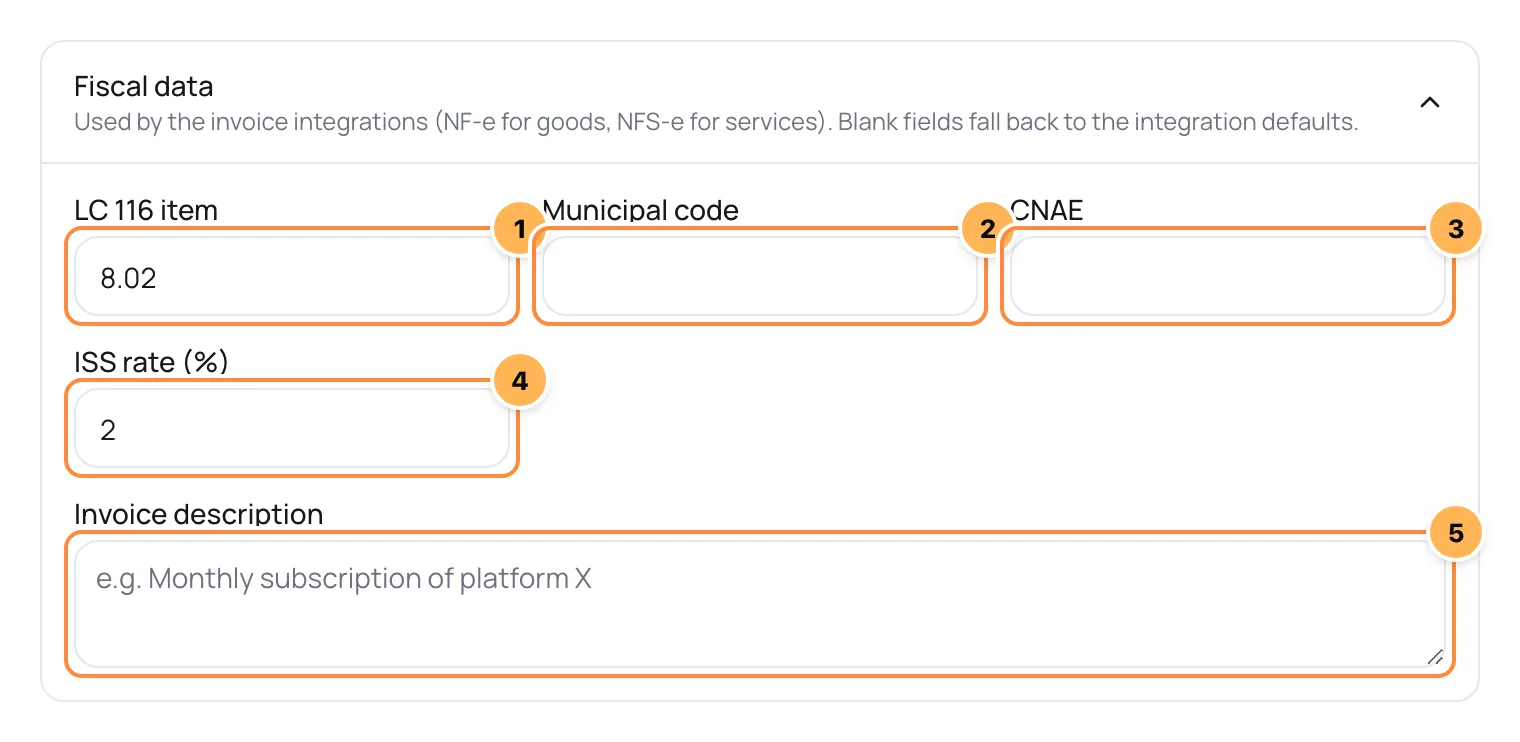
| # | Field | What to fill in | When blank |
|---|---|---|---|
| 1 | LC 116 item | The item from the list of services, with the period, such as 8.02. | The integration's LC 116 item. |
| 2 | Municipal code | The service code at your city hall. | The integration's Municipal service code. |
| 3 | CNAE | The activity linked to the service (Brazilian business activity code), numbers only. | The integration's CNAE. |
| 4 | ISS rate (%) | The rate as a percentage, such as 2. ISS is Brazil's municipal tax on services. | The integration's ISS rate (%). |
| 5 | Invoice description | The invoice text. | See below. |
The invoice description
The invoice uses, in this order:
- The product's Invoice description.
- The integration's Service description.
- The product and offer name, the order's order bumps and the order number.
Step 3: save
Click Save product or, on a new product, Create product. The codes apply to invoices issued from then on. Invoices already issued don't change.
It worked if
When you reopen the product, the Fiscal data section is already open, with the saved codes.
What only exists in the integration
Some data applies to every invoice and doesn't exist on the product: Nature of operation, Freight mode and ISS withheld. They stay in the integration's defaults.
Orders with an order bump
The invoice for an order with an order bump is issued with one line per product:
- NF-e: each line uses the product's own NCM, CFOP, unit, origin and CEST, with the integration's defaults for whatever is blank.
- NFS-e: the service uses the main product's codes.
The main product also decides whether the invoice is an NF-e or an NFS-e.
Common problems
-
The invoice was rejected by the issuer
The reason shows on the Invoices card on the order page. If it points to a tax code, such as NCM, CFOP or the LC 116 item, fix the code on the product or in the integration's default and issue it again. See Invoices.
-
The invoice came out with the default code, not the product's
The product's field is blank, or the order is for an order bump on an NFS-e, which uses the main product's codes. Check the product's Fiscal data section.
What to do next
- Set up the defaults and automatic issuing in Invoices.
- See the rest of the product form in Create and edit a product.
Shipping: zones, methods and classes
Set up delivery zones, shipping methods with a fixed cost, a formula, free shipping or pickup, and the shipping classes of physical products.
How buyers see the checkout
The buyer's path from the link to the thank-you page, the languages and currencies, and what changes with your store's settings.