New sale on the saved card
Sell a catalog offer on the card the customer already saved, with installments, right from the dashboard.
A New sale charges a customer's saved card for a catalog offer, without them going through the checkout. It is useful to close a sale by phone or WhatsApp with someone who already bought, such as an upsell agreed by the seller. The sale becomes a regular order, with confirmation e-mail, integrations and statistics, and is credited to whoever charged it.
To charge a free amount to a subscriber, without a catalog offer, use Extra charge on a subscription.
Before you start
- A customer with a saved card. The card is saved when the customer subscribes to a recurring offer, or when they pay by card for an offer that has a one-click upsell. In SalesCustomers, the With saved card filter shows who has one.
- An active one-time offer with a price. Subscription offers don't show: subscriptions only start in the checkout.
- The store's Vipter plan payment up to date.
- Any project role, including Sales.
- An agreement with the customer. The charge is made without them present, and a charge they don't recognize can turn into a dispute.
The card is charged through the same payment account as the purchase that saved it. Only providers that store the card for future charges save cards in Vipter: Stripe, Pagar.me, Asaas and Paystack do, and Mercado Pago does not. See Features by provider.
Step 1: open the sale
- Open SalesCustomers and click the customer.
- On the Payment instruments card, click New sale. The dialog loads the catalog and shows Loading the catalog… for a moment.
Step 2: choose what to sell
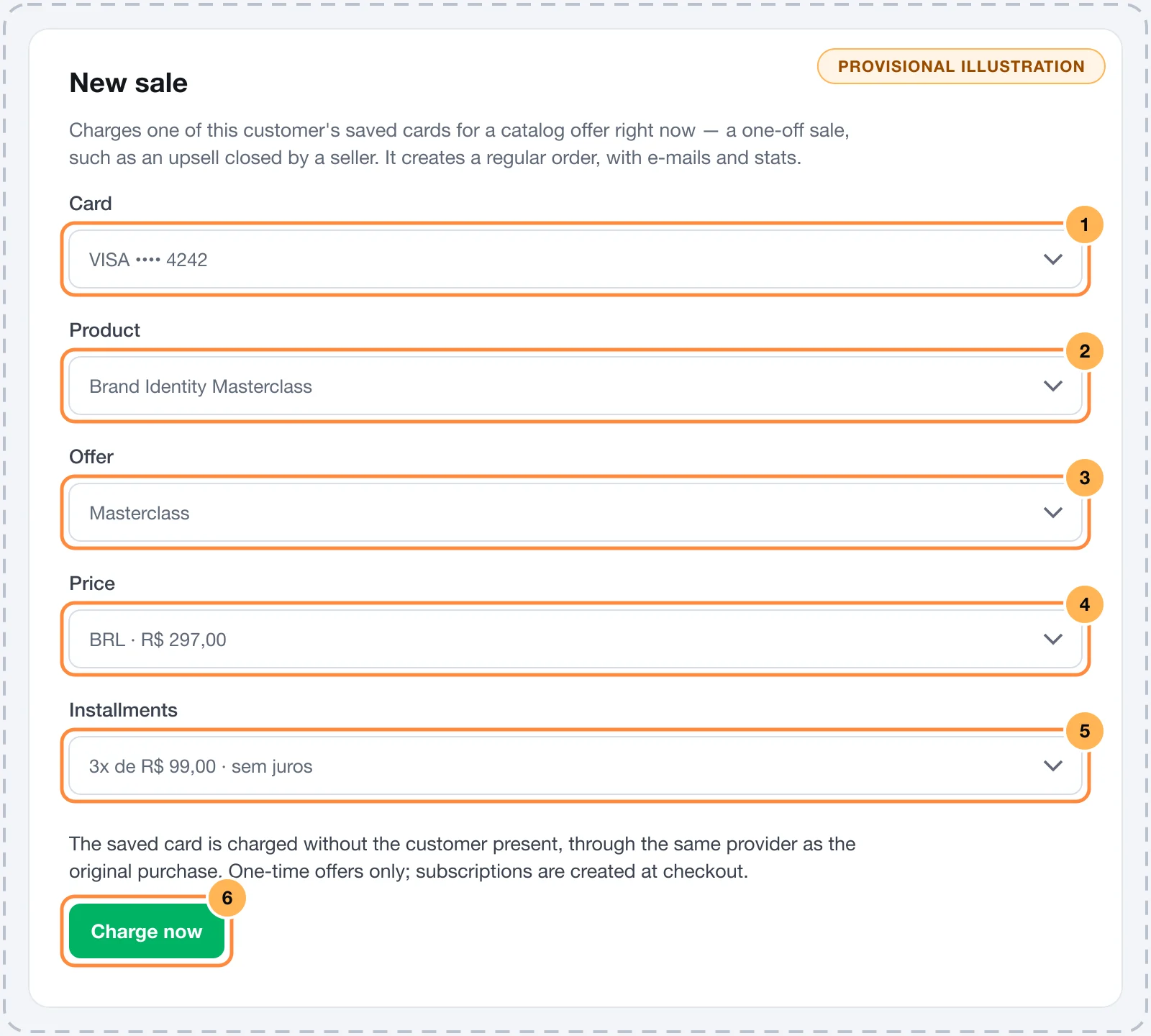
- Card: only shows when the customer has more than one saved card. The default card comes selected.
- Product: the products with at least one active one-time offer with a price.
- Offer: that product's offers. The first one comes selected.
- Price: one price per currency of the offer. The default price comes selected.
- Installments: only shows when installments are possible (see below). Each option shows the installment amount and whether it is interest-free. With interest, the option shows the total.
Step 3: charge
- Click Charge now. The button shows the total, already including installment interest, if any.
The dashboard shows the result, with the View order button:
| Message | What it means |
|---|---|
| Sale of R$ 297,00 approved. | The card was charged. |
| Sale of R$ 297,00 waiting for the provider's confirmation. | The provider has not confirmed yet. The order stays pending until the answer arrives. |
| Sale declined: … | The card was declined. The reason comes from the provider. See Payment decline reasons. |
When installments are possible
Installments follow the same rule as the checkout. They only show when three conditions hold:
- The price is in reais (BRL).
- The store's installment rule for one-time sales is on, in PaymentsInstallments. The options, the minimum per installment and the interest come from that rule. See Installments and interest.
- The card's payment account accepts installments. If Vipter cannot tell which account the card was saved through, the sale goes out as a single payment only.
With a price in reais that cannot be split into installments, the dialog explains why: No installments: this store's one-time installment rule is off (saving it also enables installments on the card's connector). or No installments: the amount does not reach this store's minimum per installment..
What gets recorded
- An order in SalesTransactions, with the product, the offer and, when paid in installments, the installments and the interest, like a checkout sale.
- On the customer's page, the order shows in Linked orders.
- When approved, the sale follows the path of any paid sale: the Order confirmed e-mail to the customer (if the store sends e-mails), access to the member area, invoice, automations and webhooks.
- Seller: the order is credited to whoever clicked Charge now, with the source Dashboard sale. If that person is an active seller and there is a commission rule for them, their own or the store's default, the commission is calculated right away. See Commissions and seller links.
- Plan quota: each approved sale counts as one order in your Vipter plan's quota. See Order quota and overage.
Each click on Charge now is a new charge. Before charging again, check in Linked orders that the first one was not approved.
Common problems
-
The New sale button does not show
The customer has no active saved card, the store is suspended or the customer is a sample record in the demo store. If the button shows disabled, the Vipter plan payment is past due.
-
No active one-time offer with a price to sell.
The store has no active one-time offer with a price. Create one in Create an offer.
-
This card is no longer available to charge.
The card was removed or stopped being valid after the dialog opened. Close the dialog and open it again.
-
This offer or price is no longer available.
The offer was archived or the price was removed. Pick another offer.
-
This installment plan is not available for this sale.
The installment rule changed after the dialog opened. Close it, open it again and pick another option.
-
The amount is below the minimum the provider accepts.
The amount is below the minimum the provider accepts for a charge. Pick an offer with a higher amount.
-
Creating new items is paused until the plan payment is resolved.
Your Vipter plan payment is past due. Bring it up to date in Vipter plan.
What to do next
- Follow the sale in Commissions and seller links.
- See Customers: add and edit to find who has a saved card.
Customers: add and edit
Find customers, see who has a saved card, add a customer by hand and fix contact, document and address details.
Commissions and seller links
Follow each seller's sales and commissions, share links that attribute the sale and understand how the commission is calculated and reversed.