Prices in several currencies
Add one price per currency to an offer, learn which currency the checkout opens in and how Vipter converts amounts in reports.
An offer can have one price in each currency: R$ 749.00 for those paying in Brazilian reais, US$ 149.00 in dollars and € 139.00 in euros. You choose each amount. The checkout doesn't convert the offer price: the buyer pays exactly the amount you set in the chosen currency.
Before you start
- An offer already created. See Create an offer.
- The Admin or Owner role in the Vipter project.
- A connected payment provider that accepts each currency you want to sell in. See How payments work.
Step 1: add the prices
When you create the offer, the Prices card already accepts several currencies: use Add price for each new row. On an existing offer, open CatalogProducts, click the product and then the offer. The Prices card shows one price per row.
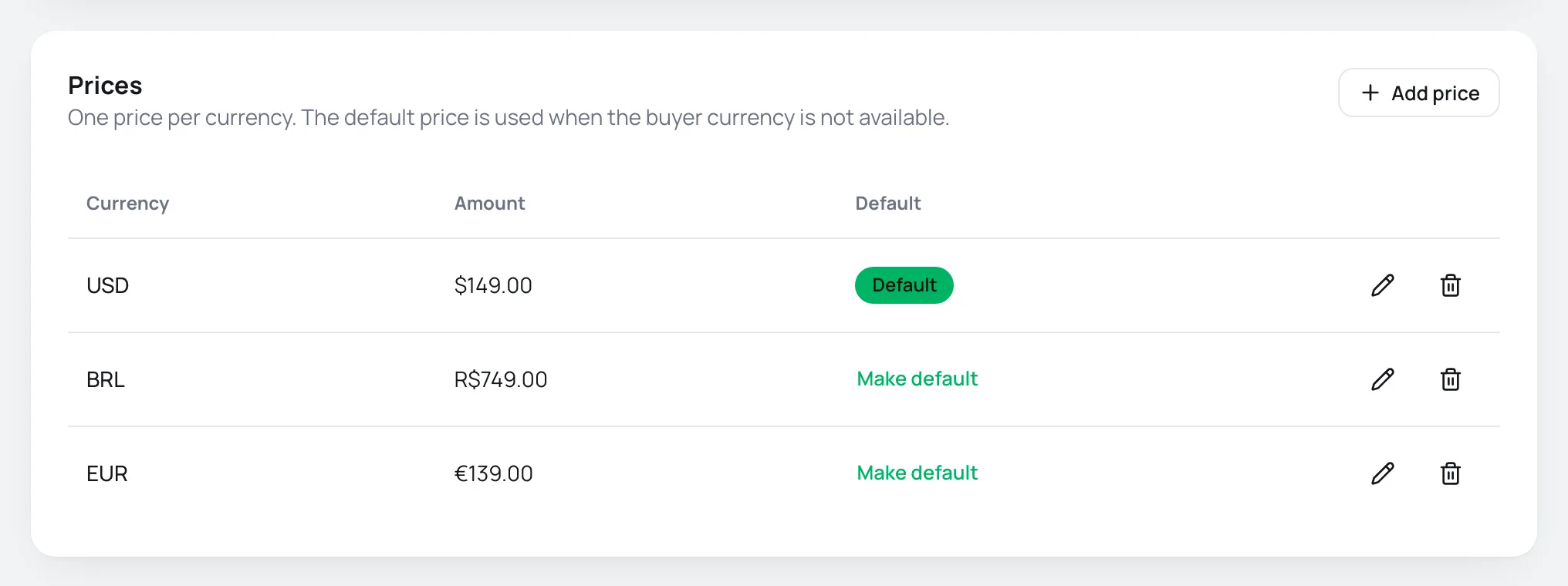
- Add a currency: click Add price, choose the Currency and type the Amount. The list only shows currencies the offer doesn't have yet.
- Change an amount: click the pencil on the row, change it and confirm. For subscriptions with a different first charge, the row also has the First charge amount for that currency.
- Change the default: click Make default on the currency that should become the Default.
- Remove a currency: click the trash can and confirm. The offer must keep at least one price.
The dashboard offers 14 currencies: BRL, USD, EUR, GBP, MXN, ARS, CLP, COP, PEN, CAD, AUD, JPY, CHF and INR.
Step 2: check the store currency
The store currency is the Default currency, in GeneralSettingsGeneral. It decides which currency the checkout opens in most of the time (see below) and is the currency of fixed amounts for packs, order bumps, upsells and shipping.
Which currency the checkout opens in
The checkout picks the currency in this order:
- The link's currency, when it has
?currency=, such aspay.vipter.com/curso-fotografia?currency=USD. - The store currency, if the offer has a price in it.
- The currency of the offer's default price.
The checkout doesn't pick the currency from the buyer's country. To sell in dollars to people coming from an international ad, use a link with ?currency=USD. See Payment link and URL parameters.
Only currencies the store accepts count
A price in a currency that no active connection of the store accepts is left out of the checkout, as if it didn't exist. If none of the offer's prices can be accepted, the link shows the link-unavailable page.
When the buyer switches currency
If the offer has prices in more than one currency the store accepts, the order summary shows the current currency with an option to switch. The list shows each currency with its price.
- On the details step, switching updates the summary right away.
- On the payment step, switching takes the buyer back to the details step, to continue in the new currency.
- While a payment is under review, the currency is locked.
Card installments only exist in Brazilian reais. In other currencies, the card charges in a single payment. See Installments.
Which providers accept each currency
| Provider | Currencies |
|---|---|
| Stripe | Many currencies. Vipter doesn't filter them: check in Stripe that your account accepts each currency you add. |
| Pagar.me | BRL |
| Asaas | BRL |
| Mercado Pago | ARS, BRL, CLP, COP, MXN, PEN and UYU |
| Paystack | GHS, KES, NGN, USD and ZAR |
The checkout shows a currency when some active connection of the store accepts it. With an active Stripe connection, all of the offer's currencies show.
To send each currency to a different provider, such as reais to Pagar.me and dollars to Stripe, use the By currency template in the payment flows.
What Vipter converts
The offer price is never converted. Only some amounts you set in one currency are converted into the checkout currency at the day's rate:
| Amount | Currency you set it in |
|---|---|
| Fixed price of a pack | Store currency |
| Fixed price of an order bump or of an upsell step | Store currency |
| Fixed amount and spend limits of a coupon | The coupon's Currency |
| Cost of a shipping method | The currency chosen in the method |
An order bump or an upsell step with Offer price or Percentage off starts from the price of the offer sold, in the checkout currency. If that offer has no price in that currency, Vipter converts its price in the store currency or, without one, its default price.
Subscriptions
Each subscription stays in the currency it was bought in. When changing plans, the subscriber only sees plans with a price in their subscription's currency. See Families and plan changes.
Currencies in reports
The Dashboard shows metrics in a single currency, chosen in the Currency selector. Sales in other currencies are converted at the reference rate of each order's day, only for comparison. The money itself isn't converted: each charge stays in its original currency, and the provider settles in that currency.
Common problems
-
The checkout doesn't show the currency I added
No active connection of the store accepts that currency. Connect a provider that accepts it or activate the connection. Check the table above.
-
The link with
?currency=opened in another currencyThe offer has no price in that currency, or the store doesn't accept it. The checkout then opens in the store currency or in the default price's currency.
-
Each currency can appear only once
There are two prices in the same currency. Remove one of them.
-
The link shows "payment link is not available"
None of the offer's prices is in a currency the store accepts. Add a price in an accepted currency or connect another provider.
What to do next
- Build links per currency in Payment link and URL parameters.
- Set which provider charges each currency in the payment flows.