How conversion tracking works
Understand accounts, products, browser and server delivery, and Vipter's Conversions screens before you connect Meta, Google or another platform.
Vipter tells your ad and analytics platforms what happens in the checkout: who opened it, who filled in their details, who generated a PIX and who paid. You connect each pixel or tag once and choose which products it fires on. Everything lives in GeneralConversions.
Before you start
- The Admin or Owner role in the Vipter project.
- At least one product created, so you can choose where each account fires.
Accounts and products
- An account is a connected pixel, tag or integration: a Meta Pixel, a GA4 property, a Utmify account. The account stores the ID, the token and what to send by default. You can connect several accounts from the same platform, such as your company's pixel and an affiliate's.
- A product is where the account fires. An account only sends events for the products linked to it. Turn on Use automatically on new products so products created later already come with the account.
- Adjustments are exceptions for one product. On a product, you can change the events sent, the conversion value and, in Google Ads, the conversion labels. Whatever you don't adjust keeps following the account.
Browser and server
An event can reach the platform in two ways:
- From the browser: the pixel loads on the checkout and the thank-you page and fires right there, as on any website.
- From the server: Vipter sends the event straight to the platform's API, such as the Meta Conversions API. This happens even after the buyer closes the page.
The difference matters for PIX (Brazil's instant payment). Many people pay the PIX in their banking app and never return to the checkout. Without server delivery, that sale is not counted. With it, Vipter reports the purchase when the payment is confirmed.
When the same sale goes out both ways, both events carry the same identifier. Platforms that deduplicate by identifier, such as Meta, count the sale only once.
| Platform | Delivery | What it needs to send from the server |
|---|---|---|
| Meta Ads | Browser + server | Conversions API token. See Connect Meta Ads. |
| TikTok Ads | Browser + server | Events API access token. |
| Pinterest Ads | Browser + server | Conversion token and ad account ID. |
| Google Analytics 4 | Browser + server | Measurement Protocol API secret. See Connect Google Analytics 4. |
| Taboola, Outbrain | Browser + postback | No token. Server delivery only happens when the ad carries the click identifier. |
| Utmify | Server | API credential. |
| Google Ads, Google Tag Manager, Plausible, Fathom | Browser | They don't send from the server. |
Without a token, platforms that accept server delivery work Browser only. Each account shows how it is sending: Browser + server, Browser + postback or Browser only.
Accounts with server delivery count toward your plan
Your Vipter plan limits how many accounts send from the server. At the limit, connecting another one shows Your plan does not allow another account sending from the server. Upgrade to connect one more.
Events sent
| Event | When it happens |
|---|---|
| Page view | When the checkout opens. |
| Checkout started | When the checkout opens. |
| Lead (contact filled) | When the buyer fills in their details and continues. |
| Shipping chosen | When a shipping method is chosen. |
| Payment started | When pay or generate PIX is clicked. |
| PIX generated | When the QR code shows up. |
| Purchase | When the payment is confirmed, card or PIX. |
| Subscription started | On the first payment of a subscription. |
| Renewal | On every recurring charge. Server only. |
| Refund / chargeback | Refund or chargeback. Server only. |
- The purchase is reported when the payment is confirmed, by card or PIX. Generating a PIX fires only the PIX generated event.
- A new account starts with every checkout event on. Renewal and Refund / chargeback start off.
- Each platform only receives the events it understands. In What to send, the name the platform receives shows next to each event.
- Sales that someone on the team marked as paid by hand are not reported to the platforms.
The Conversions screens
GeneralConversions has five tabs.
The products and accounts table
The Overview tab is a table with products in the rows and accounts in the columns. Click an empty cell to link the account to the product. On a filled cell, the menu lets you adjust, view the activity or remove. Select several products to link, remove or clear adjustments at once. These actions save right away and show Undo for a few seconds.
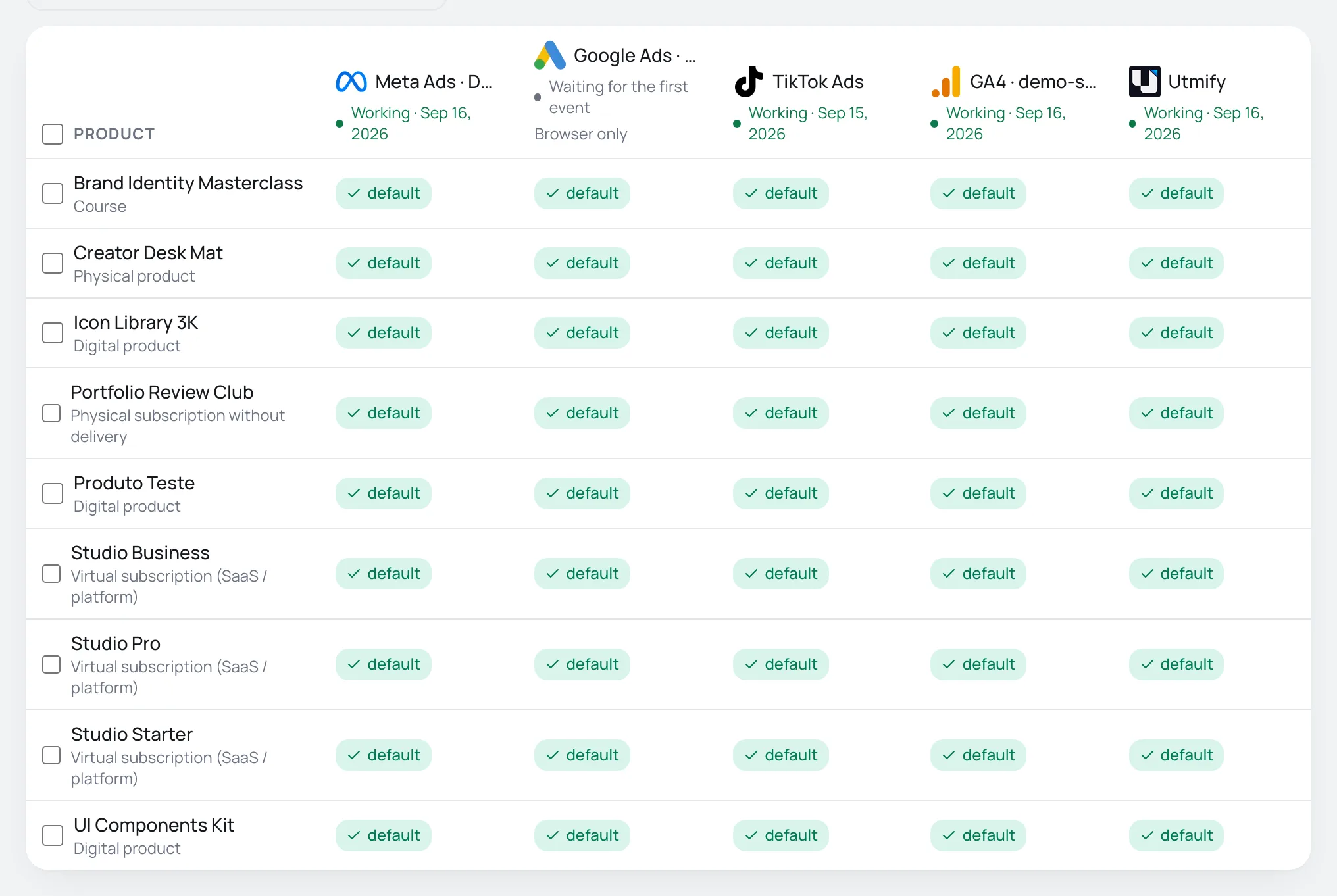
The cell shows default when the product follows the account, or how many adjustments it has.
The accounts
The Accounts tab lists the connected accounts, with the delivery type, the health and the number of products. The Connect account button opens the connection in three stages: Platform, Connect and Where to use.
Each account has four tabs:
- Connection: ID, token and test mode. It is the only place where you type the token. Once saved, it is not shown again.
- What to send: the events, the conversion value, the value currency and the data used to find who clicked the ad. This data is hashed with SHA-256.
- Products: which products the account fires on.
- Activity: this account's events.
At the top of the account, Pause stops sending without unlinking the products, and Delete deletes the account and its event history.
The event history
The Activity tab shows everything that was reported, from the browser and from the server, with the platform's response. Filter by account, product, event, channel or status, or search by order ID. History is kept for 30 days. Server failures are retried automatically for up to 7 days. A server event that didn't reach the platform has the Resend button.
Where sales come from
The Sales sources tab shows where paid sales come from: channel (Meta Ads, Google Ads, TikTok Ads…), utm_source, utm_campaign, utm_medium, utm_content, src and sck. It counts only the first purchase of each order, without renewals, and revenue already has refunds deducted.
General options
The Preferences tab gathers the options that apply to all accounts: the UTM script, cookie consent and domain verification.
UTM script for the sales page
If the ad leads to a sales page and only then to the checkout, the UTMs and click identifiers get lost on the way. The script fixes that.
- Open GeneralConversionsPreferences.
- Under UTM script for your sales page, copy the code.
- Paste the code at the end of your sales page, before the closing
</body>tag.
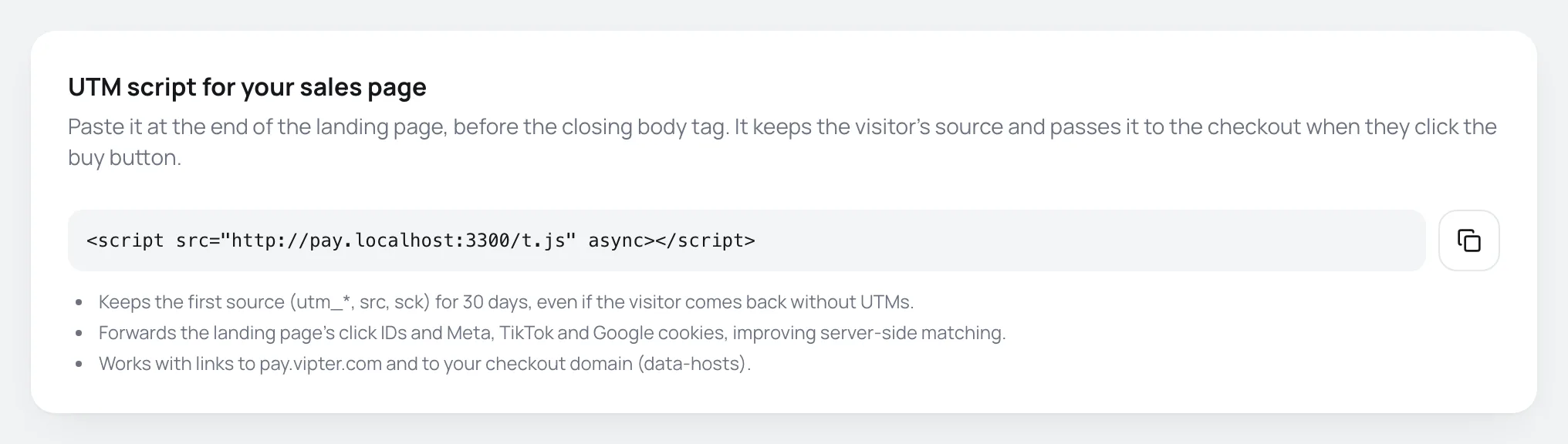
The script:
- Keeps the first source (utm_*, src, sck) for 30 days, even if the visitor comes back without UTMs.
- Forwards the landing page's click IDs and Meta, TikTok and Google cookies, improving server-side matching.
- Adds this information to links to the checkout. With a custom domain active, the copied code already includes your domain.
Cookie consent and domain verification
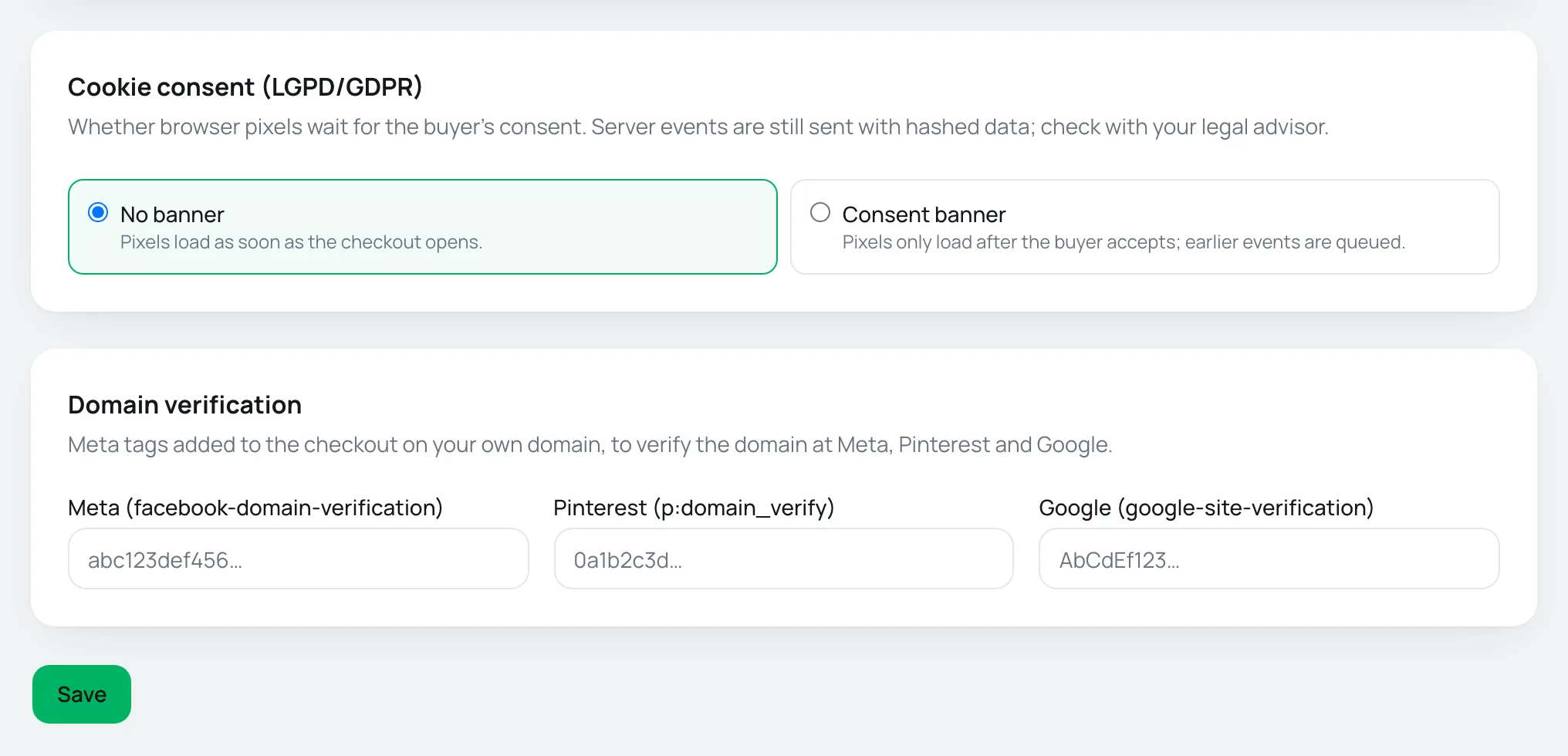
Under Cookie consent (LGPD/GDPR), choose:
- No banner: Pixels load as soon as the checkout opens.
- Consent banner: Pixels only load after the buyer accepts; earlier events are queued.
Check with your legal team
The banner applies to the browser pixels. Server events keep being sent, with personal data hashed.
Under Domain verification, paste only the verification code that Meta, Pinterest or Google shows you, without the whole tag. Vipter adds the meta tag to the checkout on your custom domain. Click Save.
Common problems
-
Without a token, events only go out from the browser and a PIX paid after the page was closed is not counted. Add the token under Connection.
The account only sends from the browser. Open the account, go to Connection and paste the token.
-
Account limit for this platform reached.
Each platform accepts up to 50 accounts per project. Delete the accounts you no longer use.
-
The platform doesn't receive any event
Check that the account is linked to the product sold in Overview and that it isn't paused. Then look up the order in Activity to see the platform's response.