Change the status manually
Mark an order settled outside the checkout as paid, canceled or refunded, with the reason on record, and learn what each status triggers and which status wins when the provider changes it later.
Sometimes a sale starts in the checkout and ends outside it: the buyer generates a PIX (the Brazilian instant payment), doesn't pay, talks to your team and ends up paying with a PIX straight to the store's account. So the order doesn't stay pending or declined, someone on the team changes the status by hand. Vipter records who changed it, when and why, and triggers the same things as a sale paid through the checkout, except the ad pixels.
Before you start
- Any role in the project: Sales, Admin or Owner.
- A standalone, one-time order. Subscription orders don't accept a manual status: the subscription would keep charging the buyer on the payment platform.
- The payment, cancellation or refund already settled with the buyer, outside the platform.
When you can change it
The Change status button shows at the top of the order only when a change is possible:
| Order situation | Can become |
|---|---|
| Pending or Failed at the provider | Paid (outside the platform) or Canceled |
| Canceled at the provider or canceled by the team | Paid (outside the platform) |
| Marked as paid by the team | Refunded (outside the platform) |
| Marked as refunded by the team | Nothing. A manual refund is final. |
| Paid, pre-authorized or refunded at the provider | Nothing. The money is at the provider: use refund, capture or void. See Refund, capture and void. |
Step 1: open the order
- Open SalesTransactions and find the order. To see only the ones waiting for payment, filter Status by Pending.
- Click the order and, at the top of the page, click Change status.
Step 2: pick the status and write the reason
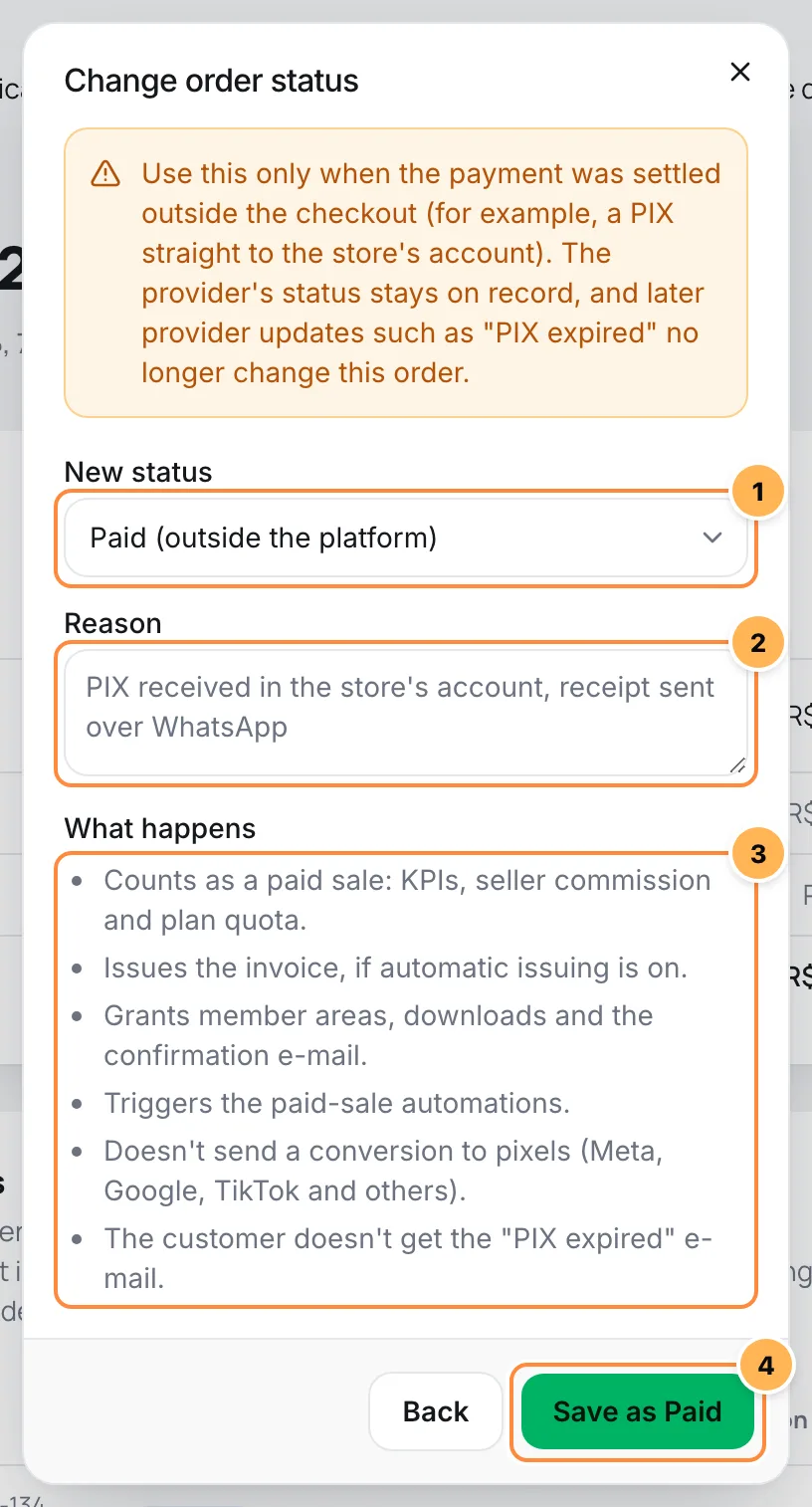
- New status: pick one of the options the order accepts.
- Reason: required, up to 500 characters. Write what happened and where the proof is, for example "PIX received in the store's account on 09/12, receipt on WhatsApp". The reason stays in the order history for the whole team.
- What happens: the list changes with the chosen status. Read it before saving.
- Click the save button, which shows the chosen status, such as Save as Paid.
It worked if
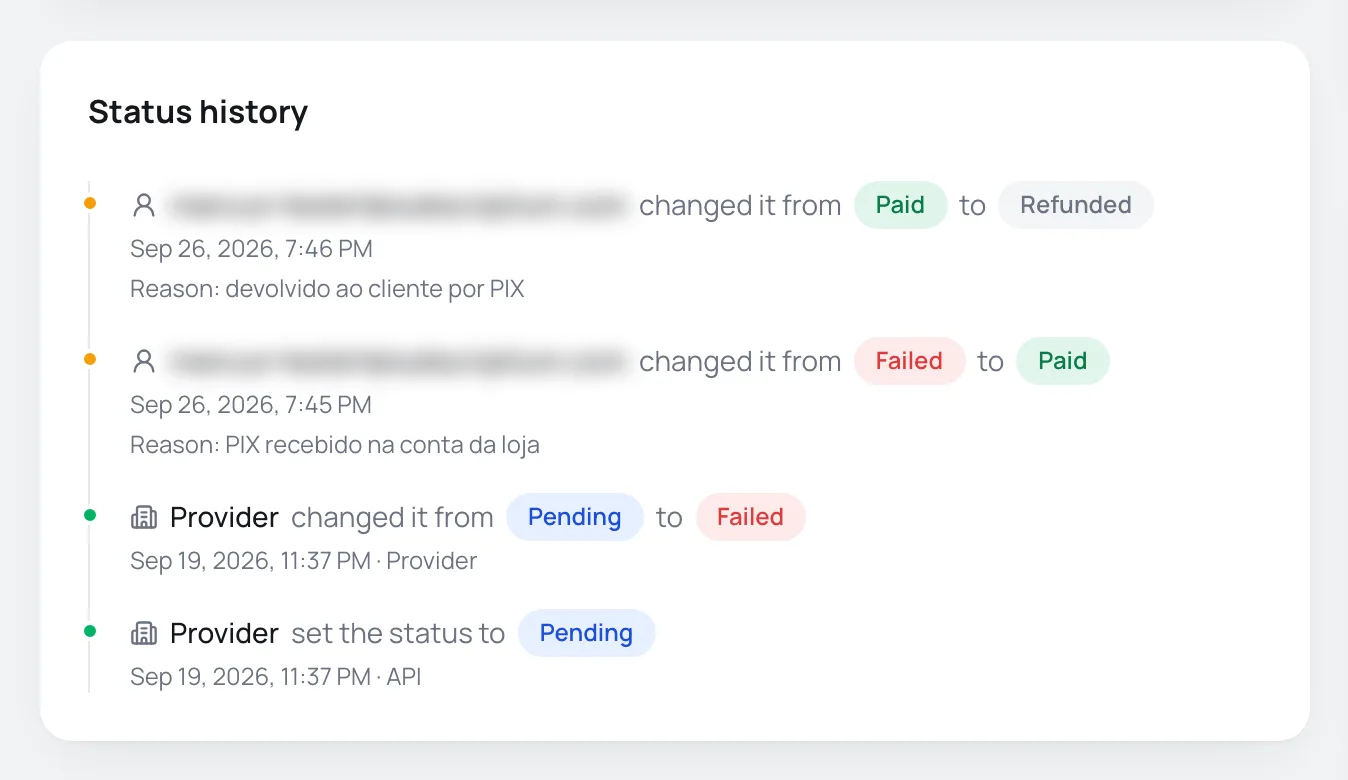
You see the message Status changed, the order gets the Manual badge next to the status and the Status history card shows the change with your e-mail and the reason.
What each status triggers
Paid (outside the platform)
- The order counts as a paid sale, with the date and time it was marked: it goes into the Dashboard numbers, the seller commission and your Vipter plan's quota.
- The invoice is issued, if Issue when paid is on at the issuer.
- The buyer gets access to the member area and the downloads and receives the purchase confirmation e-mail.
- Automations get the approved sale event, and webhooks get
order.paid. - The coupon use is recorded, and this buyer's abandoned checkouts are closed.
- The conversion does not go to the ad and analytics pixels. They only get what the checkout charged.
- The buyer does not get the expired PIX e-mail.
- There are no post-purchase offers: the buyer did not go through the checkout.
If the provider confirms the payment later, nothing is triggered again.
Canceled
- The order leaves the pending ones and triggers nothing.
- The buyer does not get the expired PIX e-mail.
- If the buyer pays through the provider later, the payment counts: the order becomes Paid and everything a paid sale triggers happens as usual.
Refunded (outside the platform)
It only exists for an order the team marked as paid. Use it when you returned the money outside the platform, for example with a PIX from the store's account.
- Access to the member area and the downloads is removed.
- The invoice is canceled, if Cancel on refund is on at the issuer.
- The buyer gets the refund e-mail, and automations and webhooks get the refund event.
- The amount goes into Refunds on the Dashboard and shows on the order's Refunds card.
A manual refund returns no money at all: it only records a refund you already made.
Which status wins when the provider changes it later
Vipter keeps both statuses: the one the team set and the one the provider reports. The Payment details card shows the provider's one under Provider status.
| Manual status | The provider changes it to | What wins |
|---|---|---|
| Paid or refunded | Pending, declined, canceled or expired | The manual status. The provider's change shows in the history as Ignored: the manual status still holds. Nothing was triggered. |
| Canceled | Paid | The provider: the money came in, so the order becomes paid. |
| Paid | Paid | The manual status, with the possible duplicate payment alert. |
Duplicate payment
If the order was marked as paid and the provider also received the payment, the page shows the Possible duplicate payment alert. Check with the buyer whether they paid twice. If they did, refund the provider's charge with the Refund button: the order stays paid, and nothing is revoked or sent to the buyer. That refund needs Admin or Owner.
Common problems
-
Write a reason before saving.
The reason is empty. Write what happened before saving.
-
The reason can be up to 500 characters.
Shorten the reason. Long details fit in an order note.
-
The order changed while you were editing. Reload the page and try again.
The provider or someone else on the team changed the order while the window was open. Reload the page, check the new status and try again if it still makes sense.
-
This order can't take that change.
The order does not accept that change: it is a subscription order, it was already paid or refunded at the provider, it is a demo store sample or the project is suspended.
-
The Change status button does not show.
For the same reason as the previous item. Check the table in "When you can change it".
What to do next
- See the rest of the page in Order detail.
- To return a payment that went through the provider, see Refund, capture and void.
Refund, capture and void
Return a sale's amount, in full or in part, capture or void a pre-authorized payment, and learn what changes afterwards for the buyer, the integrations and the commissions.
Abandoned checkouts
See who filled in the checkout and left without trying to pay, read the recovery numbers, open each record and copy the recovery link.