Invoices: how they work
Learn when Vipter issues and cancels NF-e and NFS-e through Notazz, eNotas or PlugNotas, which fiscal defaults to set up and how to follow each order's invoices.
For sales in Brazil, Vipter can issue the invoice (nota fiscal, the Brazilian tax document) for each paid order through an invoicing service you already use: Notazz, eNotas (Nota Gateway) or PlugNotas. The invoice is issued by your company, in that service, with the digital certificate stored there. Vipter builds the invoice from the order data, sends it, follows it until it is authorized and requests the cancellation when the order is refunded. Everything lives under GeneralIntegrationsInvoices.
An issued invoice is a fiscal document
Every invoice issued in the production environment counts as a fiscal document, including one for a test purchase. Vipter issues for paid orders without checking whether the payment account was in test mode. Before turning on issuing, agree on the tax codes with your accountant and test the way your invoicing service's page describes.
NF-e or NFS-e
- NF-e (goods): the Brazilian electronic invoice for goods. Products with delivery always generate an NF-e, whatever the integration's default.
- NFS-e (service): the electronic invoice for services, issued through your city hall. The other types, such as a course, a digital product and a service subscription, use the integration's Default invoice kind. It starts as NFS-e (service).
The product type is chosen when you create the product. See Product types.
When the invoice is issued and cancelled
| What happens | What Vipter does |
|---|---|
| Order paid, including each subscription renewal | Issues the invoice, if Issue when paid is on |
| Full refund of the order | Requests the cancellation, if Cancel on refund is on |
| Chargeback | Requests the cancellation, if Cancel on refund is on |
| Partial refund | Nothing. The invoice stays valid |
After it is sent, the invoice stays Processing until the invoicing service answers. Vipter checks with the service every 10 minutes and stores the number, the verification code, the PDF and XML links and the final status: Issued, Rejected or Cancelled.
Keep only one invoicing service active
Vipter issues in every active integration with Issue when paid on. With two active services, the same order gets two invoices.
Vipter also does not set aside sales outside Brazil. With automatic issuing on, it tries to issue for any paid order. If you sell abroad, agree with your accountant on how to handle those sales before turning it on.
What goes on the invoice
- Customer: name, e-mail, phone, CPF or CNPJ (Brazilian individual or company taxpayer ID) and address from the customer record. The NF-e gets the shipping address. The NFS-e gets the billing address.
- Amount: what the buyer paid, without shipping and without installment interest. The discount goes separately, and so does shipping, on the NF-e.
- Order bumps: go on the same invoice, each on its own line with its own product's fiscal data. The main product decides whether the invoice is an NF-e or an NFS-e.
- Description: the product's Invoice description. Without it, the integration's Service description. Without both, the product and offer name with the order number.
To issue, the customer needs an address with street, CEP (Brazilian postal code), city and state. The NF-e also requires a CPF or CNPJ. Without this data, the invoice shows as Failed with the reason. When the neighborhood is missing and the CEP lookup does not find it, the invoice goes out with the neighborhood "Centro". When the number is missing, it goes out as "S/N" (no number). To make the checkout ask for the address on products without delivery, turn on address collection on the product.
Integration fiscal defaults
On each invoicing service's page, the defaults cards apply to every product. A blank field is left off the invoice, unless the table shows a value used instead. Check the codes with your accountant.
NFS-e defaults
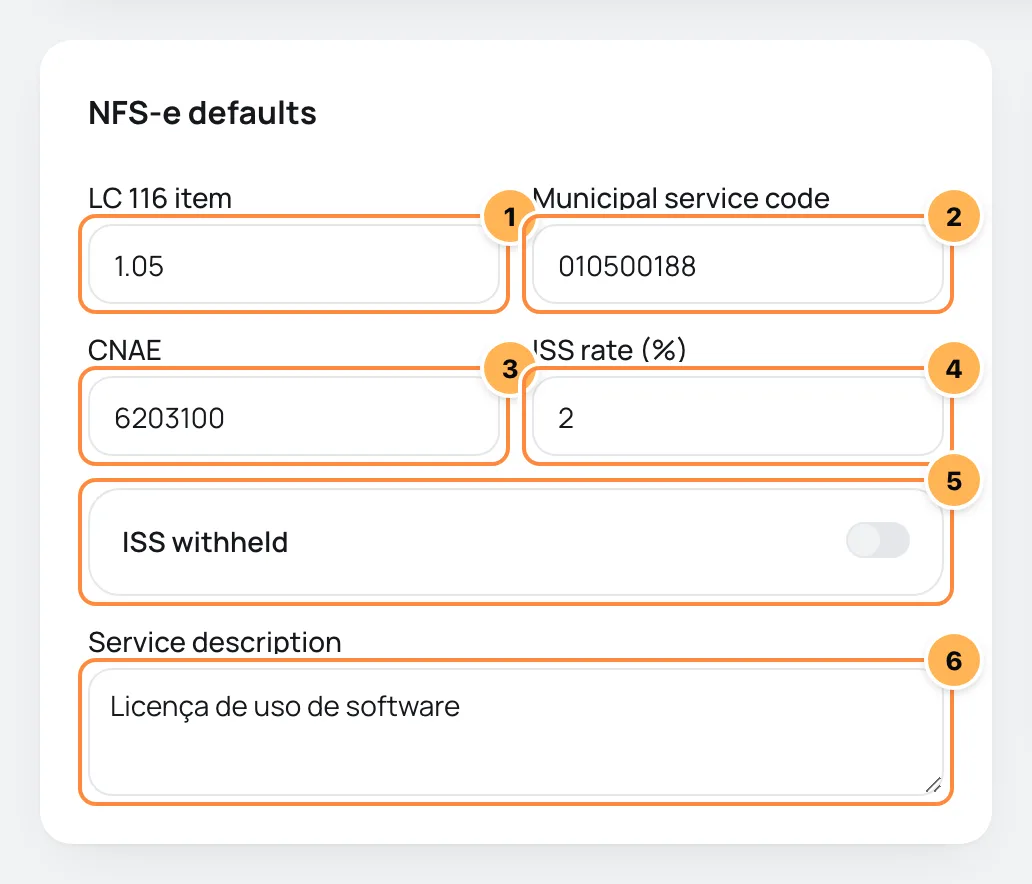
| # | Field | What to fill in |
|---|---|---|
| 1 | LC 116 item | The item on the service list of Complementary Law 116 (LC 116, the federal list of taxable services), with the dot, such as 1.05. |
| 2 | Municipal service code | The service code at your city hall. |
| 3 | CNAE | Your company's activity (Brazilian economic activity code) linked to the service, numbers only. |
| 4 | ISS rate (%) | The ISS (municipal service tax) rate as a percentage, such as 2. |
| 5 | ISS withheld | Turn it on only if the ISS is withheld by the service buyer. It applies to every invoice; it does not exist on the product. |
| 6 | Service description | The invoice text when the product has no description of its own. |
NF-e defaults
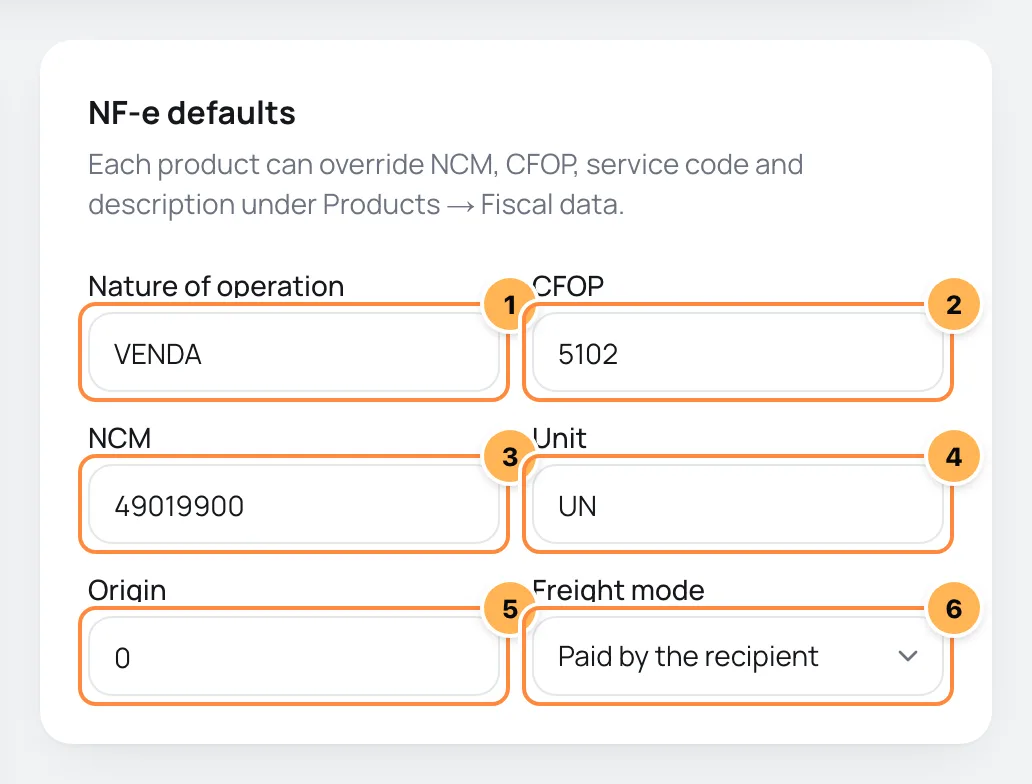
| # | Field | What to fill in |
|---|---|---|
| 1 | Nature of operation | Such as VENDA (sale), which is the value used when left blank. It applies to every invoice. |
| 2 | CFOP | The fiscal operation code, such as 5102. Blank everywhere, Vipter uses 5102. The CFOP does not change on its own for sales to another state. |
| 3 | NCM | The product's code in the NCM table (Mercosur goods classification), 8 digits. |
| 4 | Unit | The commercial unit. Blank, it goes as UN. Notazz does not use this field. |
| 5 | Origin | The origin of the goods, from 0 to 8. Blank, it goes as 0. Notazz does not use this field. |
| 6 | Freight mode | Paid by the recipient or Paid by the sender. An order without shipping goes as no freight. |
Fiscal data on the product
Each product can have its own codes under Fiscal data, in the product record: NCM, CFOP, Unit, Origin (0–8) and CEST (tax substitution code) for the NF-e, LC 116 item, Municipal code, CNAE and ISS rate (%) for the NFS-e, and the Invoice description. Whatever is filled in on the product is used instead of the integration's default. See Create and edit a product.
Each order's invoices
On the order page, under SalesTransactions, the Invoices card shows the order's invoices, with kind, invoicing service, status, number, verification code and the PDF and XML links.
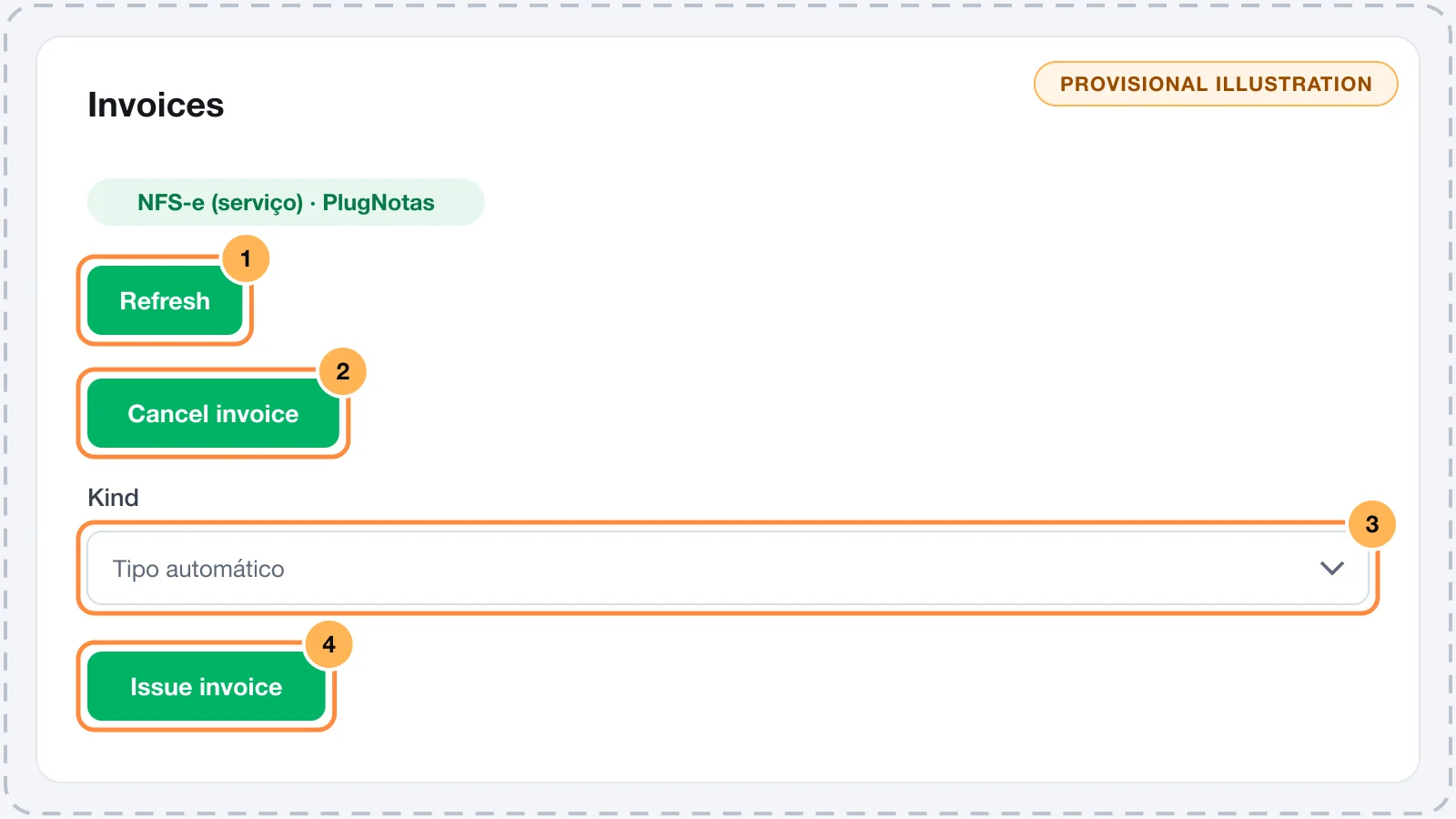
- Refresh: checks with the invoicing service right away, without waiting the 10 minutes.
- Cancel invoice: requests the cancellation of an Issued invoice. It needs the Admin or Owner role.
- The invoice kind: Automatic kind follows the NF-e or NFS-e rule. You can force one of the two. With more than one active invoicing service, you also get to choose the service.
- Issue invoice: issues right away. It only works on paid orders (Paid orders only) and needs the Admin or Owner role.
Each click issues a new invoice
The Issue invoice button always requests a new invoice, even if the order already has one issued. Use it only when the automatic invoice failed or was cancelled.
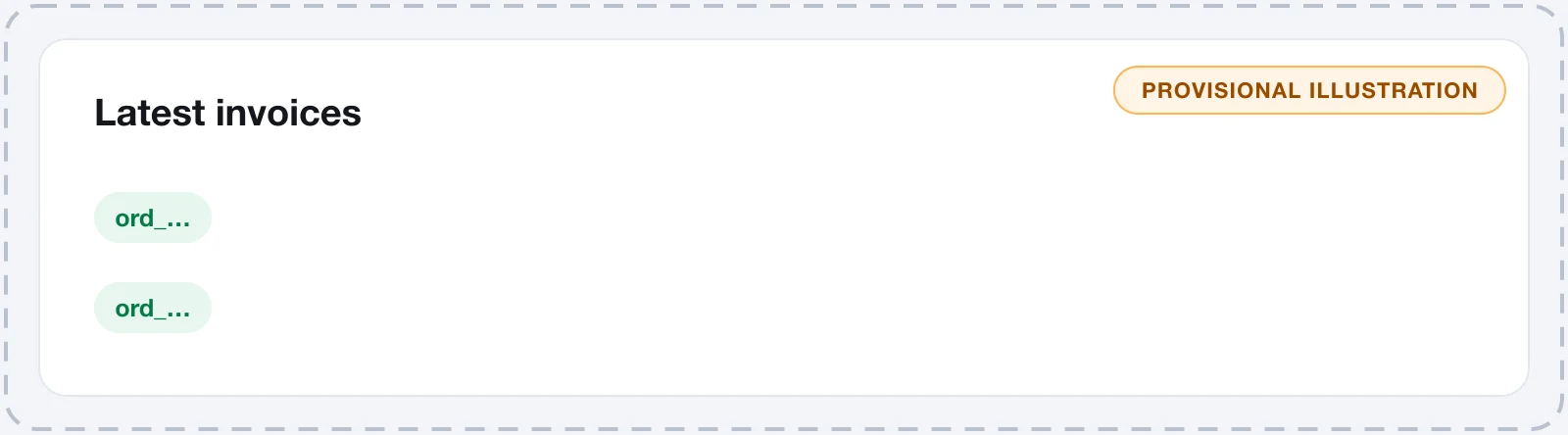
Each invoicing service's page also lists the Latest invoices, with the order, the status and the error, when there is one.
Remove an invoicing service
Remove deletes the connection. The invoices already issued stay recorded in Vipter, but after that Vipter can no longer update or cancel them: do that directly in the invoicing service.