What to send: events, value and data
Choose each tracking account's events, the conversion value and currency, the matching data and the per-product exceptions.
Every tracking account has the What to send tab, with the rules that apply to all the products it fires on: which events to send, with what value and with which buyer data. A product can have exceptions. This page explains each option. The overview is in how conversion tracking works.
Before you start
- The Admin or Owner role in the Vipter project.
- At least one account connected in GeneralConversionsAccounts.
Where the options are
- Open GeneralConversionsAccounts and click the account.
- Open the What to send tab.
- Change what you need and click Save, in the bar at the bottom of the page. Discard changes goes back to what was saved.
Applies to every product of this account. If a product adjusted a field, the tab warns you at the top, and that field doesn't change on that product when you save.
Events
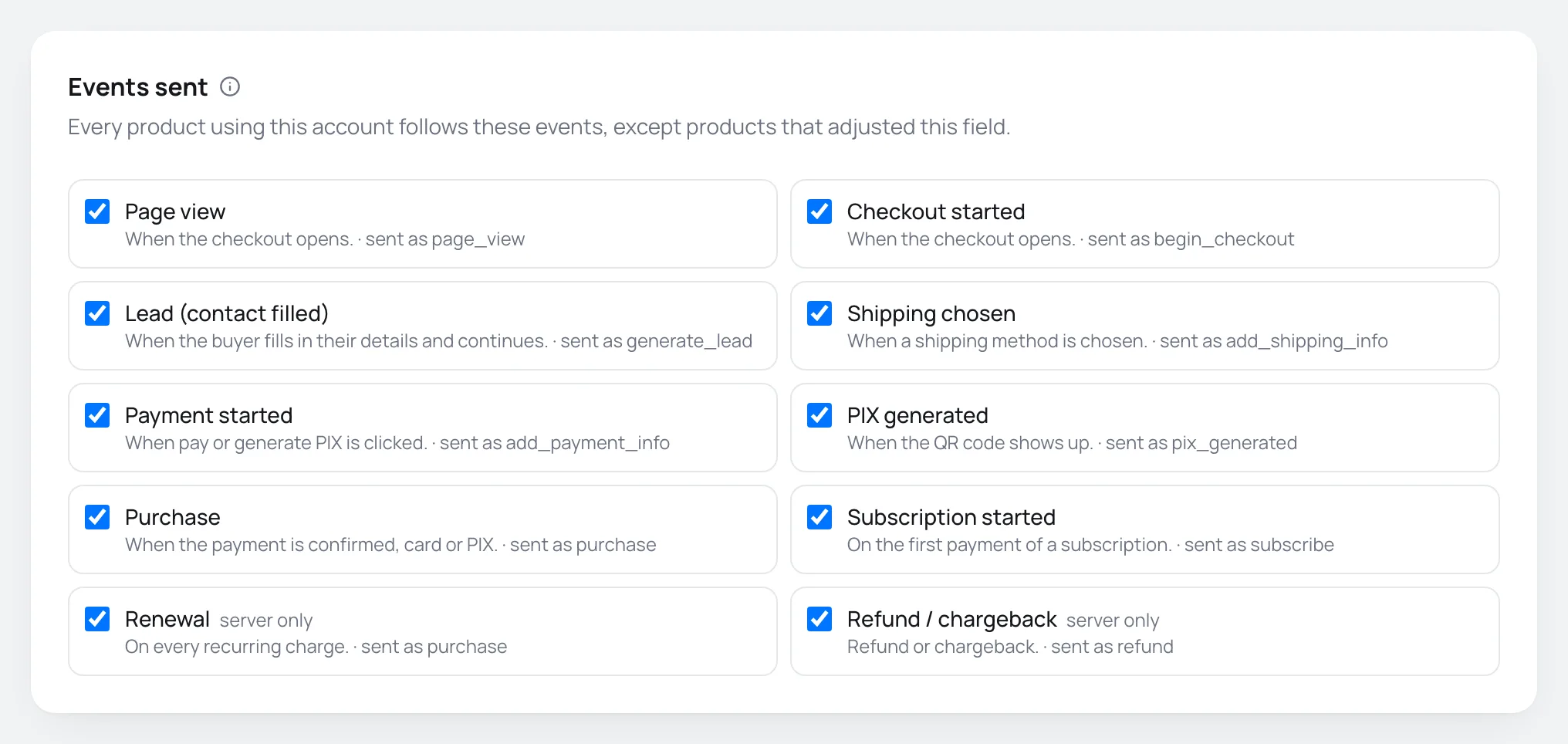
Each event shows when it happens and, after "·", the name the platform receives. The list only has the events the platform understands.
| Event | From the browser | From the server |
|---|---|---|
| Page view | Yes | No |
| Checkout started | Yes | No |
| Lead (contact filled) | Yes | Yes |
| Shipping chosen | Yes | No |
| Payment started | Yes | No |
| PIX generated | Yes | Yes |
| Purchase | Yes | Yes |
| Subscription started | Yes | Yes |
| Renewal | No | Yes |
| Refund / chargeback | No | Yes |
- "From the server" only applies to accounts that send from the server. On an account that sends Browser only, events that exist only on the server don't go out.
- Renewal exists in Meta, Google Analytics 4 and Utmify. Refund / chargeback exists in Google Analytics 4 and Utmify.
- Purchase goes out when the payment is confirmed. Generating a PIX (Brazil's instant payment) fires only PIX generated.
- On a subscription's first payment, both Purchase and Subscription started go out. Later charges go out as Renewal, never as a new purchase.
- Refund / chargeback covers refunds and chargebacks.
- Events that happen once per order (Lead (contact filled), PIX generated, Purchase and Subscription started) don't repeat when the buyer reloads the thank-you page.
Google Ads labels
On a Google Ads account, the Google Ads conversion labels card shows right below the events. In Google Ads every conversion action has a label (the part after the slash in send_to). Events without a label do not become conversions. The field of an unchecked event is locked.
Value and currency
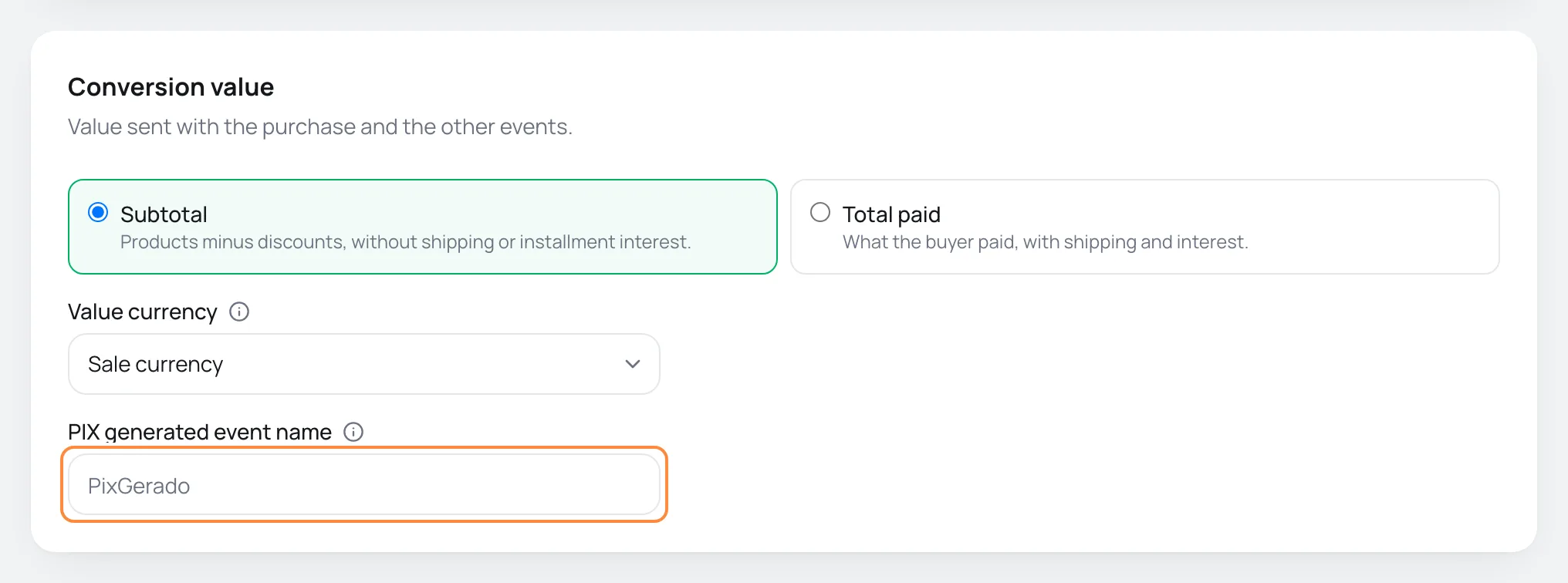
Conversion value sets the value sent with the purchase and the other events:
- Subtotal: Products minus discounts, without shipping or installment interest. It is the default, and the closest to the product's revenue.
- Total paid: What the buyer paid, with shipping and interest. Use it if your return-on-ad-spend report compares against the amount charged to the card.
Example: an R$ 200.00 product with an R$ 20.00 coupon, R$ 15.00 shipping and R$ 12.00 installment interest. With Subtotal, the platform receives R$ 180.00. With Total paid, it receives R$ 207.00.
Value currency:
- Sale currency: the value goes in the currency the buyer paid in. It is the default.
- Project currency: Use the project currency if the ad account does not accept the sale currency. Conversion uses the day's rate.
Utmify doesn't have this card: it receives the whole order, with all the amounts.
PIX event name in Meta
On Meta accounts only, PIX generated event name changes the name of the custom event for PIX generated. The default is PixGerado, with up to 40 characters. Change it if your campaigns already use another name for PIX, so you don't create a second event in Events Manager.
Matching data

This data helps the platform find who clicked the ad, which improves sales attribution. All of it starts checked.
| Option | What is sent |
|---|---|
| The e-mail in lowercase. | |
| Phone | Digits only, with the country code. |
| Name | First and last name, without accents. |
| City, state, postal code and country | City, state, postal code and country, when the checkout asked for the address. |
| Customer ID | The customer's ID in Vipter. |
- From the server, each piece of data is hashed with SHA-256: the platform compares the code and never receives the data in the clear.
- From the browser, the platform's pixel receives the e-mail and phone after the buyer fills in their contact details, through the pixel's own advanced matching.
- The card shows on Meta, TikTok, Pinterest, Google Ads, Google Analytics 4 and Google Tag Manager accounts.
Uncheck a piece of data only if your privacy policy requires it. Less data means fewer sales attributed to the ad.
Which products fire the account
The account only sends events for the products linked to it, in GeneralConversionsOverview or in the Products tab.
- Order bumps: when the order has an order bump, the accounts linked to the bump's product also receive the purchase from the server.
- Catalog ID: on the product page, the Tracking tab has Catalog product ID. Sent as content_ids / item_id. Use the same SKU as your Meta, TikTok or Google Merchant catalog for dynamic ads. When empty, the Vipter product ID is used.
- Pause: a paused account sends nothing, even when linked to the product.
Per-product exceptions
A product can change three of an account's fields: the events, the conversion value and, in Google Ads, the labels. The matching data, the currency and the PIX event name always come from the account.
- In Overview, open the menu of the product's cell for the account and choose Adjust on this product…. On the product page, the same thing is under Tracking, in the account's Adjustments button.
- On each field, choose Follow account or Adjust and change the value.
- Click Save.
To undo everything, use Back to account defaults. In the overview, the cell shows how many adjustments the product has, and the bulk action Clear adjustments clears the adjustments of several products at once.
A common use: an account that sends Subtotal for all products, and a physical product that sends Total paid to include shipping.
Common problems
-
An event doesn't show in the account's list
The platform doesn't have that event. For example, Refund / chargeback only shows in Google Analytics 4 and Utmify.
-
I changed the event on the account, but a product keeps sending the old one
The product has an adjustment on that field. Open the product's adjustments and choose Follow account.
-
Could not save. Try again.
Vipter couldn't save. Reload the page and try again.
What to do next
- Watch each event arrive in event activity and resending.
- Keep the click source with the UTM script.
- Set up cookie consent.
How conversion tracking works
Understand accounts, products, browser and server delivery, and Vipter's Conversions screens before you connect Meta, Google or another platform.
UTM script and sales sources
Carry UTMs and click identifiers from your sales page to the checkout, and see in Sales sources where your paid sales came from.