Pause, cancel, reactivate and change plans
Change a subscription from the dashboard and see what each action does to the charges, the access and the notices to the subscriber.
On a subscription's page, you change the plan, pause, resume, cancel and reactivate without leaving Vipter. The change takes effect right away on the payment platform and goes into the subscription's timeline. When the status or the plan changes, the store's integrations get the notice. The subscriber can also change the card, change the plan and cancel through the customer portal. See Change card or plan, or cancel the subscription.
Before you start
- Any project role, including Sales.
- To change plans: the subscription's product must be in a product family with at least one other active subscription offer. See Families and plan changes.
Where the actions are
- Open SalesSubscriptions and click the subscription.
- The actions sit at the top of the page. The most used ones show as buttons, and the others are in the More actions menu (the "⋯" button).
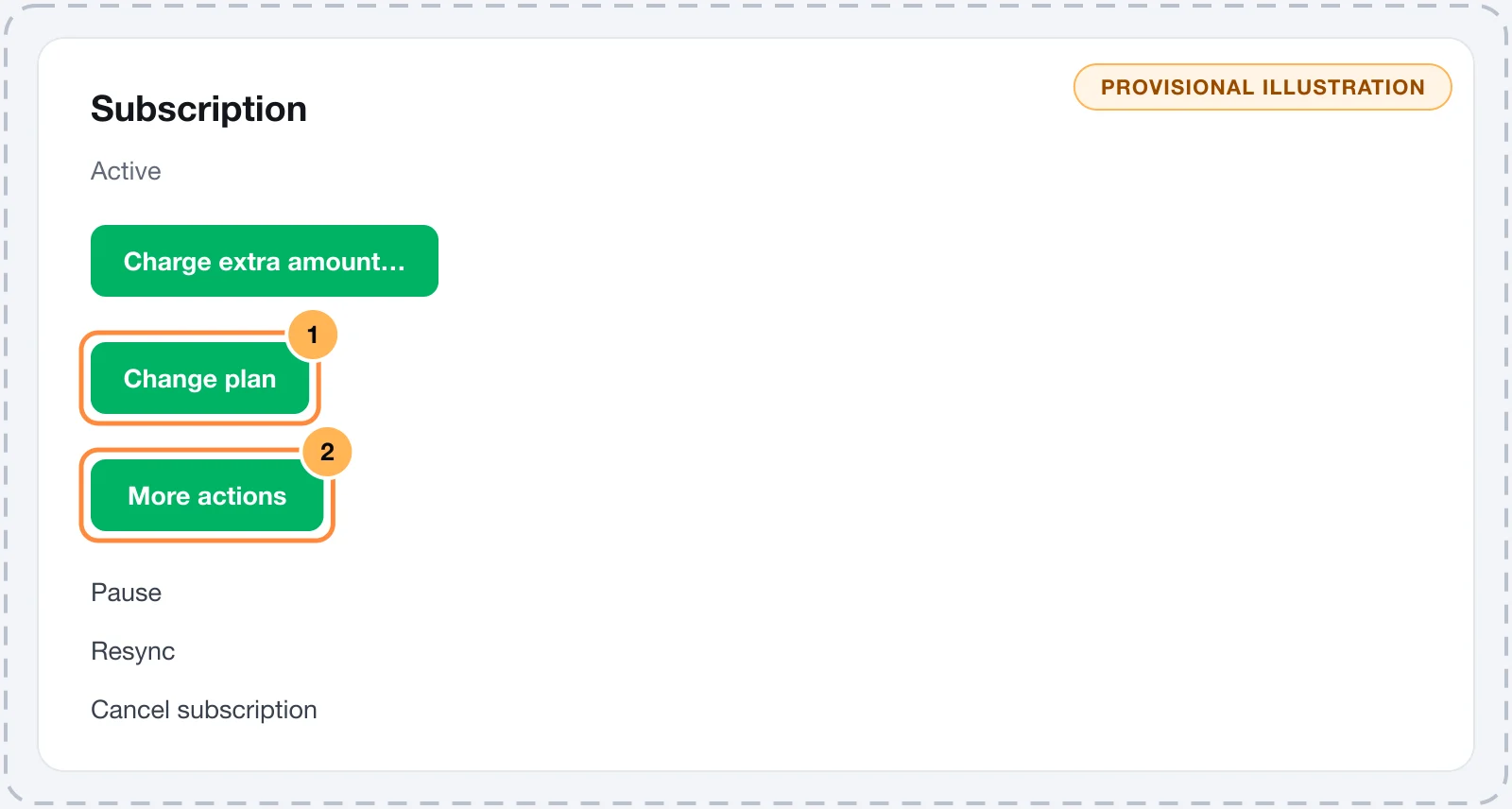
Each action only shows when it makes sense for the current status:
| Action | Where | Shows when the subscription is |
|---|---|---|
| Change plan | Button | Active, Trialing or Dunning, and there is another plan in the family |
| Charge extra amount… | Button | Active, Trialing or Dunning, with a saved card. See Extra charge on a subscription |
| Pause | Menu | Active |
| Resume | Button | Paused |
| Cancel subscription | Menu | Active, Trialing or Dunning, with no scheduled cancellation |
| Reactivate | Button | With a scheduled cancellation, Cancelled or Expired |
| Resync | Menu | Always |
After each action, the dashboard shows Done. and the page refreshes.
Change plans
Use it for an upgrade or downgrade between plans in the same family, for example from a basic monthly plan to a full one.
- Click Change plan.
- In New offer, pick the new plan. The list shows the active offers of the products in the same family, except the current one.
- Click Change plan.
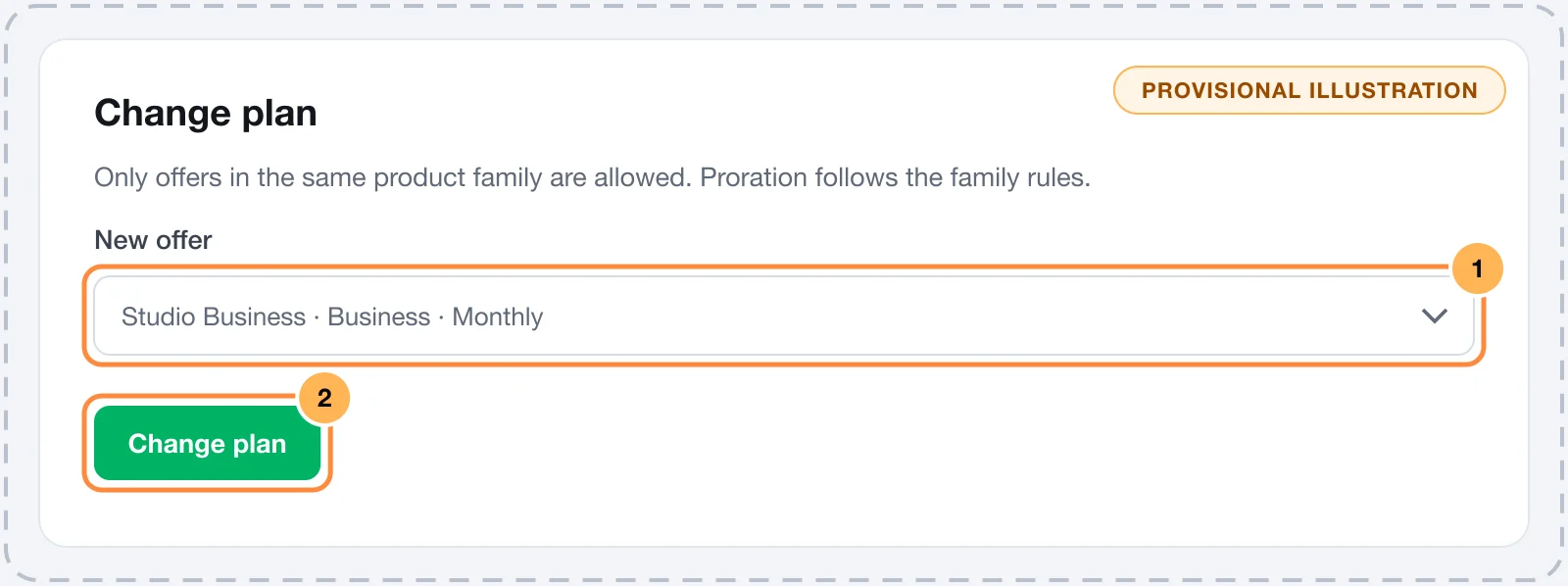
The plan changes right away. What the subscriber pays for the change follows the family's Plan change billing rule, the same for every change between its plans:
| Family rule | What happens |
|---|---|
| At next renewal | The plan changes right away, and the new amount is only charged on the next renewal. |
| Prorated difference now | The plan changes right away, and the difference in proportion to what is left of the cycle is charged or credited. |
| Full price now | The plan changes right away, and the new plan's full amount is charged right away. |
The timeline records Moved to a higher plan when the new amount is equal to or higher than the previous one, and Moved to a lower plan when it is lower. If the Plan changed e-mail is on, the subscriber gets the notice.
Pause and resume
Pausing suspends the charges without ending the subscription. It is useful, for example, for a break agreed with the subscriber.
- In the More actions menu, click Pause.
- If you want, write the Reason.
- Click Pause in the dialog.
The subscription becomes Paused and stops being charged. Access to the member areas continues while it is paused.
To start charging again, click Resume and confirm. Charges resume on the next cycle.
Cancel
- In the More actions menu, click Cancel subscription.
- Choose when the subscription ends and, if you want, write the reason:
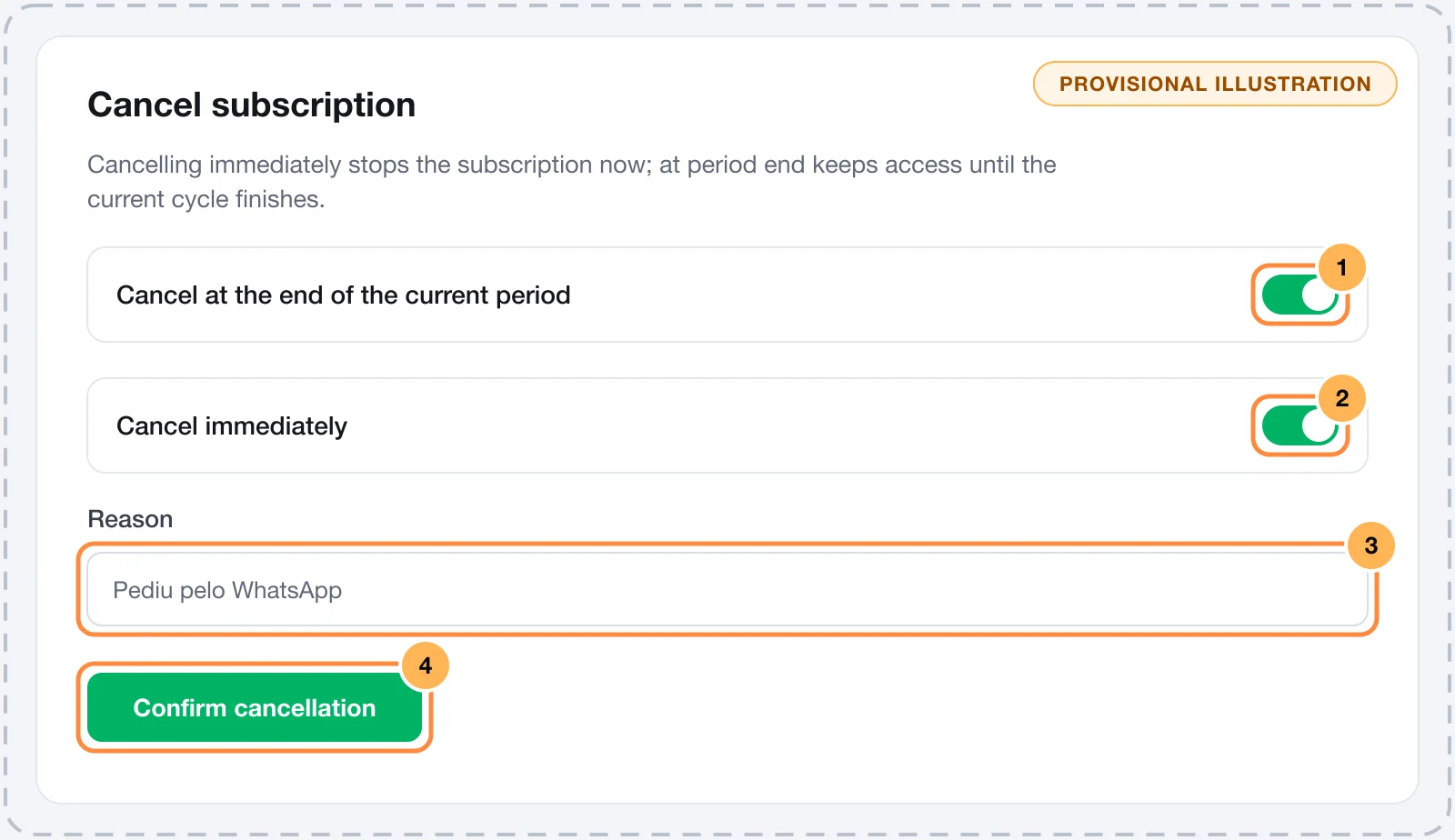
- Cancel at the end of the current period: the option that comes selected. The subscriber keeps access until the end of the cycle they already paid for and is not charged again.
- Cancel immediately: the subscription ends now.
- Reason: optional. It shows on the subscription's page, below Cancelled.
- Click Confirm cancellation.
What happens in each case:
| Cancel at the end of the current period | Cancel immediately | |
|---|---|---|
| Status | Stays as it is, with the Cancels at period end banner and the date | Cancelled |
| Next charges | None | None |
| Member area | Access until the end of the period | Access removed now |
| Subscription cancelled e-mail | At the end of the period | Now |
Canceling does not return money. To refund a charge, open its order. See Refund, capture and void.
Reactivate
Reactivate shows in two cases:
- Scheduled cancellation: it undoes the schedule. The subscription carries on as usual and renews on its usual date.
- Cancelled or Expired subscription: the subscription becomes valid again, access to the member areas is restored and the subscriber is charged again on the billing cycle.
Click Reactivate and confirm. The timeline records Reactivated.
Resync
Resync fetches the subscription's current state from the payment platform and updates the page. It changes nothing in the subscription. Use it when the status or the next charge looks out of date.
Common problems
-
The action buttons don't show
The store is suspended, or the subscription is a sample record in the demo store. In both cases, the page only shows the data.
-
The Change plan button does not show
The product is not in a family, the family has no other active subscription offer, or the subscription is not Active, Trialing or Dunning. Set it up in Families and plan changes.
-
An error message shows after confirming
The payment platform rejected the change, and the message says why. Nothing was changed. Use Resync to check the current state before trying again.
What to do next
- Learn the statuses and phases of a subscription.
- Charge an extra amount on the saved card, without touching the cycle.
Subscriptions: lifecycle and statuses
Follow the store's subscriptions, understand each status, how renewals, free trials, cycle limits and declined charges work, and what the subscriber receives.
Extra charge on a subscription
Charge a one-off amount on a subscriber's saved card, such as additional usage, without changing the subscription's cycle or amount.