Customer portal
Turn on the self-service portal, set its title and choose whether buyers can cancel, change plans and change their card, with a cancellation survey and message.
The customer portal is the area where buyers see their orders and manage their subscriptions without contacting you. They sign in with the e-mail used in the checkout and receive a 6-digit code and a link. On this page you choose whether the portal is online, its title and what buyers can do there.
Before you start
- The Admin or Owner role in the project.
- The store provisioned. Before that, the tab shows Available after the project is provisioned.
- For the shared portal address, the Project slug filled in under Project details.
Step 1: open the portal in the settings
Open GeneralSettingsCustomer portal.
Step 2: check the address and access
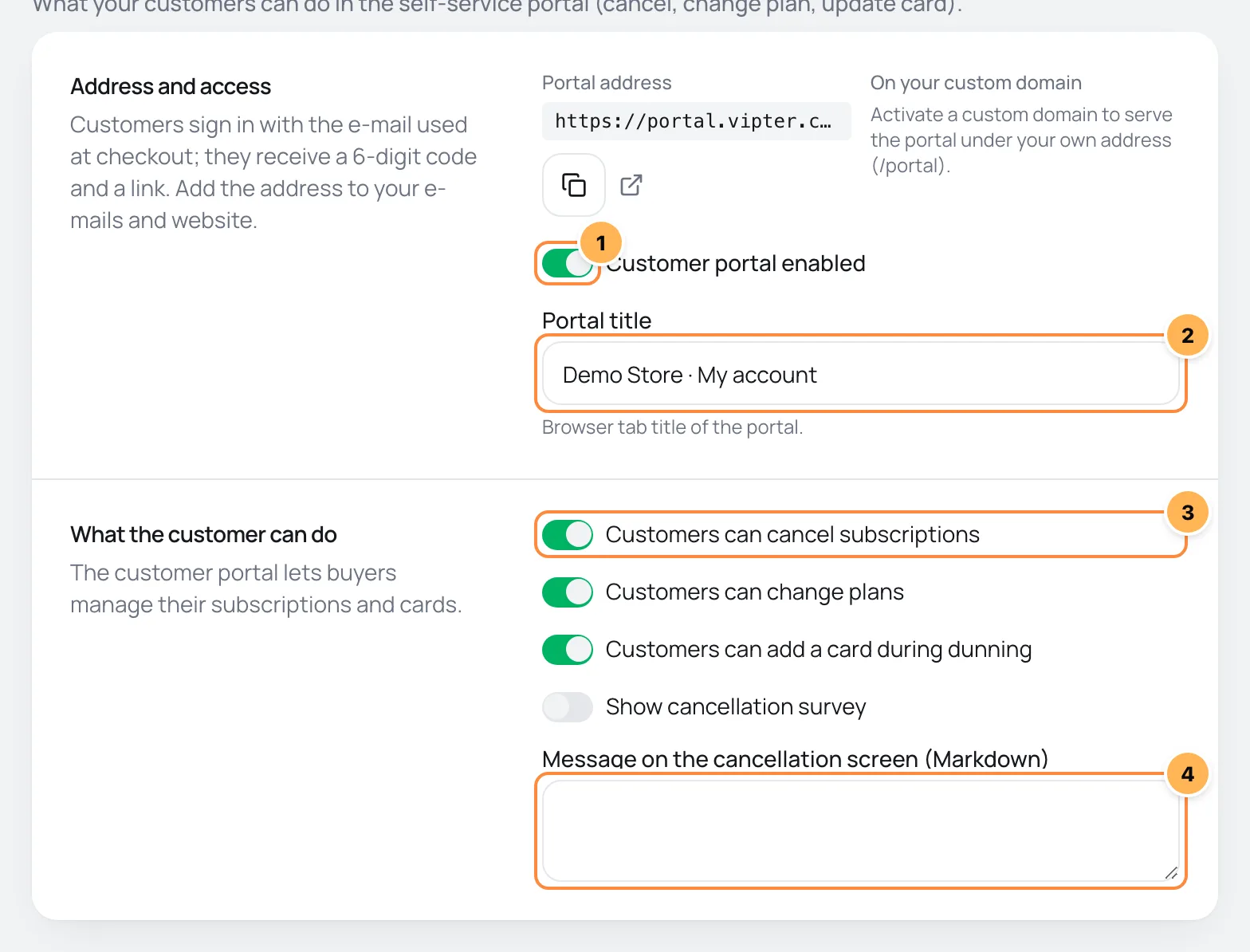
The Address and access block holds the portal addresses, each with buttons to copy and open it:
- Portal address:
portal.vipter.com/followed by the store's slug. Without a slug, you see Set a project slug (Checkout section) to enable the shared address. - On your custom domain: your custom domain followed by
/portal, such ascheckout.yourstore.com/portal. It only shows once the domain is active. Before that, you see Activate a custom domain to serve the portal under your own address (/portal).
Then:
- Customer portal enabled: when off, the portal is offline on both addresses. The thank-you page and the e-mails stop showing the portal button. The portal access code is still the only e-mail that can't be turned off, see Transactional e-mails.
- Portal title: the browser tab title in the portal, up to 80 characters. If empty, the default store name · Customer area applies.
The portal uses the logo, favicon and colors set in Checkout branding.
Step 3: choose what buyers can do
In the What the customer can do block:
- The permission switches:
| Switch | On | Off |
|---|---|---|
| Customers can cancel subscriptions | The subscription shows the cancel button. The buyer chooses to cancel at the end of the period or right away. | The button disappears. To cancel, the buyer has to contact you. |
| Customers can change plans | Active or trialing subscriptions show the change plan button, with the other offers from the same product family that have a price in the subscription's currency. | The button disappears. |
| Customers can add a card during dunning | The buyer changes the subscription's card, adds a new card and manages saved cards. | Cards are read-only in the portal. |
| Show cancellation survey | On the cancellation screen, an optional reason to pick and a comment field appear. The reason and comment are recorded with the cancellation. | No survey. |
The first three switches come on. The survey comes off.
- Message on the cancellation screen (Markdown): a text shown at the top of the cancellation screen, for example to offer a discount or remind the buyer what they lose. Today the portal shows this text as is, with line breaks, without applying Markdown formatting.
Plan changes only list subscription offers from the same family. If the subscription is not for a product with a family, the button does not show even with the switch on.
Step 4: save
Click Save changes in the footer bar. Permission changes can take up to 5 minutes to show in the portal.
It worked if
You see Saved.. Open the Portal address in a private window and sign in with a test buyer's e-mail: the portal opens with the title and actions you chose.
How it works afterwards
- The portal stays online while the store is active or has a pending payment. When the store is suspended, it goes offline.
- The buyer gets the access code by e-mail. With an e-mail provider connected, the code goes out from your sender. Without a provider, it goes out from Vipter's sender.
- What the buyer sees and does in the portal is in Manage the subscription in the portal and Sign in to the portal.
- With the portal on, the thank-you page and the e-mails show a button to the portal.
Common problems
-
The portal address does not show
The store has no slug. Fill in the Project slug under Project details and come back here.
-
The buyer does not see the change plan button
Check that the switch is on, that the subscription is active or trialing and that the product has a family with another offer priced in the subscription's currency.
-
Old portal links stopped working
The store's slug changed or the custom domain was removed. Share the new address shown on this page.
What to do next
- Customize the transactional e-mails, which take the buyer to the portal.
- Set up product families to enable plan changes.
Project details
Edit the store's name, country, currency, time zone, contact, website, MCC, slug, default success page and address, and learn what gets locked after card network enrollment.
Transactional e-mails: templates and languages
Turn each e-mail to buyers and to the team on or off, edit the subject, heading and text in each language with variables and a preview, send tests and adjust the footer.