Receive events in your system (webhooks)
Get a signed notice on your server for every sale, refund, subscription or new customer, with automatic retries and a delivery history.
A webhook is an address in your system that Vipter calls when something happens in the store: an approved sale, a refund, a cancelled subscription. Each call is a POST with the data in JSON and a signature that proves it came from Vipter. This page is for whoever will code the receiving end, or for you to pass on to them.
Before you start
- An
https://address in your system that acceptsPOSTand answers with a 2xx code within 10 seconds. - The Admin or Owner role in the Vipter project.
Step 1: add the endpoint
- In the Vipter dashboard, open GeneralIntegrationsAutomationsWebhooks.
- Click Add endpoint.
- Fill in the numbered fields:
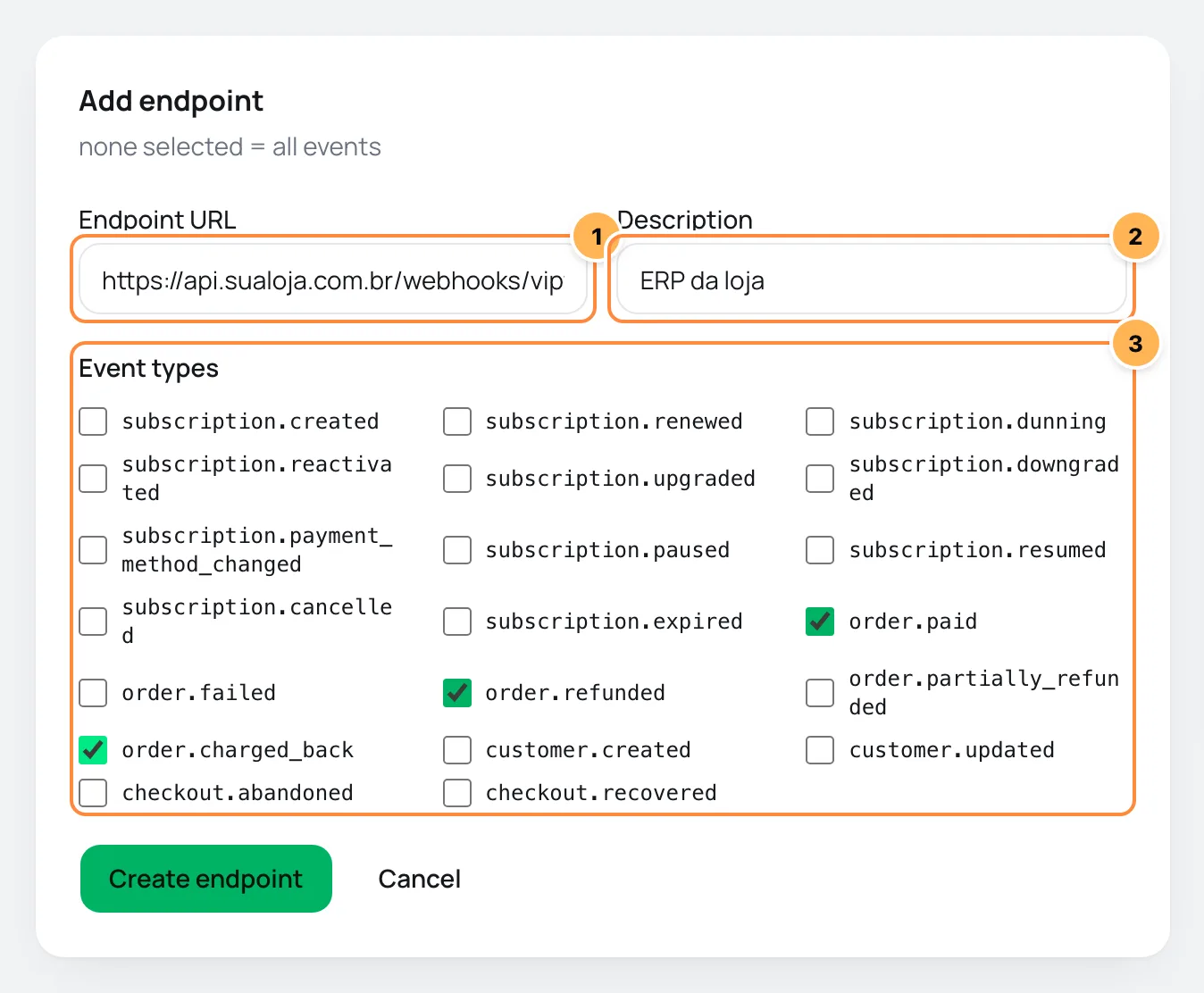
| # | Field | What to paste |
|---|---|---|
| 1 | Endpoint URL | The address that will receive the events. It must start with https://. |
| 2 | Description | A reminder for you, such as "Store ERP". Up to 200 characters. |
| 3 | Event types | Tick only the events your system uses. With none ticked, the endpoint receives all of them, including any created in the future. |
- Click Create endpoint.
An endpoint's events cannot be edited later. To change the list, create a new endpoint and remove the old one.
Step 2: store the signing secret
Right after you create it, Vipter shows Your signing secret: a value that starts with whsec_. Store it now. It is shown only once; you can rotate it later.
Copy the secret and store it in your system, for example in an environment variable. Once you close the window, the endpoint only shows the end of the secret.
Treat the secret like a password
Anyone with the secret can forge events that pass verification. Do not put the secret in source code or send it by e-mail. If it leaks, generate a new one with the Rotate secret button.
Step 3: verify the signature
Each call carries these headers:
| Header | Content |
|---|---|
Vipter-Signature | t=<Unix time in seconds>,v1=<signature>. During a secret rotation, a second v1= is included. |
Vipter-Event-Id | The event ID, such as evt_…. |
Vipter-Event-Type | The event type, such as order.paid. |
User-Agent | Vipter-Webhooks/1.0 |
The signature is a hex-encoded HMAC SHA-256, computed with your secret over the text <t>.<body>: the value of t, a dot and the request body exactly as it arrived. To check it:
- Read the raw body, before any conversion to JSON. A reformatted body produces a different signature.
- Recompute the HMAC with your secret and compare it with each
v1=in the header. One match is enough. - Reject calls with a
tthat is too old. The example below accepts up to 5 minutes of difference.
The same code appears in the dashboard, under Verification snippet (Node.js):
import { createHmac, timingSafeEqual } from 'node:crypto';

export function verifyVipterSignature(rawBody, header, secret, toleranceSec = 300) {
  const parts = Object.fromEntries(header.split(',').map((p) => p.split('=')));
  const t = Number(parts.t);
  if (!t || Math.abs(Date.now() / 1000 - t) > toleranceSec) return false;
  const expected = createHmac('sha256', secret).update(`${t}.${rawBody}`).digest('hex');
  return header.split(',').filter((p) => p.startsWith('v1=')).some((p) => {
    const given = Buffer.from(p.slice(3), 'hex');
    return given.length === expected.length / 2 && timingSafeEqual(given, Buffer.from(expected, 'hex'));
  });
}
An Express example that takes the raw body and answers right away:
import express from 'express';

const app = express();

app.post('/webhooks/vipter', express.raw({ type: 'application/json' }), (req, res) => {
  const raw = req.body.toString('utf8');
  if (!verifyVipterSignature(raw, req.get('Vipter-Signature') ?? '', process.env.VIPTER_WEBHOOK_SECRET)) {
    return res.status(400).send('invalid signature');
  }
  const event = JSON.parse(raw);
  // Store event.id and skip it if it was already processed.
  res.sendStatus(200);
  // Process event.type and event.data.object after responding.
});
Step 4: send a test event
- With the endpoint active, click Send test event, at the top of the page.
- You see Test event queued. and the delivery shows up under Recent deliveries.
The test is a customer.created event with a fictitious customer and "test": true inside data.object. It only reaches active endpoints that receive customer.created or all events.
It worked if
The delivery shows up under Recent deliveries with the status succeeded and the HTTP code your system answered, and your system accepted the signature.
Event format
Every event has the same envelope. The object in data.object depends on the type.
{
  "id": "evt_4f1c2a9b0d3e5f6a7b8c9d0e",
  "object": "event",
  "type": "order.paid",
  "created": 1790000000,
  "livemode": true,
  "api_version": "2026-09-01",
  "data": {
    "object": {
      "object": "order",
      "id": "…",
      "status": "…",
      "total_amount": 19700,
      "currency": "BRL"
    }
  }
}idis unique per event. Use it to ignore repeats: a resent delivery arrives with the sameid.- Money amounts come in cents, such as
19700for R$ 197.00. - Order (
"object": "order"):id,customer_id,customer_email,subscription_id,status,total_amount,currency,refunded_amount,order_type,recurrence,offer_id,payment_method,provider_slug,paid_at,items,external_order_id,status_source,created_at,updated_at. Onorder.paid, alsodownloads, with the buyer's download links when the product has files. - Subscription (
"object": "subscription"):id,customer_id,customer_email,customer_name,status,current_offer_id,offer_name,product_id,product_name,billing_cycle,currency,current_amount,current_period_start,current_period_end,next_billing_at,trial_start,trial_end,cycles_completed,cycle_limit,cancel_at_period_end,cancelled_at,cancellation_reason,payment_instrument_id,created_at,updated_at. - Customer (
"object": "customer"):id,email,name,phone,document_type,metadata,created_at,updated_at. - Abandoned checkout (
"object": "checkout_abandonment"): the buyer (customer), the offer, the product, the quantity and the amount.
Event list
| Event | When it is sent |
|---|---|
order.paid | A payment was approved. This also covers subscription renewals, with recurrence: "subsequent", and sales marked as paid by the team, with status_source: "manual". |
order.failed | A charge was declined. |
order.refunded | An order was refunded. |
order.partially_refunded | Part of an order was refunded. |
order.charged_back | The buyer disputed the purchase with their bank (chargeback). |
subscription.created | A subscription was created. |
subscription.renewed | A subscription was renewed. |
subscription.dunning | The renewal charge failed and the subscription is in dunning. |
subscription.reactivated | A subscription became active again. |
subscription.upgraded | The subscriber moved to a more expensive plan. |
subscription.downgraded | The subscriber moved to a cheaper plan. |
subscription.payment_method_changed | The subscription's card was changed. |
subscription.paused | The subscription was paused. |
subscription.resumed | The paused subscription resumed. |
subscription.cancelled | The subscription was cancelled. |
subscription.expired | The subscription ended. |
customer.created | A new customer was added. |
customer.updated | A customer's details changed. |
checkout.abandoned | The buyer filled in their details at checkout and did not pay. It is sent after a period with no activity, and only if they did not buy in the meantime. |
checkout.recovered | An abandoned checkout ended in a purchase. |
Deliveries and retries
A delivery succeeds when your system answers with a 2xx code within 10 seconds. Any other response, including redirects, or no response at all counts as a failure.
After a failure, Vipter tries again, up to 8 attempts in total. The wait between them is 1 minute, 5 minutes, 30 minutes, 2 hours, 6 hours, 24 hours and 48 hours. After the eighth attempt, the delivery gets the status exhausted.
Under Recent deliveries, each row shows the Event, the Status with the HTTP code and the error, the Attempts and the Last attempt. Deliveries that did not succeed have the Resend button, which restarts the attempts from zero.
Endpoint turned off automatically
If 20 deliveries in a row run out of attempts, Vipter turns the endpoint off and shows the reason on its card. A successful delivery resets that count. Fix your system and turn the endpoint back on with the Active switch.
While an endpoint is off, new events are not kept for it. Use the orders and subscriptions lists in the dashboard to check what happened during that period.
Rotate the secret or remove the endpoint
- Rotate secret: generates a new secret and shows it only once. Rotate the secret? The previous one keeps working for 24 hours. During that period, each call carries both signatures, so your system can switch secrets without losing events.
- Remove: Remove this endpoint and its delivery history?
Common problems
-
Enter an https:// URL
The address does not start with
https://or has a typo.http://addresses are not accepted. -
The signature never matches
The body was converted to JSON before verification, or the secret belongs to another endpoint. Verify the raw body and check the end of the secret on the endpoint's card.
-
Deliveries fail with
timeoutYour system takes more than 10 seconds to answer. Answer 200 as soon as you validate the signature and process the event afterwards.
-
The test button is disabled
There is no active endpoint. Turn on the Active switch of an endpoint.
What to do next
- To send sales to an ad platform instead of your own system, see how conversion tracking works.
- Connect a ready-made member area, such as MemberKit, with no coding.
Verify the sending domain (SPF, DKIM and DMARC)
Learn about the DNS records that prove your store's e-mails are yours, where to get each one and how to read Vipter's domain check.
Project details
Edit the store's name, country, currency, time zone, contact, website, MCC, slug, default success page and address, and learn what gets locked after card network enrollment.