Customers: add and edit
Find customers, see who has a saved card, add a customer by hand and fix contact, document and address details.
Every buyer becomes a store customer. The checkout creates the customer on the first purchase, and you can also add one by hand, for example to sell over the phone. The customer's page holds their details, address, saved cards, subscriptions and orders.
Before you start
- To see and edit customers: any project role, including Sales.
- To add a customer by hand: the Admin or Owner role, and the store's Vipter plan payment up to date.
The customer list
Open SalesCustomers. The list shows customers newest first, 25 per page.
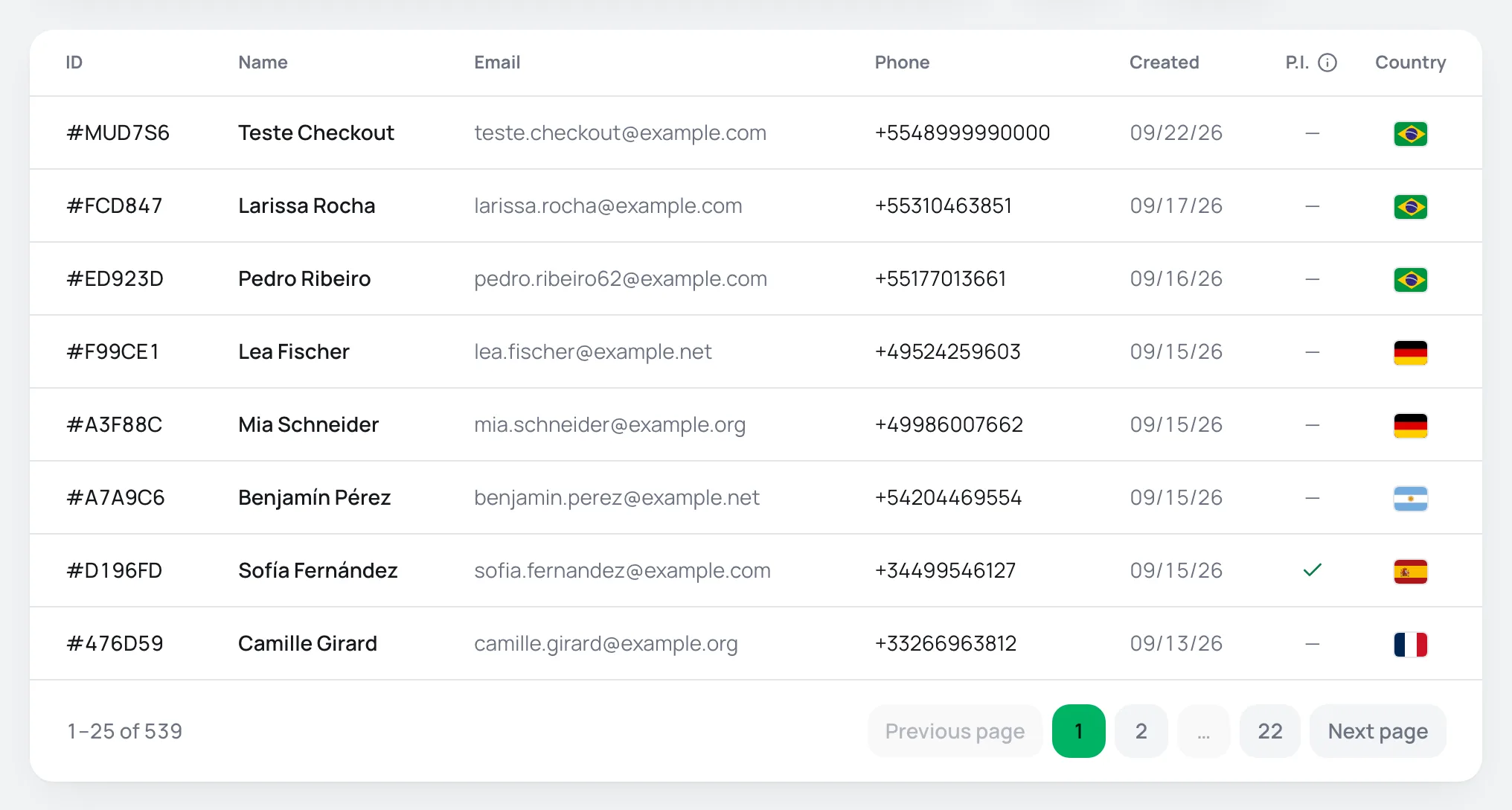
| Column | What it shows |
|---|---|
| ID | The customer's short code. Click it to open their page. |
| Name, Email, Phone | The contact details. |
| Created | When the customer was created. |
| P.I. | A check mark when the customer has a saved card Vipter can charge, from a subscription or from a purchase that saved the card. |
| Country | The customer's country. |
Above the list, search by name, e-mail or code, filter by creation date and use the P.I. filter: With saved card shows who can get a New sale on the saved card, and Without saved card shows the rest.
Add a customer
- In SalesCustomers, click New customer.
- Fill in the numbered fields. The payment platform requires phone, document and a full billing address.
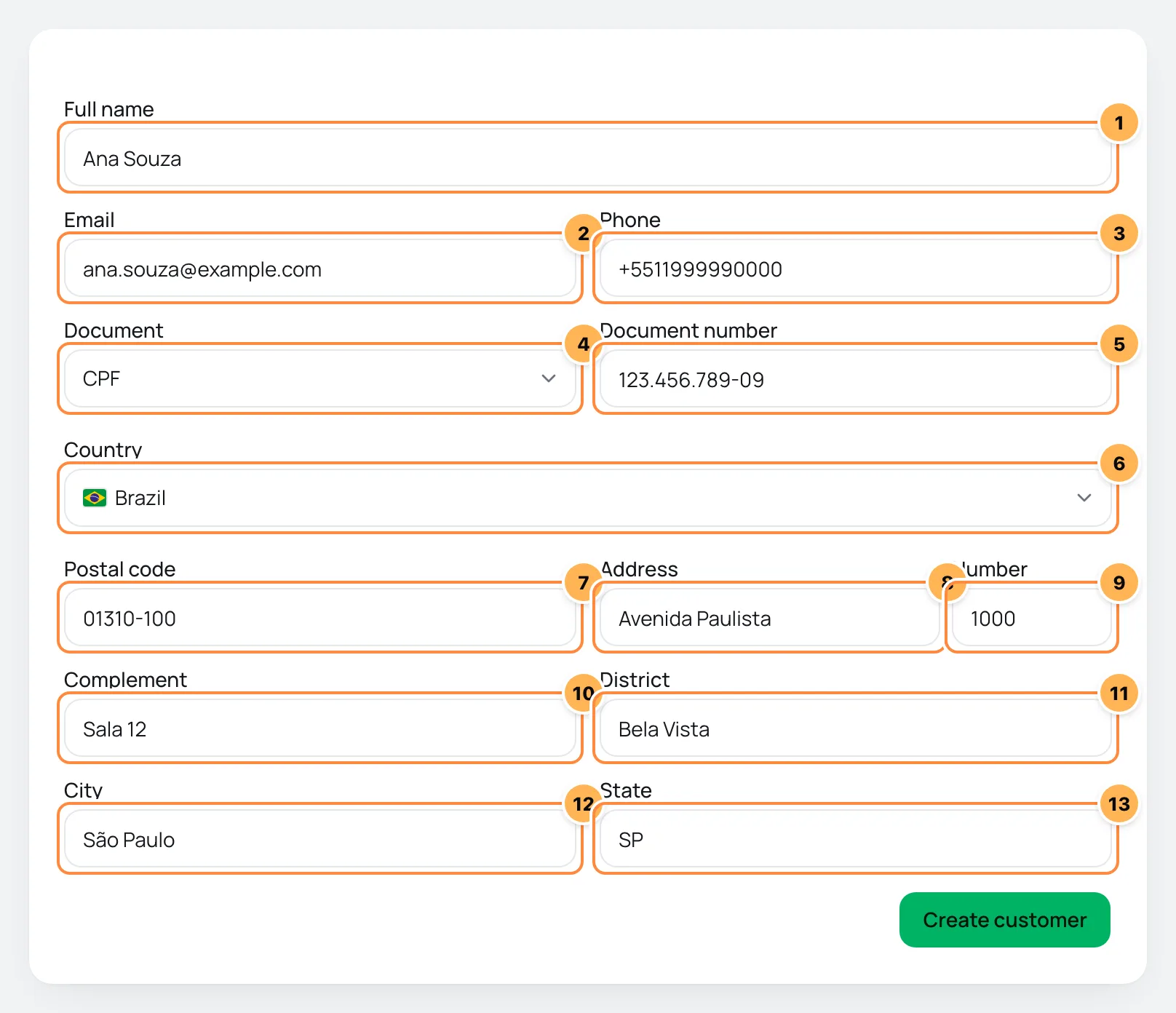
| # | Field | Required | What to enter |
|---|---|---|---|
| 1 | Full name | Yes | From 3 to 120 characters. |
| 2 | Yes | The customer's e-mail. | |
| 3 | Phone | Yes | With + and the country code, digits only: +5511999990000. |
| 4 | Document | Yes | CPF, CNPJ, Passport or Tax ID. It comes set to CPF (the Brazilian individual taxpayer ID) when the store is in Brazil. |
| 5 | Document number | Yes | Dots, dashes and slashes are removed when saving. |
| 6 | Country | Yes | It comes set to the store's country. |
| 7 | Postal code | Yes | The CEP (Brazilian postal code) or postal code. |
| 8 | Address | Yes | The street. |
| 9 | Number | No | The number. |
| 10 | Complement | No | Apartment, suite, building. |
| 11 | District | No | The neighborhood. |
| 12 | City | Yes | The city. |
| 13 | State | Yes | The state, for example SP. |
- Click Create customer. Vipter creates the customer on the payment platform and opens their page.
Creating the customer charges nothing and saves no card. Cards are only saved by the customer themselves, in a checkout purchase. Webhook integrations get the customer created notice.
The customer's page
Click a customer to open their page. The top shows the e-mail, how many orders and subscriptions they have and the full code, with a copy button. The Overview tab gathers:
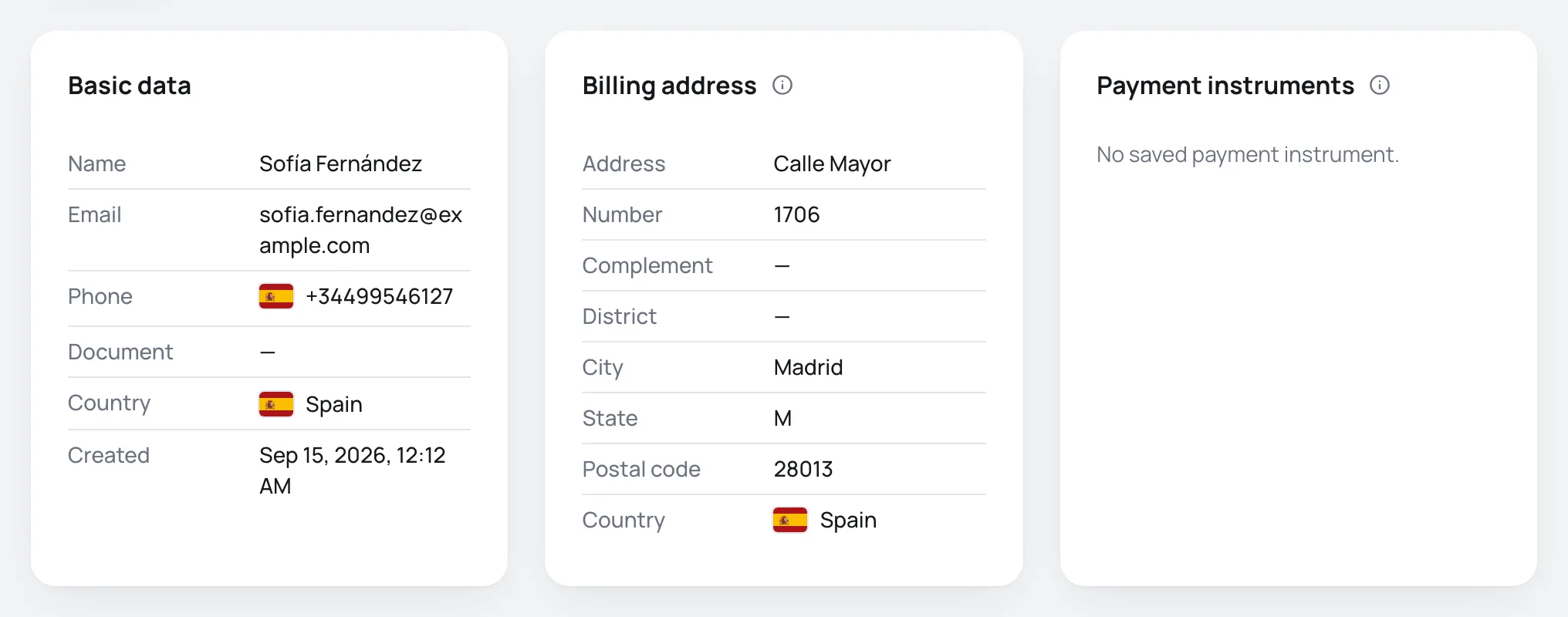
- Basic data: name, e-mail, phone, document, country and creation date.
- Billing address: the address, field by field, as invoice platforms receive it. The checkout collects the address when the product asks for it. On a digital product purchase without an address, you see Store address used (digital product).
- Payment instruments: the saved cards, with brand, last digits, expiry, issuing bank's country and status. The one marked Default is the main one. Cards are saved by the customer in the checkout and cannot be edited in the dashboard. When the customer has a saved card, the card shows the New sale button. See New sale on the saved card.
- Linked subscriptions: the customer's subscriptions, with status, next charge, provider and amount.
- Linked orders: the customer's orders, with status, date, payment method and amount. Refunds show below the amount.
Edit a customer
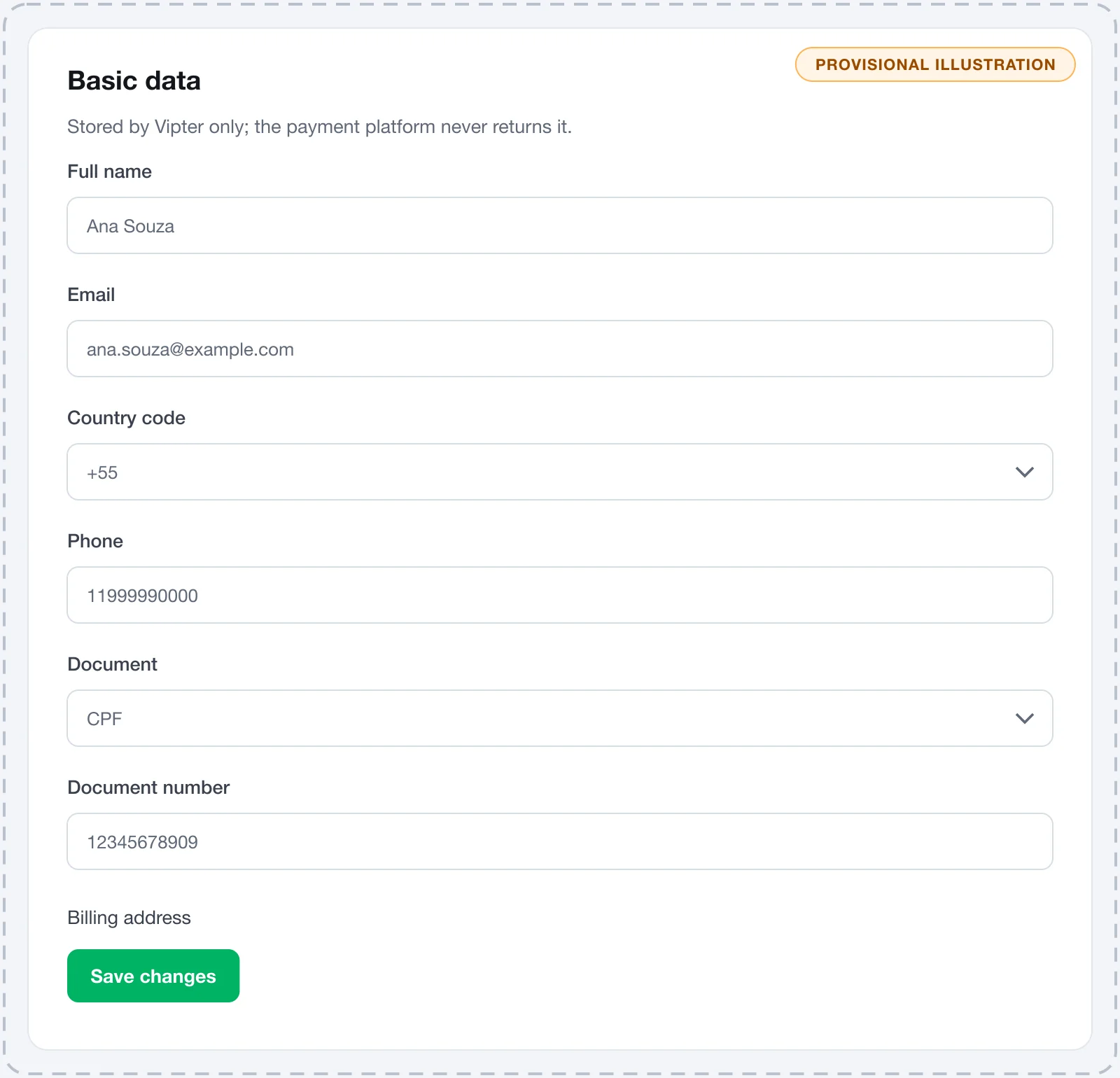
- On the customer's page, open the Edit tab.
- Fix whatever you need:
- On the Basic data card: Full name, Email, Country code and Phone, Document and Document number.
- On the Billing address card: country, postal code, address, number, address line 2, neighborhood, city and state. The address is only saved with address, postal code, city, state and country filled in.
- Click Save changes.
Where the document is stored
The document number is stored only in Vipter, because the payment platform does not return it. That is why invoices and automations use Vipter's copy. Leaving the number empty when editing keeps what was already saved.
The change applies on the payment platform and in Vipter, and webhook integrations get the customer updated notice.
Common problems
-
The New customer button does not show
The Vipter plan payment is past due or the store has not been provisioned yet. Bring it up to date in Vipter plan.
-
A field turns red when saving
The value did not pass validation. Check the phone with
+and the country code, the e-mail and the required fields in the table above. -
An error message from the payment platform shows up
The platform rejected the data, and the message says which field.
-
The Edit tab does not show
The store is suspended, or the customer is a sample record in the demo store.
What to do next
- Sell on a customer's saved card.
- Follow the store's subscriptions.