Families and plan changes
Group subscription plans into a family to allow upgrades and downgrades, set each plan's level and the billing rule for the change.
A family groups the subscription plans the subscriber can switch between, such as Basic, Pro and Business. Each plan is a subscription product with a level in the family: switching to a higher level is an upgrade, to a lower level is a downgrade. The family also sets how the change is billed, and that rule applies to every change between its plans.
Without a family, the subscriber can't change plans, not even between offers of the same product, such as from monthly to yearly.
Before you start
- Two or more subscription products, each with at least one offer. See Create and edit a product and Create an offer.
- The Admin or Owner role in the Vipter project.
Step 1: create the family
- Open CatalogProducts and click the Families tab.
- Click New family and fill in:
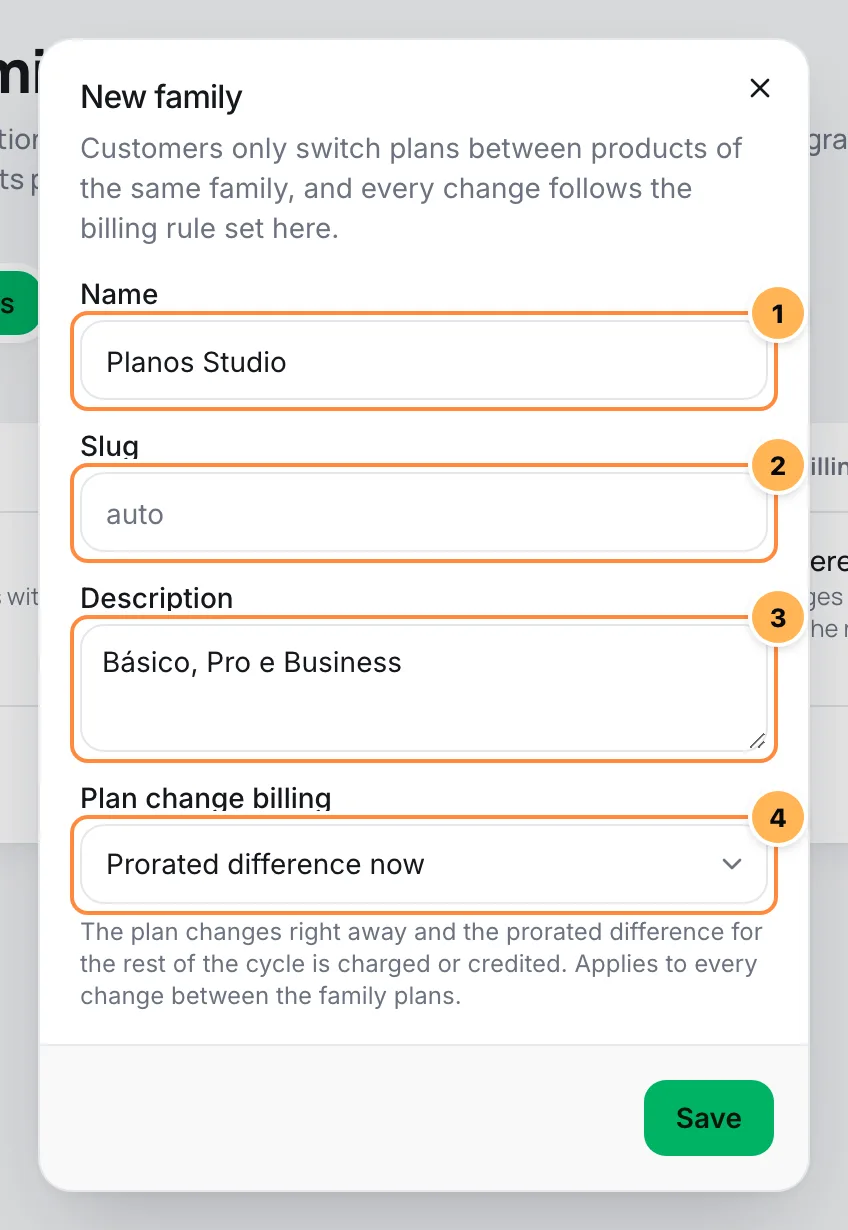
- Name: 2 to 80 characters, such as "Studio Plans".
- Slug: an internal identifier. When empty, it is generated from the name.
- Description: optional.
- Plan change billing: how the change is billed. See the table below. The default is Prorated difference now.
Click Save.
Billing rules for the change
| Rule | What happens |
|---|---|
| At next renewal | The plan changes right away and the new price is only charged at the next renewal. |
| Prorated difference now | The plan changes right away and the prorated difference for the rest of the cycle is charged or credited. |
| Full price now | The plan changes right away and the full price of the new plan is charged immediately. |
The rule belongs to the whole family: there is no separate rule for each pair of plans. When you save the family, Vipter applies the rule to every change between its plans.
Step 2: put each plan in the family
Do this for each subscription product that joins the family:
- Open the product and click the Plan change tab.
- Under Family, choose the family. To create one on the spot, choose + New family.
- Under Plan level, enter the plan's level. The higher number is the higher plan. When you choose the family, the field suggests the level right above its highest plan.
- Click Save.
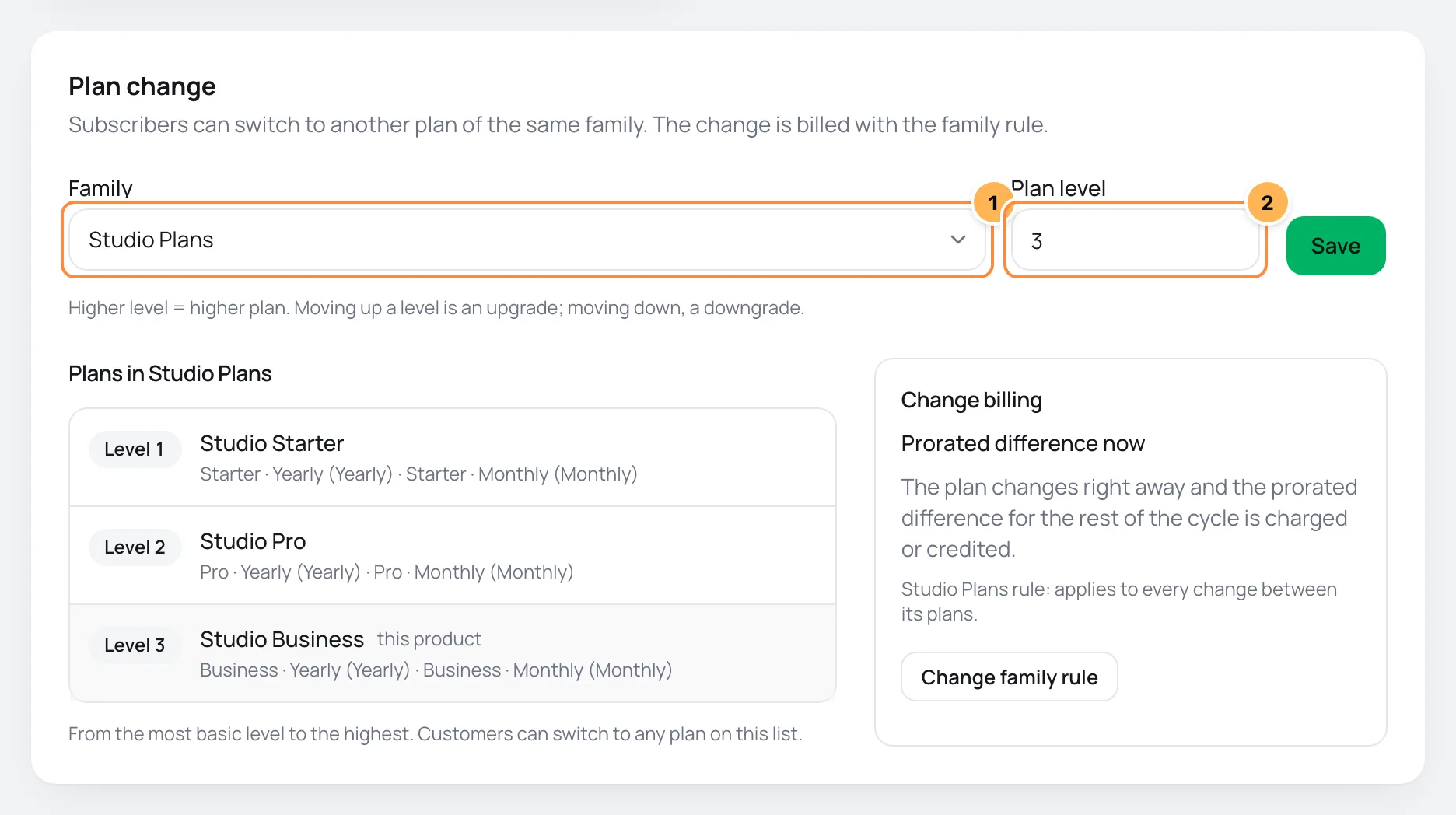
- The product's family. No plan changes takes the product out of the family.
- The plan's level in the family.
You can also choose the family and level when you create the product, in the Product family and Tier order fields. After the product is created, the family only changes on this tab.
Step 3: check the plans
With the family saved, the Plan change tab shows:
- The list of plans in the family: the family's products from the most basic level to the highest, with each one's offers. The open product shows as this product.
- The Change billing box: the family's rule, with the Change family rule button. Changing the rule here changes it for every plan in the family.
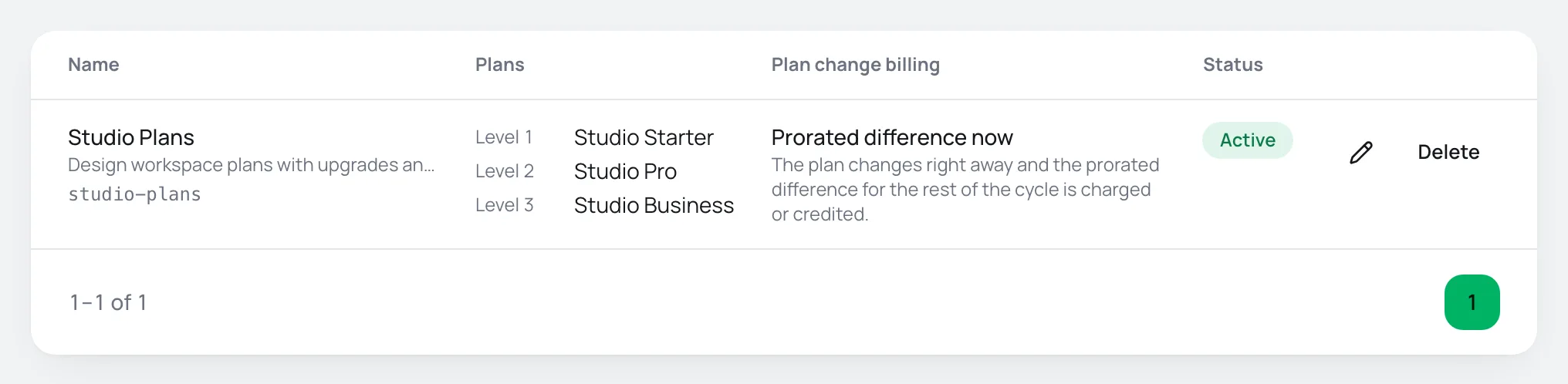
The Families tab lists every family with its plans and their levels:
Which plans the subscriber can switch to
The subscriber can switch to any subscription offer of the family's products, as long as the offer:
- isn't archived;
- has a price in their subscription's currency.
This includes the other offers of the same product, such as going from Pro monthly to Pro yearly. The level only decides whether the change is an upgrade or a downgrade: the subscriber can skip levels.
Where the change happens
- In the customer portal: the subscriber changes plans on their own, if the Customers can change plans option is on in GeneralSettingsCustomer portal and the subscription is active or in its trial period. The portal shows the available plans with their prices and explains how the change will be billed. See Customer portal.
- In the dashboard: on the subscription page, the Change plan button lists the offers in the same family. See Manage a subscription.
After the change, the subscriber gets the Plan changed e-mail, if you turn that e-mail on in the e-mail settings. It starts off.
Edit or delete a family
On the Families tab, the pencil opens the family so you can change the name, description and billing rule.
Delete asks for confirmation: Delete this family? Products must be moved first. Take each product out of the family on the Plan change tab before deleting it. A deleted family stays in the list and can come back with Restore.
Common problems
-
Enter the plan level in the family.
You chose a family without entering the level. Fill in Plan level or choose No plan changes.
-
This family only has this product. Add another subscription product to it to allow plan changes.
The family has only one plan. Put another subscription product in it.
-
Families apply to subscription products.
One-time products can't join families.
-
The subscriber doesn't see the option to change plans
Check that their product is in a family with other plans, that the other offers aren't archived and have a price in the subscription's currency, that the subscription is active or in trial, and that Customers can change plans is on.
What to do next
- Set up what the subscriber can do in the customer portal.
- See how to manage a subscription from the dashboard.
Prices in several currencies
Add one price per currency to an offer, learn which currency the checkout opens in and how Vipter converts amounts in reports.
Digital delivery (downloads)
Add the file links of a digital product or course, set a limit and an expiry, and see how the buyer gets the downloads.