Transactional e-mails: templates and languages
Turn each e-mail to buyers and to the team on or off, edit the subject, heading and text in each language with variables and a preview, send tests and adjust the footer.
Vipter e-mails buyers when something happens in the store: order confirmed, PIX (Brazil's instant payment) generated, renewal charged, refund. It can also notify the team of each sale. The e-mails go out through your store's e-mail provider, from your sender, in each buyer's language. On this page you choose which e-mails go out and what they say.
Before you start
- The Admin or Owner role in the project.
- An e-mail provider connected. Without a provider, no e-mail goes to buyers, only the portal access code. See Connect an e-mail provider.
Step 1: open the e-mails
Open GeneralSettingsE-mails.
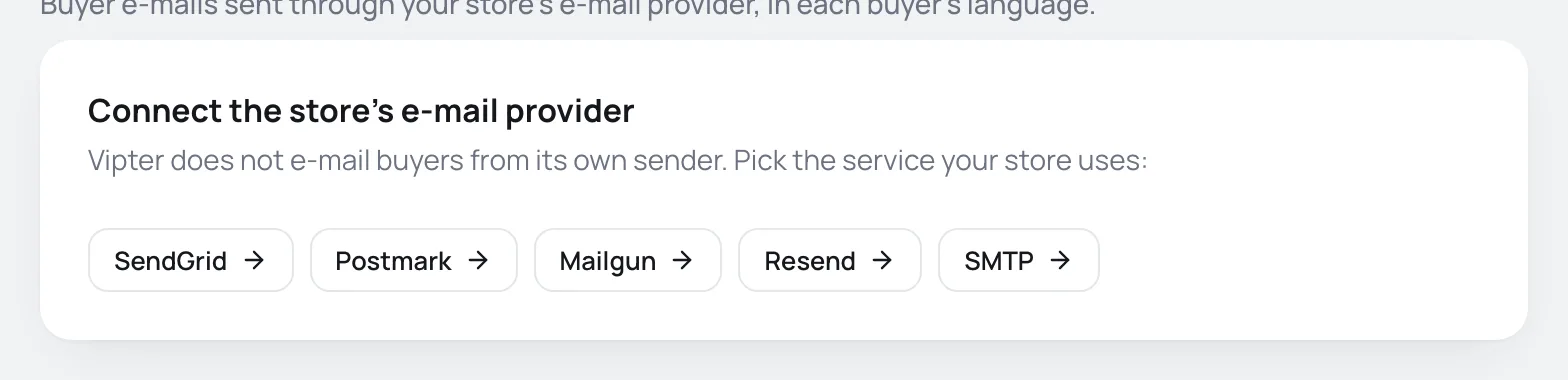
At the top you see the connected provider, with its status, the sender, the domain status and the Manage provider button. Without a provider, the card shows Connect the store's e-mail provider and a button for each service:
Step 2: choose which e-mails go out
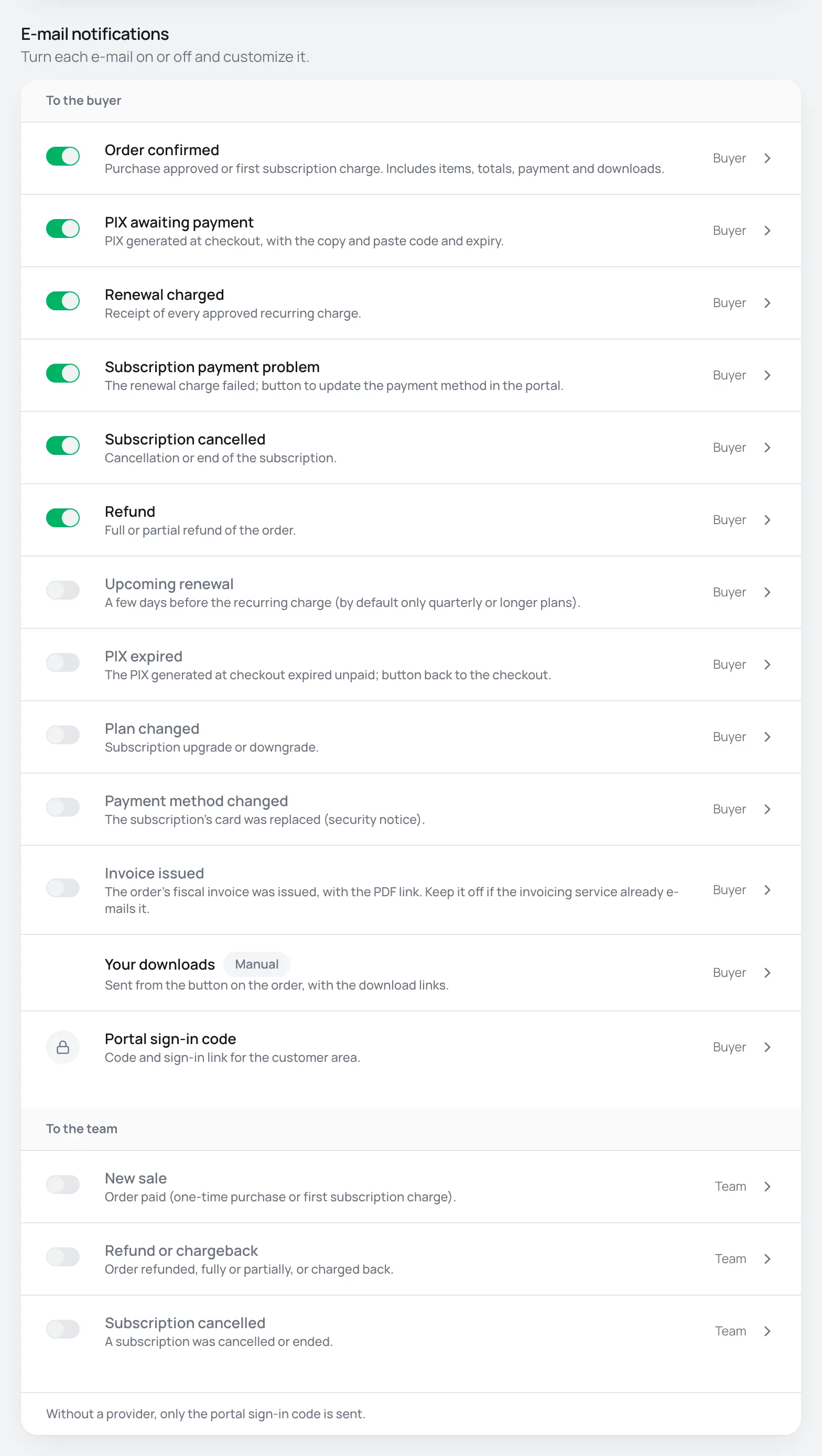
The E-mail notifications list splits the e-mails into To the buyer and To the team. Use the switch on the left to turn each one on or off. The change applies right away, with no save button.
For the buyer:
| When it goes out | On by default | |
|---|---|---|
| Order confirmed | Purchase approved or first subscription charge. Includes items, totals, payment and downloads. | Yes |
| PIX awaiting payment | PIX generated at checkout, with the copy and paste code and expiry. | Yes |
| Renewal charged | Receipt of every approved recurring charge. | Yes |
| Subscription payment problem | The renewal charge failed; button to update the payment method in the portal. | Yes |
| Subscription cancelled | Cancellation or end of the subscription. | Yes |
| Refund | Full or partial refund of the order. | Yes |
| Upcoming renewal | A few days before the recurring charge (by default only quarterly or longer plans). | No |
| PIX expired | The PIX generated at checkout expired unpaid; button back to the checkout. | No |
| Plan changed | Subscription upgrade or downgrade. | No |
| Payment method changed | The subscription's card was replaced (security notice). | No |
| Invoice issued | The order's fiscal invoice was issued, with the PDF link. Keep it off if the invoicing service already e-mails it. | No |
| Your downloads | Sent from the button on the order, with the download links. | Manual |
| Portal sign-in code | Code and sign-in link for the customer area. | Always |
For the team, all of them come off:
| When it goes out | |
|---|---|
| New sale | Order paid (one-time purchase or first subscription charge). |
| Refund or chargeback | Order refunded, fully or partially, or charged back. |
| Subscription cancelled | A subscription was cancelled or ended. |
Two e-mails have no switch:
- Your downloads has the Manual badge: it only goes out when someone clicks Send by e-mail on the order's downloads card.
- Portal sign-in code has a lock: Always on: it is how buyers sign in to the portal. Without a provider it goes out through Vipter.
The Customized badge marks e-mails with your own text in some language.
Step 3: edit the texts
Click an e-mail's name to open the editor.
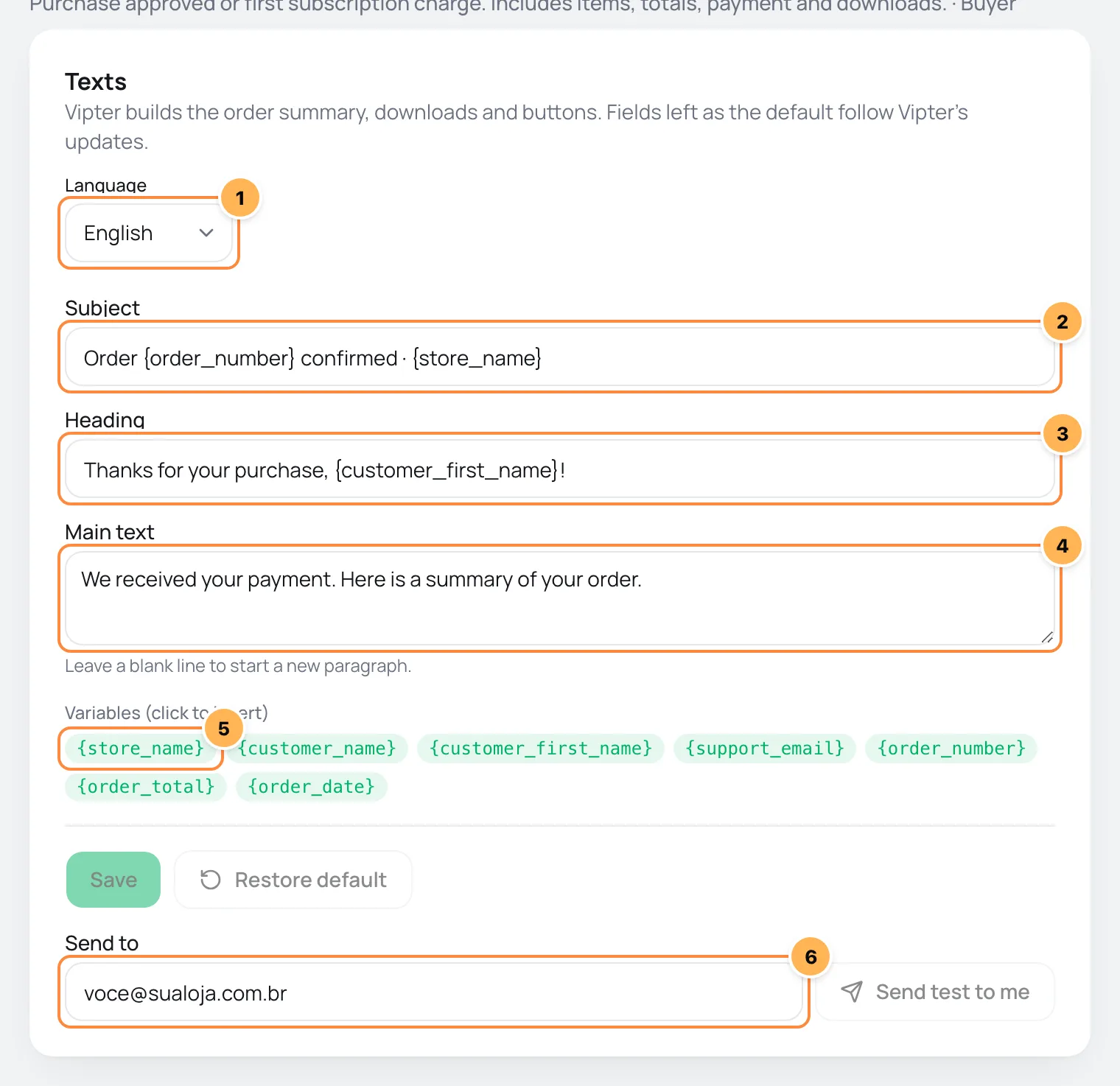
- Language: the language you are editing. The list starts with the language of the store's country and includes the checkout's 10 languages. Languages with your own text show Customized.
- Subject: up to 200 characters.
- Heading: the large heading at the top of the e-mail, up to 200 characters.
- Main text: up to 4,000 characters. Leave a blank line to start a new paragraph.
- Variables (click to insert): click a variable to insert it at the cursor. Hover over it to see what it contains.
- Send to and Send test to me: see step 4.
Click Save to save the language on screen. Each language is saved separately: if you switch languages with unsaved changes, the editor asks Discard the changes in this language?
The Preview, next to the texts, shows the e-mail built with a sample order and follows what you type.
What to know about the texts:
- Vipter builds the order summary, downloads and buttons. Fields left as the default follow Vipter's updates.
- Restore default sets the language on screen back to the default text and saves right away.
- Every e-mail accepts
{store_name},{customer_name},{customer_first_name}and{support_email}. The other variables depend on the e-mail, such as{order_number}or{pix_expires_at}. - A variable with no data at send time goes out empty. A variable that doesn't exist appears as written, and the preview shows that.
- Logo, color and address come from Checkout branding and Project details.
A turned-off e-mail can still be edited. The editor warns: This e-mail is off. Turn it on in the notifications list so it is sent.
Step 4: send a test
In Send to, type the address that will receive the test. The field comes with your e-mail. Click Send test to me.
The test uses the texts on screen, even unsaved, with a sample order and a banner saying it is a test. It goes straight to the address you typed. The button is disabled when no provider is connected.
It worked if
You see Test e-mail sent to you@yourstore.com. and the e-mail arrives in the inbox, not in spam.
E-mails with their own options
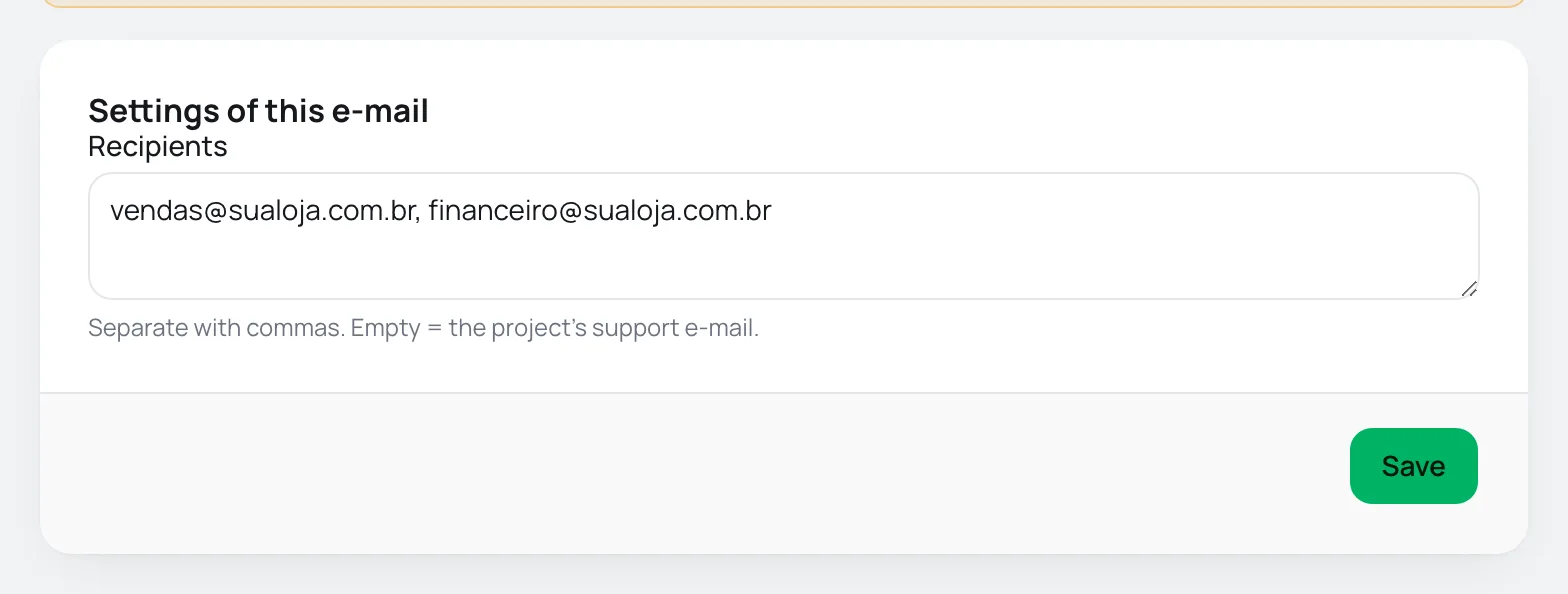
Some e-mails have the Settings of this e-mail card above the texts, saved with its own Save button.
E-mails to the team: the Recipients field takes up to 10 addresses separated by commas. Separate with commas. Empty = the project's support e-mail. These e-mails go out in the language of the store's country, with a button to the order or subscription in the dashboard.
Upcoming renewal:
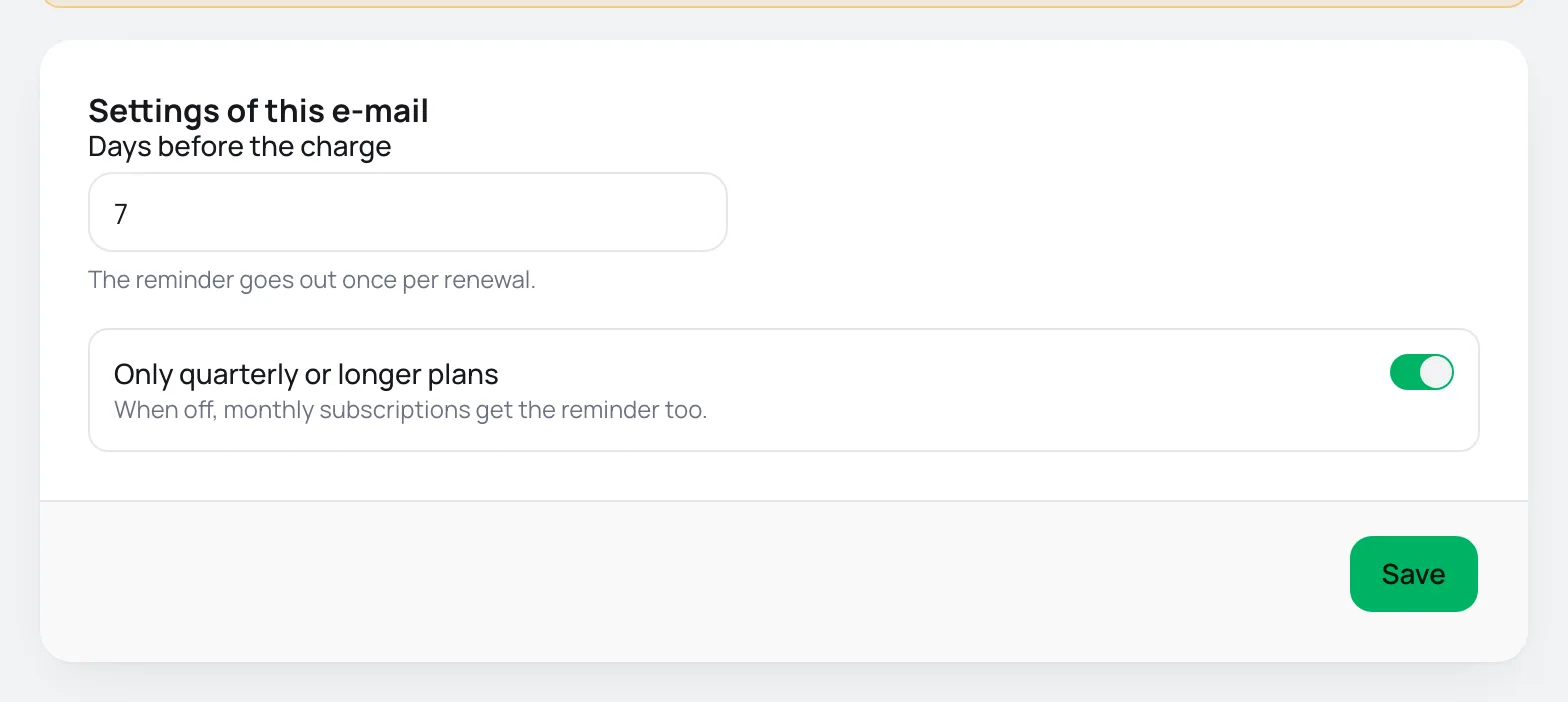
- Days before the charge: from 1 to 60, the default is 7. The reminder goes out once per renewal.
- Only quarterly or longer plans: comes on. When off, monthly subscriptions get the reminder too.
Sending and footer
With a provider connected, the Sending and footer card applies to all e-mails. It has its own Save button.
| Field | What it does |
|---|---|
| Send e-mails | When off, no e-mail reaches buyers (the portal sign-in code still goes out through Vipter). |
| Extra footer text | Up to 500 characters. Shown on every e-mail, below the store address. |
| Test address | While filled in, every e-mail goes to this address instead of the buyer. Use it to test, then clear it. |
Clear the test address before selling
While Test address is filled in, no buyer gets any e-mail: they all go to that address, with a note of the original recipient. The provider card at the top of the page shows Test mode: every e-mail goes to you@yourstore.com.
How it works afterwards
- Buyer's language: the e-mail goes out in the language the buyer saw the checkout in. Without that information, Vipter uses the language of a previous purchase by that buyer, then the language of the buyer's country, then that of the store's country and, last, English.
- Texts at send time: the e-mail is built when it goes out, with the texts saved at that moment.
- No late e-mails: events older than 24 hours never generate an e-mail. Connecting a provider today doesn't trigger e-mails for old sales.
- Thank-you page: it only promises an e-mail confirmation when a provider is connected and Order confirmed is on.
- History: every send is logged with its status. See E-mail activity and blocked addresses.
Common problems
-
Connect an e-mail provider in Integrations first.
There is no active provider. Connect one in Connect an e-mail provider.
-
Enter a valid e-mail address for the test.
The test address is incomplete. Check the Send to field.
-
The provider refused the e-mail:
The provider rejected the test. The message gives the reason. The most common case is a sender on a domain that is not verified with the provider. See Sender domain.
-
Use up to 10 recipients.
The Recipients field takes up to 10 addresses.
-
Use a number of days between 1 and 60.
The renewal reminder accepts from 1 to 60 days.
-
Buyers get nothing, but the tests arrive
Check that Test address is empty, that Send e-mails is on and that the e-mail is on in the list. Then see the reason in the e-mail activity.
What to do next
- Track sends in E-mail activity and blocked addresses.
- Verify the sender domain so e-mails don't land in spam.
Customer portal
Turn on the self-service portal, set its title and choose whether buyers can cancel, change plans and change their card, with a cancellation survey and message.
E-mail activity and blocked addresses
See the store's latest e-mails and each one's status, resend an e-mail from the order and unblock addresses that bounced or reported spam.