Create an offer
Set the price, currencies, billing cycle, trial period and first charge, and configure the offer's payment link.
The offer is how you sell a product: how much it costs, in which currencies and, for subscriptions, how often it charges. Each offer has its own payment link. A course can have a launch offer and a full-price offer, and a software product can have a monthly plan and a yearly one.
Before you start
- A product already created. See Create and edit a product.
- The Admin or Owner role in the Vipter project.
- A connected payment provider that accepts the currency of the prices. The checkout only shows the currencies that some connection of the store can accept.
Step 1: open the form
- Open CatalogProducts and click the product.
- On the Offers tab, click New offer.
Step 2: fill in the details
On the Offer details card:
- Name: shows at checkout, below the product name, and on receipts. Use 2 to 120 characters.
- Slug: an identifier for the offer, generated from the name if you leave it empty. It doesn't change the payment link's address, which you set in step 6.
- Description: optional.
- Default offer for this product: marks the offer as the default in the product's list of offers.
Step 3: set the cycle (subscriptions)
For one-time products, the form shows the One-time pricing card, with no cycle options. Skip to step 4.
For subscriptions, the Billing cycle card sets how the charge repeats:
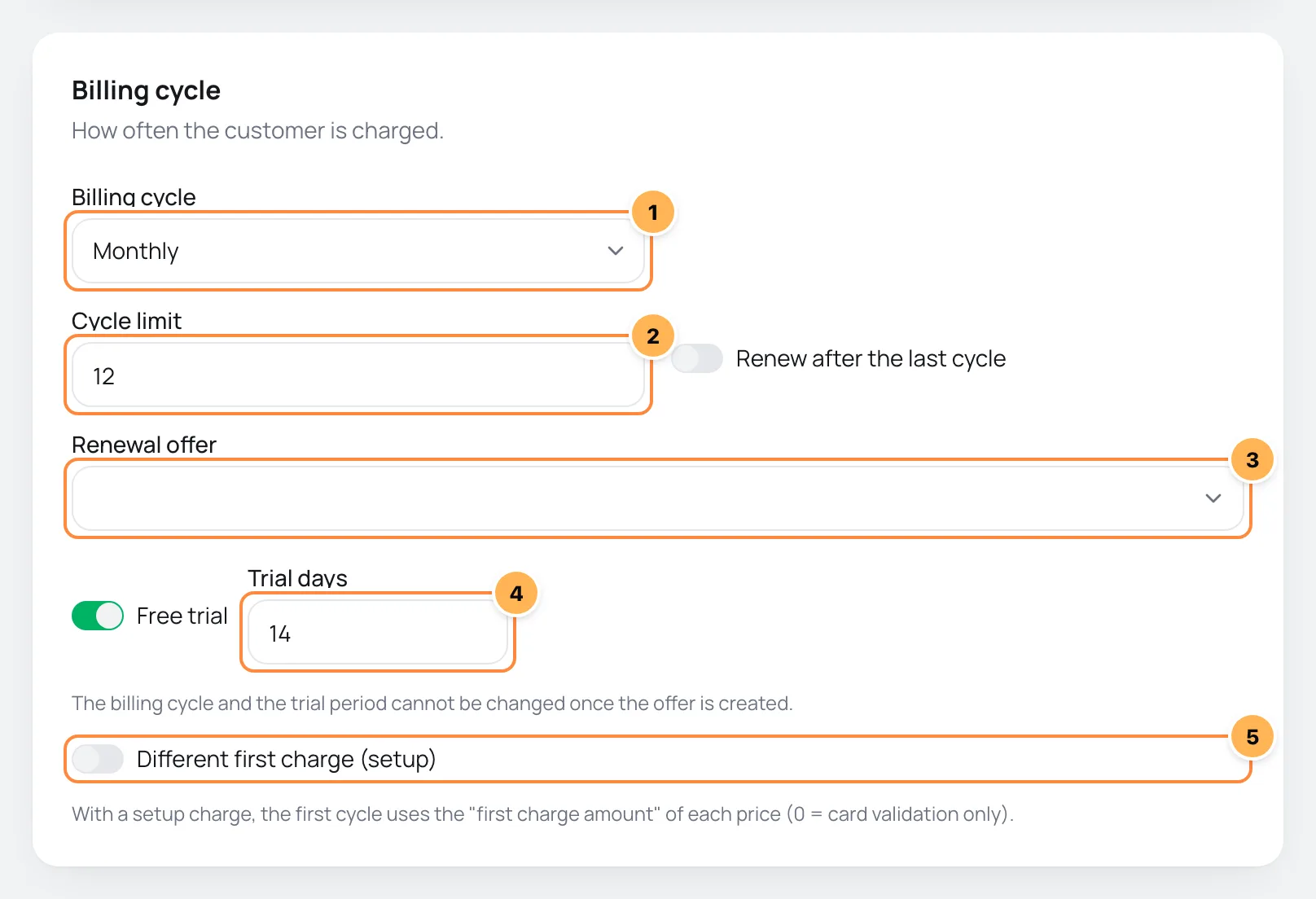
- Billing cycle: Monthly, Yearly, Quarterly, Every 6 months, Every 2 weeks, Daily or Custom. For custom, enter the Days per cycle.
- Cycle limit: how many charges the subscription makes. Empty means Unlimited: the subscription renews until it is cancelled. With a limit, the checkout tells the buyer how many cycles there are.
- With a limit filled in, Renew after the last cycle and Renewal offer show up. They decide what happens after the last cycle. The list of renewal offers shows the other offers of this same product.
- Free trial: turn it on and enter the Trial days (the default is 14). The checkout tells the buyer that the card is validated that day and charged only after the trial.
- Different first charge (setup): the first charge uses an amount different from the cycle price. With this option on, each price gets the First charge amount column. Empty charges the normal amount, and
0only validates the card.
Cycle and trial are fixed
After you create the offer, you can't change the cycle, the cycle limit or the trial period, or turn the different first charge on or off. Price amounts can still be edited. To change the rest, create another offer and archive the old one.
Step 4: add the prices
On the Prices card, add one price per currency:
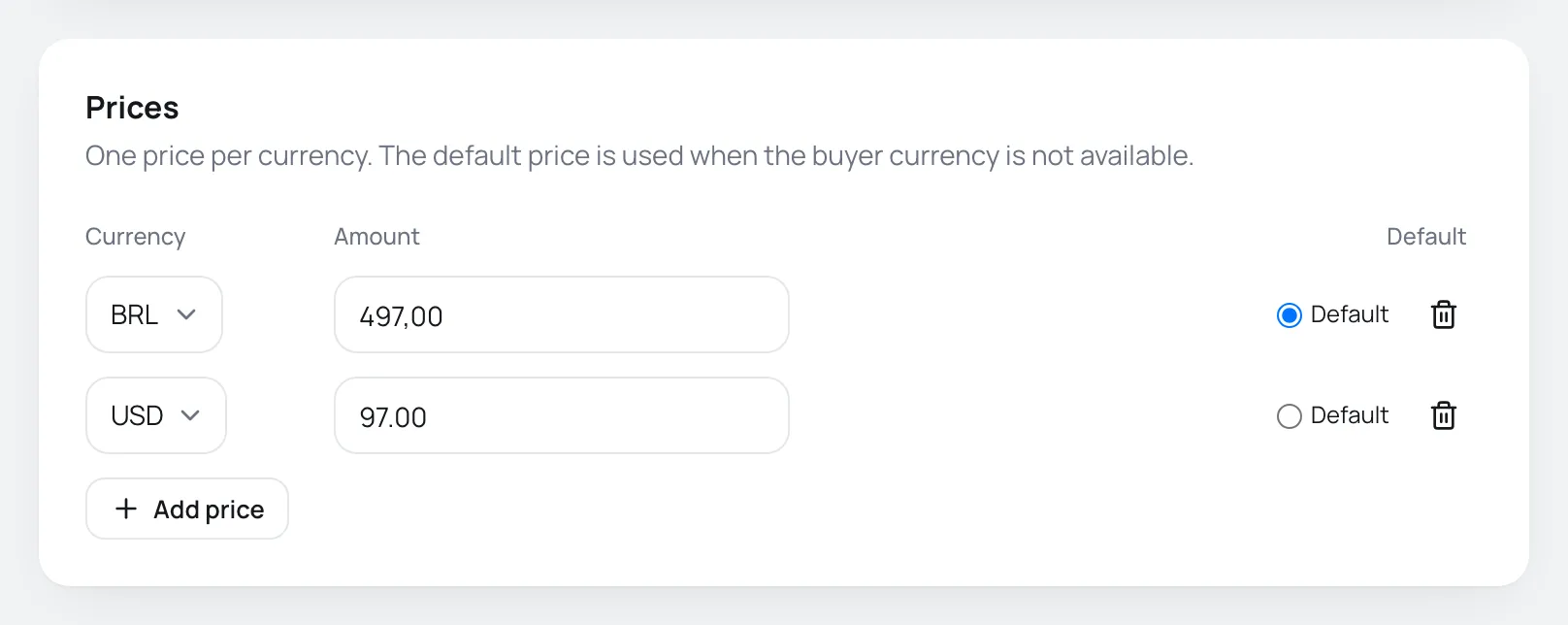
- Choose the Currency and type the Amount. A comma or a period works as the decimal separator.
- To sell in another currency, click Add price. Each currency appears only once.
- Mark which price is the Default.
The checkout opens in the link's currency, if it has ?currency=. Without it, it opens in the store's currency when the offer has a price in it, and otherwise in the currency of the default price. With more than one price available, the buyer can switch currency in the order summary.
Only currencies the store accepts count
A price in a currency that no active connection of the store accepts doesn't show at checkout. If none of the offer's prices can be accepted, the link shows the link-unavailable page.
Step 5: create the offer
Click Create offer. Vipter opens the offer page.
Step 6: set up the payment link
At the top of the offer page, the Payment link card shows the address you share, with buttons to copy it and to Open it.
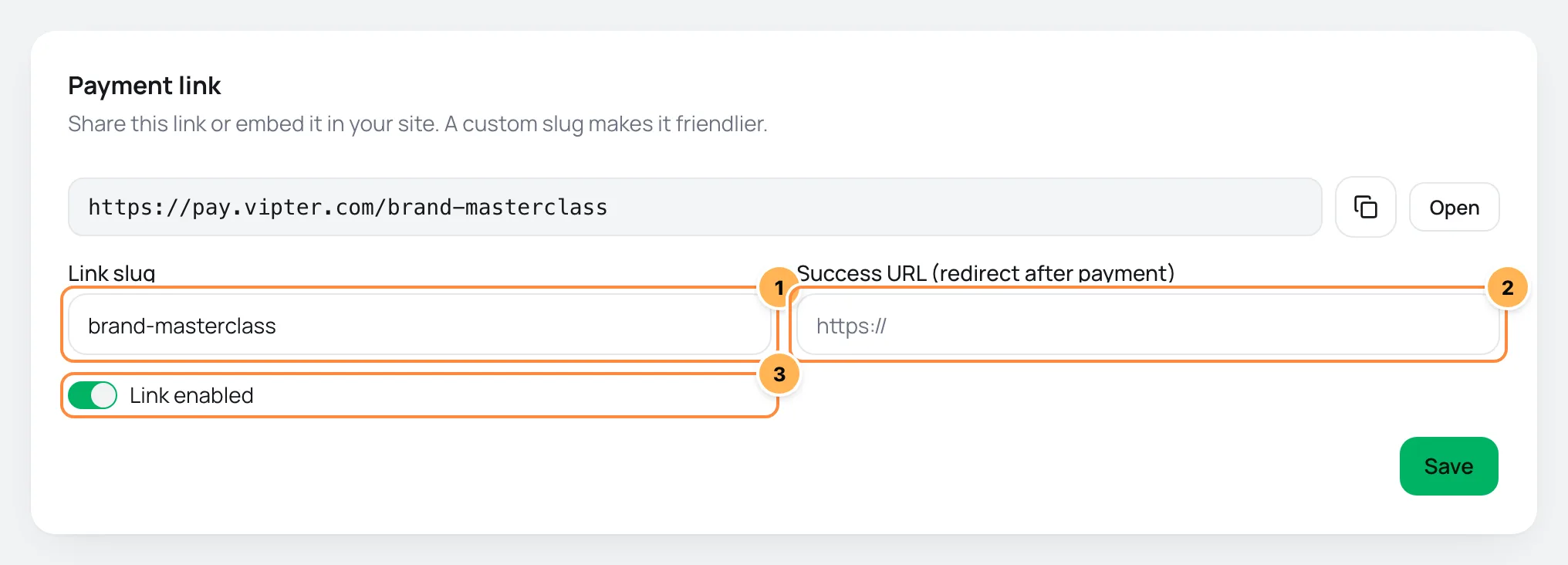
- Link slug: the last part of the address, such as
pay.vipter.com/curso-fotografia. Use 3 to 61 lowercase letters, numbers and hyphens, starting with a letter or number. Without a slug, the link uses the offer's code. - Success URL (redirect after payment): where the buyer goes after paying. The thank-you page shows first and redirects after 30 seconds, with a button to continue right away. If the product has files for download, there is no automatic redirect: the buyer only sees the button. When empty, the Default success URL from the store settings applies.
- Link enabled: when off, the link shows the link-unavailable page and the offer shows as Link disabled in the product's list.
Click Save.
It worked if
When you click Open, the checkout opens with the product name, the offer name and the price.
To build links with a coupon, pack, seller, language or UTMs, see Payment link and URL parameters.
After you create it
On the offer page, you can still:
- Change prices: on the Prices card, add a currency with Add price, edit an amount, use Make default or remove a price. The offer must keep at least one price.
- Change the details: on the Offer details card, change the name, description and default offer. For subscriptions with a cycle limit, also Renew after the last cycle and Renewal offer.
- Sell more in the same purchase: one-time offers have the Packs and Order bumps cards. Every offer has the One-click Upsell card, with the offers shown right after payment.
- Plan change: for subscriptions, the Plan change card takes you to the product tab where the family and plan level are.
Archive or delete an offer
- Archive: the payment link stops working, and the sales history stays. Use Unarchive to sell again.
- Delete: removes the offer for good and only works on an offer that was never sold. Its packs are removed with it.
Common problems
-
This slug is already in use.
Another Vipter link already uses that slug. Pick another one, for example with the store name at the start.
-
Slugs starting with "ofr_" are reserved
The slug can't start with
ofr_. Pick another one. -
Each currency can appear only once
There are two prices in the same currency. Remove one of them.
-
Enter a valid amount for every price
A price is empty or isn't a number. Check the amount on each row.
-
The link shows "payment link is not available"
The offer was archived, Link enabled is off, or no price is in a currency the store accepts. Check all three and, if it's the currency, connect a provider that accepts it.
-
Creating new items is paused until the plan payment is resolved.
The payment for your Vipter plan is overdue. Settle it in Vipter plan.
What to do next
- See how the buyer sees the checkout.
- Test the store before you share the link.