Plans and limits
Price, order quota, overage and limits of each Vipter plan, where to track the account's plan and how to change or cancel it.
The Vipter plan is a monthly fee in Brazilian reais with a quota of approved orders per month. Past the quota, each extra order has a fixed price. All plans have the same product: what changes is the quota, the team size and how many stores, payment connections and tracking accounts fit in it.
The plan belongs to your account, not to a store. It covers all the stores you own, and the quota adds up the approved orders of all of them.
The plans
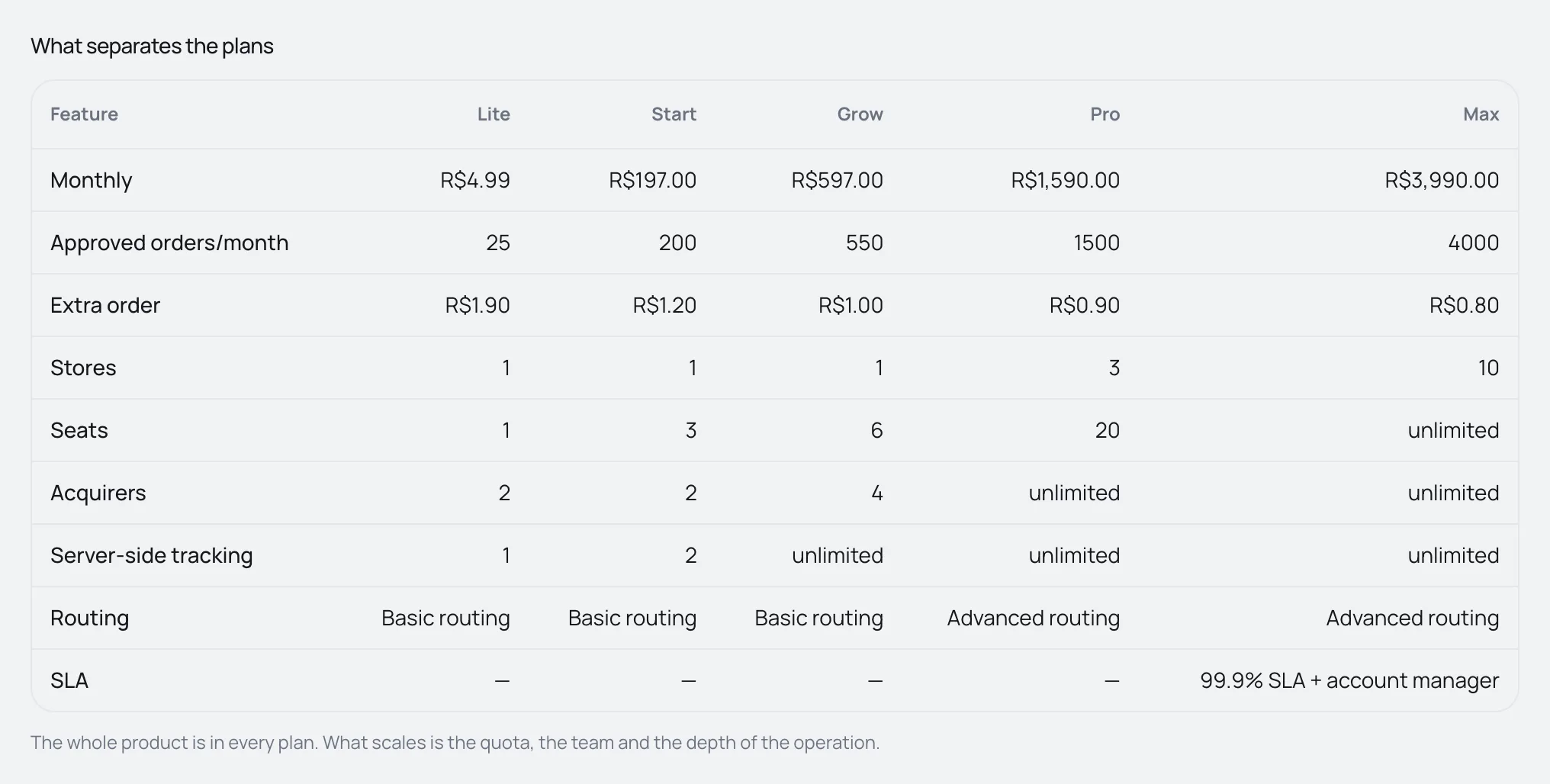
Prices as of September 2026. The plans screen always shows the current ones.
| Plan | Monthly fee | Approved orders per month | Extra order | Stores | Seats | Connections per store | Server-side tracking per store | Routing | SLA |
|---|---|---|---|---|---|---|---|---|---|
| Lite | R$ 4.99 | 25 | R$ 1.90 | 1 | 1 | 2 | 1 | Basic | No |
| Start | R$ 197.00 | 200 | R$ 1.20 | 1 | 3 | 2 | 2 | Basic | No |
| Grow | R$ 597.00 | 550 | R$ 1.00 | 1 | 6 | 4 | Unlimited | Basic | No |
| Pro | R$ 1,590.00 | 1,500 | R$ 0.90 | 3 | 20 | Unlimited | Unlimited | Advanced | No |
| Max | R$ 3,990.00 | 4,000 | R$ 0.80 | 10 | Unlimited | Unlimited | Unlimited | Advanced | 99.9% SLA + account manager |
- Prices are in reais only. There is no trial period: the first month is charged when you sign up.
- Extra orders are charged in blocks. See Order quota and overage.
- For the details of each limit, see also Limits by plan.
What each limit blocks
| Limit | Counted per | Where it blocks |
|---|---|---|
| Stores | Account | When creating a new project: Your plan covers 1 store(s). Upgrade to create another. See Several stores in the same account. |
| Seats | Account | When inviting someone: the owner, members and pending invitations count. See Team and invitations. |
| Connections | Store | When creating or reactivating a payment provider connection, including test ones. |
| Server-side tracking | Store | When turning on server sending, with a token, in a conversion account. A browser-only pixel doesn't count. |
| Routing and SLA | — | They don't block anything in the dashboard. They show in the plan comparison. |
See the account's plan
Open your profile picture menu, in the top corner of the screen, and click Vipter plan. The page shows the plan of the account that owns the open store. Owners and admins see this page. People with the Sales role don't.
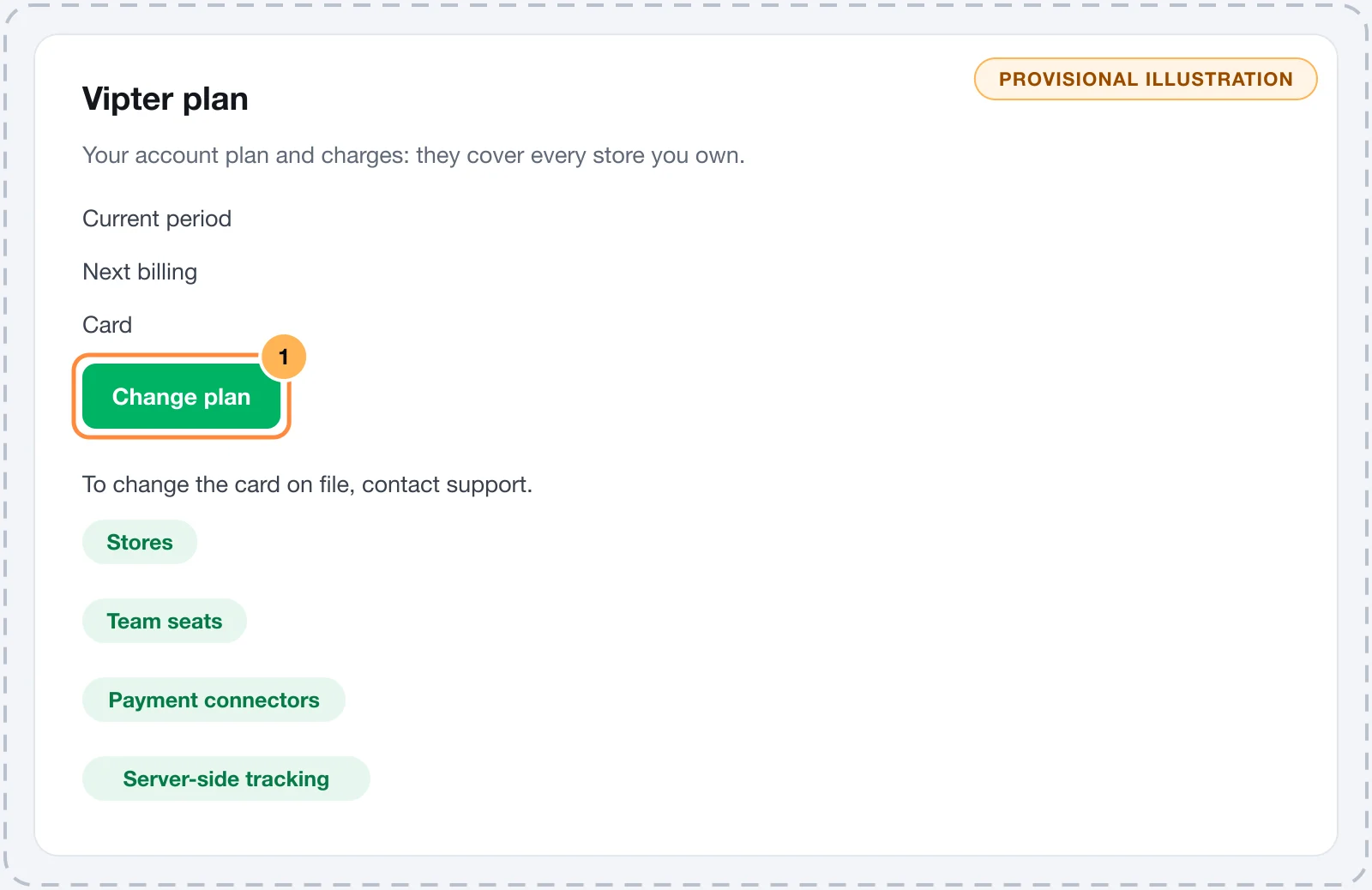
- The plan card: name, status, R$ 197.00 / month · 200 approved orders included · R$ 1.20 per extra order, Current period, Next billing and Card.
- Cycle quota and Overage charges: the cycle's usage. See Order quota and overage.
- Plan limits: Stores and seats count per account; acquirers and tracking count per store. Each limit shows with its usage and total.
- Billing history: Monthly prices and overage charges made on your card.
A store run by Vipter itself or a demo store shows the Billing exempt badge: it pays no plan or overage and has no limits.
Change plans
Only the owner changes the plan. For an admin, the plans screen doesn't open.
- In Vipter plan, click Change plan.
- On the Change the plan of your store screen, click the plan's card. The current plan has the Current badge.
- Click the Change to Grow button.
The change applies right away. Proration is applied on the next invoice. The new quota and limits apply to all your stores.
It worked if
You see Plan changed. and the Vipter plan page shows the new plan's name.
For a smaller plan, your stores and your team need to fit in it. If they don't, you see What you use of seats does not fit this plan. Reduce it before changing. Extra connections and tracking accounts don't prevent the change: the existing ones keep working, but you can't create or reactivate others above the new limit.
Cancel the plan
- In Vipter plan, click Change plan.
- Click Cancel subscription and confirm: Cancel the Vipter subscription at the end of the current period? The project becomes read-only afterwards.
The cancellation takes effect at the end of the period already paid. Until then, everything works. The plans screen shows Cancellation is scheduled for the end of the current period. and the plan page shows Cancels at the end of the current period. After the period ends, the stores get the Suspended status: the dashboard becomes read-only and payment links stop working.
Change the card
The monthly fee and overage are charged to the card registered when you signed up. To change the card on file, contact support.
Common problems
-
What you use of stores does not fit this plan. Reduce it before changing.
You have more stores or more people on the team than the chosen plan allows. Remove people or pending invitations, or choose a larger plan.
-
The change plan button opens a page that doesn't exist
You are an admin, not the owner. Ask the store's owner to change the plan.
-
No active subscription.
The account has no active subscription. Click Choose a plan and subscribe to a plan. See Choose the plan and activate the account.
What to do next
- Understand what counts toward the quota in Order quota and overage.
- See what happens when a charge fails in Past-due payment and blocked sales.
Transfer ownership
Hand the store over to another team member, understand what changes in the plan, quota and seats, and what happens to your access.
Order quota and overage
What counts as an approved order in the plan's quota, how overage is charged in blocks of 50 and what the quota notice banners mean.