Connect TikTok Ads (Pixel and Events API)
Send checkout visits, leads and purchases to your TikTok pixel, from the browser and through the Events API, including PIX paid after the page was closed.
With TikTok Ads connected, the TikTok pixel fires on the checkout and the thank-you page, and the Events API sends the same events from the server. The purchase is reported when the payment is confirmed, including a PIX (Brazil's instant payment) paid after the buyer closed the page. Both deliveries carry the same identifier, and TikTok counts each sale once.
Before you start, it helps to read how conversion tracking works.
Before you start
- A TikTok pixel created in TikTok Ads' Events Manager and admin access to it.
- The Admin or Owner role in the Vipter project.
- At least one product created in Vipter.
Step 1: copy the pixel code and generate the token in TikTok
- In TikTok Ads Manager, open Events Manager and choose your Web pixel.
- Copy the Pixel code. It has uppercase letters and numbers, such as
C0ABCDEFGHIJKLMN0000. - In the pixel settings, generate an Events API access token and copy the token.
- To test before selling, open the same pixel's Test events tab and copy the test code, such as
TEST12345.
Keep the token safe
With the token, anyone can send events to your pixel. Paste the token only into Vipter. Once saved, it is stored encrypted and not shown again; the screen only shows its last characters.
Step 2: connect the account in Vipter
- In the Vipter dashboard, open GeneralConversionsAccounts and click Connect account. Choose TikTok Ads.
- Fill in the numbered fields. The test code is under Advanced: test mode.
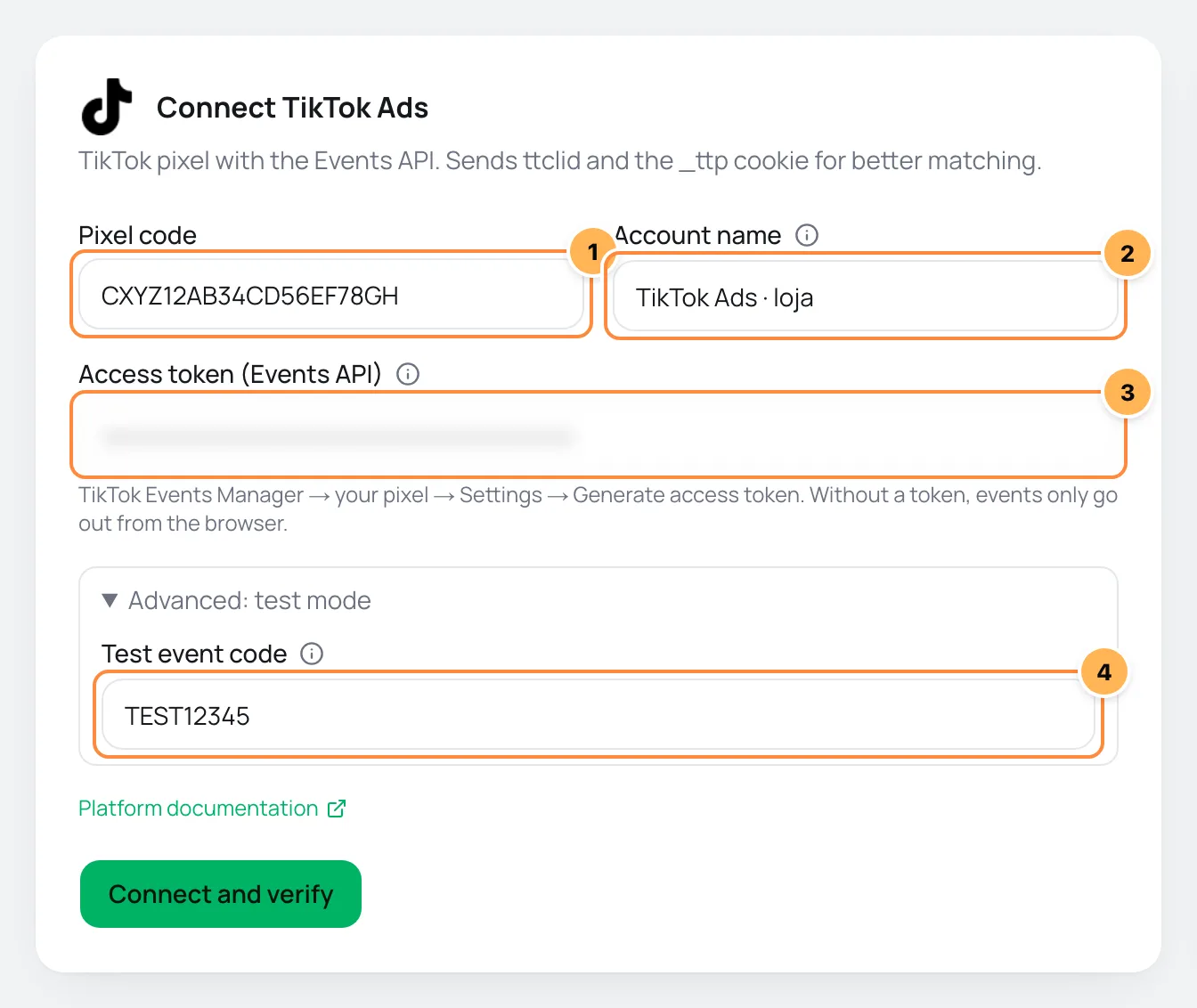
| # | Field | What to paste |
|---|---|---|
| 1 | Pixel code | The pixel code from step 1, uppercase letters and numbers only. |
| 2 | Account name | A name to recognize the account, such as "Store TikTok" or "Affiliate John". If left blank, it is "TikTok Ads". |
| 3 | Access token (Events API) | The Events API access token from step 1. Without it, events only go out from the browser and a PIX paid after the page was closed is not counted. |
| 4 | Test event code | The code from the Test events tab, only while you test. Delete it when you are done. |
- Click Connect and verify. Vipter saves the account and checks the code's format. With the test code filled in, it also sends a test event to confirm the token.
- Click Continue, check the products the pixel should fire on and click Finish. Turn on Use automatically on new products to include products created later.
Without a test code, the token is confirmed on the first sale
Step 3: test
- With the test code saved, open the account in Accounts, on the Connection tab.
- Open the pixel's Test events tab in TikTok and click Send test event in Vipter. Vipter sends a 1.00 test purchase in the project's currency, which shows only as a test.
- Delete the test code in Connection and click Save.
It worked if
The verification shows Token accepted by the platform, the test shows Test event accepted by the platform (HTTP 200). and the test purchase appears in TikTok's test tab. After the first real sale, the list also shows the first event received and the first sale sent from the server.
What Vipter sends to TikTok
| Event in Vipter | Name in TikTok |
|---|---|
| Page view | Pageview |
| Checkout started | InitiateCheckout |
| Lead (contact filled) | SubmitForm |
| Payment started | AddPaymentInfo |
| PIX generated | PlaceAnOrder |
| Purchase | CompletePayment |
| Subscription started | Subscribe |
- TikTok doesn't receive Shipping chosen, Renewal or Refund / chargeback.
- Events carry the value, the currency, the order's items and, on the purchase, the order ID.
- From the server, Vipter also sends the ad's
ttclidand the_ttpcookie, plus the data checked in Matching data, hashed with SHA-256. The UTM script carries this data from your sales page to the checkout. - In What to send, choose the events, the Conversion value and the Value currency. The details of each event are in events and values.
Common problems
-
Invalid format on the pixel code field
The code has lowercase letters or spaces, or was copied only in part. Copy the Pixel code again from Events Manager.
-
Fill in and save the test event code first: without it the test counts as a real conversion.
Without a test code, the test purchase would count as a real sale. Save the code from the Test events tab and try again.
-
Token rejected by the platform
The token was revoked or belongs to another pixel. Generate another token in the pixel settings and paste it in Connection. TikTok's response shows below the item.
-
Your plan does not allow another account sending from the server. Upgrade to connect one more.
Your plan reached its limit of accounts with server delivery. Remove the token from an account you no longer use or change plans in Vipter plan.
What to do next
- Paste the UTM script on your sales page so you don't lose the ad's
ttclid. - Also connect Meta Ads.
Connect Meta Ads (Pixel and Conversions API)
Send checkout visits, leads and purchases to your Meta Pixel, from the browser and through the Conversions API, including PIX paid after the page was closed.
Connect Pinterest Ads
Send checkout visits, leads and purchases to your Pinterest tag, from the browser and through the Conversions API, including PIX paid after the page was closed.