Profile, language and theme
Change your name, your photo, the dashboard language, the password and the light or dark theme of your Vipter account.
Your profile is yours, not the store's: name, photo, language and password apply in every store you're in. Any role can edit their own profile.
Open the profile
Click your profile picture, in the top corner of the screen. The menu has your name and e-mail at the top and the account options:
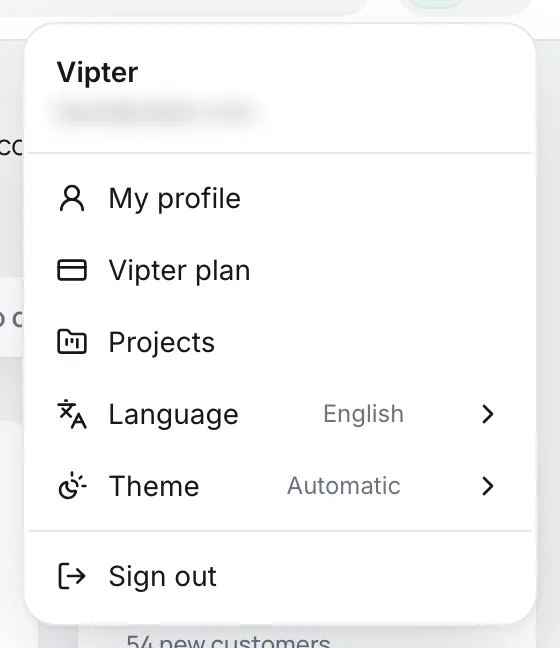
- My profile: name, photo, language and password. See the sections below.
- Vipter plan: the account's plan. Only shows for owners and admins. See Plans and limits.
- Projects: all your stores. See Several stores in the same account.
- Language and Theme: shortcuts, explained further down.
- Sign out.
Change name, photo and language
In My profile, the Personal information card:
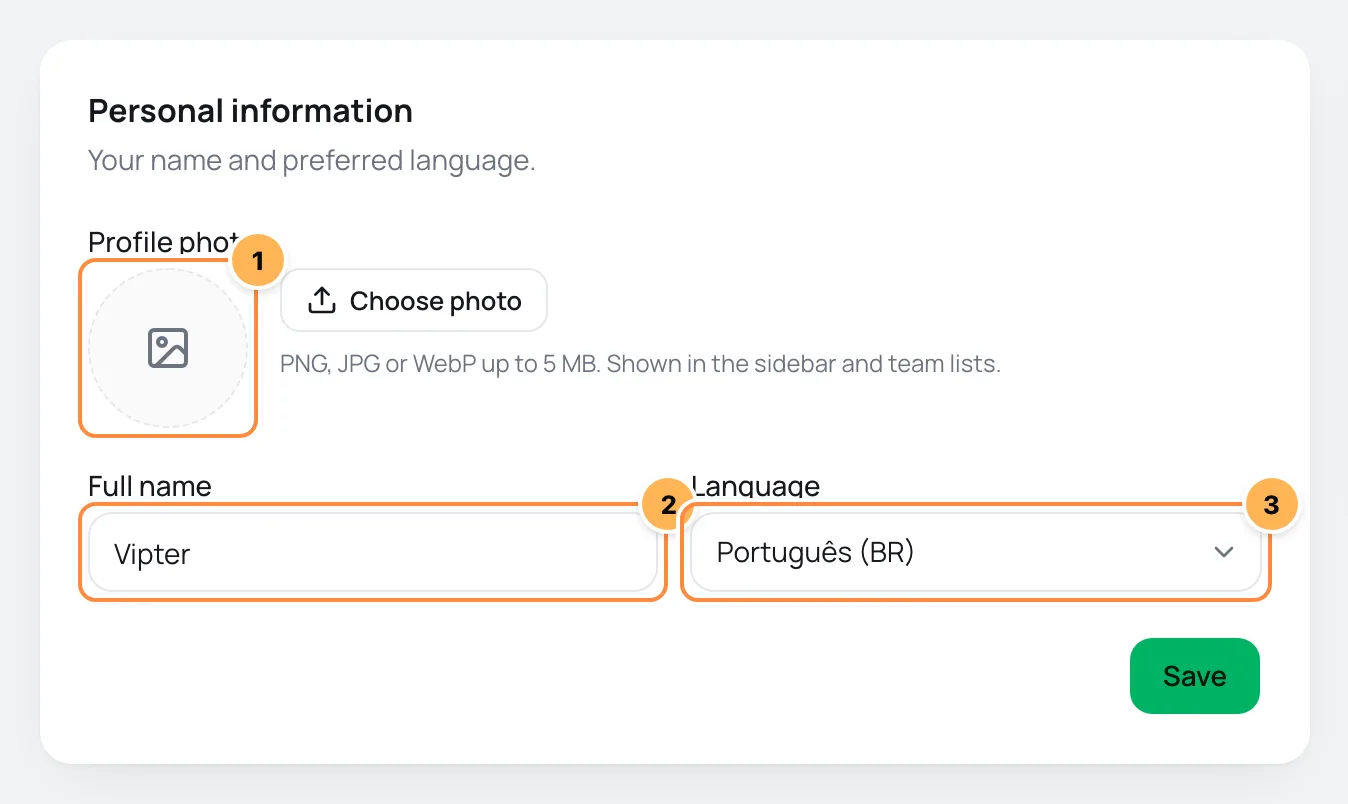
- Profile photo: click Choose photo or drag the image into the box. PNG, JPG or WebP up to 5 MB. Shown in the sidebar and team lists. The photo is cropped to a square. To remove it, click Remove.
- Full name: 2 to 80 characters. This is the name the team sees in the team table, on orders and in commissions.
- Language: Português (BR), English or Español. When you save, the dashboard switches to that language in this browser. It is also the language of the invitations you send to the team.
Click Save.
It worked if
You see Saved. and the dashboard switches to the chosen language.
The dashboard language doesn't change the language of the checkout or of e-mails to buyers. Those follow each buyer's language, see Transactional e-mails.
Change the language from the menu
In the profile picture menu, Language switches the dashboard language right away, in this browser. The language saved in the profile, used in invitations, stays the same.
The dashboard language is stored in each browser. In a new browser, the dashboard opens in the browser's language if it is Portuguese, English or Spanish, and in English otherwise. Switch it from the menu if you need to.
Change the theme
In the profile picture menu, Theme has three options: Automatic, Light and Dark. Automatic follows your system. The choice is stored in this browser: on another computer, the theme starts on automatic.
Change the password
In My profile, the Password card:
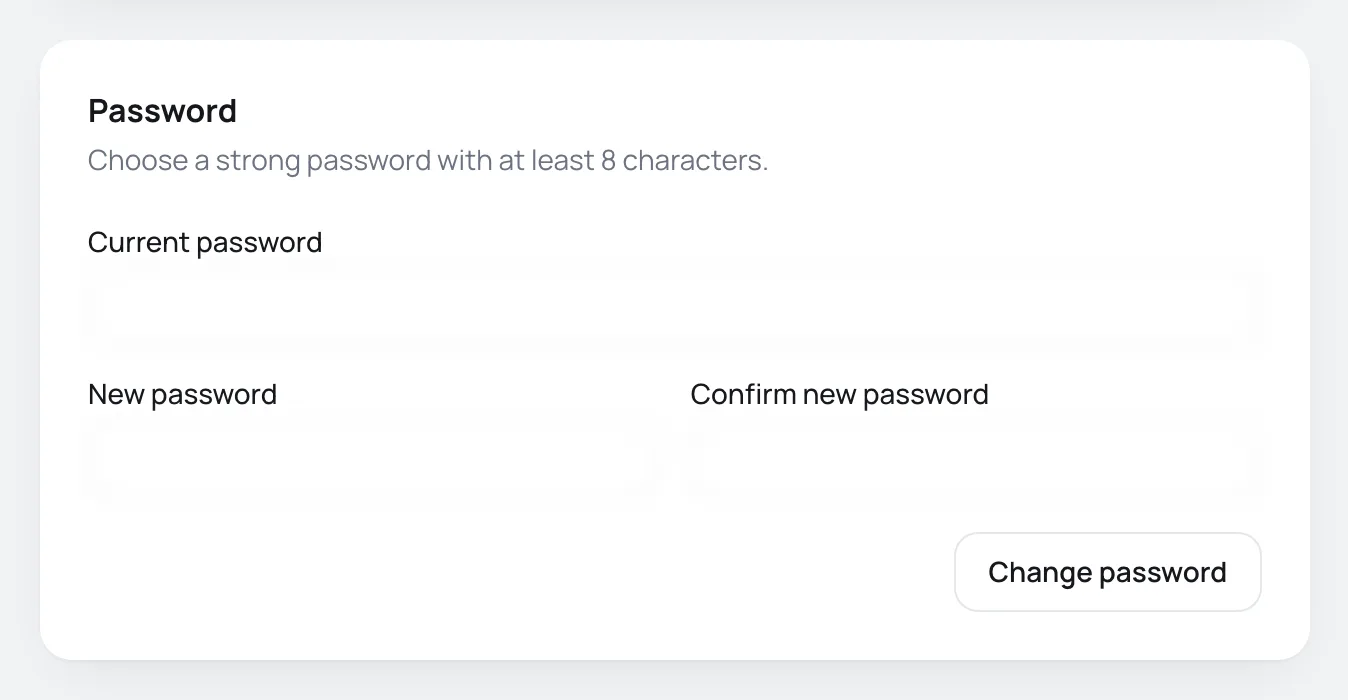
- Type the Current password.
- Type the New password, with at least 8 characters, and repeat it in Confirm new password.
- Click Change password.
It worked if
You see Password changed.
Forgot your current password? Sign out and use password recovery on the sign-in page. See Reset your password.
The account's e-mail can't be changed from the profile.
Common problems
-
Current password is incorrect.
The current password doesn't match. If you always sign in with Google, the account may not have a password: use password recovery on the sign-in page.
-
Passwords do not match.
The confirmation is different from the new password. Type both again.
-
Use at least 8 characters.
The new password needs at least 8 characters.
-
The image is too large (max 5 MB).
Make the photo smaller than 5 MB and upload it again.
What to do next
- See your stores in Several stores in the same account.
Past-due payment and blocked sales
What happens when the plan's monthly fee or an overage charge is declined, when sales get blocked and how to settle it.
Several stores in the same account
Switch stores with the selector, create another store and understand how a new store uses the account's same plan, quota and seats.