Test your store before selling
Make test purchases through the provider's test environment or a real low-value purchase with a refund, and check the order, e-mails, pixels and access.
Vipter doesn't have a test mode for the whole store. Your payment providers are the ones that charge, so testing goes through them. There are two ways, and ideally you do both before sharing the link:
- Test connection: the provider processes the purchase in its test environment, with test cards. No money moves.
- Real low-value purchase: you pay with your own card or PIX (Brazil's instant payment) on the production connection and then refund it. It is the only way to confirm the real account receives money.
Before you start
- The Admin or Owner role in the Vipter project.
- A product with an offer. See Create an offer.
- For the test connection: the credentials for your provider's test environment.
Option 1: buy on a test connection
Step 1: create the test connection
- Open PaymentsProviders and choose the provider.
- Create the connection with Test connection on and the credentials for the provider's test environment.
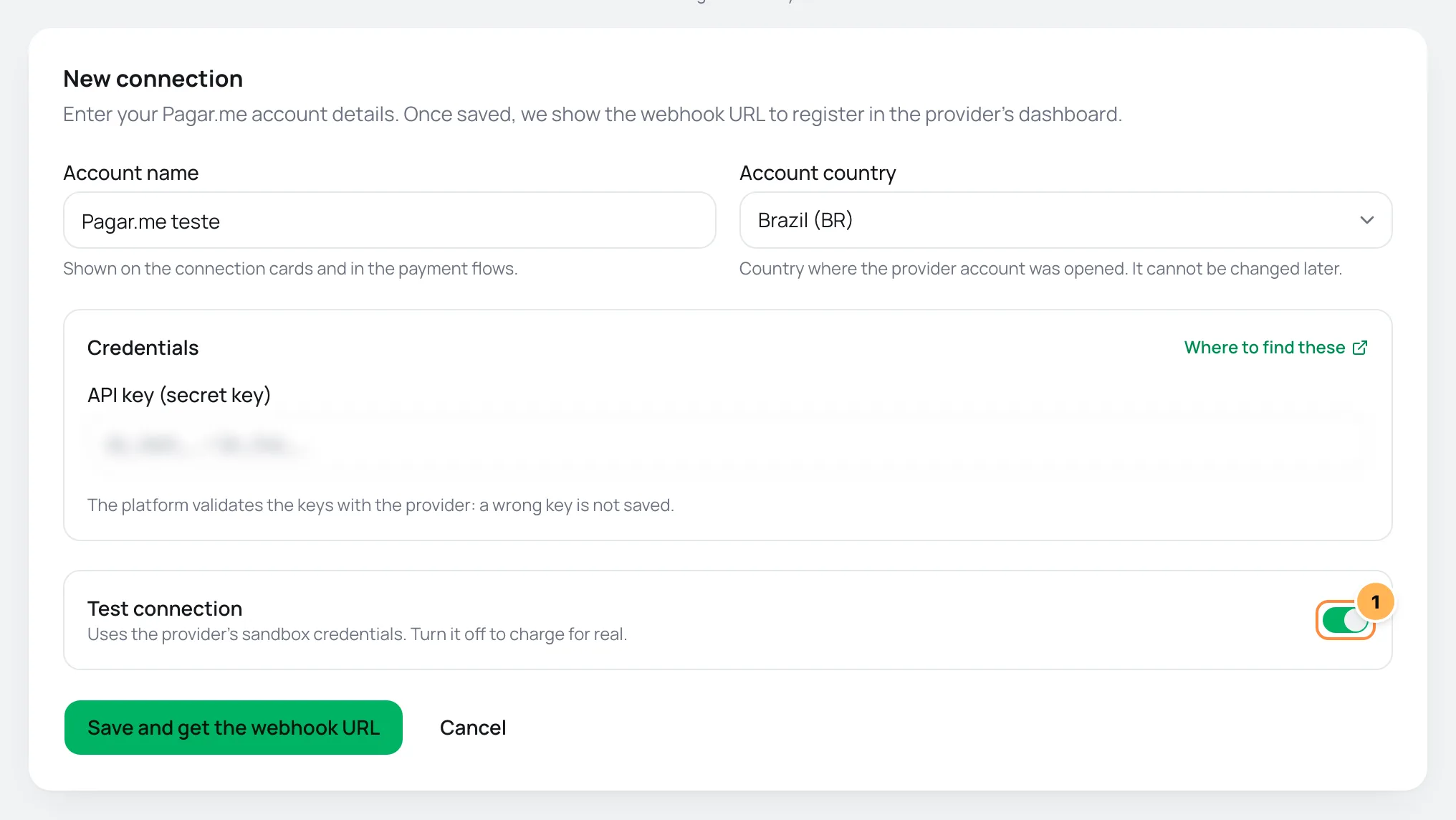
The Test connection toggle comes on by default. Test keys usually have their own prefix:
| Provider | Test credential |
|---|---|
| Stripe | secret key sk_test_… |
| Pagar.me | secret key sk_test_… |
| Mercado Pago | TEST-… credentials |
| Asaas | sandbox key $aact_hmlg_… |
| Paystack | secret key sk_test_… |
Vipter checks the key with the provider before saving: a wrong key isn't stored. On Asaas, a production key on a test connection, or the other way around, is also refused. The test connection counts toward your plan's active connection limit.
Step 2: check which connection charges
The payment flows, in PaymentsPayment flows, decide which connection charges each purchase.
- If the store didn't have a flow for a method yet, the new connection got an automatic flow, such as card or PIX, pointing to it. There is nothing to change.
- If the store already had flows, they stay on the old connection. To test, switch the flow's Default connector to the test connection.
While the flow points to the test connection, nobody really pays
With the flow on the test connection, any buyer who opens the link lands in the provider's test environment, and real cards are declined. Test before sharing the link, or switch the flow back to the production connection right after.
Step 3: buy
- On the offer page, click Open.
- Fill in the details. The checkout validates the CPF (Brazilian individual taxpayer ID) check digits, so use a valid CPF, such as your own.
- Pay with one of the provider's test cards. On Stripe, use
4242 4242 4242 4242, any future date and any CVV. On the other providers, use the test cards listed in their documentation.
Orders from test connections show in SalesTransactions like any other, with a Test badge next to the provider.
Step 4: move to production
- Create the production connection for the same provider, with Test connection off and the production key.
- In PaymentsPayment flows, switch the Default connector of each flow that used the test connection to the production connection.
- In PaymentsProviders, click Deactivate on the test connection's card. Vipter doesn't let you deactivate a connection that an active flow still uses, so do item 2 first.
Option 2: make a real purchase and refund it
- Create a low-priced offer just for the test, or use the real offer.
- Open the link and pay with your own card or with PIX, through the production connection.
- Check the items in What to check.
- Refund the purchase:
- Open SalesTransactions and click the order.
- At the top of the page, click Refund. The amount comes filled in with the total, for a full refund.
- Choose a Reason, if you want, and click Confirm refund.
- If the purchase was a subscription, open the subscription in SalesSubscriptions, click Cancel subscription and choose Cancel immediately.
- Archive the test offer, if you created one.
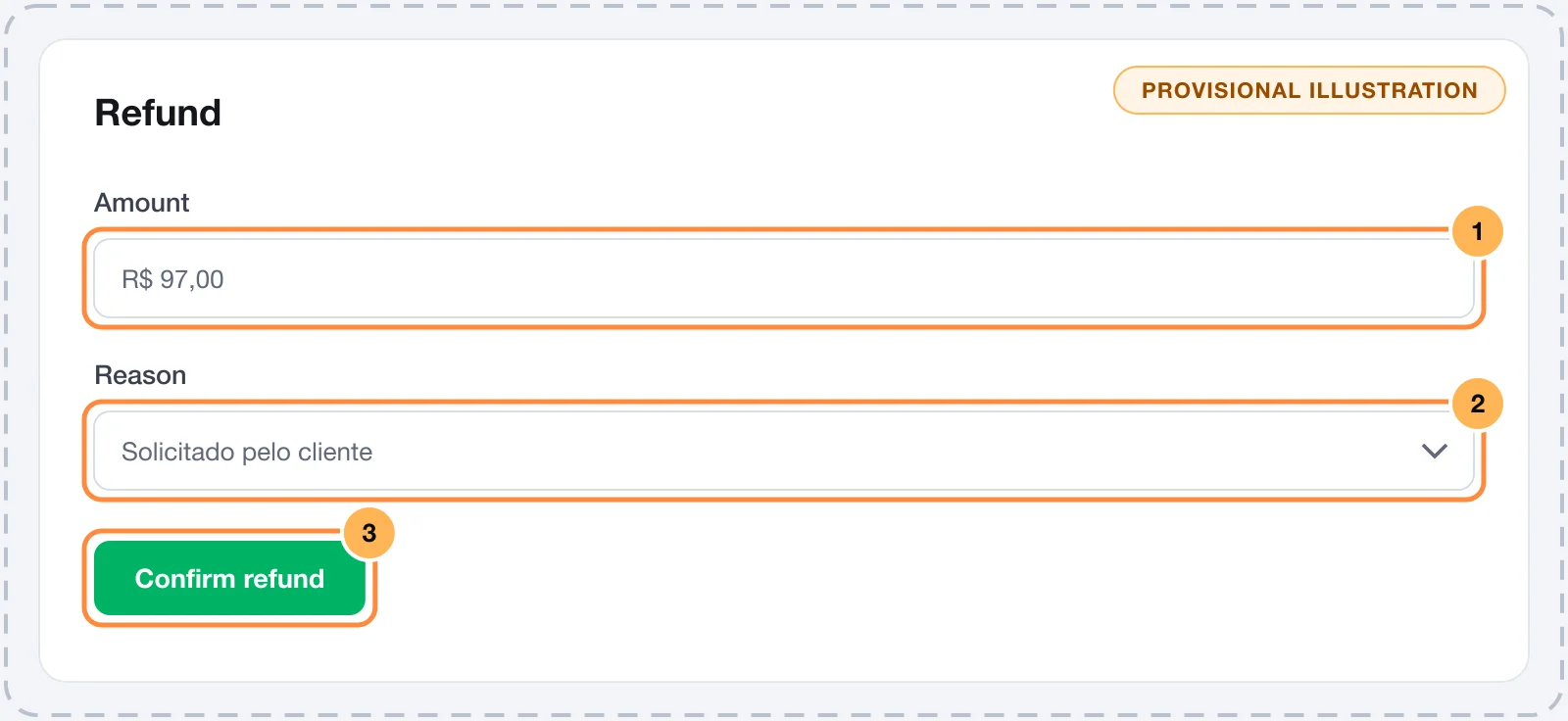
The Refund button only shows for Admin or Owner, on orders that are paid or partially refunded. After the refund, the order changes to Refunded.
Test orders count toward your plan
Every approved purchase counts as an order in your Vipter plan's quota, including the ones made on a test connection. A refund doesn't give the order back to the quota.
What to check
- Order: the purchase shows in SalesTransactions as Paid, with the right product, amount and buyer.
- Thank-you page: shows the confirmation, the download links (for digital products and courses) and leads to the success URL, if you set one.
- E-mails: the buyer gets the order confirmation. To receive all e-mails at your own address during the test, fill in Test address in GeneralSettingsE-mails and clear it afterwards.
- Pixels: the purchase events show in GeneralConversionsActivity, with each platform's response. Some platforms, such as Pinterest, Google Analytics 4 and Utmify, have the Test mode option on the pixel account, so the events go out as tests. See Conversion tracking.
- Member area: the student joins the classroom. On MemberKit, the purchase shows under Recent deliveries. See Connect MemberKit.
- Webhooks: if you send events to another system, check that it received them. See Webhooks.
- Refund: after the refund, the buyer gets the refund e-mail, if it is on, and loses access to the member area and the downloads.
A real invoice
If the store has an invoice integration with Issue when paid on, the test purchase issues an invoice. Notazz has no test environment: The Notazz has no test environment: every invoice issued here is a real fiscal document. Homologation is arranged with their support. Turn off automatic issuing during tests or use the Sandbox / homologation environment on the integrations that have one.
Common problems
-
Your plan allows N active connector(s). Upgrade to add more.
The test connection counts toward the plan's active connection limit. Deactivate a connection you aren't using or change plans in Vipter plan.
-
The provider refused the key
The key is incomplete, belongs to another account or is from a different environment than the one chosen on the Test connection toggle. Copy the key again and check the prefix.
-
The payment was approved, but the order is still pending
The provider's webhook isn't registered on the connection used in the test. Each connection, test or production, has its own webhook URL. See Provider webhooks.
-
The refund button doesn't show
The order isn't paid, has already been fully refunded, or your role is neither Admin nor Owner.
What to do next
- Review how buyers see the checkout on a phone.
- Build your campaign links in Payment link and URL parameters.
Use your own domain for checkout
Serve the checkout and the customer portal on a subdomain of your site, such as checkout.yourstore.com, with the certificate issued automatically.
How payments work
Follow the path of a charge in Vipter, from the provider to the checkout, and compare what each provider supports.