Sellers and commission rules
Give each seller on the team a code for the checkout link and a commission rule, set the store's default rule and whether renewals earn commission.
A seller is a team member with a seller code. When the buyer opens the checkout through the link with that code, the order is assigned to the seller, with the commission calculated and stored in the order. Sales the seller makes from the dashboard are also assigned to them.
Before you start
- The Admin or Owner role in the project.
- The seller already on the team, with any role. See Team and invitations. The Sales role is enough for them to see their own commissions.
Step 1: open the sellers
Open GeneralSettingsTeam and scroll down to the Sellers card. Each team member has a row, with the code, the commission and the status.
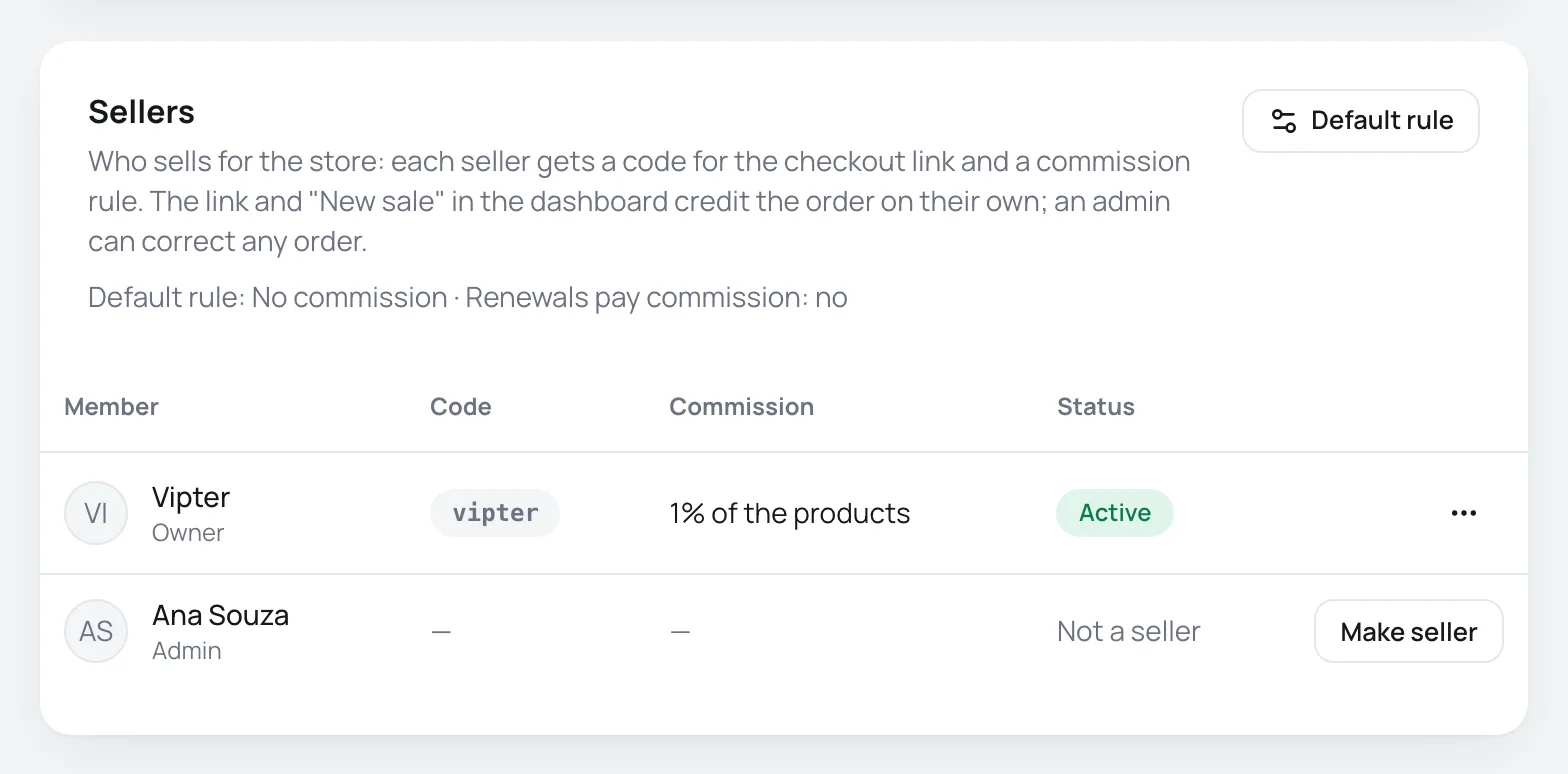
The top of the card sums up the store's rule, such as Default rule: No commission · Renewals pay commission: no.
Step 2: set the default rule
The default rule applies to every seller without a rule of their own. Click Default rule:
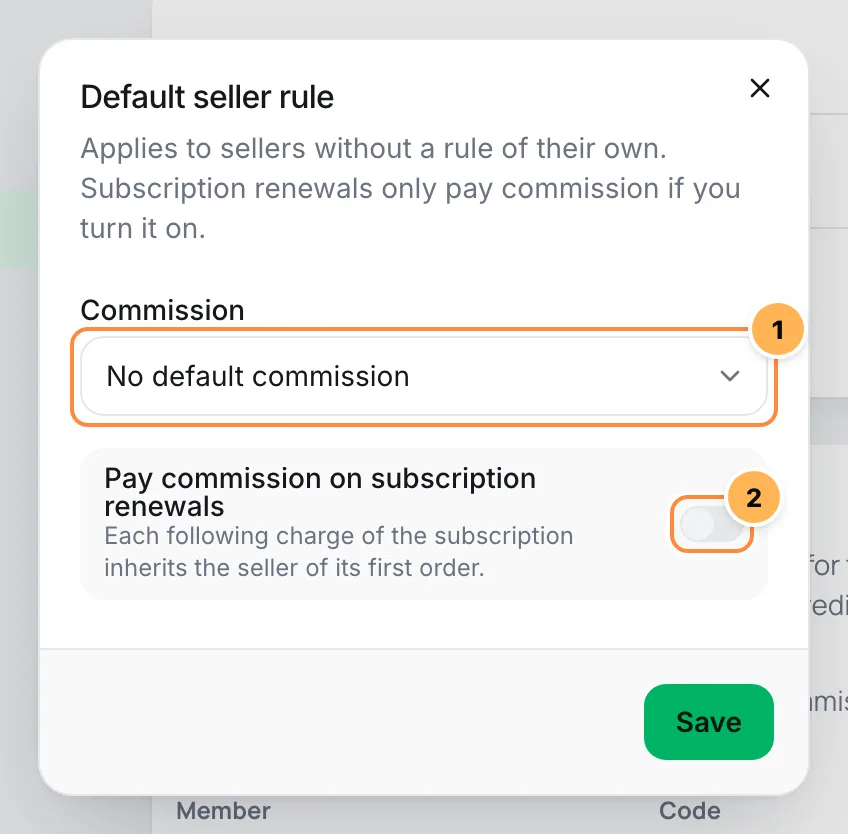
- Commission: No default commission, Percentage of the products or Fixed amount per sale. For the last two, enter the percentage or the amount.
- Pay commission on subscription renewals: comes off. Each following charge of the subscription inherits the seller of its first order. When off, only the subscription's first order earns commission.
Click Save.
Step 3: make someone a seller
On the person's row, click Make seller:
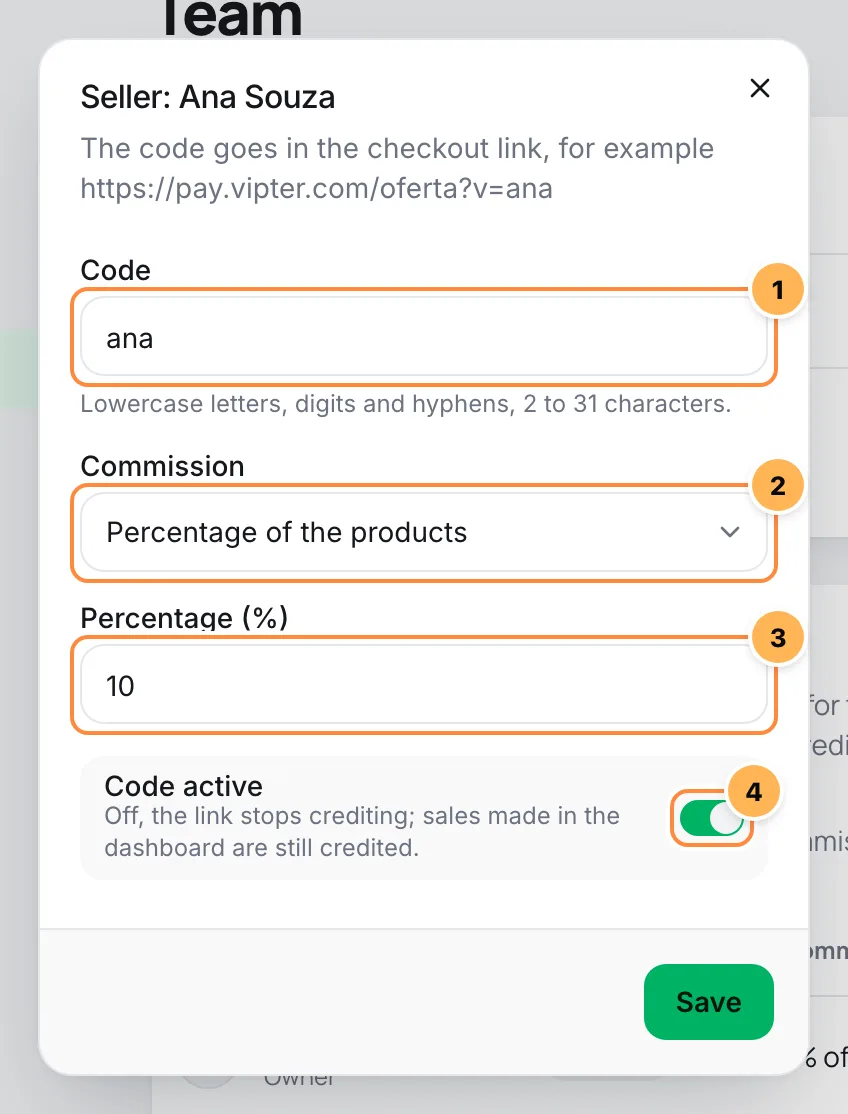
- Code: suggested from the first name. Lowercase letters, digits and hyphens, 2 to 31 characters. Each code is unique in the store.
- Commission: the first option, Store default (10% of products) or Store default (no commission), follows the default rule. The others give the seller a rule of their own.
- The value: for Percentage of the products, a percentage greater than 0 and up to 100. For Fixed amount per sale, an amount in the store's currency, paid per order.
- Code active: Off, the link stops crediting; sales made in the dashboard are still credited.
Click Save.
It worked if
You see Seller saved. and the row now shows the code and the Active status.
How the commission is calculated
- Percentage: on the order's products, without shipping and without installment interest. The coupon discount is already left out. The amount is converted to the store's currency.
- Fixed amount: the same amount per order, whatever the quantity.
- Frozen in the order: the commission is calculated when the order is created and stored in it. Changing the rule later doesn't change old orders.
- Refunds: a partial refund reduces the commission in the same proportion. A full refund or chargeback zeroes the commission, which shows as refunded.
- No rule: a seller without a rule of their own in a store without a default rule gets the order assigned to them, with no commission.
How an order gets a seller
| Source | When |
|---|---|
| Link | The buyer opened the checkout with ?v= and the code of an active seller. The browser remembers the code for 30 days, and the last link opened wins. |
| Dashboard sale | A team member made a new sale on the saved card. The seller is the person who clicked. |
| Upsell | A purchase accepted in the upsell after payment. It inherits the seller of the original order. |
| Renewal | A subscription renewal, only with Pay commission on subscription renewals on. It inherits the seller of the first order. |
| Manual | An admin chose the seller on the order page. After that, the order no longer changes seller on its own. |
The code also works in your sales page link: with the UTM script installed on it, the code carries through to the checkout. To build links, see Payment link and URL parameters.
Change, deactivate or remove a seller
In the seller row's menu:
- Edit: changes the code, rule and status. Changing the code makes old links stop assigning orders.
- Deactivate code or Reactivate code: when off, the link stops assigning orders. Sales from the dashboard are still assigned to them.
- Remove seller: Remove Ana from the sellers? Orders already credited keep the name and the commission.
People who leave the team stay in the list as No longer a member, so the history and commissions stay visible.
Common problems
-
This code already belongs to another seller.
Another seller in the store uses this code. Pick another one, for example with the last name.
-
Invalid code: use 2 to 31 lowercase letters, digits or hyphens.
The code has uppercase letters, accents, spaces or a length outside the limit.
-
Enter a percentage between 0 and 100.
Use a number greater than 0 and up to 100.
-
Only project members can be sellers.
The person left the team. Invite them again before editing their record.
-
The link with the code didn't assign the order
Check that the code is active and spelled the same way. An invalid or deactivated code doesn't assign anyone, but it is recorded on the order's source card for you to check. An admin can assign the seller by hand on the order page.
What to do next
- Track sales and commissions in Commissions.
- Build each seller's links in Payment link and URL parameters.
Roles and permissions
What Sales, Admin and Owner can see and do in each area of the dashboard, the areas Sales can't see and the rules of the Owner role.
Transfer ownership
Hand the store over to another team member, understand what changes in the plan, quota and seats, and what happens to your access.