Payment flows
Decide which payment account charges each sale, with rules by currency, amount or card brand and fallback accounts for when a charge is declined.
A payment flow tells Vipter which of your connected accounts (Pagar.me, Stripe, Mercado Pago…) charges each sale. With it, you send sales in reais to one account and sales in dollars to another, or try a second account when the first one declines the card.
Before you start
- At least one payment account connected in PaymentsProviders. See how payments work.
- The Admin or Owner role in the Vipter project.
You may not need to change anything here
When you connect the first account that accepts a payment method, Vipter creates a flow for that method on its own, already active and pointing to the account. The store can charge from the first minute. Create or edit flows when you have more than one account or want rules.
How a flow works
Open PaymentsPayment flows. The screen has a tab for each payment method: Credit card, Debit card and PIX. The Boleto and Wallet tabs show as Soon, because no provider you can connect charges those methods yet.
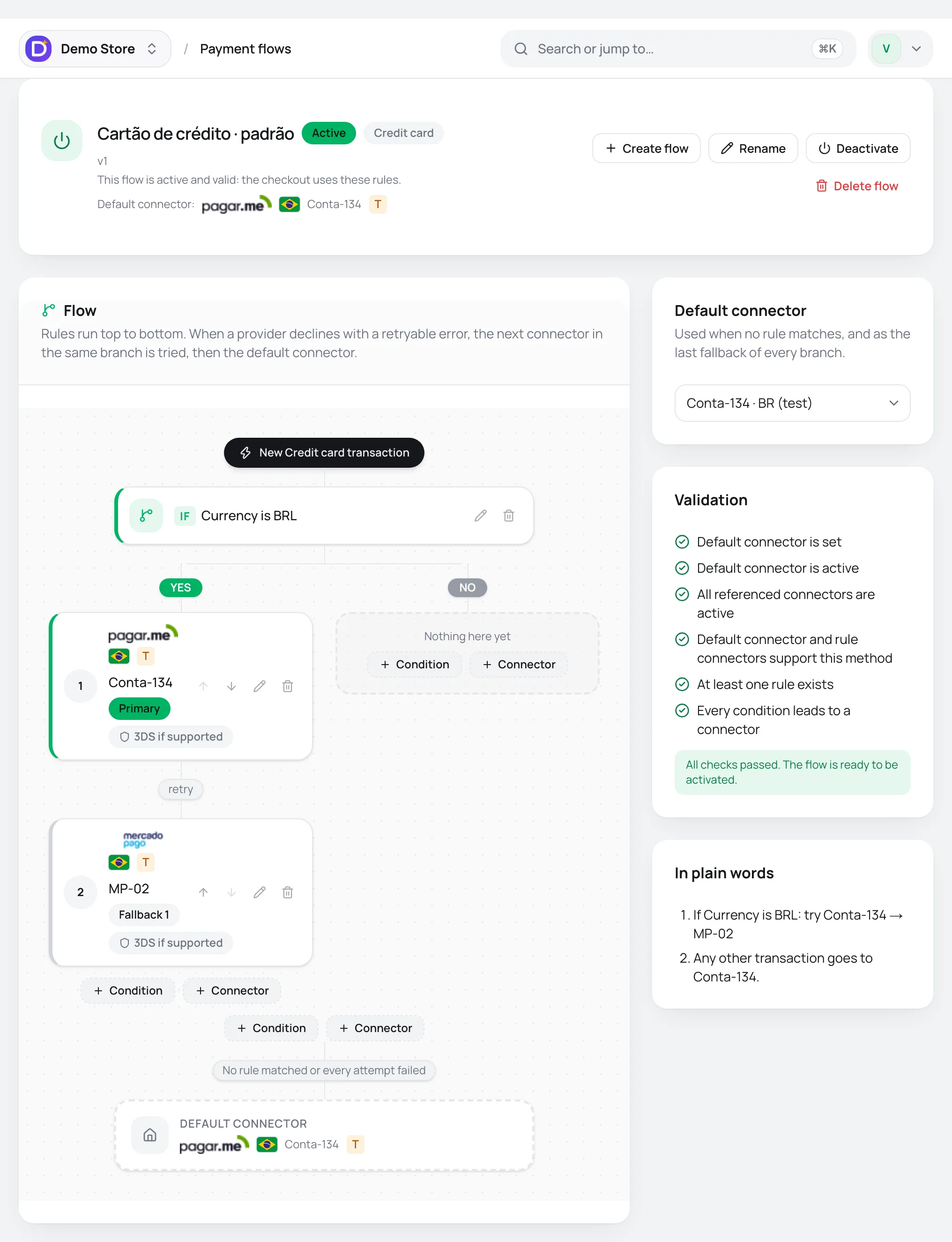
Each flow has three parts:
- Rules, evaluated from top to bottom. A rule is either a condition (for example, "the currency is BRL") with two branches, YES and NO, or an account that tries to charge.
- Accounts in sequence. In the same branch, the first account gets the Primary badge and the next ones are fallbacks (Fallback 1, Fallback 2). When an account declines with an error that allows a retry, the next one in the same branch tries to charge.
- Default connector: charges when no rule applies and is the last attempt in every branch.
Only one flow is active per payment method. Without an active flow the checkout hides this method. Create a flow with the default connector and add rules later.
Test and production accounts do not mix
A flow uses only production accounts or only accounts in test mode. To test, create a separate flow with the test accounts.
Step 1: create the flow
- In PaymentsPayment flows, choose the payment method's tab.
- Click Create flow.
- Fill in the New flow window:
- Name: a name to recognize the flow, such as "Brazil cards".
- Payment method: already selected when you open it from the tab.
- Default connector: the account that charges when nothing else applies. The list shows only active accounts that accept this payment method. Stripe, for example, never shows up in the PIX flow.
- Activate now: when on, the new flow immediately replaces the active flow for this method.
- Click Create.
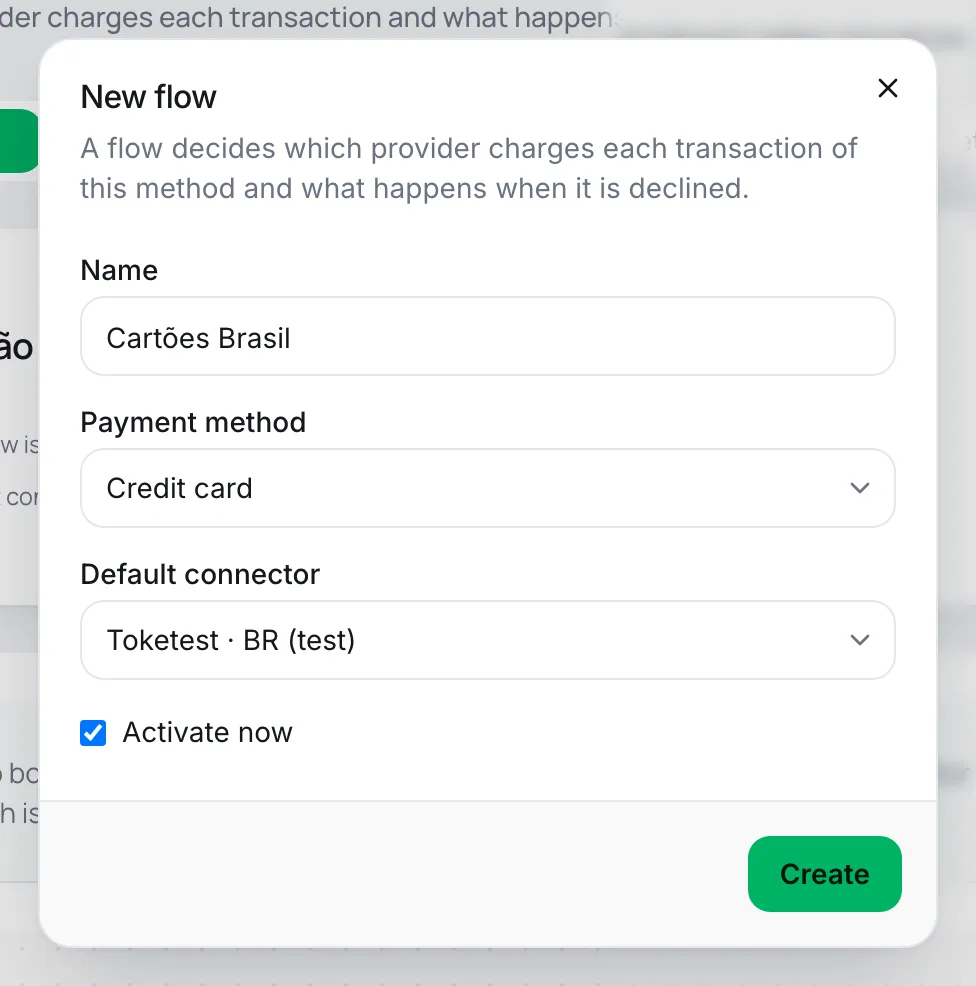
With no rules, every sale goes to the default connector. To build rules, start from a template or add conditions and accounts one by one.
Step 2: start from a template
While the flow has no rules, the screen shows Start from a template. Pick a layout and adjust it later:
| Template | What it builds |
|---|---|
| Simple cascade | A primary provider with an automatic fallback. |
| By currency | One provider for a currency, another for everything else. The chosen currency goes to the First provider; everything else goes to the Second provider (optional). |
| Traffic split | Send a percentage of transactions to each provider. The Percentage to the first provider goes from 1% to 99%. |
Click Apply template. Templates can only be applied to an empty flow.
Step 3: add conditions
- In the Flow board, click Condition at the point where the rule should go.
- Choose the Field, the Operator and the Value.
- Click Save.
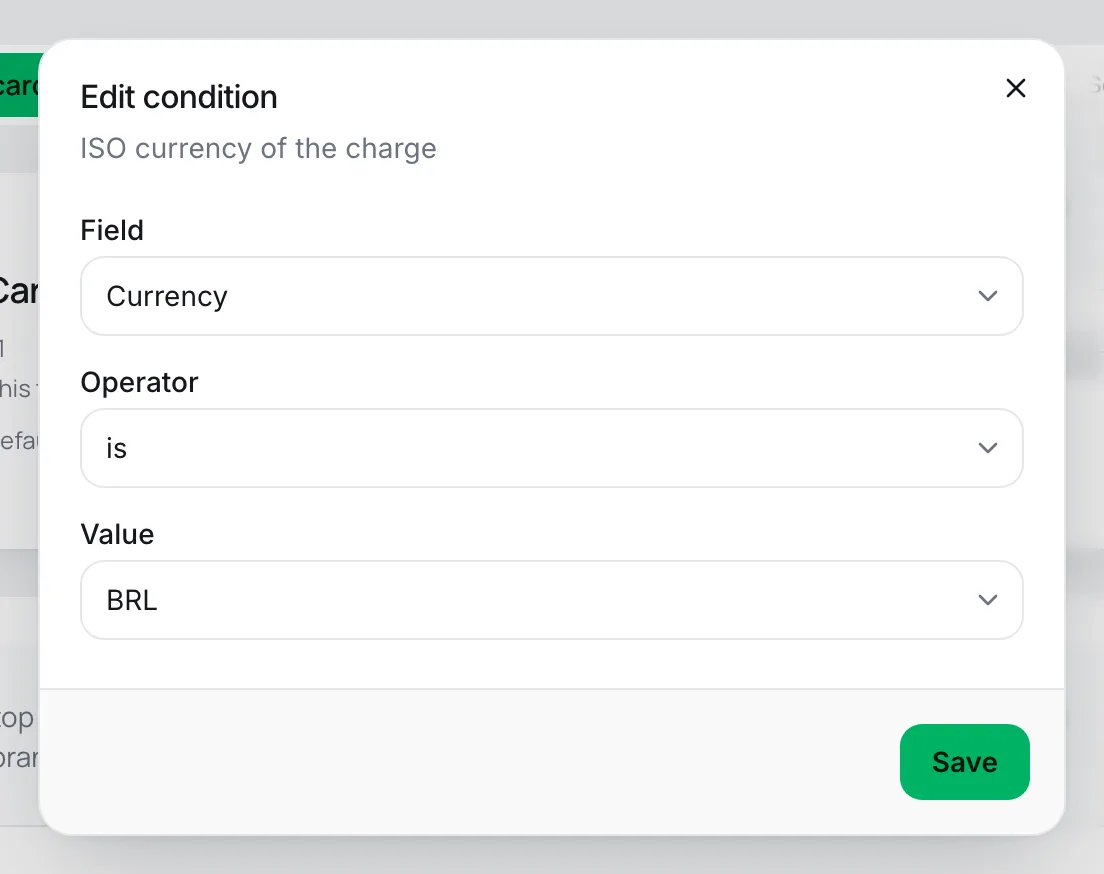
Fields you can use:
| Field | What it compares | Operators |
|---|---|---|
| Currency | ISO currency of the charge, such as BRL or USD. | is, is not, is one of, is not one of, matches pattern |
| Amount | Total charged, in the sale's currency (type 150 or 150,50). | is at least, is greater than, is at most, is less than, is, is not |
| Card brand | Visa, Mastercard, Amex, Elo, Hipercard, Diners, Discover or JCB. | is, is not, is one of, is not one of, matches pattern |
| Card country (BIN) | Country of the issuing bank of the card. | is, is not, is one of, is not one of, matches pattern |
| Recurring charge | Renewals and saved-card charges. | is |
| Installments | Number of installments chosen at checkout. | is, is not, is at least, is greater than, is at most, is less than |
| Traffic split (random) | Draws the sale at random: the chosen percentage goes down the YES branch, the rest down the NO branch. | is less than |
is one of and is not one of accept several values at once, such as "BRL, ARS". matches pattern compares the value with a regular expression and is meant for advanced cases.
Step 4: choose the accounts and the fallback order
- Inside a branch, click Connector.
- In Provider connector, choose the account. Only accounts whose provider accepts the flow's payment method show up.
- In card flows, choose the 3D Secure setting:
- 3DS if supported: Use 3D Secure whenever the provider and the card support it (default).
- 3DS always: Require 3D Secure on every charge. Unsupported cards are declined.
- Click Save.
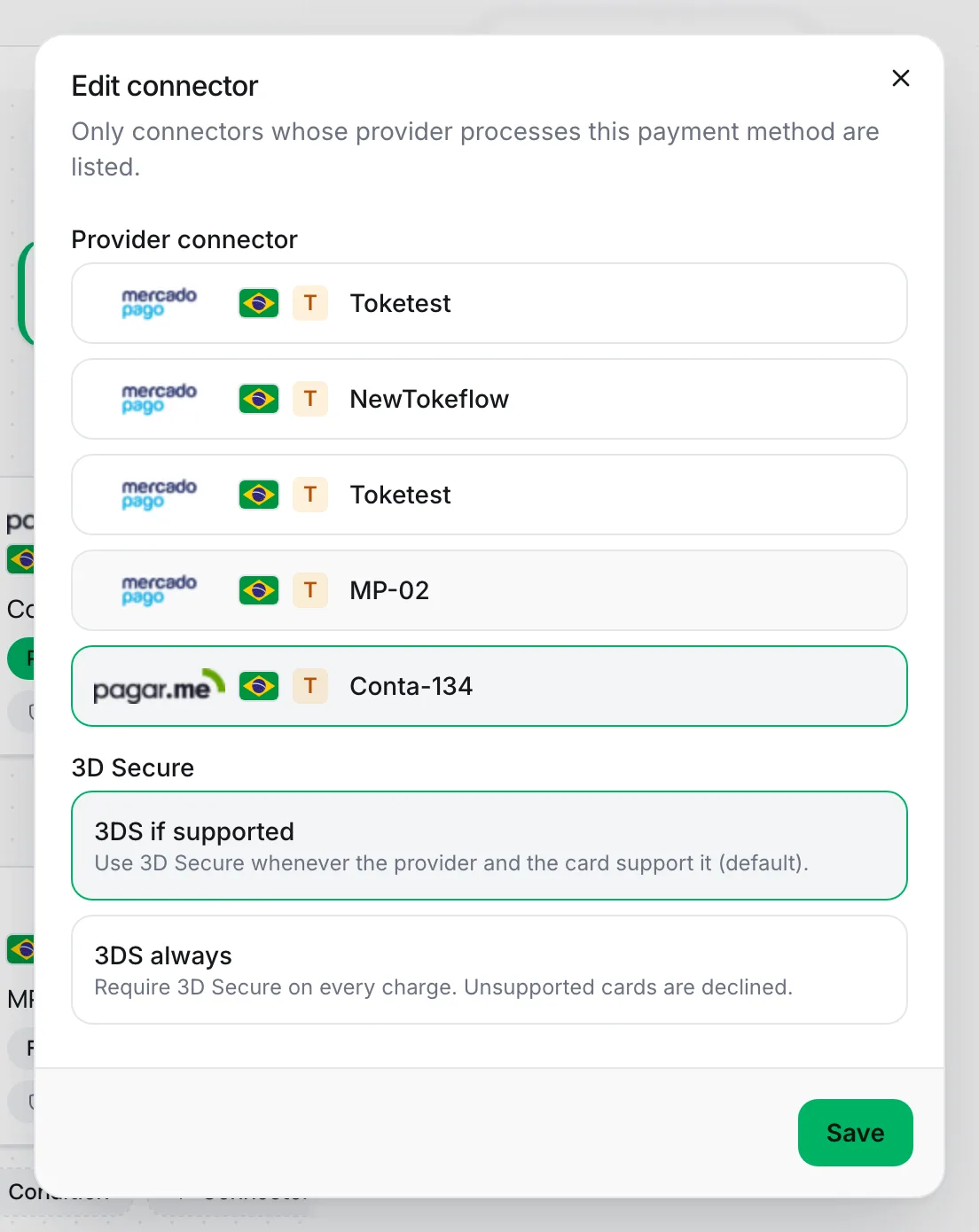
Add another account below the first one to have a fallback. Use Move up and Move down to change the order of the accounts; conditions stay where they are. Remove deletes the step and everything below it.
Step 5: check and activate
The Validation card, next to the flow, checks:
- Default connector is set
- Default connector is active
- All referenced connectors are active
- Default connector and rule connectors support this method
- At least one rule exists (warning only)
- Every condition leads to a connector (warning only)
The first four items block activation. When everything passes, you see All checks passed. The flow is ready to be activated.
Right below, the In plain words card describes the flow in sentences. Read it before activating: it is the fastest way to see whether the order of the accounts is what you had in mind.
To activate, click Activate at the top of the flow and confirm. If there are still open issues, Vipter shows This flow cannot be activated with the list of what to fix and a shortcut to each account.
It worked if
The flow shows Active, the payment method's tab gets a green dot and you see This flow is active and valid: the checkout uses these rules.
Activate, deactivate and keep more than one flow
- You can have several flows for the same payment method, for example one in use and another in the works. When there is more than one, the Flows for this method selector switches the flow on display. The number next to the name (v1, v2…) is the flow's version.
- Activating a flow deactivates the one that was active for that payment method.
- Deactivate leaves the method with no active flow, and the checkout stops offering it.
- Rename only changes the name. Delete flow deletes the flow.
Example: reais on Pagar.me with Mercado Pago as fallback, other currencies on Stripe
You sell in Brazil and abroad. You want sales in reais to go through Pagar.me, Mercado Pago to try again when Pagar.me declines, and sales in other currencies to go to Stripe.
- Connect the three accounts, all of them production accounts. See Pagar.me, Mercado Pago and Stripe.
- On the Credit card tab, create a flow with Stripe as the Default connector.
- Apply the By currency template: currency BRL, First provider Pagar.me, Second provider (optional) Stripe.
- In the YES branch, below Pagar.me, click Connector and choose Mercado Pago.
- Check the In plain words card. In other words, it should say: if the currency is BRL, try Pagar.me and then Mercado Pago; otherwise, try Stripe; any other transaction goes to Stripe.
- Click Activate.
- Repeat on the PIX tab with Pagar.me as the default connector and Mercado Pago as the fallback. Stripe does not charge PIX.
The default connector is also the last attempt in the YES branch. If Pagar.me and Mercado Pago both decline a sale in reais, Stripe tries last.
Common problems
-
A flow cannot mix live and test connections. This flow already uses live connections and the one you picked is in test mode (or the other way round). Create a separate flow for test connections.
You chose a test account in a production flow, or the other way around. Use accounts of the same kind or create a flow just for testing.
-
No active connector supports this payment method.
No active account accepts this payment method. Connect a provider that does, such as Pagar.me for PIX, or reactivate the account in PaymentsProviders.
-
This connector does not support the flow’s payment method.
The chosen account does not charge the flow's payment method. Choose another account.
-
This flow already has rules.
Templates only go into flows with no rules. Remove the rules or build the layout by hand with steps 3 and 4.
-
The tab shows Inactive · error
Marked active on the platform, but validation failed. The checkout cannot charge through it until the items below are fixed. Usually, an account in the flow was deactivated. Reactivate the account or swap it in the flow.
What to do next
- Offer installments on sales in reais in Installments and interest.
- Make a test purchase to see the flow charging: test your store.