Coupons
Create discount coupons with an expiry, free shipping, spend and usage limits, share them with ?code= and track each use.
A coupon gives a discount at checkout when the buyer types the code or arrives through a link with ?code=. You set the discount type, the expiry, which products and customers it applies to and how many times it can be used.
Subscriptions don't accept coupons
Coupons only work on one-time offers. Subscriptions are always charged at the plan price: a subscription's checkout doesn't show the coupon field and ignores ?code=. To give a discount on a subscription, create an offer with another price or use the different first charge. See Create an offer.
Before you start
- The Admin or Owner role in the Vipter project.
- One-time offers to sell with the coupon.
Step 1: open the form
Open CatalogCoupons and click New coupon.
Step 2: fill in the general details
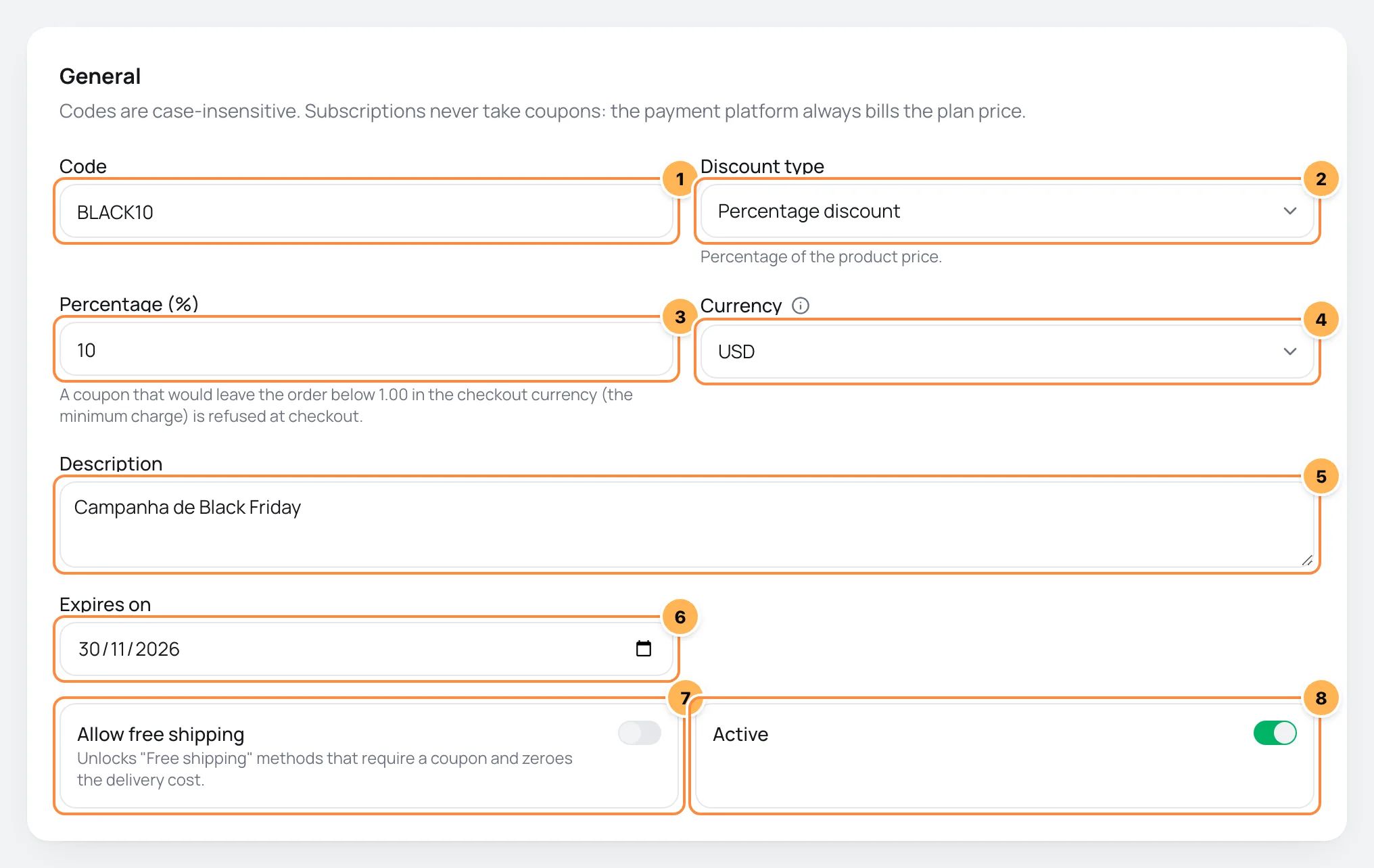
- Code: what the buyer types, such as
BLACK10. Up to 40 letters, numbers, hyphens and underscores. Upper and lower case count the same:black10also works. - Discount type:
- Percentage discount: Percentage of the product price.
- Fixed cart discount: Fixed amount taken off the total.
- Fixed product discount: Fixed amount per unit of the product. On a pack of 3, it discounts 3 times.
- Percentage (%) or Discount amount: the percentage, up to 100, or the fixed amount.
- Currency: Currency of fixed amounts and spend limits; converted when the checkout uses another currency.
- Description: an internal note, optional.
- Expires on: the last day the coupon is valid. It stops working at the end of that day. When empty, it doesn't expire.
- Allow free shipping: unlocks the Free shipping methods that require a coupon and brings the cost of the other shipping methods to zero, except pickup. See Shipping.
- Active: when off, the coupon doesn't work at checkout.
Step 3: set the restrictions
On the Usage restrictions card, leave blank whatever you don't want to restrict.
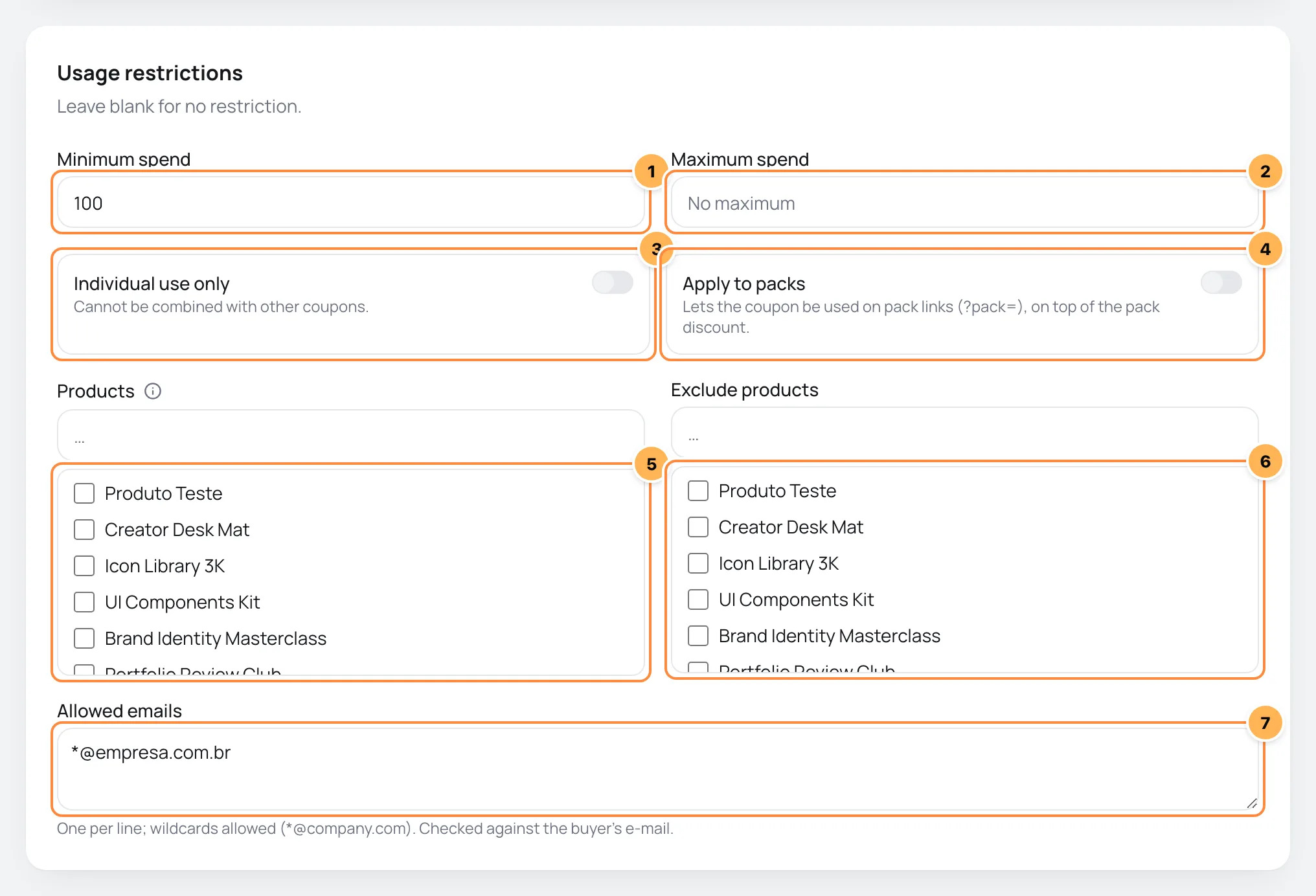
- Minimum spend: the minimum product amount in the order for the coupon to apply, in the coupon's currency.
- Maximum spend: the maximum amount.
- Individual use only: Cannot be combined with other coupons.
- Apply to packs: Lets the coupon be used on pack links (?pack=), on top of the pack discount. When off, the coupon is refused on any link with
?pack=. - Products: tick the products the coupon applies to. None ticked means all.
- Exclude products: products the coupon never applies to, even with the previous list empty.
- Allowed emails: one e-mail per line. Use
*as a wildcard:*@company.comallows everyone on that domain. When empty, it applies to any buyer.
Step 4: limit the uses
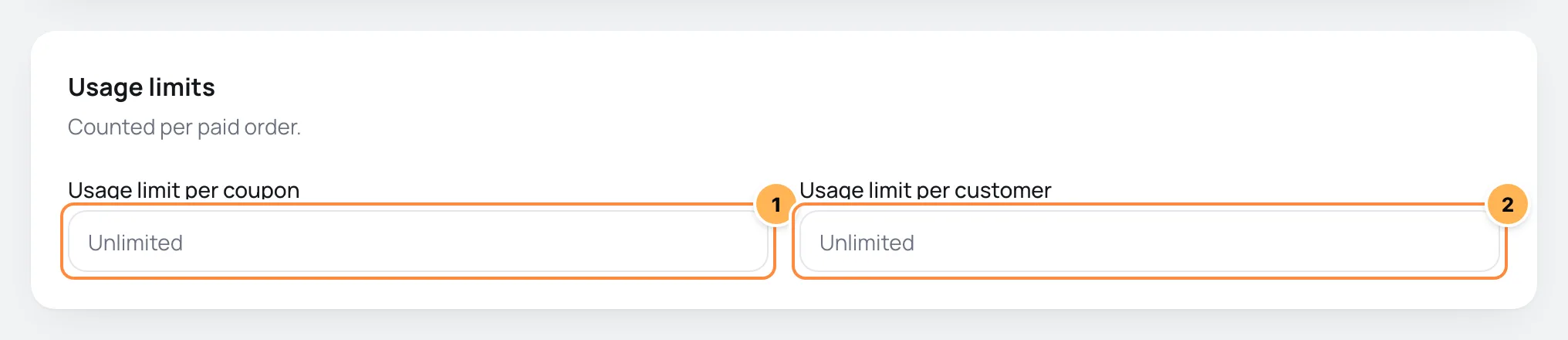
- Usage limit per coupon: how many sales the coupon can have in total.
- Usage limit per customer: how many times the same e-mail can use the coupon.
Both only count paid orders. Empty or 0 means unlimited.
Step 5: create the coupon
Click Create coupon. The coupon shows in the list in CatalogCoupons.
It worked if
When you open an offer's link with ?code= and the coupon code, the order summary shows the coupon applied and the discount.
Share it with a link
Add ?code= to the payment link so the coupon applies on its own:
https://pay.vipter.com/curso-fotografia?code=BLACK10The buyer can still remove the coupon or type another one. If the link's coupon isn't valid, because it expired or is below the minimum spend, it shows in the summary with the reason and the purchase goes ahead without a discount. See Payment link and URL parameters.
How the discount is calculated
- Several coupons: the buyer can apply more than one. Each coupon is calculated on the original price, and the total of discounts never exceeds the product price. An Individual use only coupon doesn't combine with others.
- Main product only: the discount applies to the offer or pack. It doesn't reduce shipping, order bumps or installment interest.
- Other currencies: fixed amounts and spend limits are converted from the coupon's currency to the checkout currency at the day's rate.
- Minimum amount: A coupon that would leave the order below 1.00 in the checkout currency (the minimum charge) is refused at checkout. A 100% coupon still works when shipping or an order bump remains to be paid.
The checkout checks the coupon in this order and shows the first reason it finds: whether it's active, whether it has uses left, whether it expired, whether the offer is a subscription, whether the link is a pack link, the minimum and maximum spend, the products, the buyer's e-mail and individual use.
Track the uses
Click a coupon in the list to open its page. The top shows the status, the type and how many times it was used. Below the form, the Coupon usage card lists each paid order with the coupon: Date, Order, Customer and Discount.
On the same page you edit the coupon and use:
- Deactivate: the coupon stops working at checkout right away. Activate brings it back.
- Delete: removes the coupon and its usage history. To keep the history, deactivate it instead.
Common problems
-
A coupon with this code already exists
Another coupon in the store already uses that code, even with different capitalization. Pick another one.
-
The coupon doesn't show on a subscription's checkout
Subscriptions don't accept coupons. See the notice at the top of this page.
-
The coupon is refused on a pack link
Turn on Apply to packs in the coupon.
-
The coupon was accepted but the discount was smaller
Another coupon had already taken part of the price off. The sum of discounts stops at the product price.
-
The coupon was refused for leaving the order below the minimum
No discount can leave the purchase below 1.00 in the checkout currency. With several coupons, the checkout refuses the last ones applied until the total is back at the minimum.
-
The buyer says the coupon doesn't work for them
Check the Allowed emails list and the Usage limit per customer. The e-mail compared is the one the buyer typed at checkout.
What to do next
- Build links with a coupon in Payment link and URL parameters.
- Combine coupons and free shipping in Shipping: zones, methods and classes.
One-click upsell and downsell
Show offers right after payment, charged with one click on the purchase card or with a new PIX, and build the sequence of upsells and downsells.
Shipping: zones, methods and classes
Set up delivery zones, shipping methods with a fixed cost, a formula, free shipping or pickup, and the shipping classes of physical products.