Connect Voxuy
Fire Voxuy's WhatsApp funnels on every PIX generated, sale, decline, subscription and abandoned checkout, with the right plan for each offer.
With Voxuy connected, every Vipter sale event becomes a transaction in Voxuy, in the plan you choose, and fires that plan's funnels. This page is for the Voxuy of the voxuy.com dashboard. If your account is on Voxuy Enterprise, follow Connect Voxuy Enterprise: they are different products.
Before you start, it helps to read how automations work.
Before you start
- A Voxuy account with access to integrations.
- In Voxuy, the product and at least one plan created, with the funnels linked to that plan.
- The Admin or Owner role in the Vipter project.
- The checkout asking for the buyer's phone. Without a phone, Voxuy does not receive the event.
Step 1: copy the URL, the token and the plan code in Voxuy
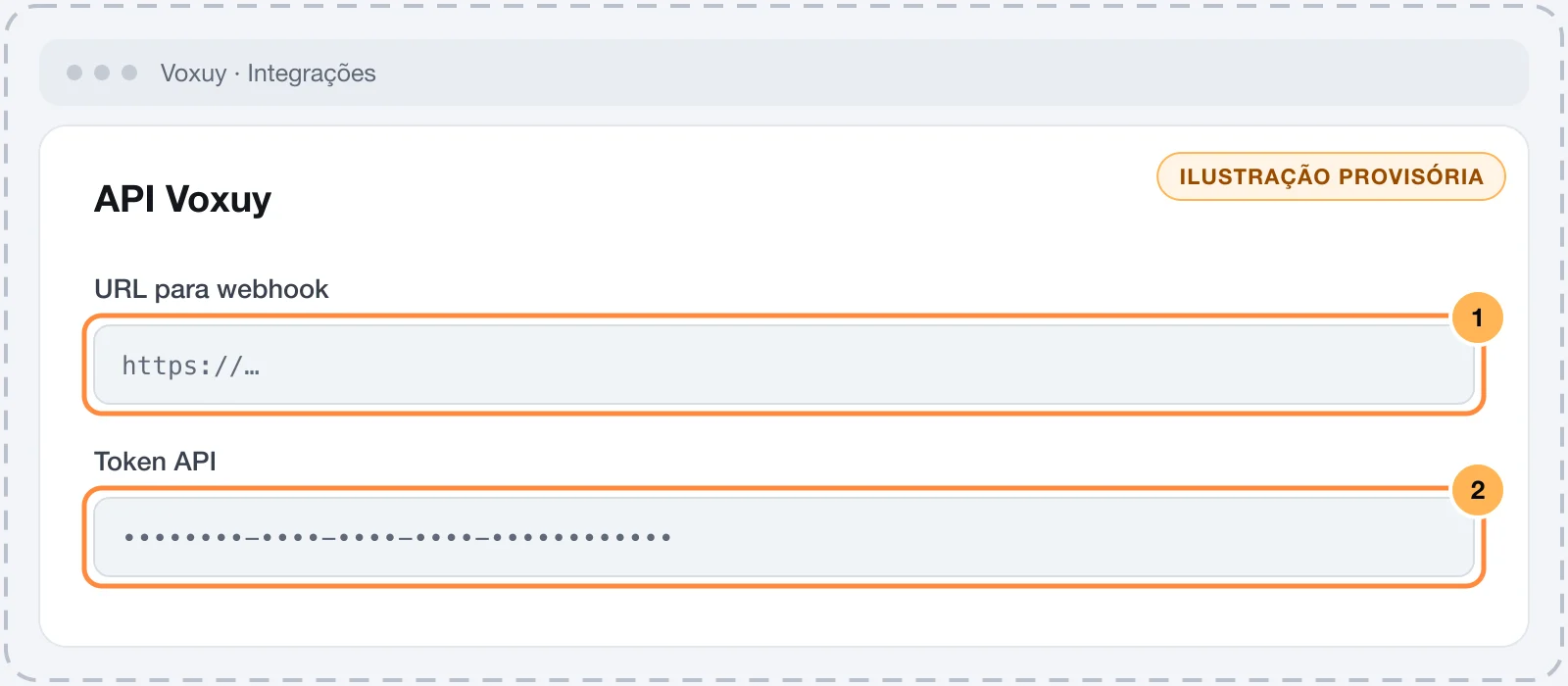
- In Voxuy, open IntegraçõesAPI Voxuy (Integrations › Voxuy API).
- Copy the URL para webhook (webhook URL) and the Token API (API token).
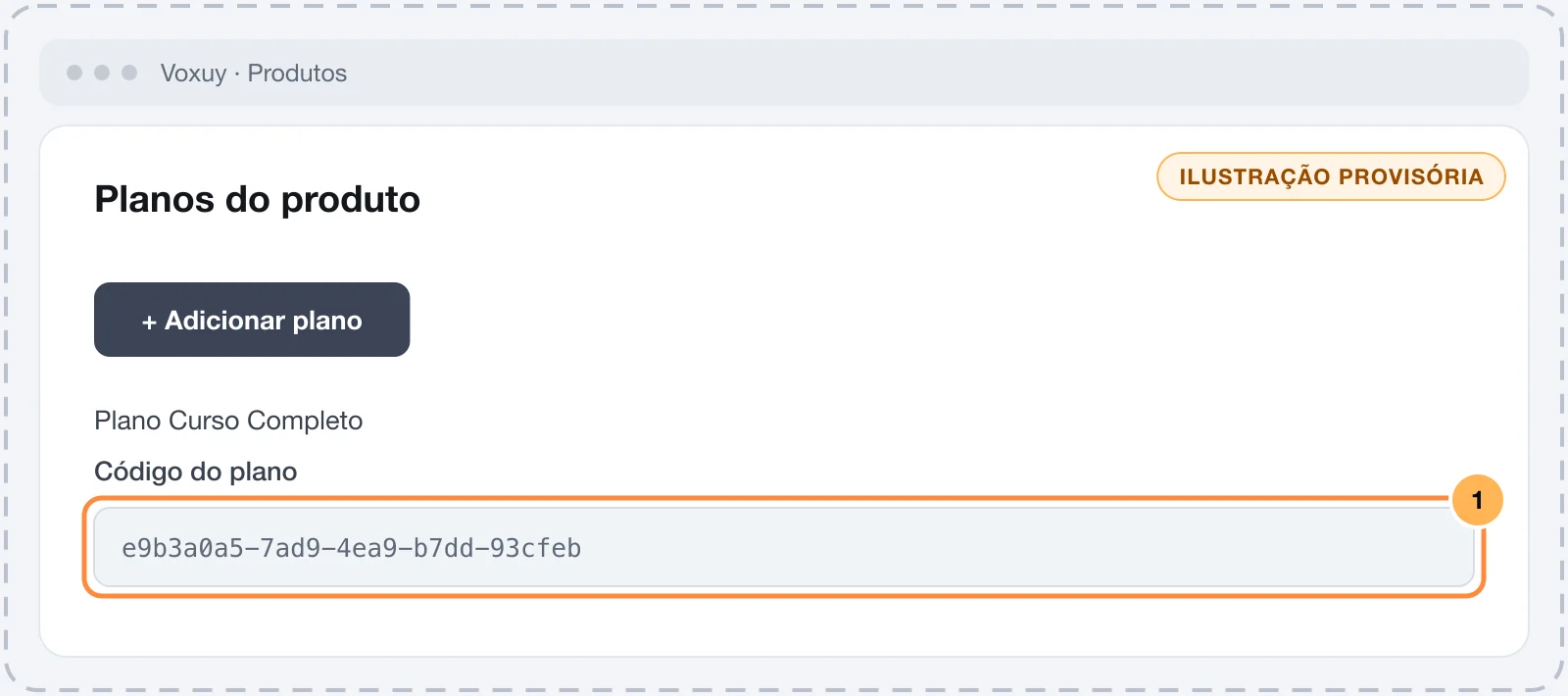
- Open Produtos (Products), go into the product and create the plan under + Adicionar plano (+ Add plan), if you don't have one yet.
- Copy the plan code. It tells Voxuy which funnels to fire.
Keep the token safe
With the token and the URL, anyone can create transactions in your Voxuy. Paste both only into Vipter. Once saved, the token is not shown again: the field only shows its last characters.
Step 2: connect in Vipter
- In the Vipter dashboard, open GeneralIntegrationsAutomationsVoxuy.
- Under Connection, fill in the numbered fields.
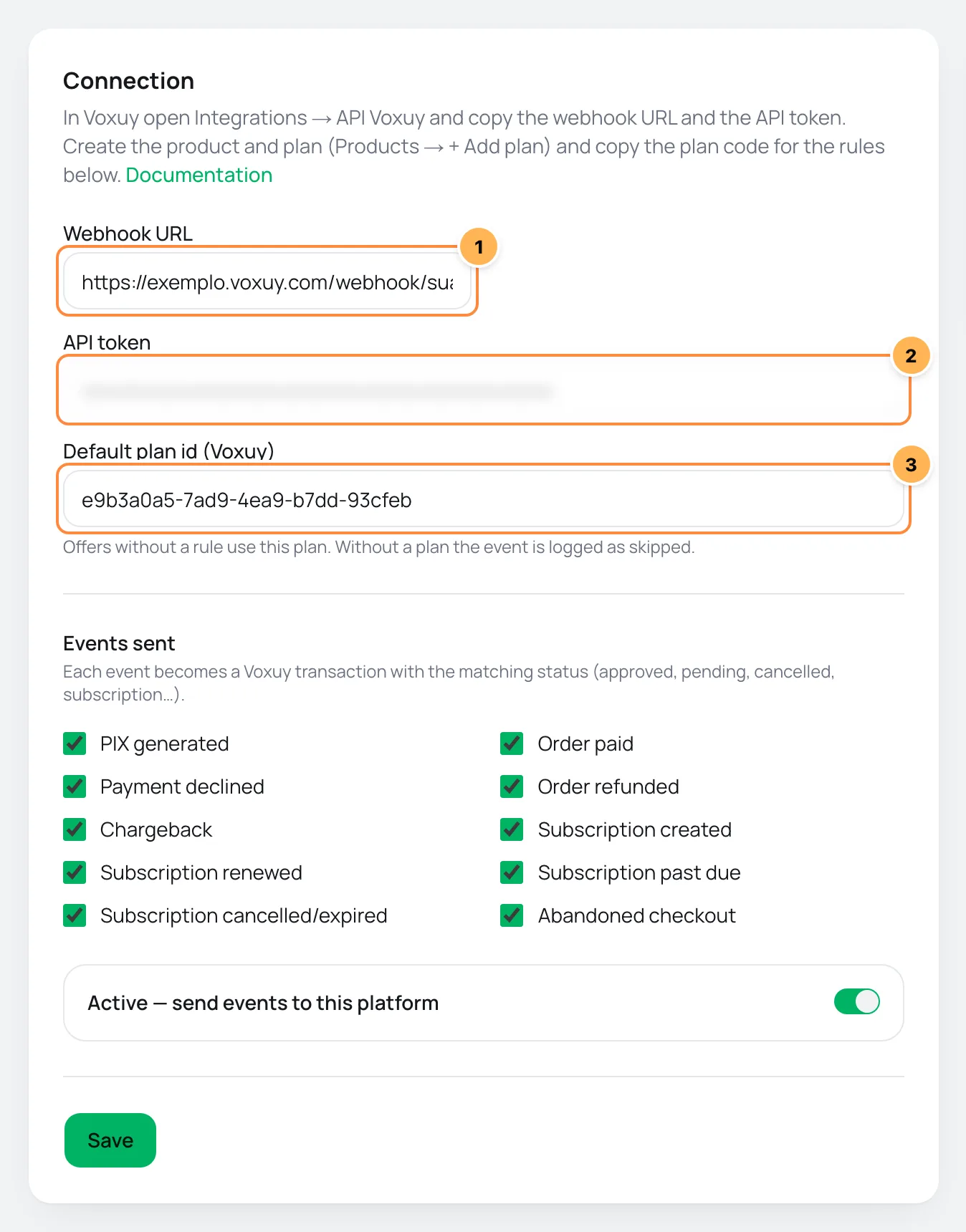
| # | Field | What to paste |
|---|---|---|
| 1 | Webhook URL | The webhook URL you copied in step 1. It must start with https://. |
| 2 | API token | The API token from step 1. |
| 3 | Default plan id (Voxuy) | The plan code used by offers without their own rule. If every sale goes to the same plan, filling in this field is enough. |
- Under Events sent, uncheck what your funnel does not use.
- Leave Active — send events to this platform on and click Save.
To change the token later, paste the new one and save. A field left blank keeps the saved value.
Step 3: choose each offer's plan
Do this step if different offers need to fire different funnels, such as a course and a mentorship.
- Under Plans per offer, pick the Offer.
- Paste the Voxuy Plan code.
- Click Add rule. Repeat for each offer.
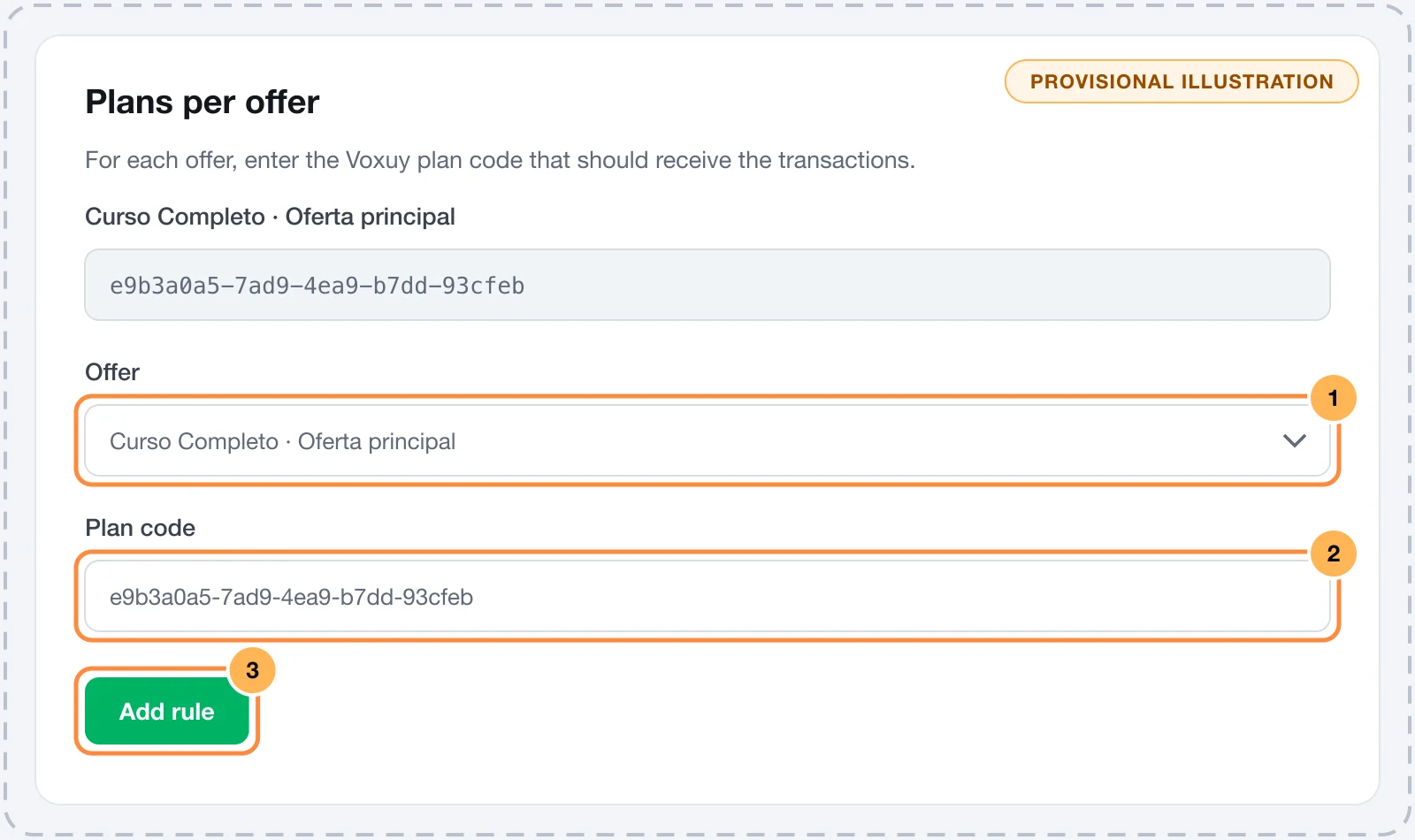
The rule wins over the default plan and also applies to the other offers of the same product. An offer with no rule and no default plan is not sent: the event shows as skipped.
Step 4: test
Voxuy has no test button in Vipter. Open the checkout of an offer, fill it in with your e-mail and your phone and generate a PIX, without paying. Then reload the Voxuy page in Vipter.
It worked if
The PIX generated event shows as sent under Recent deliveries, and the pending transaction shows up in Voxuy, in the chosen plan.
What Voxuy receives
Each event becomes a transaction with a Voxuy status code. Amounts go in cents, the phone goes with the country code (+5511…), and the UTMs, the pack and the order bumps go in the transaction metadata.
| Event in Vipter | Status in Voxuy |
|---|---|
| PIX generated | 0, with the QR code and the copy-and-paste code |
| Order paid | 1, or 24 on a subscription's first payment |
| Payment declined | 2 |
| Chargeback | 3 |
| Order refunded | 4, or 25 on a subscription |
| Subscription created | 20 |
| Subscription past due | 21 |
| Subscription cancelled/expired | 22 |
| Subscription renewed | 23 |
| Abandoned checkout | 80, or 26 on a subscription, with the link to resume the purchase |
Common problems
-
Enter an https:// URL
The webhook URL must start with
https://. Copy it again from Integrações › API Voxuy. -
The event shows as skipped with "customer has no phone"
The buyer did not enter a phone. Make the checkout ask for the phone. Voxuy does not accept a transaction without it.
-
The event shows as skipped with "no Voxuy plan for this offer"
The offer sold has no rule and the Default plan id (Voxuy) is empty. Fill in one of the two.
-
The event shows as failed
Voxuy rejected the transaction. Its HTTP code and response show on the line. An authentication error means a wrong token or URL; an error about the plan means a plan code that does not exist. Fix it and test again: the failed event is not resent.
What to do next
- Understand the events and delivery statuses.
- Receive the same events in your system with webhooks.
How automations work
Learn which sale events Vipter sends to Voxuy, Voxuy Enterprise and Hotzapp, how to read the recent deliveries and how to test without a test button.
Connect Voxuy Enterprise
Run a Voxuy Enterprise flow on every PIX generated, sale, decline, subscription and abandoned checkout, with one flow per event or per offer.