Where you sell and ship
Choose the countries the checkout accepts, the country that shows first, where the store ships, how the address is requested and what the store address is for.
The selling and shipping locations decide which countries the buyer can choose at checkout. They apply to all the store's offers. Vipter checks the countries again when it creates the charge, so a buyer can't get around the rule through the browser.
Before you start
- The Admin or Owner role in the Vipter project.
- For products with delivery: the shipping zones and methods set up. See Shipping and rates.
Where to set it up
Open GeneralSettingsGeneral and scroll to the Selling and shipping locations card. After making changes, click Save changes.
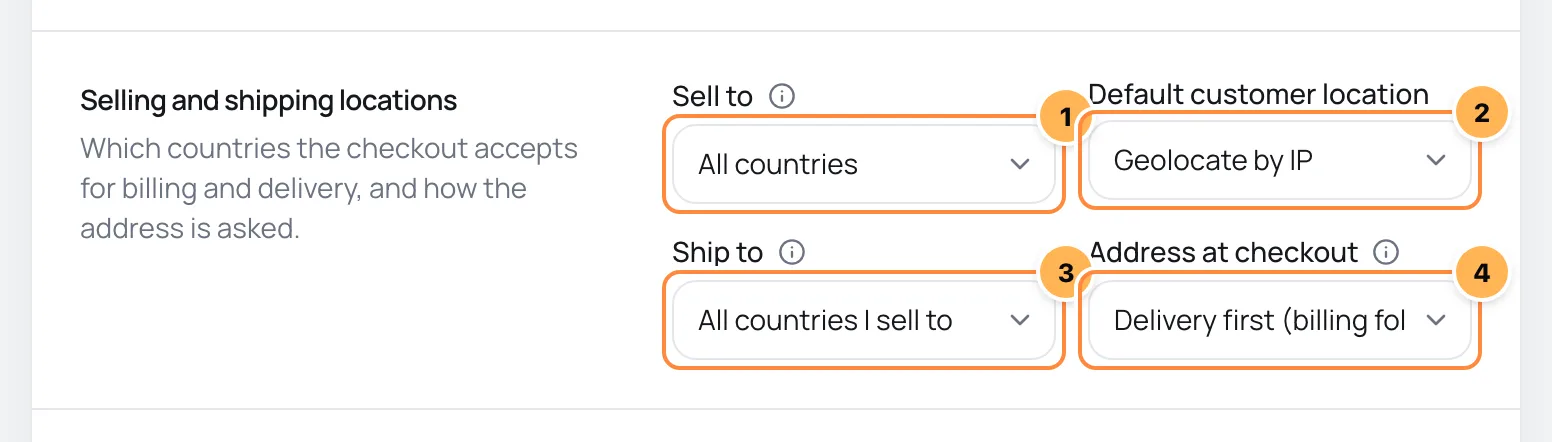
1. Who the store sells to
Sell to limits the countries for the billing address and the buyer's country:
| Option | What the checkout accepts |
|---|---|
| All countries | Any country. This is the default. |
| All countries, except… | All except the ones chosen in Excluded countries. |
| Specific countries | Only the ones chosen in Allowed countries. |
Countries outside the rule disappear from the checkout list. If a country outside the list still comes through, the checkout refuses it with the message "We do not sell to the selected country."
With a single country in Specific countries, the checkout also stays in that country's language and hides the language selector. See Checkout languages and currencies.
2. Which country shows first
Default customer location picks the country that is already selected when the checkout opens. It sets the phone prefix and the type of document requested.
- Geolocate by IP: the country the buyer is browsing from. This is the default.
- Store country: the store's country, set in the General card.
If the chosen country isn't accepted by the store, the checkout selects the store's country and, if that isn't accepted either, the first country on the list. The buyer can change the country at any time.
3. Where the store ships
Ship to only applies to products with delivery:
| Option | What the checkout accepts in the shipping address |
|---|---|
| All countries I sell to | The same countries as Sell to. This is the default. |
| All countries | Any country. |
| Specific countries | Only the ones chosen in Shipping countries. |
| Disable shipping & shipping calculations | None. The checkout doesn't ask for a shipping address or calculate shipping, not even for physical products. |
A shipping address outside the list is refused with "We do not deliver to the selected country." The shipping methods for each region come from the zones in CatalogShipping.
4. How the address is requested
Address at checkout changes the order of the addresses for products with delivery:
- Delivery first (billing follows delivery unless the buyer opts for another): the buyer enters the shipping address, and billing uses the same one, unless they tick the option to use a different billing address. This is the default.
- Billing first ("ship to a different address" option): the buyer enters the billing address and can tick the option to ship to a different address.
- One address for billing and delivery: a single address, for both. The country list only shows the countries that are in both selling and shipping.
Products without delivery don't show a shipping address. They only ask for a billing address if the product has Ask for billing address at checkout turned on. See Create and edit a product.
The store address
The Store address card, right below, holds your company's address: Country, Postal code, Address, Complement, City and State.
Payment providers require a billing address on every purchase. When the product doesn't ask the buyer for an address, such as a course or an e-book, Vipter sends the store's address instead. It also shows in the footer of the e-mails the store sends to buyers.
Fill in all the fields. While the address is empty and there is an active product without a billing address, the product list shows a notice asking you to fill it in. Without it, Vipter uses a generic address in the store's country so the purchase doesn't get stuck.
Test
- Open an offer's link in a private window and check the checkout's country list.
- On a product with delivery, enter an address in an accepted country and check the shipping methods.
- If you use All countries, except…, choose an excluded country and confirm it doesn't show.
Common problems
-
The buyer's country doesn't show at checkout
It is outside Sell to, or outside shipping when the product has delivery and the address is single. Add the country to the rule and save.
-
The checkout for a physical product doesn't ask for an address
Ship to is set to Disable shipping & shipping calculations. Choose another option to ask for the address and calculate shipping again.
-
The checkout shows "We do not deliver to this address."
The country is accepted, but no shipping zone covers the address. Check the zones in CatalogShipping.
What to do next
- Set up the shipping zones and methods.
- See how buyers see the checkout.
Branding: logo, colors, titles and social preview
Put your store's logo, favicon and colors on the checkout, the thank-you page, the customer area and the e-mails, and set the preview that shows when the link is shared.
Accept PIX
Turn on PIX at checkout, see what the buyer receives and understand when the order becomes paid and what happens when the code expires.