Connect PlugNotas
Issue NFS-e and NF-e through PlugNotas for every paid order, test in the sandbox before going to production and cancel on refund.
With PlugNotas connected, Vipter sends every paid order to PlugNotas, which issues the invoice (nota fiscal, the Brazilian tax document) on behalf of your company. When the order is fully refunded or charged back, Vipter requests the cancellation. PlugNotas has a sandbox with simulated responses, so you can test everything before issuing a real invoice. To understand the issuing rules, see Invoices: how they work.
Before you start
- A PlugNotas account with your company registered, with a digital certificate and complete fiscal data. To use only the sandbox, you don't need the account.
- The Admin or Owner role in the Vipter project.
- The tax codes agreed on with your accountant: for services (NFS-e, the electronic service invoice), the LC 116 item (the federal list of taxable services), the municipal code and the ISS (municipal service tax) rate; for goods (NF-e, the electronic goods invoice), the NCM (Mercosur goods classification) and the CFOP (fiscal operation code).
Step 1: get the token in PlugNotas
PlugNotas calls the key a token, and it goes in the x-api-key field. The token depends on the environment:
-
Sandbox: PlugNotas publishes a test token in its documentation, valid only on
api.sandbox.plugnotas.com.br:2da392a6-79d2-4304-a8b7-959572c7e44d -
Production: sign in to the PlugNotas dashboard, at
app2.plugnotas.com.br, and generate your access token.
Also write down the CNPJ (Brazilian company taxpayer ID) of the company that will issue the invoices, exactly as it is registered in PlugNotas.
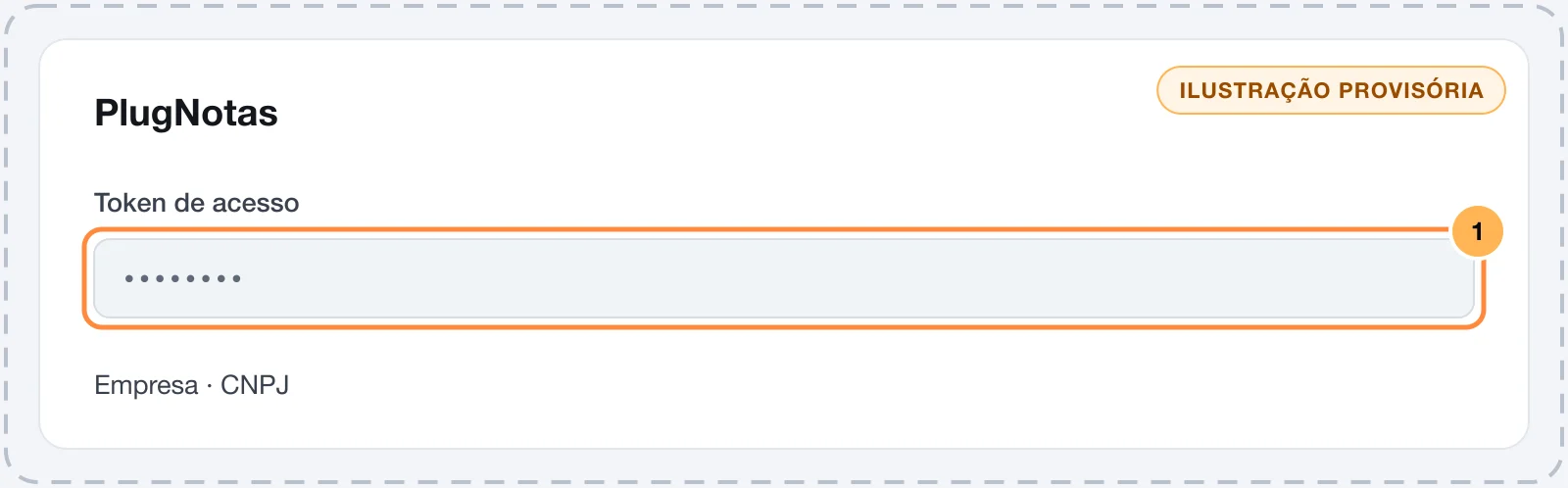
Keep the production token safe
The production token can issue and cancel invoices on behalf of your company. Paste it only into Vipter. Once saved, it is not shown again: the field only shows its last characters.
Step 2: paste the data into Vipter
- In the Vipter dashboard, open GeneralIntegrationsInvoicesPlugNotas.
- Under Connection, fill in the numbered fields.
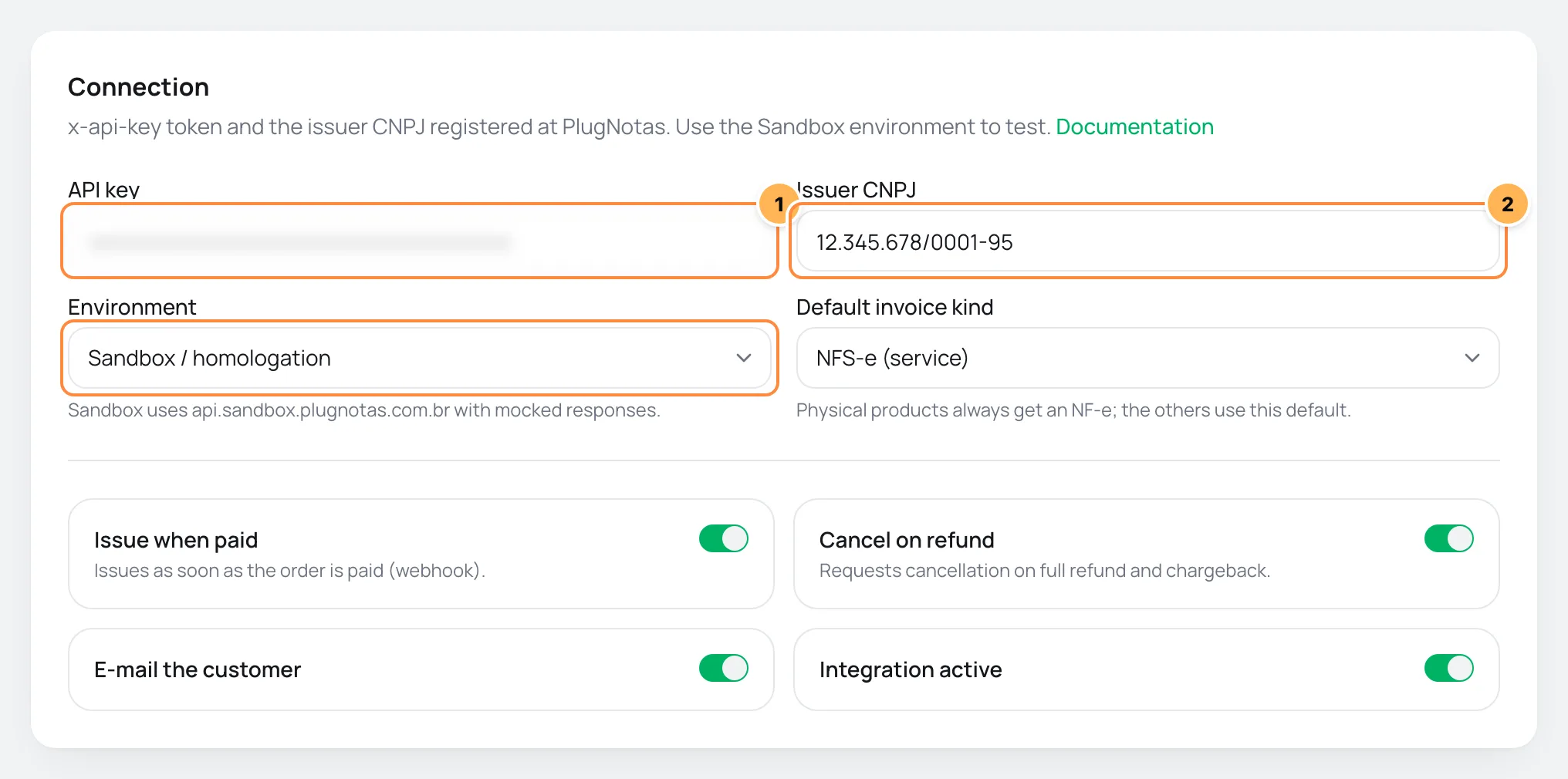
| # | Field | What to paste |
|---|---|---|
| 1 | API key | The token from step 1: the test one with the environment on Sandbox, yours with the environment on Production. |
| 2 | Issuer CNPJ | The CNPJ of the issuing company, with or without punctuation. |
- Under Environment, choose Sandbox / homologation for the tests. Sandbox uses api.sandbox.plugnotas.com.br with mocked responses.
- Choose the Default invoice kind. It applies to products without delivery. Products with delivery always generate an NF-e.
- Check the switches:
- Issue when paid: issues as soon as the order is paid.
- Cancel on refund: requests the cancellation on a full refund and on a chargeback.
- E-mail the customer: PlugNotas sends the invoice to the buyer's e-mail.
The environment and the token go together. The test token does not work in production, and your production token does not work in the sandbox.
Step 3: fill in the fiscal defaults
In the NFS-e defaults and NF-e defaults cards, right below, fill in the codes that apply to every product. What each field asks for is in Integration fiscal defaults. The codes filled in on the product are used instead of these.
Then click Save, below the two cards.
Step 4: test in the sandbox
- Click Test credentials. Vipter looks up the CNPJ's company in the saved environment. This query does not issue an invoice. If you changed the environment, save before testing.
- Make a test purchase and follow the invoice on the order's Invoices card. See Test your store.
It worked if
The test shows Credentials are valid with the company's legal name, and the test purchase's invoice reaches Issued.
In the sandbox, the CNPJ must exist as a company in the PlugNotas test environment. If the test fails only in the sandbox, see the PlugNotas documentation for how to register the test company.
Step 5: move to production
- Replace the token with your production token.
- Change the Environment to Production.
- Click Save and then Test credentials.
From then on, every paid order generates a real invoice.
How it works afterwards
- Order paid: the order ID goes as the integration identifier. If the same order arrives again, PlugNotas returns the invoice that already exists instead of creating another one.
- Buyer's city: PlugNotas requires the city's IBGE code (the official Brazilian city code). Vipter finds this code from the buyer's CEP (Brazilian postal code).
- NFS-e: the service buyer with address, the LC 116 item, the municipal code, the CNAE (Brazilian economic activity code), the ISS rate, whether the ISS is withheld, the description, the amount and the discount. With no rate anywhere, Vipter sends 0.
- NF-e: the nature of operation, one item per product (main product and order bumps) with NCM, CFOP, unit, origin, shipping and discount, the payment method and the freight mode. The buyer goes as a final consumer, not a taxpayer, in an online sale.
- NF-e taxes: Vipter sends the ICMS (state sales tax) with tax status 102 and PIS and COFINS with status 08. ICMS code 102 is the one used by Simples Nacional companies (Brazil's simplified tax regime for small businesses). If your company is under another regime, talk to your accountant before issuing an NF-e.
- Full refund or chargeback: Vipter requests the cancellation. The deadline to cancel is set by the city hall (NFS-e) or by SEFAZ, the state tax authority (NF-e).
Common problems
-
Test failed
The token does not match the environment, or the CNPJ is not registered in PlugNotas for that environment. Check both, save and test again.
-
The invoice shows as Failed with "the customer has no complete address"
The street, CEP, city or state is missing. Open the customer under SalesCustomers, click Edit, complete the address and issue again from the order. If the order itself already has an incomplete address, Vipter uses the order's: issue this invoice directly in PlugNotas.
-
The invoice shows as Failed with "the customer has no tax id"
The NF-e requires the buyer's CPF or CNPJ (Brazilian individual or company taxpayer ID). Open the customer under SalesCustomers, click Edit, fill in the CPF or CNPJ and issue again from the order.
-
The invoice was rejected because of the city
The IBGE code comes from the CEP lookup. If the buyer's CEP is wrong or the lookup did not answer, the city goes without a code. Fix the CEP in the customer record and issue again from the order.
-
The invoice shows as Failed or Rejected with another message
The reason and the fields PlugNotas rejected show below the status. Fix them in the defaults, on the product or in the PlugNotas registration and issue again from the order.
What to do next
- See Invoices: how they work for what goes on each invoice and the fiscal defaults.
- Fill in the fiscal data of each product when the codes change from one product to another.
Connect eNotas (Nota Gateway)
Issue NFS-e and NF-e through eNotas for every paid order, test in homologation when your city hall allows it and cancel on refund.
Transactional e-mail: how it works
Learn how Vipter sends your store's e-mails through your own e-mail account, what each sender field does and how to check that everything is arriving.