Transfer ownership
Hand the store over to another team member, understand what changes in the plan, quota and seats, and what happens to your access.
Each store has only one owner: the person who created the project. To hand the store over to someone else, for example when selling the business or changing who is in charge, the owner transfers ownership. The person becomes Owner and you become Admin.
Before you start
- Be the store's Owner. Only the owner sees the option.
- The new owner already on the store's team, with any role. If they are not yet, invite them first in Team and invitations and wait for the invitation to be accepted.
- Agree on the plan with them. After the transfer, the store uses their account's plan. See What changes.
Step 1: open the person's menu
- Open GeneralSettingsTeam.
- On the person's row, open the actions menu.
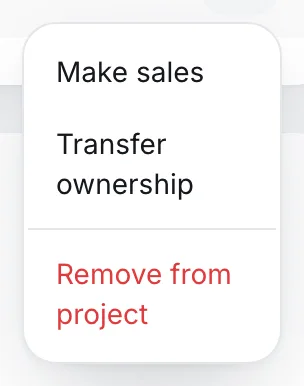
Step 2: transfer
- Click Transfer ownership.
- Confirm: Transfer ownership to Ana Souza? You will become an admin.
The change is immediate.
It worked if
You see Team updated.. In the team table, the person shows as Owner and you as Admin, and the menu on their row disappears.
What changes
- The plan becomes the new owner's. The Vipter plan belongs to the owner's account, not to the store. From the transfer on, the store counts under their account: orders go into their quota, and the store takes one of their plan's store slots. If they don't have a plan yet, they choose one in Vipter plan.
- Seats become those of their account. Everyone on the store's team starts counting against their plan's seats.
- You lose management of this store's plan. As an admin, you still see Vipter plan, now with their plan, but you can't change or cancel it.
- Your plan is still yours. Your account's subscription keeps covering your other stores. If you have another store, cancel or change the plan in Vipter plan inside it. If this was your only store, contact Vipter support to cancel your plan, because the dashboard only shows the plan inside a store.
- Nothing in the store changes. Products, customers, orders, subscriptions, payment connections and settings stay the same.
Undo
You can't undo it on your own: now only the new owner can transfer ownership. If it was a mistake, ask them to transfer it back to you.
As an admin, you stay in the store until someone removes you. The new owner or another admin can do that in GeneralSettingsTeam.
Common problems
-
The transfer option doesn't show
You are not this store's owner, or you are looking at your own row. The option shows in the menu of the other team members, only for the owner.
-
The person doesn't show in the team table
They haven't accepted the invitation yet. Only a member can receive the store. Ask them to accept the invitation and try again.
What to do next
- See what your new role can do in Roles and permissions.
- Check the limits of the new owner's plan in Plans and limits.
Sellers and commission rules
Give each seller on the team a code for the checkout link and a commission rule, set the store's default rule and whether renewals earn commission.
Plans and limits
Price, order quota, overage and limits of each Vipter plan, where to track the account's plan and how to change or cancel it.