Team and invitations
Invite people to the store as Sales or Admin, track the plan's seats, resend or revoke invitations, change roles and remove members.
The team is everyone besides you who signs in to the store's dashboard. Each person has a role that decides what they see and do: Sales, Admin or Owner. What each role can do is in Roles and permissions.
Before you start
- The Admin or Owner role in the project.
- A free seat in the plan. The Lite plan has 1 seat, taken by the owner: to invite someone, change plans. See Plans and limits.
- The person's e-mail. They sign in with this e-mail, so use the one they use or will use in Vipter.
Open the team
Open GeneralSettingsTeam. The table shows the members, with role and status, and the invitations not yet accepted, with the Invitation pending status.
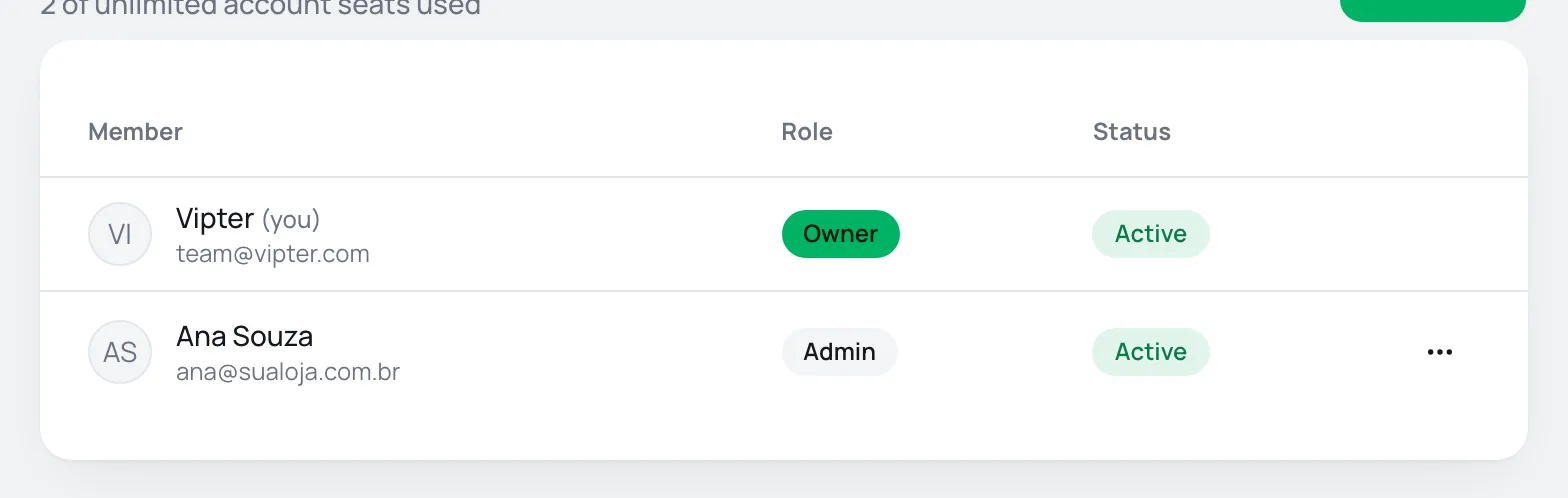
Below the title you see the counter 2 of 3 account seats used.
How seats are counted
- Seats belong to the owner's account, not to the store. All stores of the same owner share the plan's seats.
- Each person takes only one seat, even if they are in several stores of the same owner. The owner also takes one.
- A pending invitation takes a seat until it is accepted, revoked or expires.
- With all seats taken, the Invite button is disabled. To free a seat, revoke an invitation, remove someone or change plans.
Step 1: invite
Click Invite and fill in the Invite a team member window:
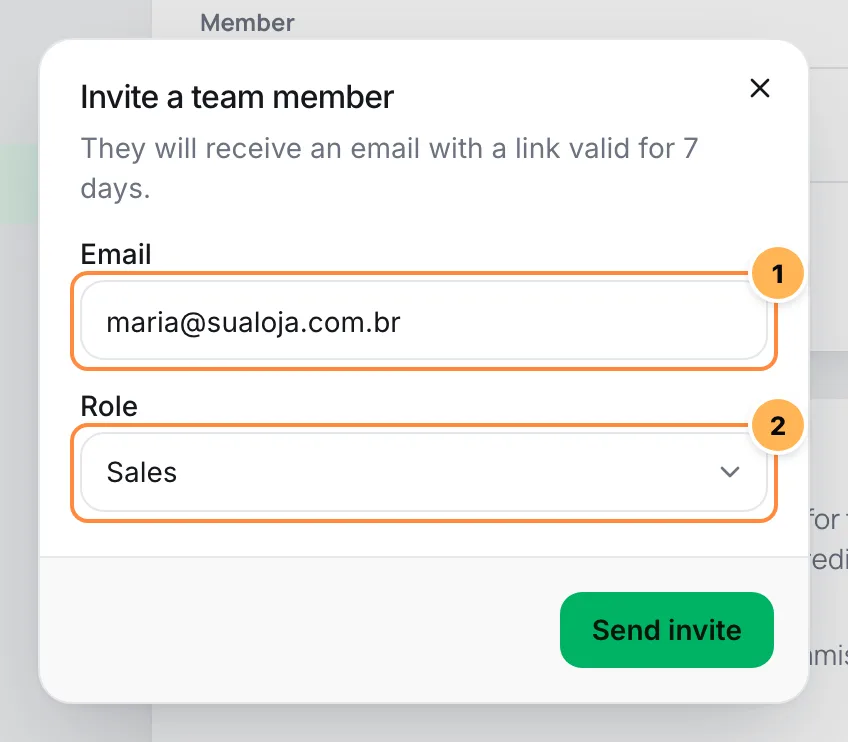
- Email: the person's address.
- Role: Sales (the default) or Admin. You can't invite someone as Owner: to hand the store over to another person, see Transfer ownership.
Click Send invite.
The person receives an e-mail with the Accept invitation button. They will receive an email with a link valid for 7 days. The e-mail goes out in your profile's language. If the same person already had a pending invitation, it is replaced by the new one.
It worked if
You see Invitation sent. and the e-mail joins the table with the Invitation pending status. When the person accepts, it changes to Active.
Step 2: the person accepts
What the person does when opening the link is in Accept a team invitation. In short: they sign in or create an account with the invited e-mail and land right in the store. If they sign in to Vipter with that e-mail some other way, pending invitations for it are also accepted, and the project list shows the invitations with the Join button.
Manage invitations
In the invitation row's actions menu:
- Resend invitation: sends a new e-mail, with a new link valid for 7 more days. The previous link stops working.
- Revoke invitation: the link stops working and the seat is freed.
An invitation older than 7 days expires on its own and leaves the seat count. To invite the person again, send a new invitation.
Change a role or remove someone
In the member row's actions menu:
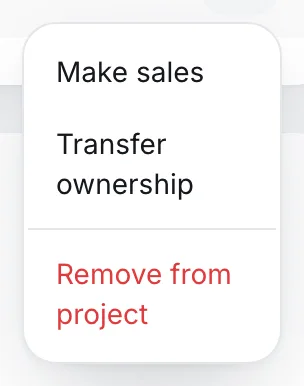
- Make admin or Make sales: changes the role after you confirm. It applies on the person's next click in the dashboard.
- Transfer ownership: only shows for the owner. See Transfer ownership.
- Remove from project: removes the person's access to this store and frees the seat, if they are not in another store of the same owner.
The owner's row has no menu: the owner can't be demoted or removed, not even by themselves. An admin can remove themselves; in that case, they go back to the project list.
If the removed person was a seller, they stay in the seller list as No longer a member, and their orders and commissions stay in the history. See Sellers and commission rules.
Common problems
-
Your plan covers 3 seats in the account. Upgrade to invite more people.
All the account's seats are in use, counting pending invitations. Revoke old invitations, remove someone or change plans in Vipter plan.
-
This person is already a member.
The person is already in this store. To change what they can do, change their role.
-
Invitation saved, but the email could not be sent. Use "Resend".
The invitation was created, but the e-mail failed. Use Resend invitation in the invitation's menu.
-
This invitation has expired or was revoked. Ask for a new one.
The person opened a link that expired, was revoked or was replaced by a resend. Resend the invitation.
-
The person accepted, but doesn't see payments or settings
They have the Sales role. If they need to configure the store, use Make admin.
What to do next
- See what each role can do in Roles and permissions.
- Add the people who sell for the store in Sellers and commission rules.
E-mail activity and blocked addresses
See the store's latest e-mails and each one's status, resend an e-mail from the order and unblock addresses that bounced or reported spam.
Roles and permissions
What Sales, Admin and Owner can see and do in each area of the dashboard, the areas Sales can't see and the rules of the Owner role.