Extra charge on a subscription
Charge a one-off amount on a subscriber's saved card, such as additional usage, without changing the subscription's cycle or amount.
An extra charge bills an amount you type, right now, on the card the subscriber saved. It is useful for additional usage, an agreed fee or a one-off service for someone who is already a subscriber. The next renewal date and the recurring amount don't change. The charge becomes an order linked to the subscription.
To sell a catalog offer on a customer's saved card, use New sale on the saved card.
Before you start
- A subscription that is Active, Trialing or Dunning, with a saved card.
- The store's Vipter plan payment up to date. With the plan past due, the button does not show.
- Any project role, including Sales.
- An agreement with the subscriber. The charge is made without them present, and a charge they don't recognize can turn into a dispute.
The charge goes out through the same payment account that made the subscription's first charge. Subscriptions only exist on providers that store the card for future charges, such as Stripe, Pagar.me and Asaas. See Features by provider.
Step 1: open the extra charge
- Open SalesSubscriptions and click the subscription.
- At the top of the page, click Charge extra amount….
Step 2: fill in and charge
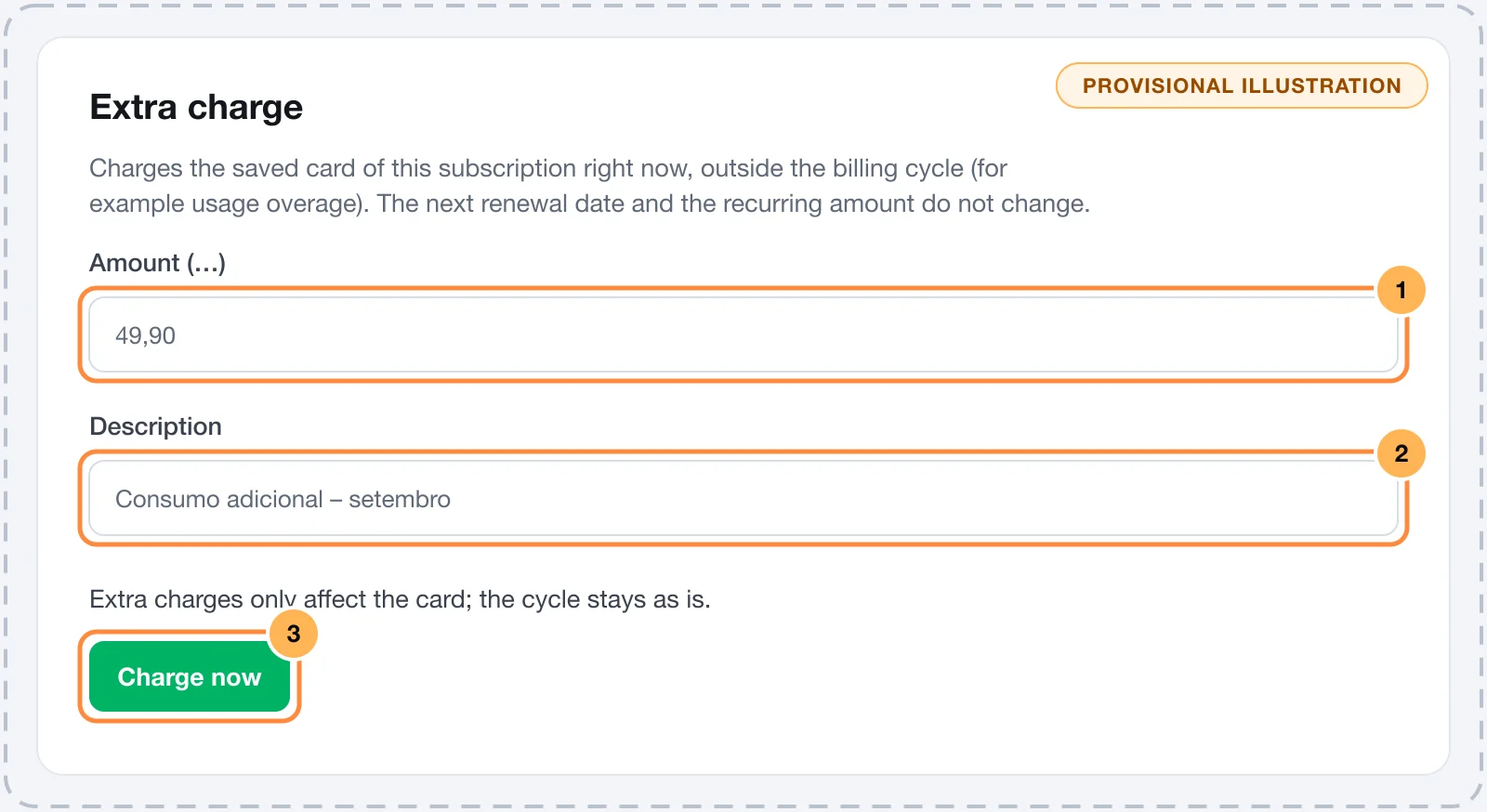
- Amount (BRL): the amount to charge, in the subscription's currency. A comma or a period works as the decimal separator. The formatted amount shows right below so you can check it.
- Description: optional, up to 140 characters. It shows on the order and goes to the provider as the charge description.
- Click Charge now. The button shows the amount that will be charged.
The charge is a single payment, with no installments.
Step 3: check the result
The dashboard shows one of these messages, with the View order button:
| Message | What it means |
|---|---|
| Extra charge of R$ 49,90 approved. | The card was charged. |
| Extra charge of R$ 49,90 is pending confirmation. | The provider has not confirmed yet. The order stays pending until the answer arrives. |
| Extra charge declined: … | The card was declined. The reason comes from the provider. See Payment decline reasons. |
What gets recorded
- A new order in SalesTransactions, linked to the subscription, with the description you wrote.
- On the subscription's page, the order shows on the Orders card with type Extra charge and the description.
- The cycle does not change: the Next billing, the recurring amount and the cycle count stay the same.
- When approved, the charge notifies the integrations as a paid sale and, if the store sends e-mails, the subscriber gets the Order confirmed e-mail.
- Plan quota: each approved extra charge counts as one order in your Vipter plan's quota. See Order quota and overage.
Each click on Charge now is a new charge. Before charging the same amount again, check in Orders that the first one was not approved.
Common problems
-
The Charge extra amount… button does not show
The subscription is not Active, Trialing or Dunning, has no saved card, or the Vipter plan payment is past due. Bring the plan up to date in Vipter plan.
-
This subscription has no saved payment instrument to charge.
The subscription has no saved card that can be charged. Ask the subscriber to update the card through the customer portal.
-
Enter an amount greater than zero.
The amount is empty, zero or not a number.
-
Creating new items is paused until the plan payment is resolved.
Your Vipter plan payment is past due. Bring it up to date in Vipter plan.
-
Extra charge declined: …
The subscriber's bank declined it. Agree on another card with them through the customer portal and try again.
What to do next
- See how subscriptions work.
- To refund an extra charge, open its order. See Refund, capture and void.
Pause, cancel, reactivate and change plans
Change a subscription from the dashboard and see what each action does to the charges, the access and the notices to the subscriber.
Customers: add and edit
Find customers, see who has a saved card, add a customer by hand and fix contact, document and address details.