Connect Membox
Register the buyer in Membox when the sale is approved and remove access on refund, chargeback or cancellation.
With Membox connected, every approved sale of an offer with a rule registers the buyer in Membox and adds them to the product you specified. When the sale is refunded, charged back, or the subscription is cancelled or expires, Vipter asks Membox to remove the access. To understand the rules in general, see How member areas work.
Before you start
- A Membox account with the courses already created.
- The Admin or Owner role in the Vipter project.
- A product with at least one offer in Vipter, usually of the Course type.
Step 1: create the webhook integration in Membox
- In Membox, open IntegraçõesAdicionar nova (Integrations › Add new) and choose Webhook.
- Set the access type. With custom access, choose the courses this integration grants.
- Click Criar integração (Create integration).
- Copy the URL do webhook (webhook URL) and the credencial da integração (integration credential) and keep them for step 2.
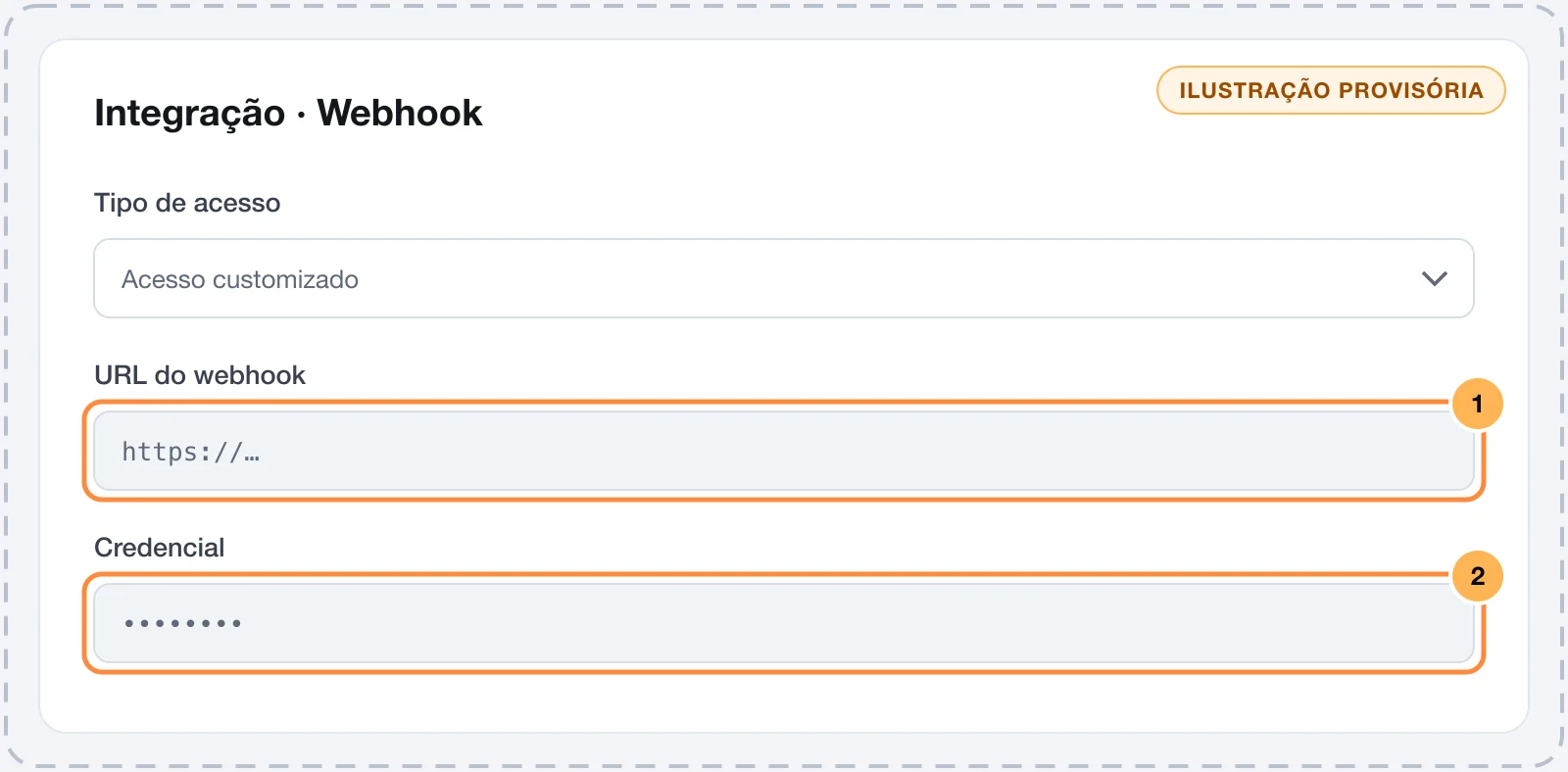
One Membox connection per project
Membox recommends one integration per product sold. Vipter stores one URL and one credential per project, so every rule in this project goes to the same Membox integration. If you sell products that grant different courses, check with Membox support how the integration handles the product name before linking more than one offer.
Step 2: paste the URL and the credential into Vipter
- In the Vipter dashboard, open GeneralIntegrationsMember areasMembox.io.
- Under Connection, fill in the numbered fields and leave Active — send access to this platform on.
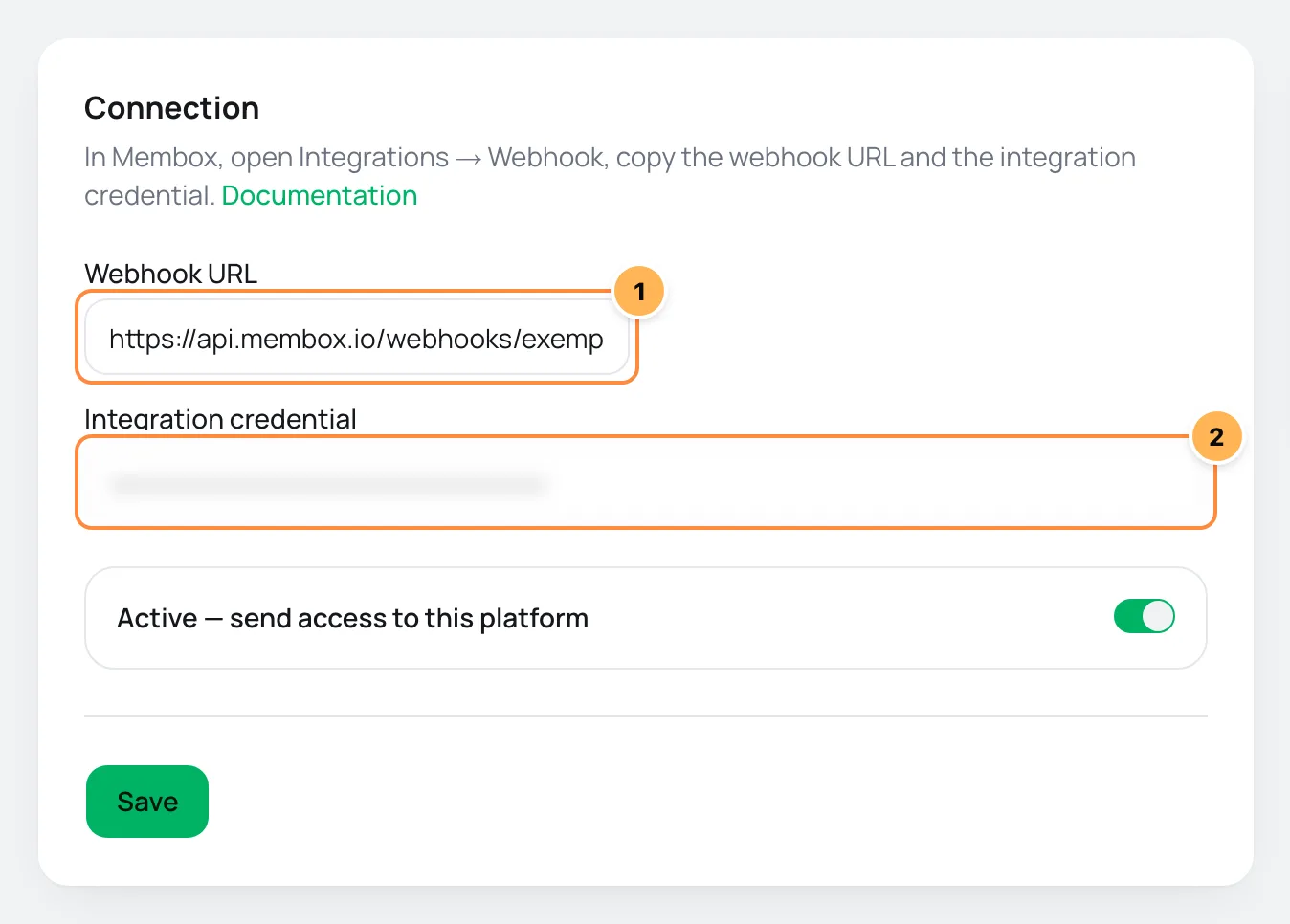
| # | Field | What to paste |
|---|---|---|
| 1 | Webhook URL | The webhook URL you copied in step 1. It must start with https://. |
| 2 | Integration credential | The integration credential, from the same place. Once saved, it is not shown again: the field only shows its last characters. |
- Click Save.
Step 3: link each offer to the Membox product
Vipter only sends sales from offers that have a rule.
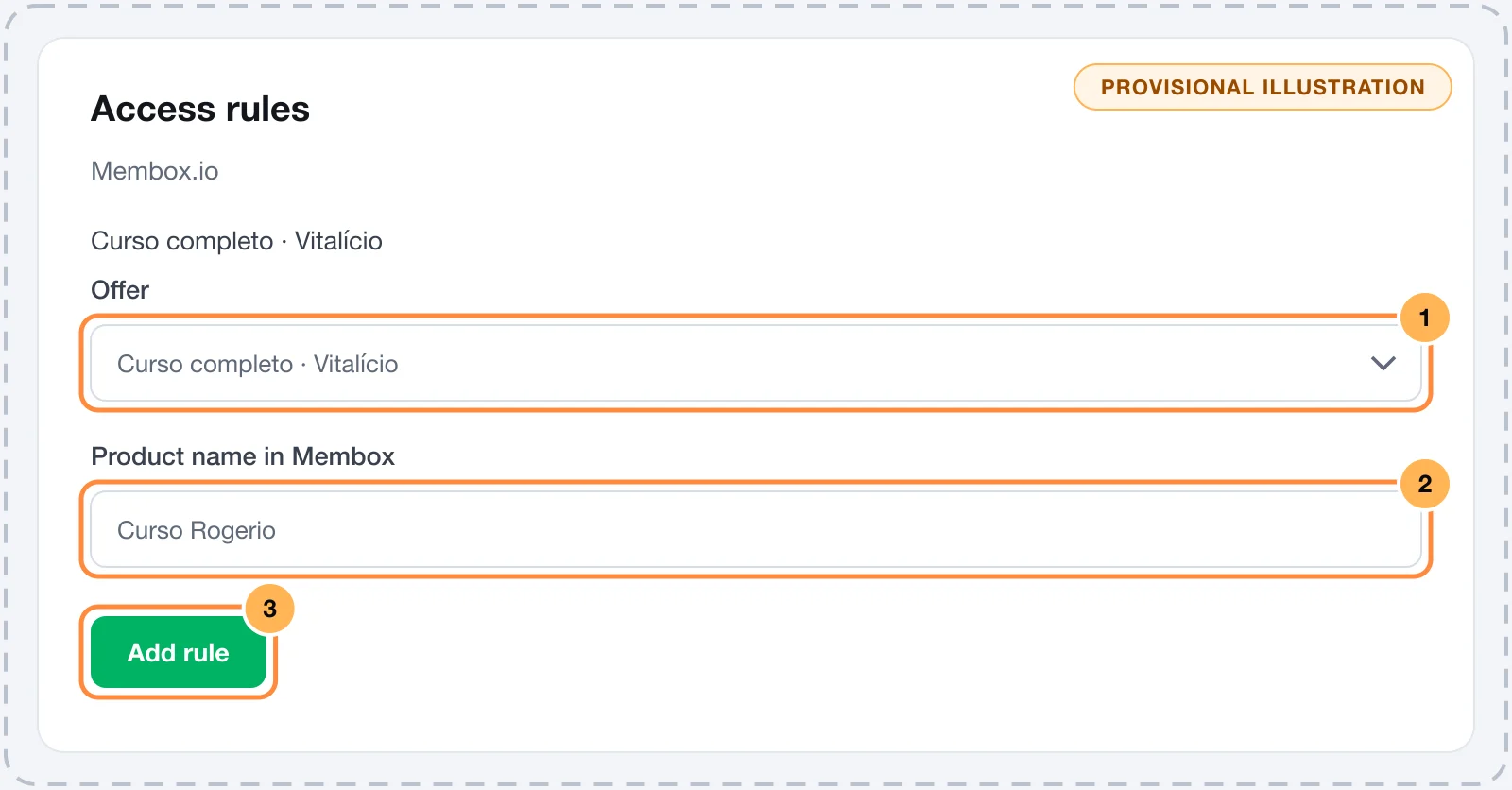
- Under Access rules, pick the Offer.
- In Product name in Membox, type the product name exactly as it is registered in Membox, with the same capital letters, accents and spaces.
- Click Add rule. Repeat for every offer that grants access.
Step 4: test with a purchase
Membox offers no way to check the credentials without registering someone, so the Membox page in Vipter has no test button. Make a test purchase of an offer with a rule. See Test your store.
It worked if
The purchase shows up under Recent deliveries as Access granted, with no error in red, and the buyer shows up as a student in Membox with access to the course.
After the test, if you refund the purchase, check that the access was removed in Membox.
How it works afterwards
- Approved sale: Vipter sends a registration (
insert) with the buyer's name, e-mail, phone and CPF or CNPJ (Brazilian individual or company taxpayer ID), the rule's product name and the credential. Phone and tax ID go blank when the customer has none. - Refund, chargeback, subscription cancelled or expired: Vipter sends a removal (
remove) with the name, e-mail and the same product name. - An offer with several rules: Vipter makes one delivery for each product name.
- Paid renewal: access stays. See the other cases in How member areas work.
Common problems
-
Must be an https:// URL
The webhook URL must start with
https://. Copy the URL again from the Membox integration. -
The delivery shows in red under Recent deliveries
Read Membox's response right below. The most common reasons are a wrong credential and a product name different from the one registered in Membox. Fix the rule and register this buyer by hand in Membox: Vipter does not repeat the delivery.
-
The sale was approved, but nothing shows under Recent deliveries
The offer sold has no rule, or the Active — send access to this platform switch was off at the time of the sale.
What to do next
- See How member areas work for the rules per offer and what happens in each case.
- If the course also has files to download, set up digital delivery on the product.
Connect Cademí
Grant access in Cademí when the sale is approved and remove it on refund, chargeback or subscription cancellation.
Invoices: how they work
Learn when Vipter issues and cancels NF-e and NFS-e through Notazz, eNotas or PlugNotas, which fiscal defaults to set up and how to follow each order's invoices.