E-mail activity and blocked addresses
See the store's latest e-mails and each one's status, resend an e-mail from the order and unblock addresses that bounced or reported spam.
Every transactional e-mail the store sends is logged with its recipient and status. With that you can answer the buyer's most common question, "I didn't get the e-mail", and find out whether the problem was the address, the provider or a store setting.
Before you start
- The Admin or Owner role in the project.
- An e-mail provider connected. See Connect an e-mail provider.
- To see deliveries, bounces and spam: the delivery status notification set up at the provider, from the provider's panel in Integrations. SMTP has no such notification.
See recent activity
Open GeneralSettingsE-mails and scroll down to the Recent activity card. It shows the store's 20 most recent e-mails.
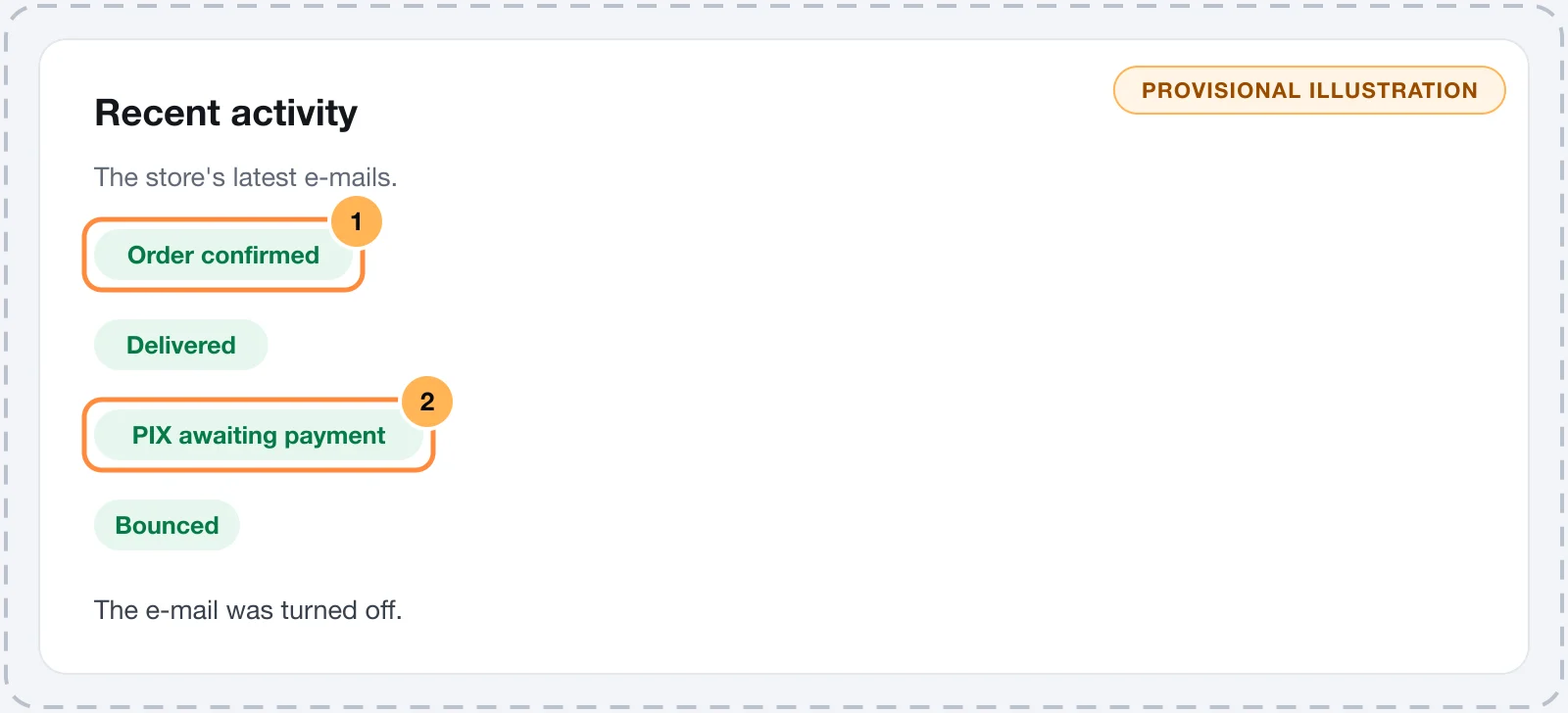
- The e-mail's name and status.
- The recipient, the order, the date and the language the e-mail went out in.
- When the e-mail did not go out, the line below shows the provider's error or the reason.
| Status | What it means |
|---|---|
| Queued | Waiting its turn. The queue runs every minute. |
| Sending | Being handed to the provider. |
| Sent | The provider accepted the e-mail. |
| Delivered | The provider reported that the e-mail reached the buyer's server. |
| Bounced | The buyer's server rejected it for good, for example because the address doesn't exist. The address goes to the block list. |
| Marked as spam | The buyer marked the e-mail as spam. The address goes to the block list. |
| Failed | The provider rejected the send. A temporary failure is retried after 1, 5, 30 and 120 minutes before ending up here. |
| Blocked | The address was on the block list and nothing was sent. |
| Not sent | The e-mail did not go out for a store reason, shown on the line below. |
The reasons for Not sent:
- No active provider when it was due.
- The e-mail was turned off.
- The order or subscription was not available when it was due.
The Delivered, Bounced and Marked as spam statuses only show if the provider notifies Vipter. Without that notification, the last status is Sent.
Resend an e-mail
Resending is on the order page, not in the settings.
- Open SalesTransactions and click the order.
- On the E-mails card, find the e-mail and click Resend.
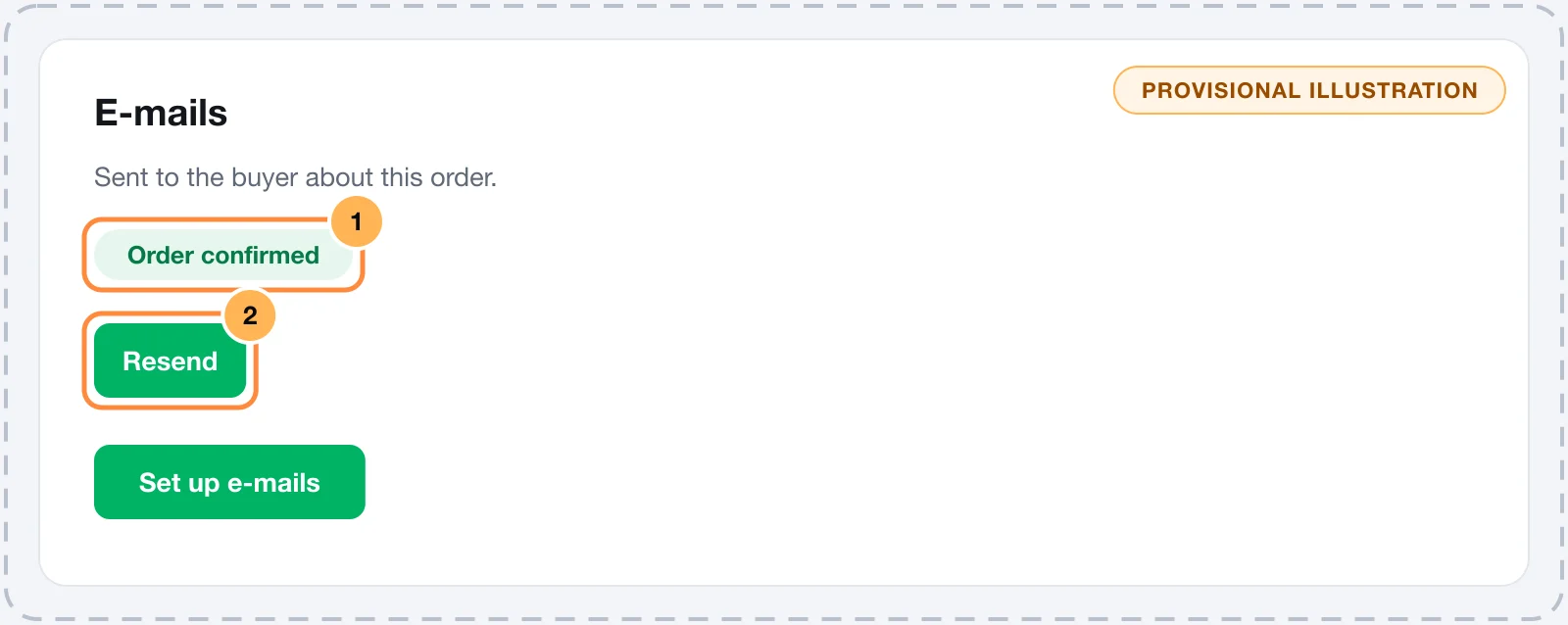
Resending creates a new e-mail to the same address, built with the current texts. You can't resend the Portal sign-in code or an e-mail that is still Queued or Sending.
It worked if
You see E-mail sent again. and the order card gets a new line. If you see The e-mail was queued and will go out shortly., the e-mail joined the queue and goes out in a moment.
To send the download links again, use Send by e-mail on the same order's downloads card.
A resend always goes to the original e-mail's address. If the buyer entered a wrong address in the checkout, reply to them through your support.
Unblock an address
The Blocked addresses card shows when a provider is connected. Addresses that bounced for good or marked an e-mail as spam. Nothing is sent to them except the portal sign-in code.
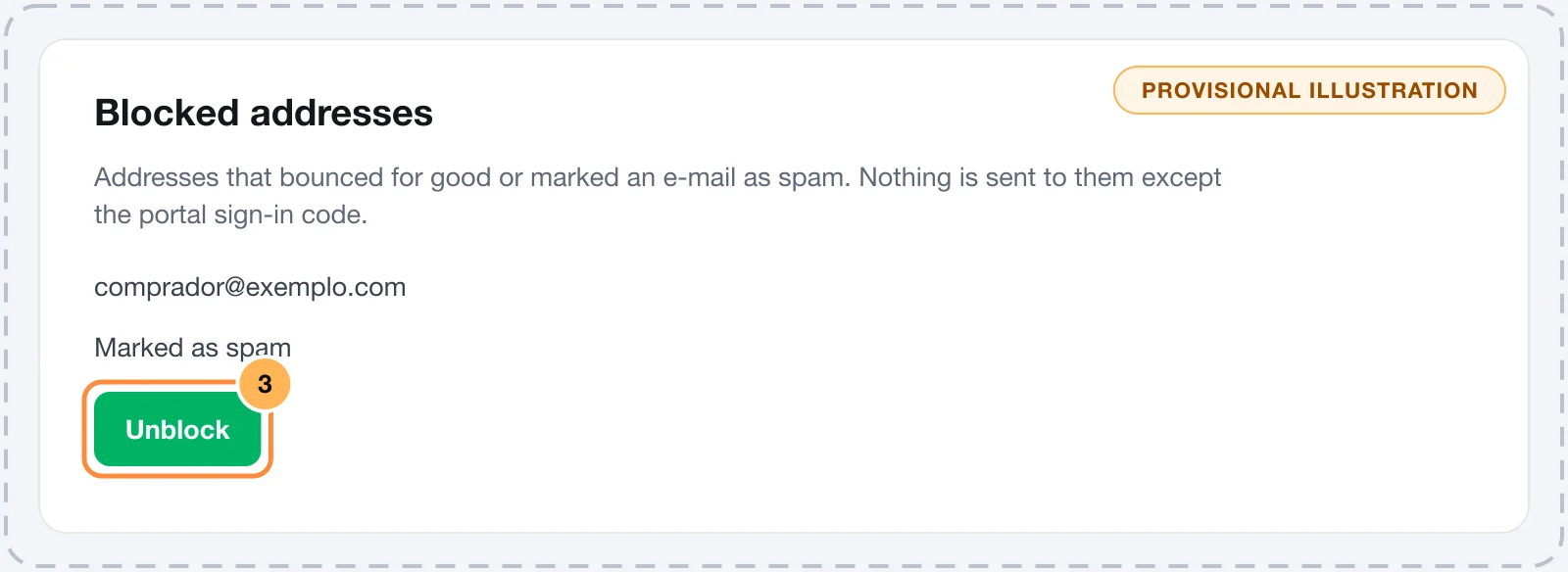
- Each line shows the address, the reason and the date: Bounced, Marked as spam or Blocked manually.
- Check the reason before unblocking.
- Click Unblock and confirm in Send e-mails to buyer@example.com again?
Unblock only when the reason is gone: the buyer fixed their inbox, or asked to receive e-mails again after marking spam by mistake. Sending again to addresses that bounce or complain hurts your sender's reputation with the provider.
Unblocking doesn't resend anything. After unblocking, use Resend on the order if you need to.
Common problems
-
The buyer says they didn't get it
Look for the e-mail in the activity or on the order card. Delivered or Sent: ask them to check spam and promotions. Bounced: the address is wrong. Blocked: the address is blocked, see the previous section.
-
All e-mails show the same recipient
Test address is filled in. Clear it in Transactional e-mails.
-
E-mails show as Failed and the provider shows as Failing
The provider rejected the credentials or the sender. Read the error on the e-mail's line and review the connection in Connect an e-mail provider.
-
Connect an e-mail provider in Integrations first.
Resending needs an active provider. Connect one and try again.
What to do next
- Adjust which e-mails go out in Transactional e-mails.
- Improve delivery by verifying the sender domain.
Transactional e-mails: templates and languages
Turn each e-mail to buyers and to the team on or off, edit the subject, heading and text in each language with variables and a preview, send tests and adjust the footer.
Team and invitations
Invite people to the store as Sales or Admin, track the plan's seats, resend or revoke invitations, change roles and remove members.