Accept PIX
Turn on PIX at checkout, see what the buyer receives and understand when the order becomes paid and what happens when the code expires.
With PIX (Brazil's instant payment) active, the buyer chooses PIX on the payment step, gets a QR code and a copy-and-paste code, and pays in their banking app. The checkout detects the payment by itself and takes the buyer to the thank-you page.
Before you start
- An account with a provider that accepts PIX, connected to Vipter: Pagar.me, Mercado Pago or Asaas.
- That provider's webhook registered. This is how the provider tells Vipter the PIX was paid. See Provider webhooks.
- The Admin or Owner role in the Vipter project.
Where PIX shows
PIX shows at checkout when three conditions hold:
- The purchase is a one-time payment. Subscriptions only charge the card.
- The store has an active PIX payment flow, pointing to an active connection that accepts PIX.
- The price is in reais. PIX is a Brazilian payment method.
When you create a connection with a provider that accepts PIX, Vipter creates a PIX flow pointing to it, if the store doesn't have an active PIX flow yet. To check, open PaymentsPayment flows and look for the PIX flow. To choose which account receives PIX, see Payment flows.
With card and PIX active, the buyer sees both options side by side on the payment step.
What the buyer sees
- On the payment step, the buyer chooses PIX. The checkout shows which tax ID the PIX will be issued to: the CPF (Brazilian individual taxpayer ID) or CNPJ (Brazilian company taxpayer ID) entered on the details step. To use another document, they correct the field above.
- They click the button to generate the code.
- The checkout shows the QR code, the copy-and-paste code with a copy button, and the time left before the code expires.
- The buyer pays in their banking app. The page checks for the payment every few seconds and, once it is confirmed, moves on by itself to the post-purchase offers, if any, and to the thank-you page.
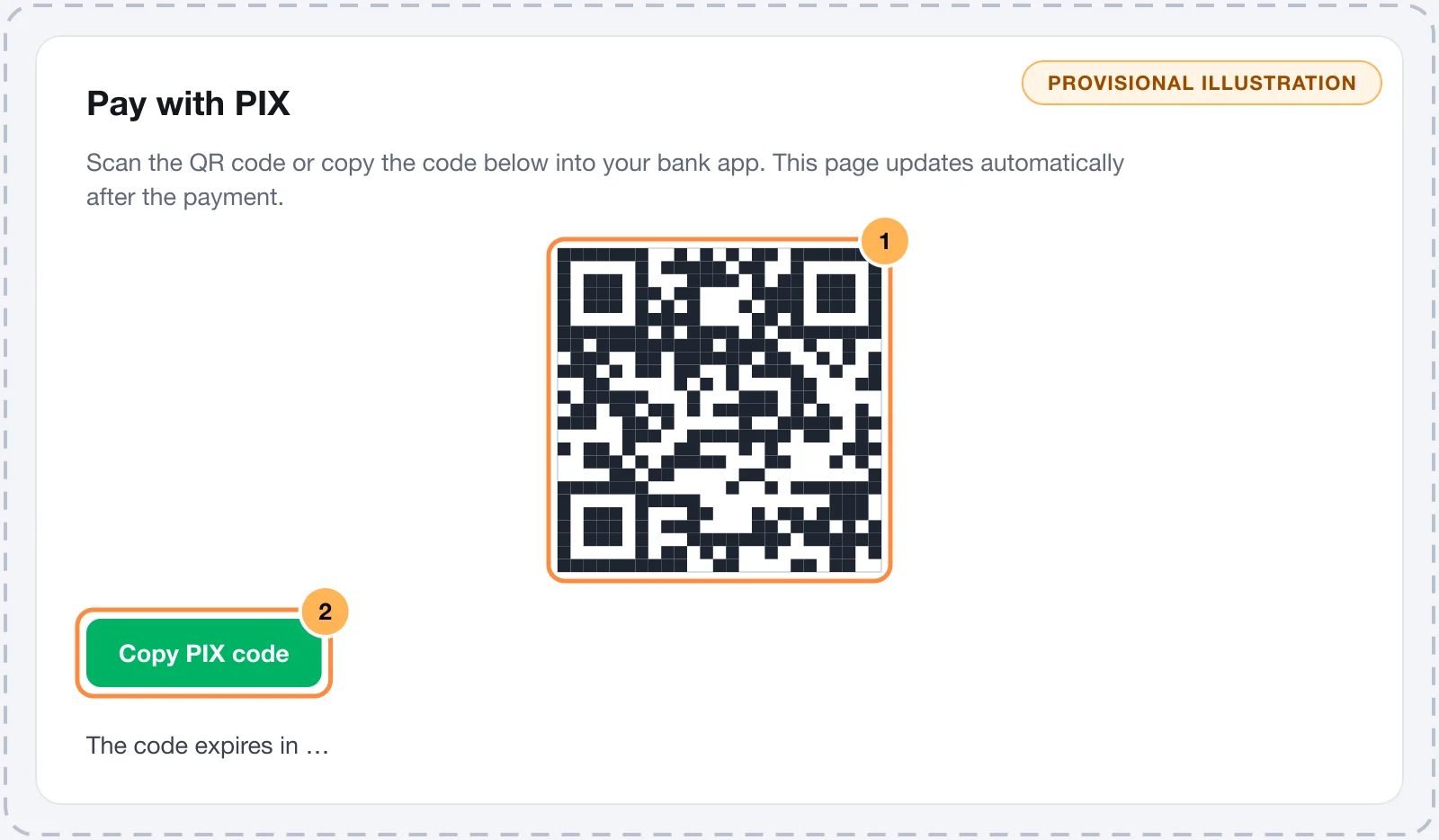
The code's expiry time is set by the provider. On Pagar.me and Mercado Pago, the code is valid for 24 hours.
If the store sends e-mails to buyers, the buyer also gets the PIX awaiting payment e-mail, with the copy-and-paste code and its expiry. That way they can pay even after closing the page. E-mails are in GeneralSettingsE-mails.
When the order becomes paid
The order shows in SalesTransactions as soon as the code is generated, with the PIX method and the Pending status. It moves to Paid when the provider confirms the payment.
The confirmation arrives through the provider's webhook. While the buyer has the page open, the checkout also asks for the status directly, so they aren't left waiting if the notice is late.
Once the order is paid, the same things happen as with a card sale: thank-you page, confirmation e-mail, download links, member area access, purchase events for the pixels and integrations.
For ad pixels, Vipter also records the PIX generated event when the code shows on screen.
When the code expires
- The checkout replaces the QR code with a notice that the code has expired and asks the buyer to reload the page. When they reload, they start the purchase again and generate a new code.
- The order with the expired code isn't paid.
- If the PIX expired e-mail is on, the buyer gets an e-mail with a button to go back to the checkout. This e-mail is off by default: turn it on in GeneralSettingsE-mails.
PIX in post-purchase offers
Buyers who paid with PIX also see the offer's One-click Upsell steps, after the PIX is confirmed. Accepting an offer generates a new PIX, just for it. The original order stays paid even if the buyer doesn't pay the second PIX.
Common problems
-
The PIX option doesn't show at checkout
The offer is a subscription, the price isn't in reais, or there is no active PIX flow with an active connection. Check in PaymentsPayment flows.
-
The buyer paid, but the order is still pending
The provider's webhook isn't registered or has the wrong secret, so the confirmation doesn't arrive. Register the webhook again following your provider's page. On Asaas, the webhook authentication token is required.
-
The checkout refuses the CPF or CNPJ
The check digits don't match. The buyer needs to correct the document on the details step.
What to do next
- Test your store with a low-value PIX purchase.
- Set up installments for buyers who prefer card.
Where you sell and ship
Choose the countries the checkout accepts, the country that shows first, where the store ships, how the address is requested and what the store address is for.
Thank-you page and success URL
What the buyer sees after paying, how downloads show up and how to send the buyer to a page of yours with the success URL.