Connect Paystack
Take card payments through your Paystack account in Africa, with subscriptions, order bumps and one-click upsells.
Paystack processes cards for accounts opened in Nigeria, Ghana, South Africa, Kenya, Côte d'Ivoire and Egypt. Connected to Vipter, it handles one-time sales, subscriptions, order bumps and one-click upsells. Paystack does not do PIX (Brazil's instant payment) or installments.
Before you start
- A Paystack account. To try things first, Paystack's test mode works.
- Administrator or owner access to the Paystack account: only they can see and change the keys.
- The Admin or Owner role in the Vipter project.
- Room in your plan for one more active connection. The providers screen shows how many you already use.
Step 1: copy the secret key in Paystack
- In the Paystack dashboard, open SettingsAPI Keys & Webhooks.
- In the section for the mode you are going to use, copy the Secret Key: the test one (Test Secret Key) starts with
sk_test_and the live one (Live Secret Key) withsk_live_. - If you want, also copy the Public Key for the same mode. It is optional in Vipter.
Keep the key safe
The Secret Key gives full access to your Paystack account and is also used to verify the webhook notices. Paste it only into Vipter. If it leaks, create a new one in Paystack and replace it in Vipter with the Replace keys button.
Step 2: create the connection in Vipter
- In the Vipter dashboard, open PaymentsProvidersPaystack.
- Click New connection. If the store has no Paystack account yet, the form is already open.
- Fill in the numbered fields:
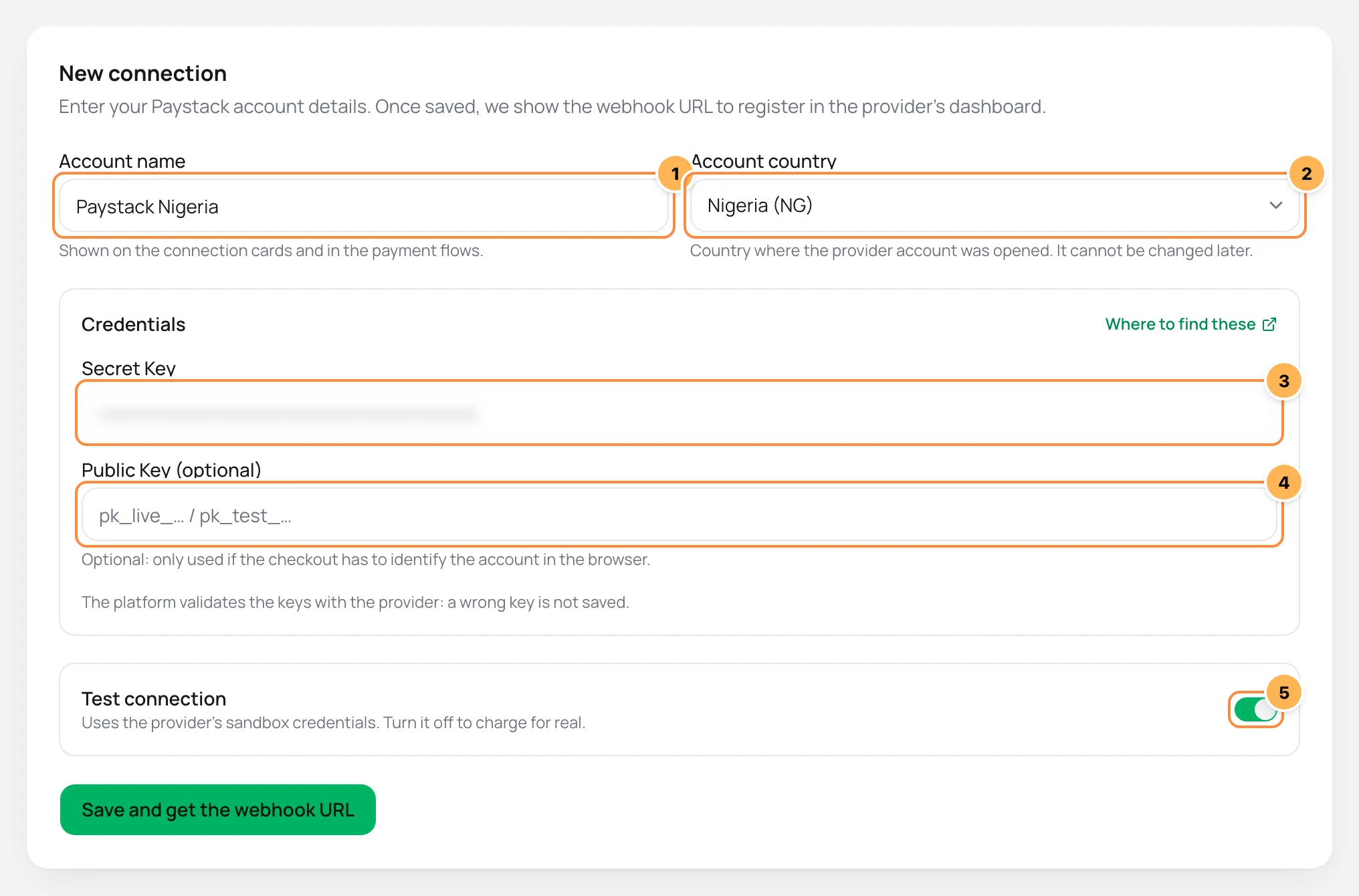
| # | Field | What to paste |
|---|---|---|
| 1 | Account name | A name to recognize the account, such as "Paystack Nigeria". It shows up in the payment flows. |
| 2 | Account country | The country where the Paystack account was opened. It cannot be changed later. |
| 3 | Secret Key | The Secret Key you copied in step 1. |
| 4 | Public Key | Optional. The Public Key for the same mode (pk_test_ or pk_live_). |
| 5 | Test connection | When on, only test keys work (sk_test_). Turn it off to charge for real with the sk_live_ key. |
- Click Save and get the webhook URL. Vipter checks the key with Paystack before saving. If it is wrong, nothing is saved and the error shows on the form.
Test mode starts on
The Test connection switch starts on so a first connection never charges anyone by mistake. To sell, create the connection with it off and the sk_live_ key.
If this is the store's first card account, Vipter creates the credit card and debit card payment flows pointing to it on its own. The store can charge right after step 4.
Step 3: paste the webhook URL in Paystack
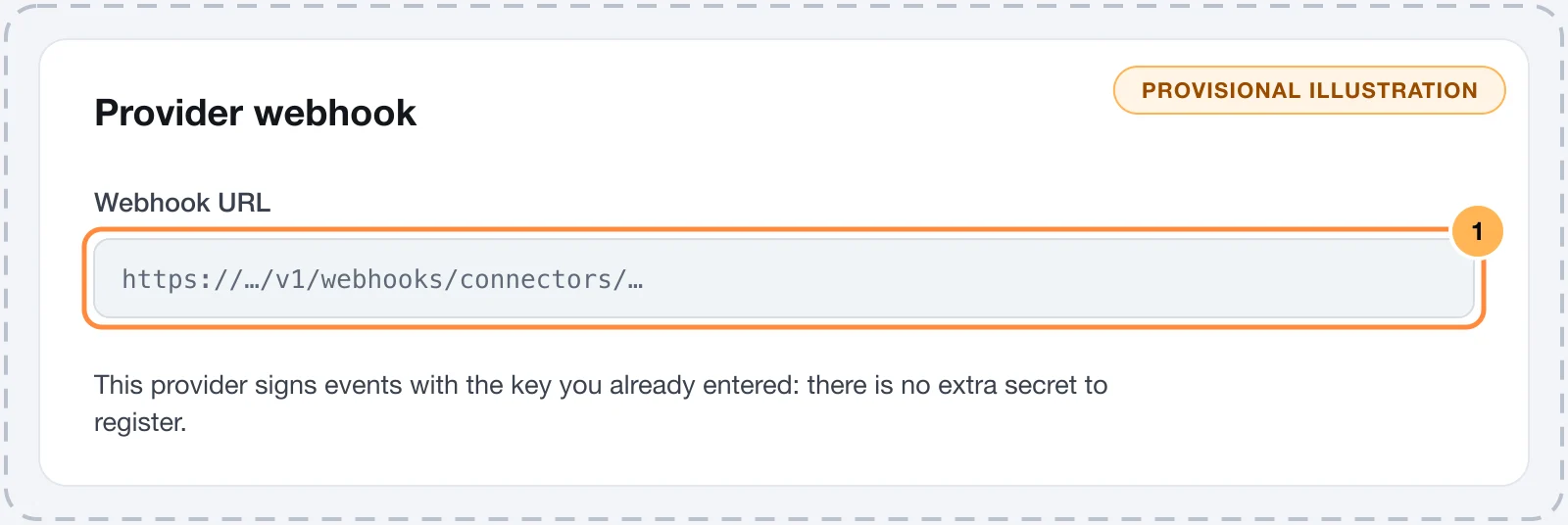
Through the webhook, Paystack tells Vipter what happens after the purchase, such as confirmed payments and refunds. Paystack signs each notice with your Secret Key, which Vipter already has. That is why there is no extra secret to copy: the connection card shows This provider signs events with the key you already entered: there is no extra secret to register.
- After saving, the connection card shows the Webhook URL. Copy it.
- In Paystack, open SettingsAPI Keys & Webhooks.
- Paste the URL into the webhook field for the connection's mode: Test Webhook URL for a test connection, Live Webhook URL to sell.
- Save the changes.
Change the key on both sides
If you create a new Secret Key in Paystack, also replace it in Vipter with the Replace keys button. Vipter uses the same key to charge and to verify the notices, so while it has the old key, both fail.
Step 4: test the connection
- On the connection card, click Test. Vipter calls Paystack with the saved key.
- Make a test purchase on an offer's checkout, with one of the test cards from Paystack's documentation (the Test Payments page).
It worked if
You see the message Connection OK. and the test purchase appears in SalesTransactions as paid.
Common problems
-
Your plan allows N active connector(s). Upgrade to add more.
Your plan reached its limit of active connections. Deactivate a connection you no longer use or change plans in Vipter plan.
-
Pick a country this provider serves.
Paystack is only accepted in the six countries on the list. Choose the country where the account was opened.
-
Paystack rejected the key
The key is incomplete, belongs to another account, or is a test key with test mode off (or the other way around). Copy the Secret Key again, not the Public Key, and check the Test connection switch.
-
Refunds made in Paystack do not show in Vipter
The URL was not pasted into the webhook field for the right mode. Check that a test connection is in Test Webhook URL and a live one in Live Webhook URL.
What to do next
- Review the payment flows to decide which account charges each payment and which one is the fallback.
- See how payments work to compare Paystack with the other providers.