Shipping: zones, methods and classes
Set up delivery zones, shipping methods with a fixed cost, a formula, free shipping or pickup, and the shipping classes of physical products.
Products with delivery ask for the address at checkout and show the shipping options for that address. You set up the rules in three parts:
- Zones: the regions you serve, such as "Southeast" or "Europe".
- Methods: each zone's shipping options, with cost and delivery time, such as "Standard delivery", "Free shipping" or "Pickup".
- Classes: groups of products with a different shipping cost, such as "Heavy" or "Fragile".
Vipter doesn't connect to carriers: the cost and delivery time are the ones you set.
Before you start
- Products of the Physical product or Physical subscription with delivery type. See Product types.
- The countries the store ships to, in Selling and shipping locations. See Selling and shipping countries.
- The Admin or Owner role in the Vipter project.
How the checkout picks shipping
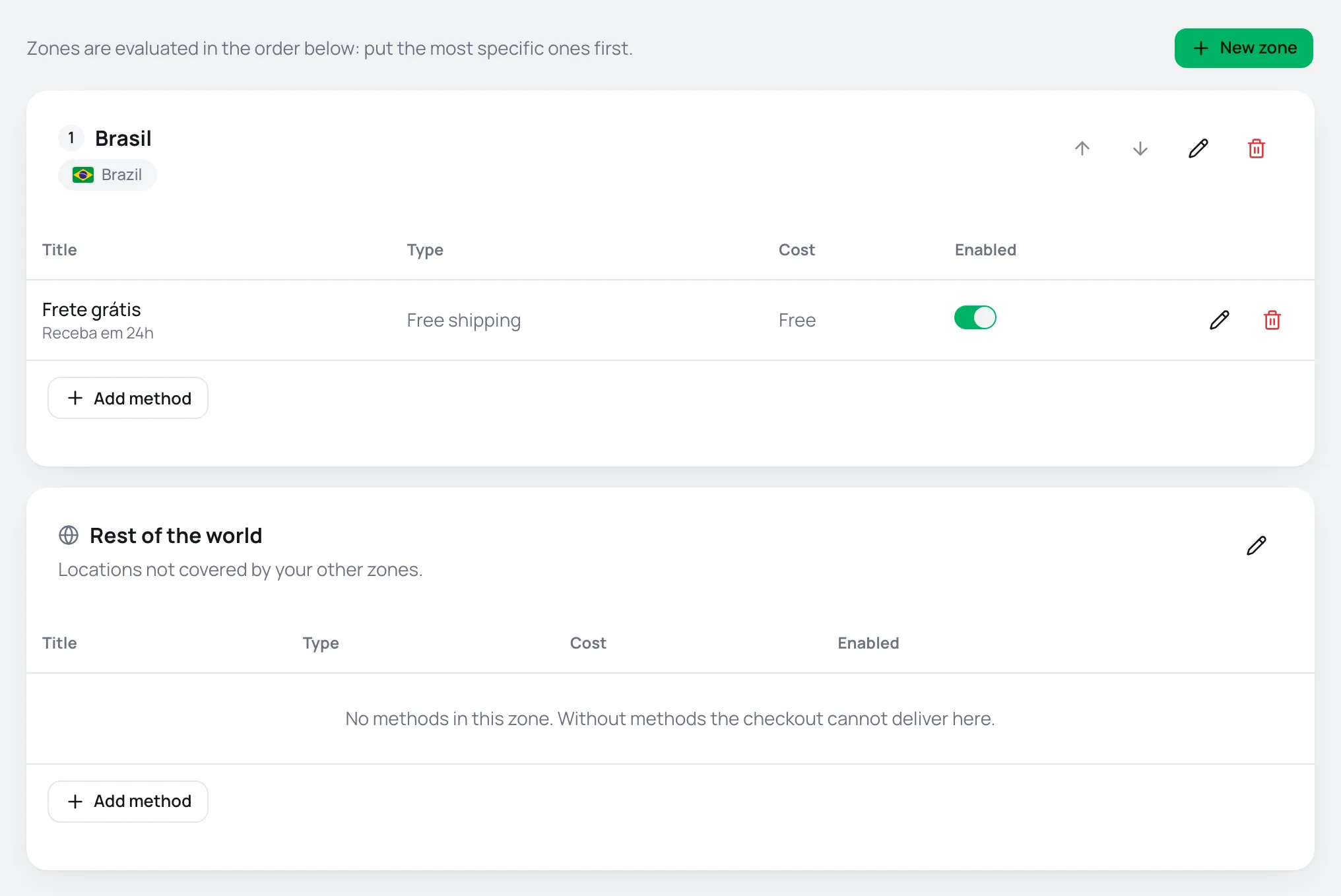
When the buyer completes the delivery address, the checkout goes through the zones in list order and uses the first one that matches the address. That zone's active methods show as shipping options, with cost and delivery time. If no zone matches, the Rest of the world zone applies.
That's why you should put the most specific zones first: "São Paulo city" before "Brazil".
Step 1: create the zones
- Open CatalogShipping and click New zone.
- Fill in the zone:
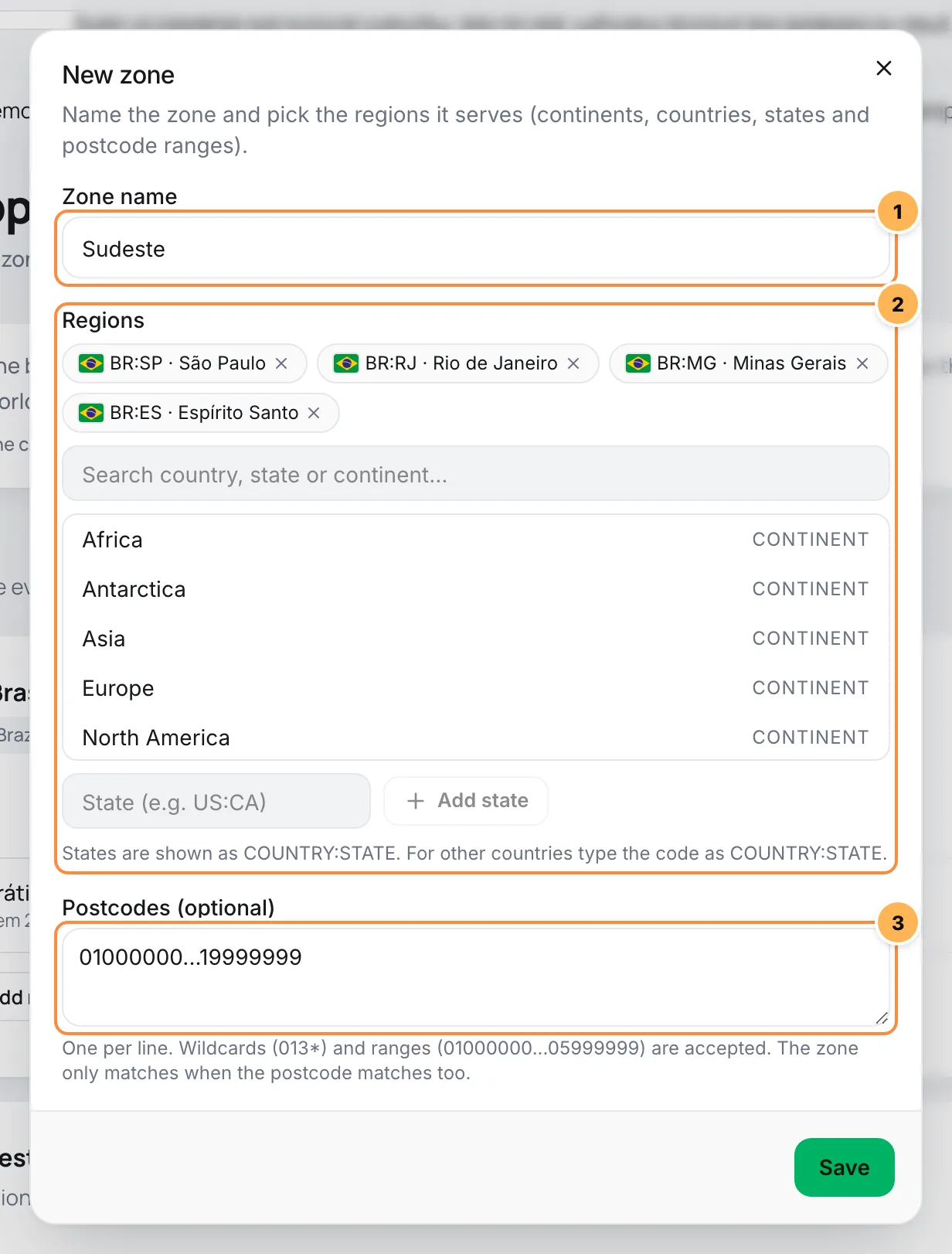
- Zone name: a name so you can recognize the zone.
- Regions: search for and click continents, countries or states. Brazilian states show in the search as
BR:SP. For a state in another country, type the code in theCOUNTRY:STATEformat, such asUS:CA, and click Add state. - Postcodes (optional): one per line. Accepts an exact CEP (Brazilian postcode,
01310-100), a wildcard (013*) or a range (01000000...05999999). With postcodes, the zone only matches if both the region and the postcode match.
Click Save. Use the arrows next to each zone to change the order.
The Rest of the world zone is created on its own the first time you visit the page. It always stays last, can't be deleted and serves any address the other zones don't cover. If you don't ship outside your zones, leave this zone without methods.
Step 2: add each zone's methods
On the zone card, click Add method. Choose the Type first: it can't change after saving.
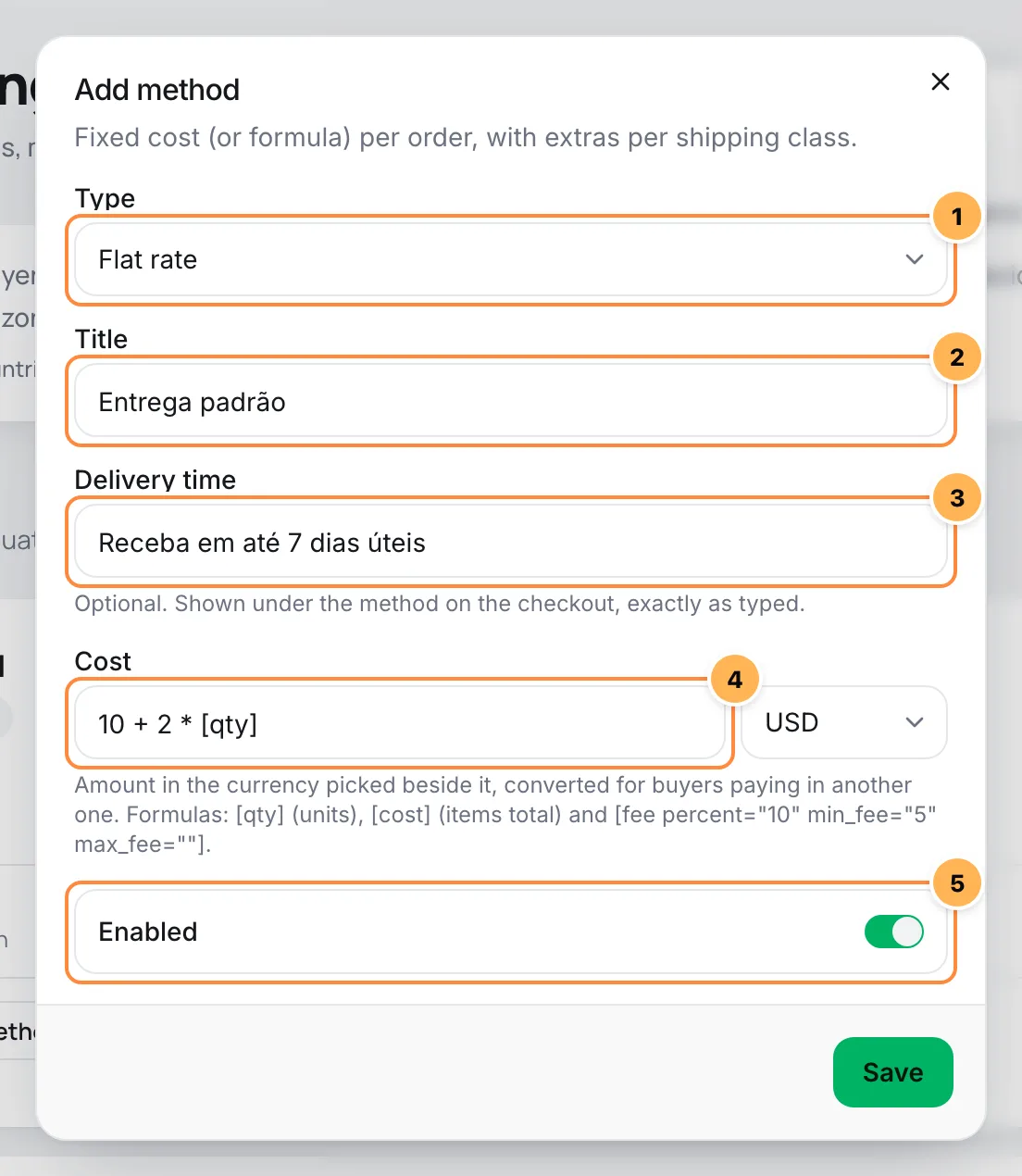
- Type: Flat rate, Free shipping or Local pickup.
- Title: the name the buyer sees, such as "Standard delivery" or "Sedex".
- Delivery time: optional, up to 80 characters. The checkout shows the sentence below the method, exactly as you typed it, such as "Arrives within 7 business days".
- Cost: the amount or formula, with the currency next to it. See the formulas below.
- Enabled: when off, the method disappears from the checkout without being deleted. You can also turn it on and off right in the zone's list.
Click Save.
Flat rate and formulas
The Flat rate charges the Cost per order. The field accepts a number (15 or 15,90) or a formula with +, -, *, /, parentheses and these placeholders:
| Placeholder | Becomes |
|---|---|
[qty] | The number of units with delivery in the order. A pack of 3 counts as 3. |
[cost] | The amount of the products in the order, before coupon discounts. |
[fee percent="10" min_fee="5" max_fee="30"] | A percentage of the products' amount, with an optional minimum and maximum. |
Examples:
| Cost | Result |
|---|---|
20 | R$ 20.00 on any order. |
10 + 2 * [qty] | R$ 10.00 plus R$ 2.00 per unit. With 3 units, R$ 16.00. |
[fee percent="5" min_fee="12"] | 5% of the products' amount, with a minimum of R$ 12.00. |
In the zone's list, the Cost column shows the formula with a calculated example. A formula that can't be calculated shows as Invalid formula, and the method stays out of the checkout until it's fixed.
The cost is in the currency chosen next to the field. When the buyer pays in another currency, the checkout converts it at the day's rate. See Prices in several currencies.
Cost per class
When the store has shipping classes (step 3), the Flat rate gets the Cost per shipping class block:
- One field per class: Added to the base cost when the product belongs to the class.
- No class cost: added when the product has no class.
- Calculation: with several products of different classes in the order, such as an order bump, Add every class cost adds the cost of each class, and Charge the most expensive class only adds only the highest one.
These fields also accept formulas.
Free shipping
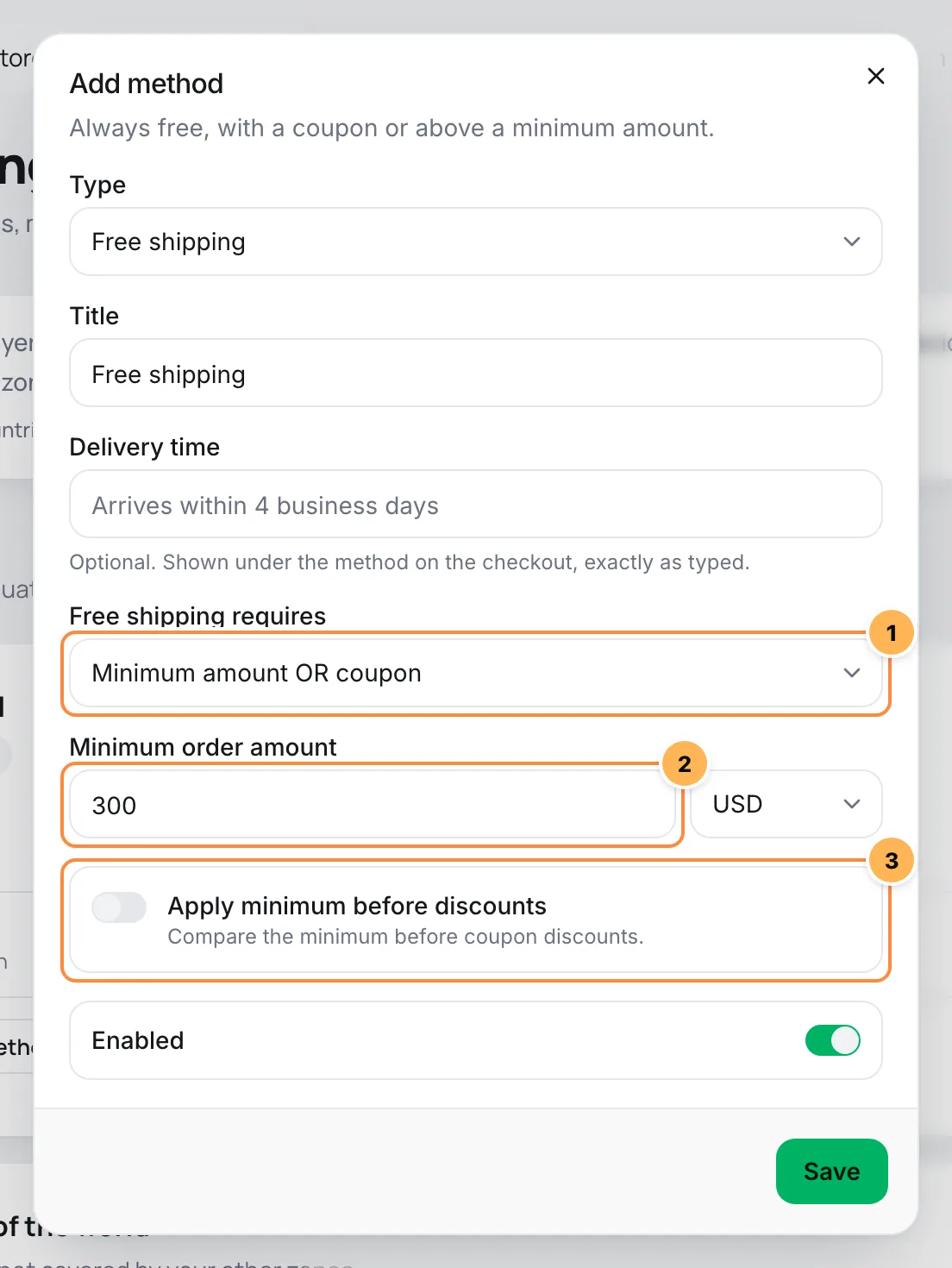
- Free shipping requires: when the method shows.
- N/A (always free)
- A free-shipping coupon: a coupon with Allow free shipping on. See Coupons.
- A minimum order amount
- Minimum amount OR coupon
- Minimum amount AND coupon
- Minimum order amount: the products' amount from which shipping is free. The order bumps' amount counts.
- Apply minimum before discounts: Compare the minimum before coupon discounts. When off, the minimum is compared with the amount after discounts.
When the buyer doesn't meet the condition, the method doesn't show.
Local pickup
The Local pickup has an optional Cost, which accepts the same formulas. Use the Delivery time to say where and when to pick up. The checkout still asks for the buyer's address.
Step 3: create the shipping classes
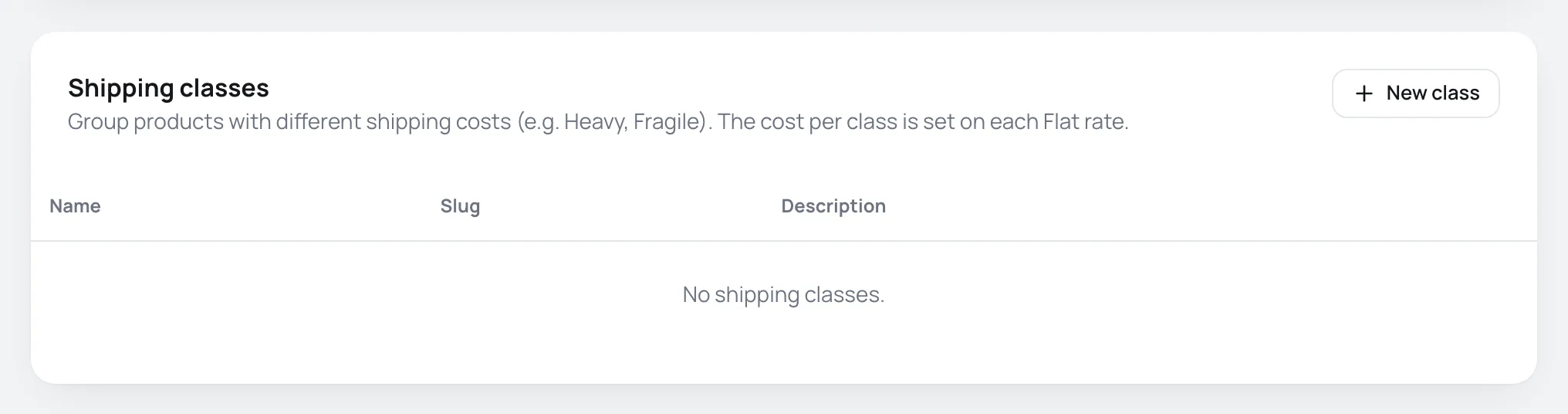
Classes separate products that cost more or less to ship. On the Shipping classes card, click New class and enter the Name, Slug and Description.
Then:
- On each product, choose the Shipping class in the Shipping block. See Create and edit a product.
- On each Flat rate, fill in the cost of each class.
Deleting a class leaves its products without a class.
Special cases
- Subscriptions with delivery: the checkout only shows methods that cost nothing, such as free shipping or pickup with no cost, because the subscription is always charged at the plan price. Include shipping in the offer price.
- Free shipping coupon: besides unlocking the Free shipping methods that require a coupon, it brings the cost of Flat rate methods to zero. Local pickup keeps its cost.
- Order bumps with delivery: add their units and class to the order. See Order bump.
- Upsell: a product with delivery sold in the upsell goes out without a shipping calculation.
- No delivery in the store: if Ship to is set to Disable shipping & shipping calculations, no product asks for a delivery address or calculates shipping.
It worked if
When you open a physical product's link and type an address in the zone, the checkout lists its methods with cost and delivery time.
Common problems
-
No methods in this zone. Without methods the checkout cannot deliver here.
The zone has no active methods. A buyer with an address in that zone can't complete the purchase. Add a method or remove the region from the zone.
-
No active shipping method: set up Shipping before selling this product.
Shows on the product form when the store has no active method. Create one on this page.
-
Invalid formula
The formula has a character or placeholder Vipter doesn't understand. Use only numbers,
+ - * / ( ),[qty],[cost]and[fee …]. -
The buyer doesn't see shipping options
The address fell into a zone without methods, the country isn't among the store's shipping countries, the free shipping condition wasn't met, or the offer is a subscription and the zone's methods have a cost.
-
The address fell into the wrong zone
Zones are checked in order. Move the more specific zone up the list.
What to do next
- Add weight, dimensions and class to your products.
- Create a free shipping coupon.
Coupons
Create discount coupons with an expiry, free shipping, spend and usage limits, share them with ?code= and track each use.
Product fiscal data
Fill in NCM, CFOP, the LC 116 item, the ISS rate and other codes on the product so its invoice uses its own values instead of the integration's defaults.