Transactions: search and filter
Find an order by its number or the buyer's e-mail, filter by status, seller and period, and read each column of the list.
Every payment in the store becomes an order in SalesTransactions: checkout sales, subscription renewals, extra charges, post-purchase offers and sales made from the dashboard. The list shows paid orders and also pending, declined and refunded ones. Every team role sees the list.
The page has two tabs: All transactions, with the orders, and Abandoned checkouts, with people who filled in the checkout and left without trying to pay. An abandoned checkout is not an order and never shows in the first tab. See Abandoned checkouts.
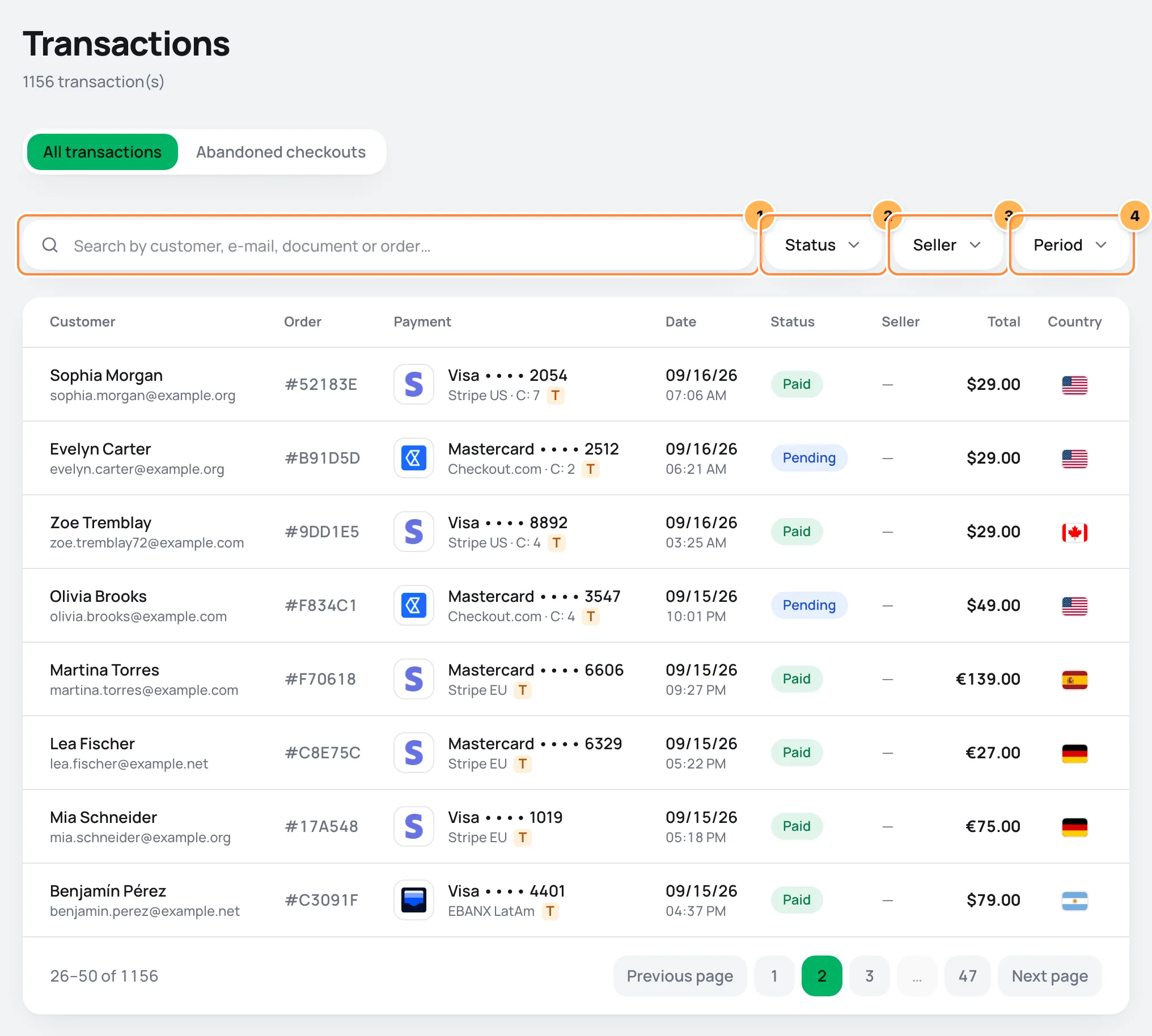
Search and filter
- Search: type and the list updates on its own. The search finds:
- the short order number, with or without
#(#9E866Bor9E866B), or the full ID; - the buyer's e-mail, whole or in part;
- the order's external ID, when it came from another system.
- the short order number, with or without
- Status: shows a single status. The statuses are explained in the table below.
- Seller: shows only one seller's orders. The filter shows when the store has sellers, and the list includes deactivated sellers so you can find their old sales. See Seller commissions.
- Period: Today, Last 7 days, Last 30 days, Last 90 days or Custom, with the From and To dates. The period goes by the date the order was created, not the payment date.
Filters add up. To go back to the full list, click Clear filters. The search and the filters stay in the page address, so a copied link opens the same filtered list for someone else on the team.
Search by the buyer's name
This list searches by order number, e-mail and external ID, even if the field hints at name and CPF. To find someone by name, look in SalesCustomers and open the order from the customer's page. See Customers.
The list shows 25 orders per page, newest first.
The columns
| Column | What it shows |
|---|---|
| Customer | The buyer's name and, below it, the CPF or CNPJ (Brazilian taxpayer IDs for individuals and companies). If the checkout did not ask for a document, it shows the e-mail. |
| Order | The short order number, such as #9E866B: the first six letters and digits of the ID. Click it to open the order detail. |
| Payment | The card brand and last digits, or the method (PIX, the Brazilian instant payment, or Boleto, the Brazilian bank payment slip). Below it, the provider account that charged, the number of installments (3x) and, for subscriptions, the cycle (C: 4 is the fourth charge). |
| Date | Day and time the order was created. |
| Status | The current status. See the table below. |
| Seller | The order's seller, when the store has sellers. |
| Total | The amount charged, in the order's currency. If there was a refund, the amount returned shows below it with a minus sign. |
| Country | The flag of the buyer's country. |
On smaller screens, some columns disappear and each order becomes a card with the buyer, the total, the status, the number, the date and the method.
The T badge for test
A Test badge shortened to T next to the provider means the order was charged on a connection in test mode: no real money moved. See Test your store.
The cycle number
On subscription orders, C: 1 is the first charge, C: 2 the first renewal, and so on. A retry after a declined charge keeps the same number, because it is still the same cycle. An extra charge has no number, because it is not part of the cycle.
Order statuses
| Status | What it means |
|---|---|
| Pending | Waiting for payment. A PIX or boleto that was issued and not paid yet stays like this. |
| Pre-authorized | The amount is reserved on the card but has not been charged yet. See Refund, capture and void. |
| Paid | Paid. |
| Failed | The payment did not go through, for example a declined card. |
| Canceled | The order was canceled without payment. |
| Refund pending | The refund was requested and the provider has not confirmed it yet. |
| Partially refunded | Part of the amount was returned. |
| Refunded | The full amount was returned. |
| Charged back | The buyer disputed the purchase with their card's bank. |
The team can change an order's status by hand, for example when the buyer paid outside the checkout. See Change the status manually.
Common problems
-
Nothing matches these filters
No order matches the search and the filters together. Click Clear filters and apply one filter at a time. If you searched by name or CPF, search by e-mail or look for the buyer in SalesCustomers.
-
No orders yet.
The store has not sold yet. Orders show up as soon as someone buys through a payment link. See Test your store to make a test purchase.
What to do next
- Open an order and see what each card shows in Order detail.
- Give a sale's money back in Refund, capture and void.
Understand the home dashboard
Pick the Dashboard's period and currency and learn exactly how each number and each chart is calculated.
Order detail
Read each card on an order's page, from what was bought to payment attempts, invoices, downloads and the sale's source, and see what each role can do there.