Change card or plan, or cancel your subscription
For people subscribed to a product from a store that uses Vipter. Change the card, switch plans, cancel or reactivate the subscription in the customer area.
In the store's customer area, you manage your subscriptions yourself: change the card, switch plans, cancel or reactivate. Each store chooses which of these options it offers. If a button doesn't show, the store hasn't allowed that action in the customer area, and you sort it out by contacting the seller.
First, sign in to the customer area with the purchase e-mail.
See the subscription
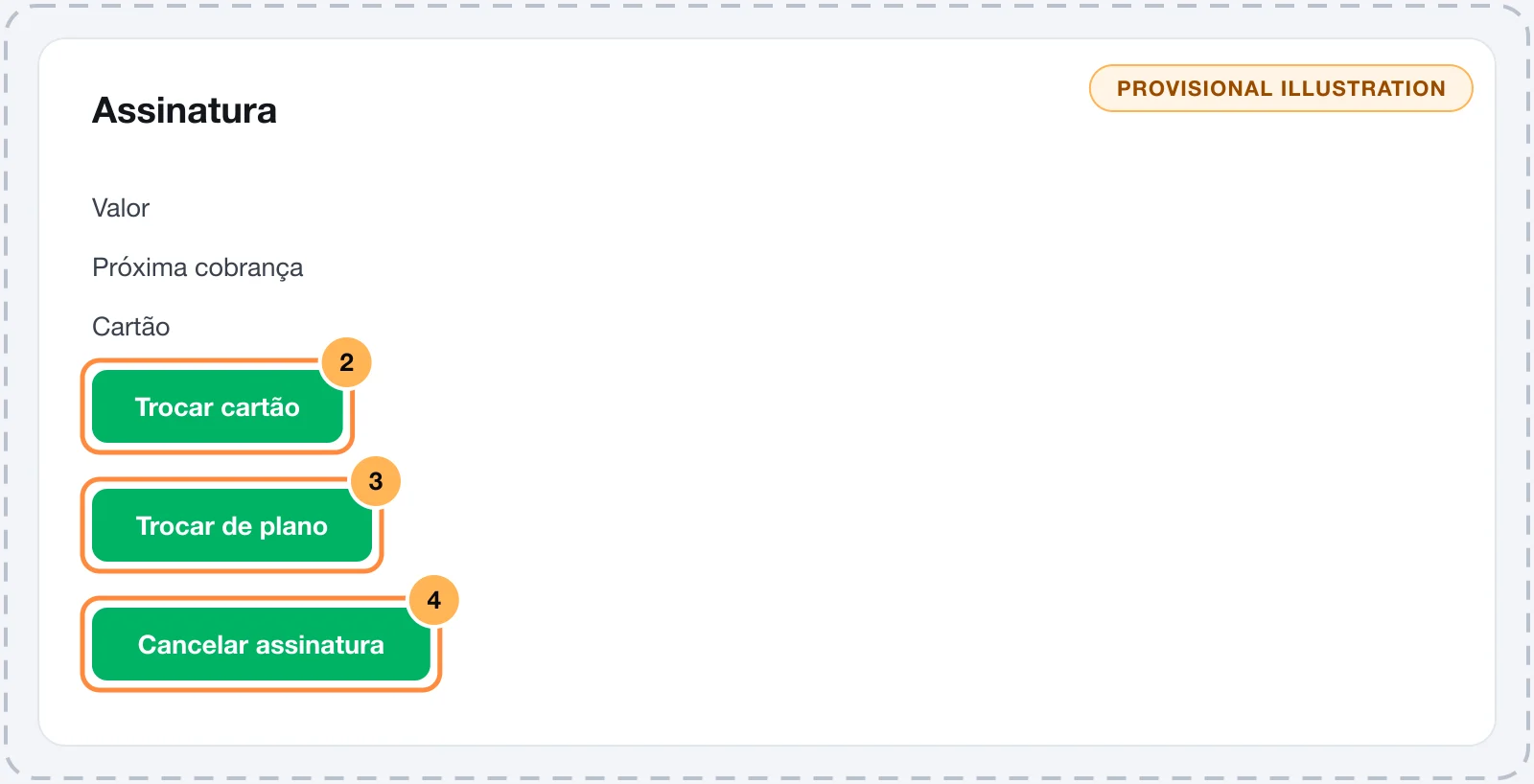
The home screen shows "Your subscriptions". Click "Manage" on the subscription you want to change. The page shows:
- the amount and how often you are charged;
- the next charge and the date the current period is paid until;
- the card used;
- the history of changes, such as renewals and plan changes.
Change the card
- Click "Change card".
- Choose one of your saved cards with "Use this card" or click "Add a new card" and fill in the details.
- Check the notice that the next charges will be made on the chosen card and click "Confirm change".
The new card applies to the next charges. The card details are encrypted in your browser.
When the payment failed
If the last charge didn't go through, the subscription shows "Payment failed" and the notice "Your last payment failed. Update your card to keep the subscription active.", with the date of the next attempt. Change the card, as the notice asks, to keep the subscription.
Switch plans
The "Change plan" button shows on active or trial subscriptions, when the store has other plans of the same product in the same currency.
- Click "Change plan" and choose the new plan.
- Read the notice about the charge. Depending on the store, the change:
- takes effect at the next renewal;
- charges or credits the prorated price difference today; or
- charges the full new plan today.
- Click "Switch to" followed by the plan name.
Cancel
- Click "Cancel subscription".
- Choose when to cancel:
- At the end of the current period: you keep access until the date shown and aren't charged again.
- Immediately: the subscription ends right away.
- If the store asks, tell them the reason. It is optional.
- Click "Confirm cancellation". To change your mind, click "Keep subscription".
Canceling doesn't refund amounts already paid. To ask for a refund, contact the seller.
Undo the cancellation
With the cancellation scheduled for the end of the period, the subscription shows the date it ends and the "Keep my subscription" button. Click it before that date and the subscription continues as usual.
Reactivate a canceled subscription
A canceled or ended subscription shows the "Reactivate" button. When you reactivate, charges resume on the saved card, on the next billing date.
Your cards
Under "Cards", you see the cards saved for your subscriptions:
- Add card: saves a new card.
- Set as default: picks the default card.
- Remove: deletes a card. A card used by an active subscription can't be removed: change the subscription's card first.
If the store doesn't allow changing cards in the customer area, the page says so and shows the cards for viewing only.
Your orders
Under "Orders", you see your purchases and renewals, with date, amount and status, and the refunds you received.
When the button doesn't show or the action is refused
The message "This action is not available in the customer area. Contact the store's support." means the store doesn't allow this change here. Contact the seller: only the store can make the change for you.
Sign in to the customer portal
For people who bought from a store that uses Vipter. Sign in to the customer area with your e-mail and a 6-digit code, no password.
Download the files you bought
For people who bought a digital product from a store that uses Vipter. Where to find the download links, how many times you can download and what to do when a link doesn't open.