How to pay: card, installments and PIX
For people buying from a store that uses Vipter. See how to fill in your details, pay by card, split into installments and pay with PIX.
This page is for you, if you are buying from a store that uses Vipter to take payments. Vipter handles the payment page. The product, the delivery and the customer service belong to the store. For any question about what you bought, contact the seller.
Before paying
The payment page has two steps: first your details, then the payment. The order summary, with the product and the total, is beside it, or above it on a phone.
On the first step, enter:
- Full name, e-mail and phone. Use an e-mail you can access: the store confirms the purchase through it, and you use it to sign in to the customer area later.
- Document. In Brazil, CPF (individual taxpayer ID) or CNPJ (company taxpayer ID). The checkout checks the digits on the spot and warns you if a number is wrong. In other countries, tax ID or passport.
- Address, when the product is delivered to your home or when the store asks for it. In Brazil, type the CEP (postal code) and the checkout fills in the street, neighborhood, city and state. Add the number.
If the store has a coupon for you, click the coupon field in the order summary and type the code. Subscriptions don't accept coupons.
Then click "Continue to payment". Your details stay editable on the next step.
Pay by card
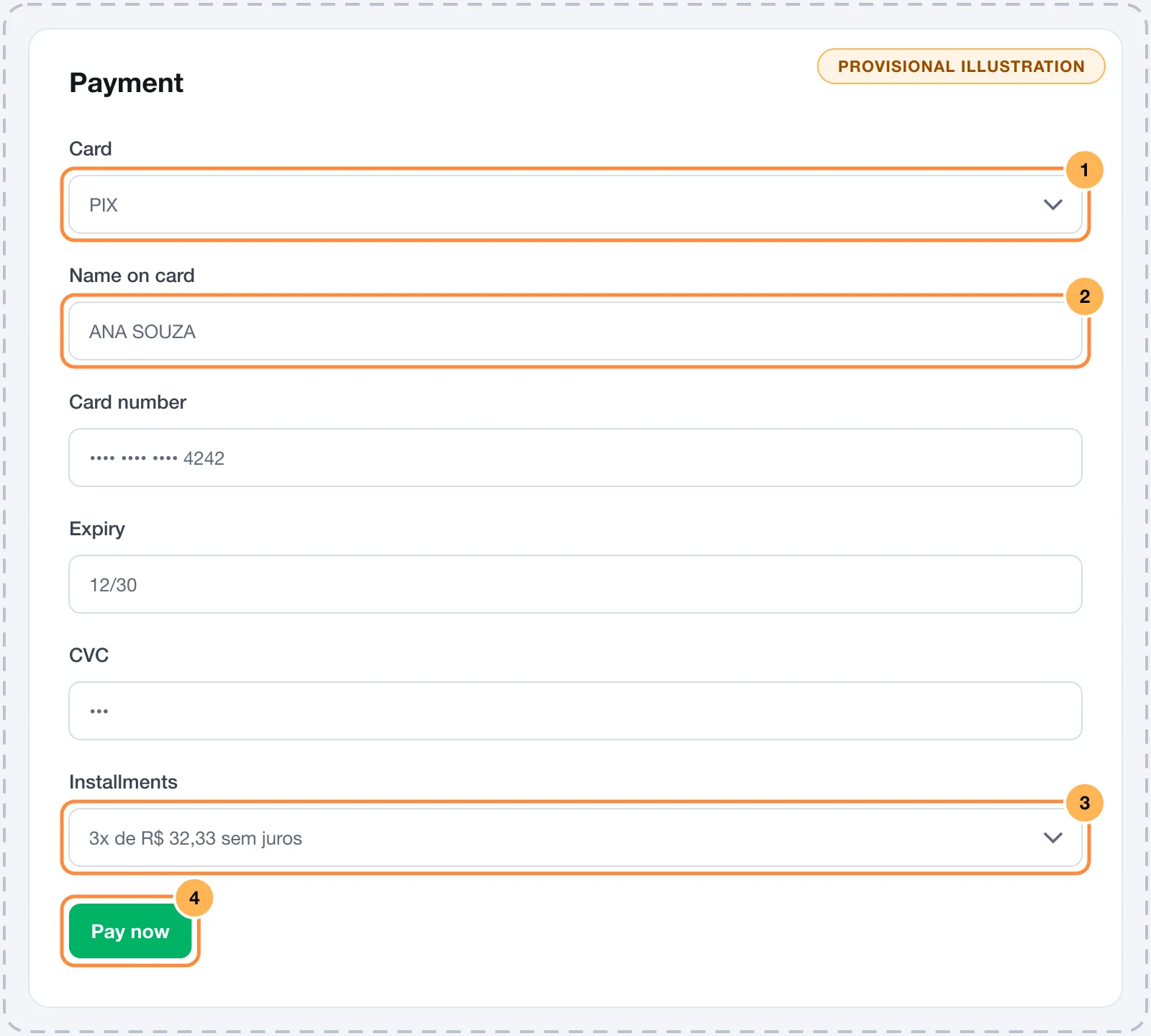
- Choose "Card", if there is more than one option.
- Type the name as it appears on the card, the number, the expiry date and the CVV (the 3 or 4 security digits).
- Choose the installments, if the store offers them.
- Click "Pay now", or "Subscribe now" for a subscription.
The number, expiry date and CVV are in secure fields, separate from the rest of the page. After clicking, wait for the confirmation without closing the page and without clicking again.
Installments
Installments show on purchases in reais, when the store offers them. Each option shows the installment amount and:
- "no interest", when the total is the same as the order's;
- the total with interest, when the installment has interest.
You can split into up to 12 installments, depending on the store's limit. Options with a very low installment don't show. When you choose installments, the order summary shows the amount in installments.
Pay with PIX
PIX (Brazil's instant payment) shows on one-time purchases in reais, when the store accepts it.
- Choose "PIX". The checkout shows which CPF or CNPJ the PIX will be issued to: the document you entered in your details. To use another one, correct the field above.
- Click "Generate PIX code".
- Scan the QR code with your banking app or copy the code with the "Copy PIX code" button and paste it in the app's PIX copy-and-paste area.
- Pay. The page checks for the payment by itself and moves on to the confirmation as soon as the bank reports it. You don't need to refresh.
The page shows how much time is left before the code expires. If the store sends e-mails, you also get the code by e-mail and can pay after closing the page, within the time limit. If the code expires, reload the page and generate a new one: an expired code can't be paid.
Subscriptions
For a subscription, you pay by card and the card is saved securely for the next charges. The order summary shows how often you are charged and, when they apply, notices about:
- Free trial: the card is validated today and only charged after the trial period.
- Different first charge: the first charge has another amount, shown in the summary.
- Number of charges: the subscription ends after a fixed number of cycles.
To change the card, switch plans or cancel later, see Change card or plan, or cancel your subscription.
Offers after the purchase
Some stores show a special offer right after the payment. Accepting makes a new, separate charge, on the same card, without typing it again, or with a new PIX. Declining takes you to your purchase's confirmation. The purchase you already made stays confirmed either way.
After paying
The confirmation page shows the order number, the total and the store's support e-mail. When the product has files, the download links show there. See Download the files you bought.
If the payment doesn't go through or stays under review, see Payment under review or declined.
Language and currency
Use the selector at the top of the page to change the language, when it shows. If the offer has a price in more than one currency, the order summary shows the currency and the "Change currency" option.
Several stores in the same account
Switch stores with the selector, create another store and understand how a new store uses the account's same plan, quota and seats.
Payment under review or declined
For buyers. What to do when the payment stays under review, when the card is declined, and what each message on the payment page means.