Generate labels and follow tracking
Buy the Melhor Envio or SuperFrete label on the order page, with a content declaration or the NF-e key, and let tracking mark the order as shipped and delivered.
On orders the checkout quoted with Melhor Envio or SuperFrete, the order page gets the Shipping label card. From there the team buys the label, prints it, follows the tracking and cancels it if needed.
The label is paid with your wallet balance at the carrier. That is why it is never bought on its own: only when someone on the team clicks. Frenet only quotes, because Frenet labels require a contract with Frenet.
Before you start
- Melhor Envio or SuperFrete connected and active, with the sender's CPF or CNPJ filled in.
- Balance in the carrier wallet.
- A paid order, with shipping quoted by that carrier in a Carrier method. See Carrier shipping.
- The customer with a valid CPF or CNPJ and the full delivery address, with district.
- The Admin or Owner role to generate and cancel labels. Any role sees the card and refreshes the tracking.
Step 1: open the order
- Open SalesTransactions and click the order.
- In the right column, the Shipping label card says which service and carrier the checkout quoted.
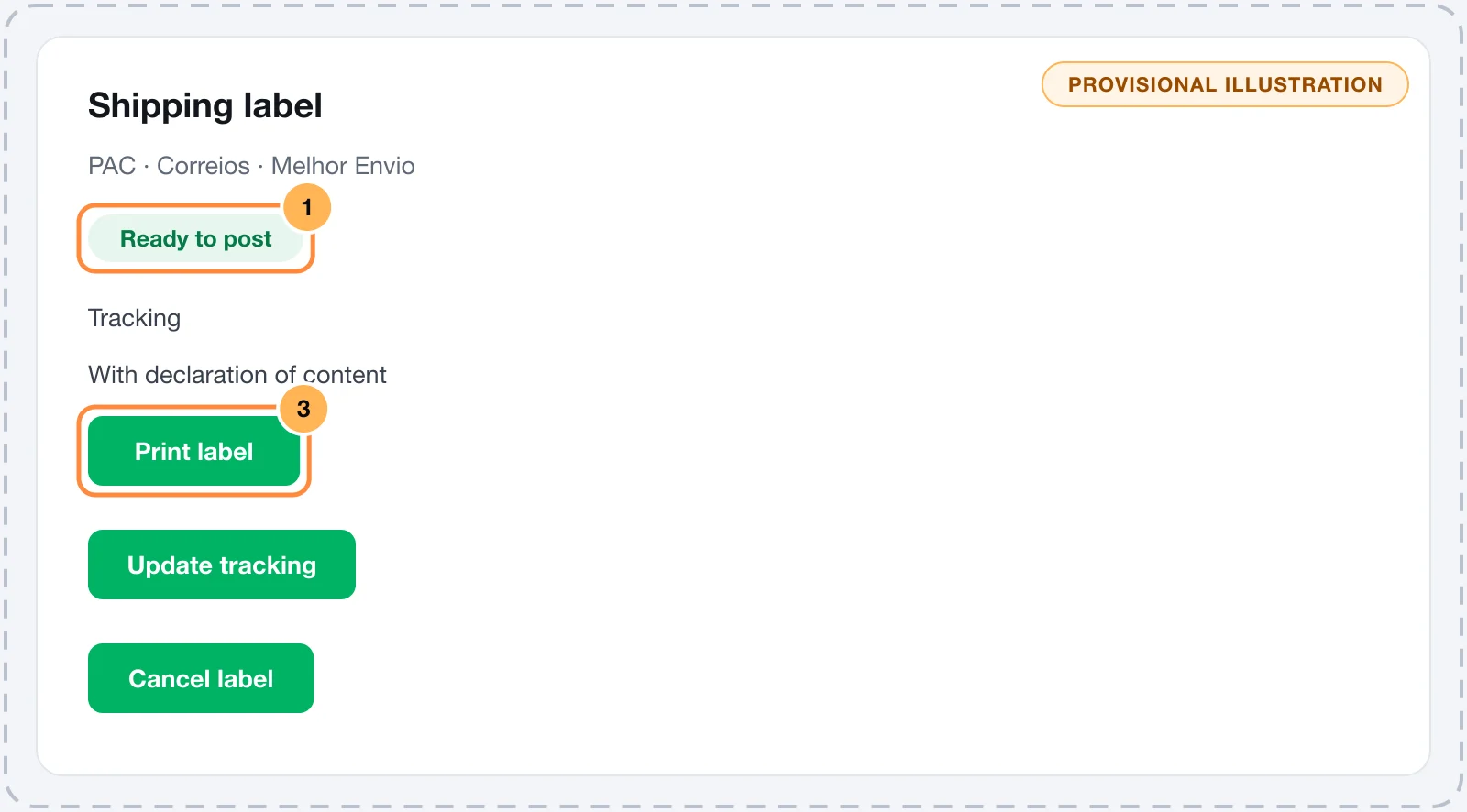
If the buyer paid the reserve price, because the carrier did not answer at checkout, the card warns: The carrier did not answer at checkout. Pick the service when generating the label.
Step 2: generate the label
- Click Generate label.
- The Generate label window quotes the order's package again. Current prices, without your markup. The amount comes out of your wallet at the carrier.
- Choose the service. The one the buyer chose comes marked with Chosen by the buyer, and you can switch to another.
- In NF-e key (optional), enter the invoice key or leave it blank. See the next section.
- Click the purchase button, which shows the chosen service's price.
It worked if
The Label generated message shows, the label becomes Ready to post and the Print label button opens the label to print.
With SuperFrete, the tracking code shows right after the purchase. With Melhor Envio, it shows on the next tracking check, or right away with Update tracking.
Content declaration or NF-e key
- No key: Without a key, the parcel travels with a declaration of content. The declaration lists each order item, with its name, quantity and value.
- With the invoice issued by Vipter: if an invoicing integration issued the order's NF-e, the field comes filled in. Filled with the invoice issued for this order.
- With another invoice: type the 44-digit access key. A key with any other number of digits is refused.
The content declaration is for shipments without an invoice. If your company issues an NF-e for the order, use its key. After the purchase, the card shows With NF-e or With declaration of content.
Label statuses
| Status | What it means | What to do |
|---|---|---|
| In the cart | The label went into the carrier's cart but was not paid. | Add balance and click Continue purchase. |
| Paid | Paid, the label still has to be generated at Melhor Envio. | Click Continue purchase. |
| Ready to post | Ready. | Print it, stick it on the package and post it. |
| Posted | The package is with the carrier. | The order becomes Shipped on its own. |
| Delivered | The package arrived. | The order becomes Delivered on its own. |
| Not delivered | A delivery attempt failed. | Keep an eye on it: the package can still be delivered. |
| Cancelled | Cancelled. | Generate another one, if needed. |
| Failed | The carrier refused the label. | Fix the reason, shown in red, and generate again. |
Continue purchase continues from the step that failed. The label is never bought twice.
Cancel a label
Cancel label shows while the label has not been posted.
- In the cart: Remove this label from the carrier's cart? Nothing was charged.
- Paid: Cancel this label? The carrier returns the amount to your wallet.
Melhor Envio does not cancel a label after posting or once a pickup was requested. With the label cancelled, you can generate another one on the same order.
Automatic tracking
After the purchase, Vipter follows the label until delivery:
- SuperFrete and Melhor Envio connected through the account: the carrier tells Vipter about every change.
- Melhor Envio with a token: Vipter checks every hour while the label waits to be posted and every three hours while the package is in transit.
- Update tracking, on the card, asks now instead of waiting for the next check.
A label not delivered within 60 days stops being checked.
What changes on the order
- Posted: the order becomes Shipped, with the carrier, the tracking code and link. The buyer gets the Order shipped e-mail, if the store sends e-mails, and the
order.shippedevent goes to webhooks and automations. - Delivered: the order becomes Delivered and the
order.deliveredevent is sent. Delivery sends no e-mail to the buyer. - If delivery is reported before posting, the order goes through Shipped first, with the e-mail.
The tracking link goes to the Melhor Rastreio page, which follows the Correios and the other carriers, when the platform does not send a link of its own. The team can still change the status by hand. See Mark shipping and delivery.
Common problems
-
Not enough balance in the carrier wallet. Add balance and click Continue purchase.
The label stays In the cart. Add balance to the carrier wallet and click Continue purchase.
-
The buyer has no valid CPF or CNPJ. Update the customer and try again.
The carrier requires the recipient's document. Fix the CPF or CNPJ on the customer page. See Customers.
-
The delivery address is incomplete. Fix CEP, street, district, city and state on the order.
The district is what is missing most often. Fix the delivery address on the order.
-
The sender's CPF or CNPJ is missing. Fill it in the carrier integration.
Fill in the CPF or CNPJ in Label sender, on the carrier's page.
-
The origin address is incomplete. In the carrier integration, check CEP, street, district, city and state, or enter another origin.
Check that the second line of the store address has the district ("Centro" or "Sala 4 - Centro"), or, on the carrier's page, turn off Ship from the store address and fill in the full origin.
-
This service no longer serves this address. Pick another one.
Click Generate label again and choose another service from the list.
-
The carrier refused the connection. Check the token or connect again.
Generate a new token or connect the account again on the carrier's page.
-
This order's carrier is not connected or is turned off.
Turn the integration back on in GeneralIntegrations.
-
This order already has an open label.
Someone else generated the label while the page was open. Reload the page.
-
The generate label button does not show
The order is not paid, was refunded, was not quoted by Melhor Envio or SuperFrete, or your role is not Admin or Owner.
-
The order went back to shipped after the team undid the shipment
While the carrier reports the package as posted, tracking marks the order as shipped again. To swap the label, cancel the current one before posting.
What to do next
- See what is left to ship in the shipping report in Understand the reports.
- Tell the buyer in your store's voice by editing the Order shipped e-mail in Transactional e-mails.
Connect Frenet
Quote at checkout the carriers you set up in Frenet, with markups, handling time and a default package. Frenet only quotes. Labels stay outside this integration.
How the ERP integration works
Send each paid order to Bling or ERP Olist as a sales order, with optional NF-e and stock, and get the invoice and the tracking back. Learn what goes, when it goes and what to do when an order fails.