Connect Frenet
Quote at checkout the carriers you set up in Frenet, with markups, handling time and a default package. Frenet only quotes. Labels stay outside this integration.
With Frenet connected, the checkout quotes, for the buyer's CEP, the carriers you set up in your Frenet account and shows each service as a shipping option. The integration only quotes: Frenet labels require a contract with Frenet, so the label is bought elsewhere and the shipment is marked by hand on the order page.
Before you start, read how carrier shipping works.
Before you start
- A Frenet account with the carriers set up.
- The store address in Brazil, with CEP, in Project settings, or another origin CEP.
- The Admin or Owner role in the Vipter project.
Step 1: copy the token in Frenet
- In the Frenet dashboard, open Dados cadastraisChave de acesso (Account details › Access key).
- Copy the token and keep it for step 2.
Frenet has no test environment: the quote is always the production one. Quoting costs nothing.
Step 2: connect in Vipter
- In the Vipter dashboard, open GeneralIntegrationsShippingFrenet.
- Fill in the Connection card.
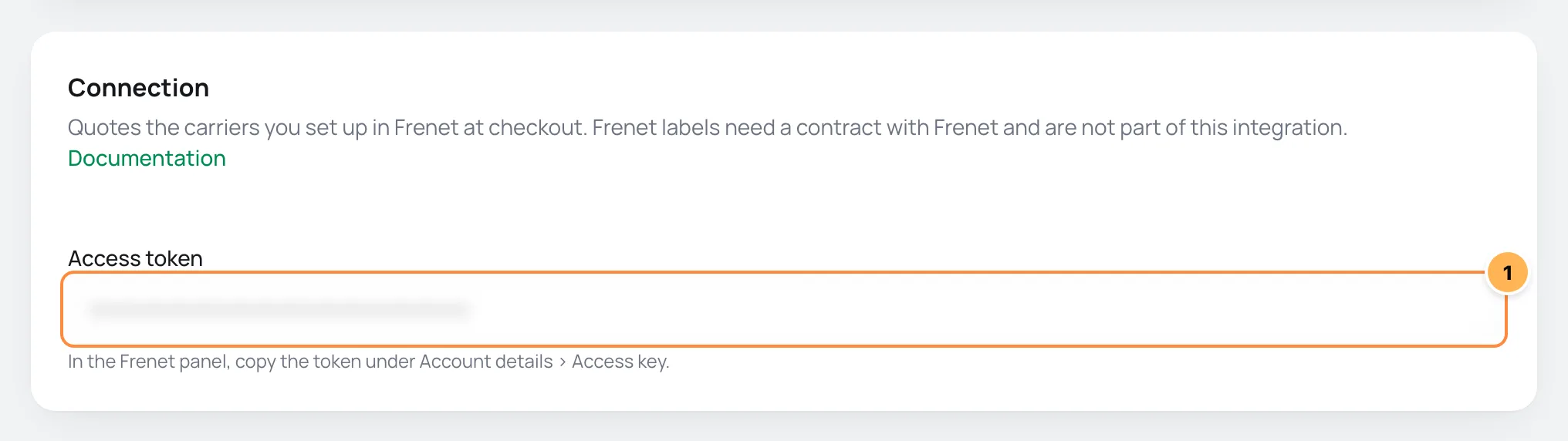
| # | Field | What to paste |
|---|---|---|
| 1 | Access token | The token from step 1. When editing later, leave it blank to keep the saved token. |
Step 3: origin
On the Origin and sender card, Where the parcels leave from. The origin CEP goes into every quote.
- Ship from the store address: on, the origin is the store address, shown right below.
- Off, enter another address. For Frenet, what counts is the CEP.
Frenet does not buy labels, so this page does not ask for the sender's details.
Step 4: adjust the checkout quote
The Checkout quotes card applies to every zone. Applies to every zone. Each "Carrier" method can still add its own markup and days.
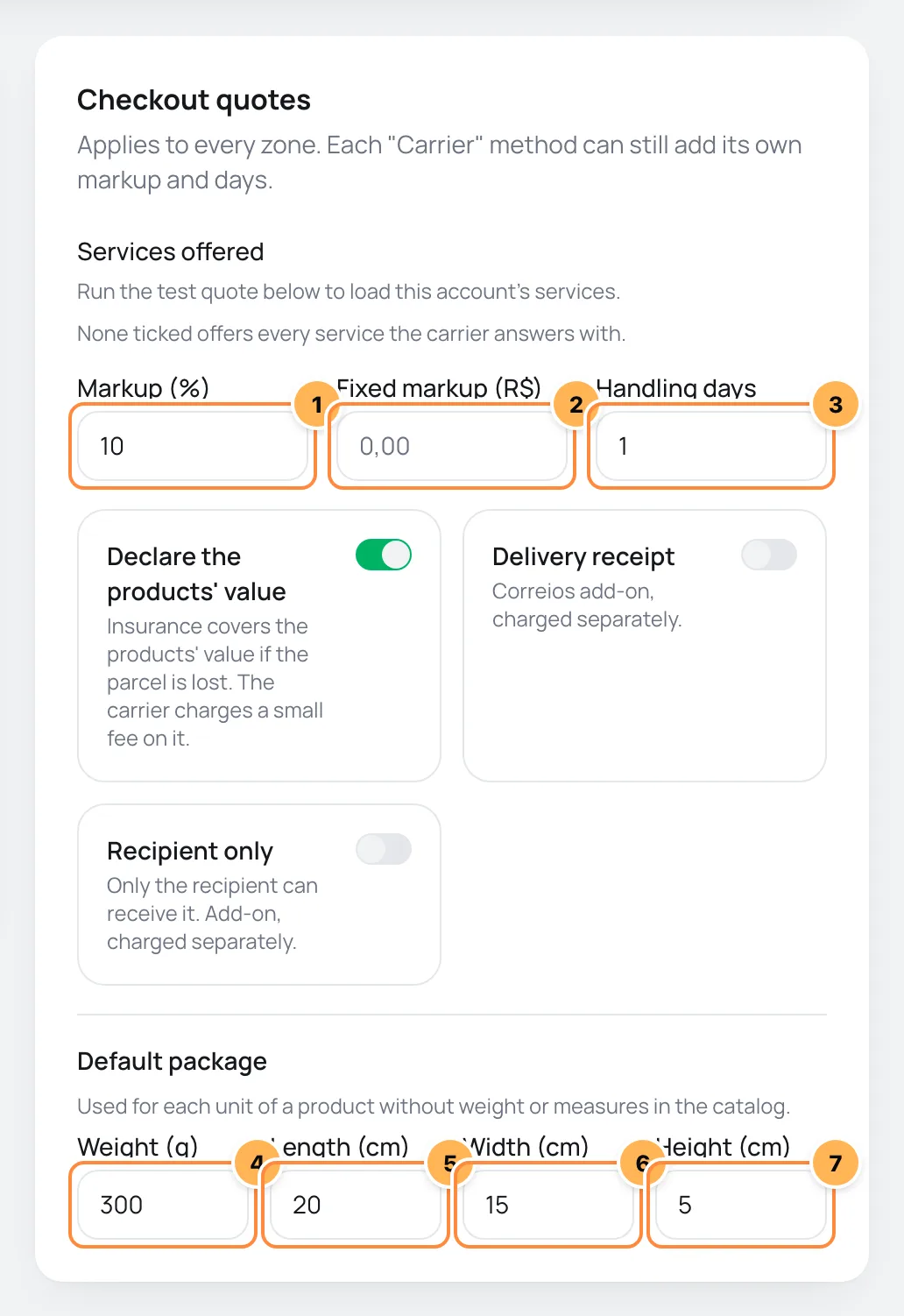
| # | Field | What to paste |
|---|---|---|
| 1 | Markup (%) | A percentage added to the Frenet price, such as 10. Blank, nothing is added. |
| 2 | Fixed markup (R$) | An amount in reais added after the percentage, such as 2.00. |
| 3 | Handling days | Business days added to the delivery time, the time the store takes to ship. |
| 4 | Weight (g) | The weight, in grams, used for each unit of a product without weight in the catalog. |
| 5 | Length (cm) | The length used for each unit of a product without measures. |
| 6 | Width (cm) | The width used for each unit of a product without measures. |
| 7 | Height (cm) | The height used for each unit of a product without measures. |
On the same card:
- Services offered: they show after the test in step 5. None ticked offers every service the carrier answers with.
- Declare the products' value: with the switch on, the products' value goes into the quote as the goods value. It comes on.
- Delivery receipt and Recipient only don't change the Frenet quote.
Finally, leave Active on and click Save.
Step 5: test the quote
- After saving, the Test quote card shows at the bottom of the page. Quotes the default package, declared at R$ 100, from the origin to the CEP you enter. Without a CEP, it quotes to the origin itself.
- Type a CEP and click Quote.
- Tick the services you want to offer in Services offered and save again.
It worked if
The list shows the services of the carriers in your Frenet account, with the price the checkout would charge. When you have a markup, the Frenet price shows right below.
Step 6: create the method in the zone
The checkout only quotes once a shipping zone has the Carrier method with Frenet. See the walkthrough in Carrier shipping.
How it works afterwards
- At checkout: each service becomes a shipping option, with the price and delivery time Frenet gives.
- After the sale: buy the label from your carrier or from Frenet and mark the shipment on the order, with the carrier and the tracking code. See Mark shipping and delivery.
Turn on, turn off and remove
- Active: Off, the checkout stops quoting with this platform.
- Remove: the checkout stops quoting with Frenet. The Carrier methods that use Frenet disappear from the checkout.
Common problems
-
The carrier refused the token. Create a new one and save again.
The token changed in Frenet. Copy it again and save.
-
The store has no Brazilian address with a CEP. Fill it in the project settings or enter another origin.
Fill in the address in Project settings or turn off Ship from the store address and enter the origin CEP.
-
The carrier has no service for this CEP.
No carrier in your Frenet account serves that CEP with the default package. Check the carriers active in Frenet.
-
The test says The carrier refused the quote
The Frenet answer shows right after, with the code and the reason for the refusal. Fix what it points to and test again.
What to do next
- Create the Carrier method in a zone in Carrier shipping.
- To buy labels through Vipter, connect Melhor Envio or SuperFrete.
Connect SuperFrete
Quote PAC, SEDEX, Mini Envios, Jadlog and Loggi through SuperFrete at checkout, buy the label on the order page with your wallet balance and get tracking updates right away.
Generate labels and follow tracking
Buy the Melhor Envio or SuperFrete label on the order page, with a content declaration or the NF-e key, and let tracking mark the order as shipped and delivered.